Meta Business Verification for WhatsApp: Steps and Documents (India)
Why to verify your business with Meta for WhatsApp, the steps in Meta Business Suite’s Security Centre, what documents and details Meta asks for, domain, phone and email confirmation, display name rules, timelines and common rejection reasons.
Meta business verification confirms that your business portfolio belongs to a real, registered business. You do it in Meta Business Suite › Security Centre: enter your legal name, address, phone number and website, upload official documents if Meta can’t find a matching record, and confirm you represent the business by email, phone, text, WhatsApp message or domain verification. Meta says a decision can take up to 14 working days.
You don’t need verification to start on the WhatsApp Business API, but it is one way to raise your messaging limit to 2,000, lets you register more numbers and templates, and is required for the blue-tick Official Business Account. This guide covers each step, what to prepare as an Indian business, display name rules and why submissions get rejected, as of October 2026.
Key takeaways
- Only someone with full control of the business portfolio can start verification, in Security Centre.
- Your legal name, address and website must match your official records exactly, and the website must load over HTTPS.
- Verification is one of three ways to reach the 2,000 messaging limit, and raises your caps to 20 phone numbers and 6,000 templates per account (with an approved display name).
- Business verification is not Meta Verified and gives no badge by itself. The blue tick comes from an Official Business Account, which requires verification.
- Meta decides within up to 14 working days; editing your business details later means verifying again.
Why verify your business for WhatsApp
Meta lists the WhatsApp Business Platform among the products that may require business verification. You can sign up and start sending without it, at a messaging limit of 250 unique people per 24 hours. Verifying unlocks more:
| What changes | Unverified | Verified |
|---|---|---|
| Messaging limit | 250 unique people per 24 h | Verification is one of three paths to 2,000; higher limits then depend on quality and usage |
| Registered phone numbers | 2 per business portfolio | 20 (also reached at the 2,000 limit) |
| Templates per messaging account | 250 | Up to 6,000, once at least one number also has an approved display name |
| Official Business Account (blue tick) | Not eligible | Can apply, if the other criteria are met |
The other two paths to 2,000 are partner-led verification (if a partner onboarded you) or delivering 2,000 template messages to unique people in 30 days using high-quality templates. More on limits in WhatsApp broadcast limits, and on getting started in WhatsApp Business API.
Before you start: what you need
- Full control of the business portfolio in Meta Business Suite. If you can’t open Security Centre, you probably don’t have it.
- Your exact legal business name and registered address, as they appear on your official documents.
- A business phone number and email address that can receive a code, or access to your website’s DNS or HTML for domain verification.
- A working website on HTTPS. Meta rejects websites that fail to load, aren’t HTTPS, or have links that lead to errors.
- Official documents in the business’s legal name, ready to upload if Meta asks.
Step-by-step: verify in Security Centre
- Open Meta Business Suite on a desktop browser and go to Security Centre.
- Click Start verification. If you see “Ineligible for verification”, you don’t need to verify there; Meta will email or notify you from the product that needs it.
- Enter your legal business name, address, phone number and website, exactly as on your legal records.
- Pick your business from the matches Meta finds. If none match, choose “My business isn’t listed” or “None of these match” and upload official documents when asked.
- Choose how to confirm your connection: email, phone call, text message, WhatsApp message or domain verification (a meta tag or DNS record on your website).
- Enter the code or complete domain verification, then click Done. Meta confirms it has received your submission.
Meta says a decision may take up to 14 working days, and you get a notification when the review is complete. Businesses that pay for ads through monthly invoicing can fill in their line-of-credit details instead of uploading documents.
Documents: what to prepare as an Indian business
Meta’s current Help Centre pages give a business licence or articles of incorporation as examples of the official documents it may ask for. They don’t publish a fixed India-specific list, and at the time of writing the upload screen in Security Centre shows the accepted types for your case. Whatever you upload, Meta’s rules are the same:
- The document must show your legal business name exactly as you entered it.
- The details you entered, including the address, must exactly match your legal business entity.
- Upload a clear, complete, current copy. Meta’s partner-verification checks list unclear text, corrupted or password-protected files, and a legal name missing from the document as reasons for rejection.
- Use your registered legal name, not a shop name or brand, unless the document shows both.
The Meta pages we checked don’t name GST certificates, Udyam registration or other Indian documents specifically, so we don’t promise any of them here. Upload an official document in the business’s legal name that shows your address, and check the accepted types on the upload screen. If your brand differs from your legal name, use the legal name for verification and the brand in your display name (see below).
Display name: rules and approval
Your display name is the business name customers see on your WhatsApp profile. You can start messaging before it is reviewed; the review starts automatically when your business becomes eligible for a higher messaging limit. Meta’s guidelines rest on three principles: comply with policy, represent the business accurately, and have a clear relationship with your legal name and branding.
Accepted
- Your business or brand name, for example “Example Store” or “Example Store Customer Care”.
- A brand with its owner made clear: “Example Snacks by Example Foods”, when your website shows the link.
- A recognisable abbreviation of your company name, consistent with your website.
Not accepted
- Generic words (“Fashion”) or a place on its own (“Mumbai”).
- “Official” or “Verified” in the name.
- Any reference to Meta, WhatsApp, Facebook or Instagram.
- Promotional text (“Example Store – 20% off”) or a website or email address.
- A name that can’t be found on your website or other external sources.
If a name is rejected, edit it to follow the guidelines or appeal through Meta’s developer support. You can change a display name up to 10 times in 30 days; after approval, the number must be re-registered within 14 days for the new name to apply.
Blue tick: Official Business Account vs Meta Verified
Business verification gives no badge. Meta’s developer docs say a number can request Official Business Account (OBA) status, shown as a blue checkmark, in WhatsApp Manager › Phone numbers › Profile when:
- The business complies with the WhatsApp Business Messaging Policy.
- It has been on the WhatsApp Business Platform for at least 30 days.
- The business portfolio is verified.
- The number has two-step verification turned on.
- The number’s display name is approved.
Meta reviews each request; if it’s denied you can apply again after 30 days. Meta’s Help Centre article on display names still describes OBA as being for “notable” businesses, so meeting the criteria doesn’t guarantee approval. Meta Verified is a separate paid subscription that WhatsApp describes for the WhatsApp Business app.
Common reasons verification is rejected
- Name mismatch: the legal name you typed differs from your documents (spelling, “Pvt Ltd” vs “Private Limited”, a brand instead of the legal name).
- Address mismatch between the form and your documents.
- Website problems: it doesn’t load, isn’t HTTPS, or has broken links.
- Documents Meta can’t read or match: unclear text, corrupted or password-protected files, or a legal name that doesn’t appear in the document.
- False or misleading information, or trying to verify a business you don’t own or represent.
If you’re rejected, Security Centre shows the status and whether you can appeal. Fix the mismatch, update your business details if they were wrong, and submit again.
After verification, in Automate AI
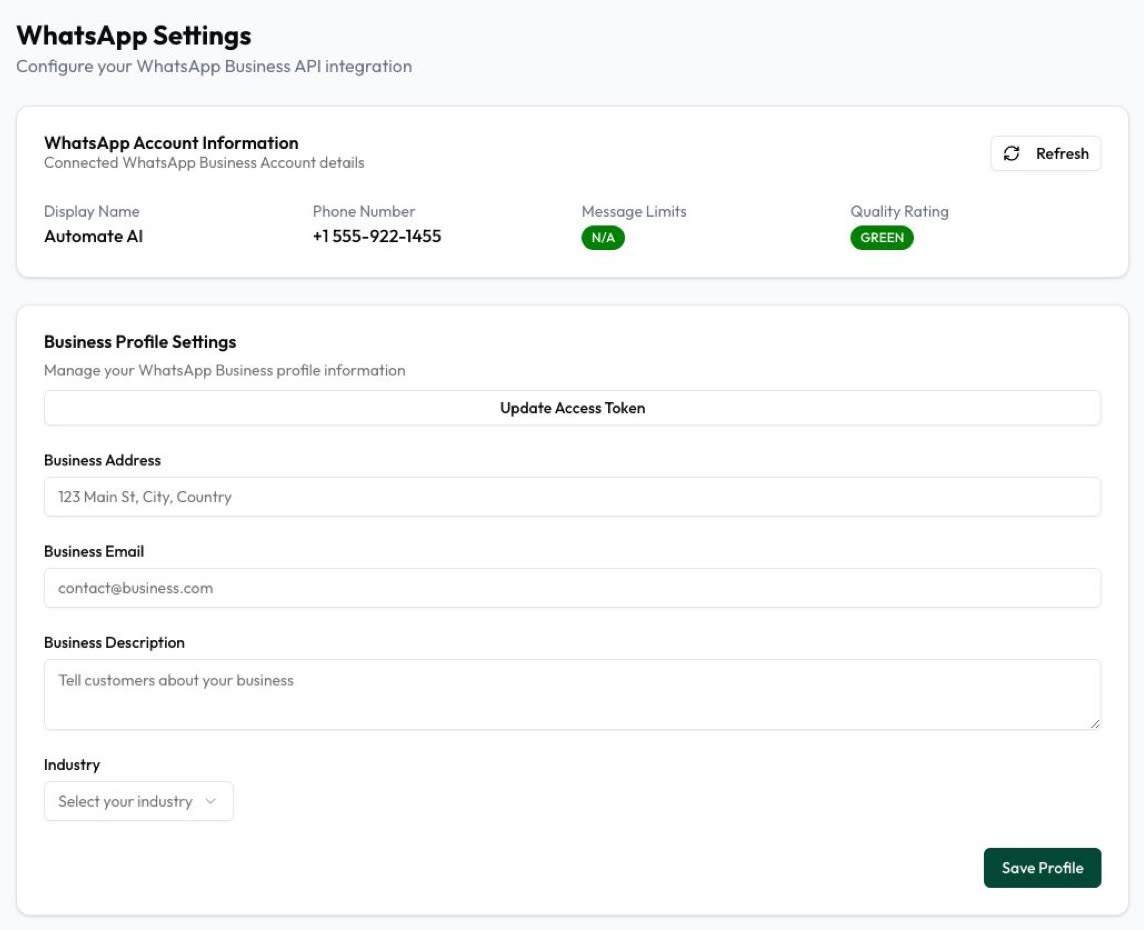
Verification happens in your own Meta Business Suite. Once your number is connected to Automate AI, Settings › WhatsApp shows your display name, phone number, message limit and quality rating, so you can see when your limit rises. You create templates in the app, see their approval status, and send campaigns to opted-in contacts. A larger limit is only useful if quality stays high, so read WhatsApp opt-in before your first big send.
Questions about connecting your number? Contact us or see our WhatsApp Business API page.
Frequently asked questions
How long does Meta business verification take?
Meta says a decision may take up to 14 working days. You get a notification when the review is complete.
Is business verification required for the WhatsApp Business API?
Not to start. You can begin at 250 unique people per 24 hours. Verification is one way to reach 2,000 and is required for an Official Business Account.
Does business verification give me a green or blue tick?
No. Meta says business verification doesn’t give a verified badge. The blue checkmark comes from Official Business Account status, which requires verification plus other criteria.
Which documents does Meta accept in India?
Meta’s Help Centre gives a business licence or articles of incorporation as examples and doesn’t publish a fixed India list. Upload a current, official document that shows your exact legal name and address; Security Centre shows the accepted types when it asks.
Can my display name be different from my legal name?
Yes, if there is a clear relationship, for example your brand name as shown on your website, or “Brand by Company”. Generic words, “Official”, promotions and URLs are not allowed.
Do I need a website to verify?
Meta asks for your website during verification and rejects sites that don’t load or aren’t HTTPS, so have a working HTTPS website before you start.
Sources
- Meta Business Help: Verify your business in Meta Business Suite
- Meta Business Help: About business verification
- Meta Business Help: Why was my business verification rejected?
- Meta: account_update webhook (partner-led verification rejection reasons)
- Meta: Messaging limits
- Meta: Business phone numbers
- Meta: Templates overview
- Meta Business Help: Display name guidelines
- Meta Business Help: About WhatsApp Business display name
- Meta: Display names
- Meta: Official Business Accounts
- WhatsApp Business: Meta Verified for business
WhatsApp rules and prices change. We check these guides against Meta’s documentation, but always confirm current terms with Meta before you rely on them. Questions? Message us on WhatsApp at +91 836 977 8812.