WhatsApp Business Account Restricted or Banned: Causes and Fixes
Why a WhatsApp Business API account gets restricted or banned, how quality ratings, template pausing, restrictions and bans differ, where to check your status in Meta’s tools, how to request a review, and a prevention checklist.
Most “banned” WhatsApp Business API accounts are not banned. They are usually restricted for a set time after repeated policy violations, or a template has been paused for low quality. Meta’s enforcement goes step by step: a warning, a 1–3 day block on templates, a 5, 7 or 30-day block on all messages, an account lock, and only then permanent removal. Severe harms such as scams can lead to immediate offboarding.
The fix depends on which of these you are facing. This guide explains each one as of October 2026, the usual causes, where to see what happened in Meta Business Suite and WhatsApp Manager, how to request a review, and how to avoid it happening again.
Key takeaways
- Template quality, phone-number quality, account restrictions and full bans are different things with different fixes.
- Low-quality templates are paused for 3 hours, then 6, and disabled the third time. That doesn’t restrict the whole account by itself.
- Policy violations escalate: warning → 1–3 day template block → 5, 7 or 30-day messaging block → account lock → permanent disablement.
- Violation details and the Request review button are in Business Support Home. Meta says reviews typically take 24 hours (its developer docs say 24–48).
- The best prevention is consent: message only opted-in people, sell only what the Commerce Policy allows, and keep promotions relevant.
Restricted, paused or banned: know which one you have
| What happened | What it means | What to do |
|---|---|---|
| Template quality Yellow or Red | People are blocking, reporting or ignoring that template | Improve targeting or wording before it is paused |
| Template paused or disabled | A Red template is paused for 3 h, then 6 h, then disabled | Stop campaigns using it; edit and resubmit |
| Phone-number quality Yellow or Red | Feedback on all your messages over the last 7 days is poor | Find the cause using the block reasons; stop low-quality sends |
| Account restricted | A policy violation has blocked templates, all messages or adding numbers for a set time | Read the violation; fix it; request a review if it’s wrong |
| Account locked or disabled | An indefinite block, or removal from the platform | Request a review in Business Support Home |
Two things are not account problems even though messages fail: error 131049 (WhatsApp’s per-person marketing limit) and error 131050 (the person has stopped your marketing messages). Your messaging limit is also separate; see WhatsApp broadcast limits.
Quality ratings: templates and phone numbers
Template quality and pausing
Every template has a quality rating based on usage, customer feedback and engagement: Green (high), Yellow (medium), Red (low) or Unknown (not enough data yet). A Red template is paused automatically: 3 hours the first time, 6 hours the second, and disabled the third. Paused sends are rejected (and not charged). Meta says pausing doesn’t initially affect the phone number, but a business that keeps sending low-quality templates can see its number affected.
Phone-number quality
Your number’s quality rating reflects the messages customers received over the past seven days, based on feedback such as blocks and reports. It appears in WhatsApp Manager under Phone numbers as Green, Yellow or Red. Hover over a Yellow or Red rating to see block reasons when available: “No longer needed”, “Didn’t sign up”, “Spam”, “Offensive messages” or no reason.
Meta discontinued the old Flagged and Restricted phone-number statuses on 7 October 2025. Quality still matters: messaging limits only rise when you send high-quality messages, and Meta says its systems rate-limit businesses whose quality stays low for a long time.
How Meta enforces policy violations on the API
Meta’s enforcement system applies to accounts that repeatedly break the WhatsApp Business Messaging Policy, the Commerce Policy or the Business Terms. Each step lasts longer than the one before:
- Warning naming the policy you broke.
- 1 or 3-day block on sending marketing, utility and authentication templates, and on adding phone numbers.
- 5, 7 or 30-day block on sending any messages, and on adding phone numbers.
- Account lock: an indefinite block on all messages, removable only by appeal.
- Permanent disablement if nothing changes after multiple warnings and blocks.
For severe harms, including scams, child exploitation, terrorism and illegal drug sales, Meta can offboard an account immediately without these steps. The policy also says that if Meta terminates an account for violations, it may stop you and your organisation from using WhatsApp products in future.
Common causes of restrictions and bans
1. Messaging people who didn’t opt in
Bought lists, old contacts and scraped numbers are the fastest route to “Didn’t sign up” and “Spam” blocks. WhatsApp’s policy only lets you message people who gave you their number and agreed to hear from you. See WhatsApp opt-in.
2. Too many blocks and reports
Even opted-in contacts block irrelevant or too-frequent promotions. Meta says accounts that receive excessive negative feedback may be limited or offboarded.
3. Selling something the Commerce Policy prohibits
Meta’s list of API violations covers transacting in, among others: alcohol, tobacco and e-cigarettes, adult products, weapons and fireworks, gambling, prescription and recreational drugs, unsafe supplements, live animals and pet services, certain medical devices, real or fake currency (including crypto), dating services, counterfeit goods, digital subscriptions and accounts, and misleading models such as multilevel marketing or payday loans. Some regulated categories are allowed only in limited countries under specific conditions, so read the policy for your sector.
4. Misusing template categories
Meta lists template misclassification, such as sending promotions as utility templates, as a violation. Our guide to WhatsApp template messages explains the categories.
5. Unofficial tools and unauthorised bulk sending
The policy says Meta can limit or remove access for services that message people at scale in an unauthorised way. Use the official API through a provider, not bulk-sender extensions.
6. Misleading or impersonating
Don’t use another brand’s name, mislead people about who you are, or send deceptive content. Keep your business profile accurate.
How to check your status
- Business Support Home (Meta Business Suite › All tools › Business Support Home): each violation shows the policy, examples, active restrictions, what happens if it repeats, and how to appeal.
- WhatsApp Manager: a banner for violations; Phone numbers shows your status and quality rating; Manage templates shows each template’s quality.
- Email and notifications: Meta emails all business portfolio admins, so keep admin contact details up to date.
- Webhooks: the account_update webhook reports violations, restrictions (with type and expiry) and disabled or reinstated accounts.
How to appeal: request a review
If you believe you didn’t break the policy, request a review. Meta’s Help Centre steps for API accounts:
- Open Business Support Home and click View my accounts.
- Select the business portfolio (it may say “Assets restricted”), then the WhatsApp account (“Account issues” or “Account disabled”).
- In Activity issues › Available for review, open the policy issue and click See details.
- Click Request review, choose an appeal reason, add details that explain your case, and click Submit.
Meta’s Help Centre says violations can be appealed within 90 days and reviews typically take 24 hours; its developer docs say 24 to 48 hours. The result is either Reversed (your account goes back to its previous status) or Unchanged. Restricted and disabled accounts can still appeal. Meta notes that not every spam violation can be appealed, so sometimes you must wait the restriction out. You can also acknowledge a violation instead of appealing.
Template rejections have their own appeal in WhatsApp Manager › Message templates, and Meta decides those within 24 hours.
If you use the WhatsApp Business app instead
A banned app account shows “This phone number can’t use WhatsApp” with a Request review option in the app; WhatsApp says most reviews finish within 24 hours. If no review option appears, the ban is final. Third-party services can’t ban or unban an account.
Prevention checklist
- Message only people who opted in to hear from your business, and keep a record.
- Add a “Stop promotions” quick-reply button to marketing templates and honour every opt-out.
- Check the Commerce Policy before promoting a product category.
- Pick template categories honestly: any promotion is marketing.
- Segment campaigns; don’t send every offer to every contact.
- Watch template and number quality after each campaign, and read block reasons.
- Pause or rewrite Yellow and Red templates before they are paused for you.
- Use the official API only; never bulk-sender extensions or unofficial apps.
- Keep admin emails current so you see warnings early.
Stay compliant with Automate AI
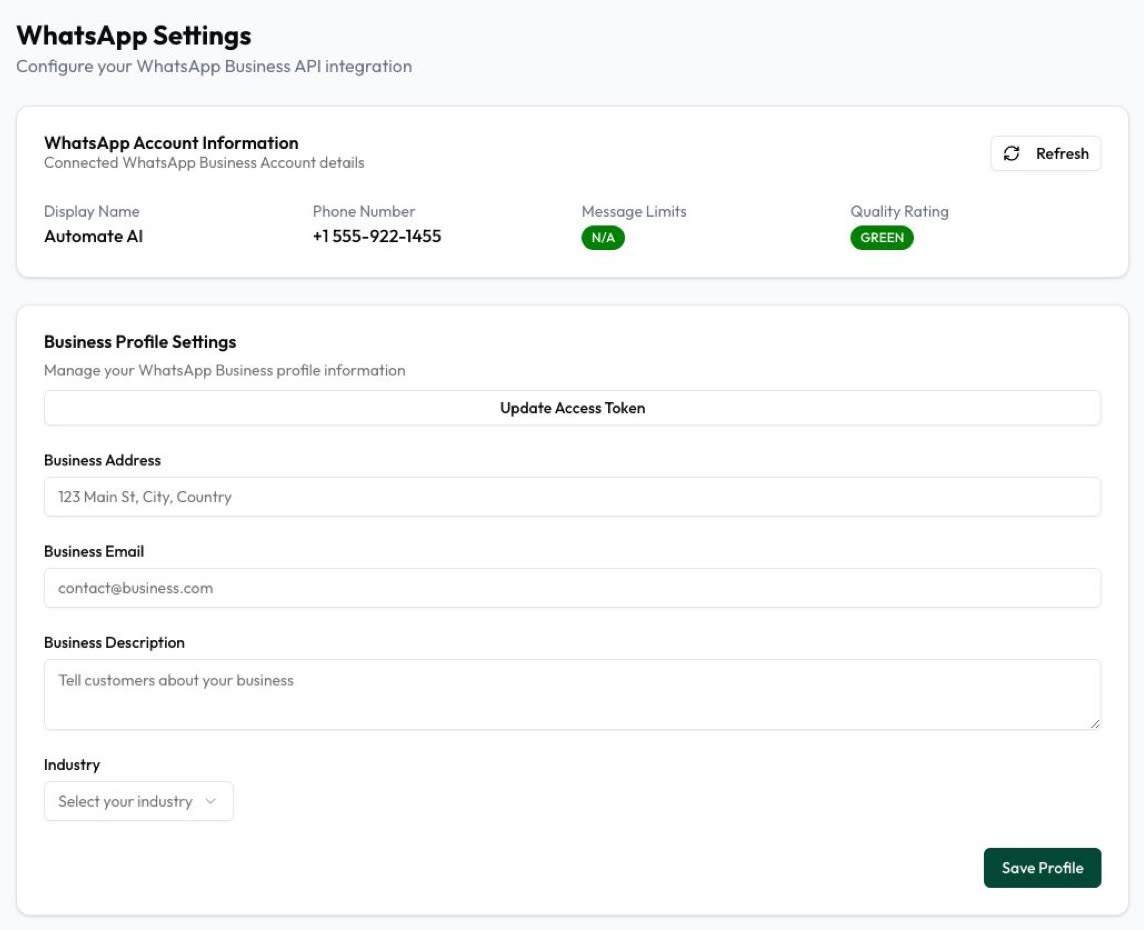
Automate AI runs on the official WhatsApp Business Platform. In Campaigns you send approved templates to the contacts or groups you choose and watch sent, delivered, read, failed and clicked counts live, so a drop in reads shows up quickly. You can mark contacts as opted out and keep them out of campaigns, see each template’s approval status in the app, and use Button Clicks to see who tapped quick-reply buttons such as “Stop promotions”. Settings › WhatsApp shows your message limit and quality rating.
Replying quickly also helps: the shared inbox lets your team assign chats, use quick replies and set business hours with an away message. If you’re unsure whether a campaign is compliant, talk to us before you send.
Frequently asked questions
Why was my WhatsApp Business API account restricted?
Usually because of repeated violations of WhatsApp’s Business Messaging Policy or Commerce Policy, such as messaging people without opt-in, too many blocks and reports, prohibited products or misclassified templates. Business Support Home shows the exact policy.
How long does a WhatsApp restriction last?
Template blocks last 1 or 3 days and messaging blocks 5, 7 or 30 days. An account lock is indefinite and can only be removed by appeal.
How long does a WhatsApp Business appeal take?
Meta’s Help Centre says reviews typically take 24 hours; its developer documentation says 24 to 48 hours.
Does a paused template mean my account is banned?
No. A paused template is a template-level action. It unpauses after 3 or 6 hours, and is disabled on the third pause. Your other templates can still be sent.
Can I just use a new number after a ban?
Restrictions apply to your WhatsApp account and business, not only the number, and blocks can include adding new numbers. WhatsApp’s policy also says it may stop a terminated business from using WhatsApp in future. Fix the cause and appeal instead.
What does “Flagged” mean on my number?
Meta discontinued the Flagged and Restricted phone-number statuses on 7 October 2025. Check your quality rating and Business Support Home instead.
Sources
- Meta: Policy enforcement
- Meta: Policy violations
- Meta Business Help: View policy violation details for your WhatsApp Business account
- Meta Business Help: About your WhatsApp Business phone number’s quality rating
- Meta: Template quality rating
- Meta: Template pausing
- Meta: account_update webhook
- WhatsApp Business Messaging Policy
- WhatsApp Help: About account bans
WhatsApp rules and prices change. We check these guides against Meta’s documentation, but always confirm current terms with Meta before you rely on them. Questions? Message us on WhatsApp at +91 836 977 8812.