WhatsApp OTP: Authentication Templates Explained
How to send one-time passcodes on WhatsApp: the authentication template category, copy-code, one-tap autofill and zero-tap buttons, template rules, code expiry and time-to-live, India pricing and security best practices.
To send a WhatsApp OTP you use an authentication template: a Meta-approved message with fixed text, “<code> is your verification code.”, plus a button that copies or autofills the code. Only authentication templates may carry one-time passcodes; Meta doesn’t allow marketing or utility templates to be used for this.
In India an authentication message costs ₹0.1150 at Meta’s list rate from 1 October 2026, plus 18% GST, with volume discounts at high volume. This guide covers the three button types (copy code, one-tap autofill and zero-tap), the template rules, expiry and time-to-live settings, pricing and the practices that keep your OTPs secure and delivered.
Key takeaways
- OTPs must go in the authentication category. Marketing and utility templates can’t be used to send passcodes.
- The text is fixed by Meta. You choose the button and two optional add-ons: a security disclaimer and an expiry warning (1 to 90 minutes).
- No URLs, media or emojis, and the code can be at most 15 characters.
- One-tap autofill and zero-tap work only on Android. Everyone else sees a copy-code button; on iOS 26 and later, keyboard suggestions offer the code.
- India list rate from 1 Oct 2026: ₹0.1150 per delivered message, cheaper above 750,000 a month.
- Set a short time-to-live and keep another channel, such as SMS, ready for codes that aren’t delivered.
What a WhatsApp authentication template is
Every template on the WhatsApp Business Platform belongs to a category: marketing, utility or authentication (see WhatsApp template messages). Meta’s categorization rules say only authentication templates can be used to send a one-time passcode for identity verification, and that marketing and utility templates cannot be used for this purpose.
Authentication templates are created from Meta’s Template Library and have a preset body you can’t rewrite:
- Body: “<VERIFICATION_CODE> is your verification code.”
- Optional security disclaimer: “For your security, do not share this code.”
- Optional expiry warning (footer): “This code expires in <NUM_MINUTES> minutes.”, where you set between 1 and 90 minutes.
- A one-time password button: copy code or one-tap autofill. Zero-tap templates still define these buttons as a fallback.
Copy code, one-tap autofill and zero-tap
| Button type | What the customer does | Where it works |
|---|---|---|
| Copy code | Taps the button to copy the code, then pastes it into your app or site | All devices |
| One-tap autofill | Taps the button; WhatsApp opens your app and fills in the code | Android only |
| Zero-tap | Nothing: your app receives the code automatically | Android only |
Copy code
The simplest option and the only one that needs no work in your app. The button label can be up to 25 characters; if you leave it out WhatsApp uses a default such as “Copy Code”. It suits websites and any app, on any phone.
One-tap autofill
One-tap autofill suits Android apps. Your app must start a handshake with WhatsApp shortly before you send the code (no more than 10 minutes earlier, or within your code-expiry time), and the template must include your app’s package name and its 11-character signing key hash. If any check fails, or the customer isn’t on Android, WhatsApp shows a copy-code button instead.
Zero-tap
With zero-tap there’s no button at all: WhatsApp passes the code straight to your Android app, which receives it in the background. You must accept Meta’s zero-tap terms when you create the template, confirming that customers expect the code to be filled in automatically. If the eligibility check fails, the message falls back to one-tap autofill or copy code.
Code expiry and time-to-live
Two settings decide how long a code is useful:
- Code expiry warning: the footer line telling the customer how long the code is valid, from 1 to 90 minutes. Your own system must still enforce the expiry.
- Time-to-live (TTL): how long WhatsApp keeps trying to deliver the message. For authentication templates the default is 10 minutes and you can set anything from 30 seconds to 15 minutes.
Meta recommends setting the TTL at or below your code’s expiry time, so nobody receives a code that no longer works. If you haven’t received a “delivered” status before the TTL ends, Meta says to assume the message was dropped.
Authentication templates also have linked device security: on Cloud API, they are delivered only to the customer’s primary WhatsApp device (usually their phone), not to linked devices such as WhatsApp Web.
How much a WhatsApp OTP costs in India
| Item | Meta list rate (from 1 Oct 2026) |
|---|---|
| Authentication message to an Indian number | ₹0.1150 per delivered message |
| Volume discount | Full rate up to 750,000 a month, then 6% off, rising step by step to 30% off |
| Authentication-international (where it applies) | ₹2.4971 |
| GST | 18% added on Facebook India’s invoice |
You’re charged only when the message is delivered, and the volume tiers count across your business portfolio each month. 10,000 delivered OTPs cost ₹1,150 plus ₹207 GST in Meta fees, before your provider’s charges.
When the authentication-international rate applies
India is one of the markets with an authentication-international rate. Meta applies it when a business that is based in another country, and has become eligible by sending more than 750,000 messages outside customer service windows in a moving 30-day period, sends authentication messages to Indian numbers. An India-based business sending OTPs to Indian customers pays the normal authentication rate. More detail is in WhatsApp API pricing in India.
Best practices for WhatsApp OTPs
From Meta’s guidance
- Confirm the number first. Check the customer’s WhatsApp number before sending a code to it.
- Say where the code is going. Tell the customer the code will arrive on WhatsApp, especially if you also offer SMS or email.
- Show that it worked. When the code is pasted or autofilled, make it clear your app has captured it.
- Track delivery. Subscribe to message status webhooks so you know when a code is delivered and read.
- Build trust. Meta suggests requesting Official Business Account status so customers are less likely to ignore your messages.
Good practice for your own system
- Keep a fallback. Not every customer uses WhatsApp, so offer SMS or email, and switch automatically if no delivered status arrives before the TTL ends.
- Rate-limit requests. Cap how many codes one number or device can request in a period, and add a cool-down between resends, to limit abuse and wasted spend.
- Watch for unusual spikes, such as many requests to country codes you don’t serve, and only send codes to numbers your customers entered themselves.
- Never send OTPs in other categories. Putting a code in a utility or marketing template breaks Meta’s rules.
- Never ask customers to share the code with your staff. Keep the security disclaimer switched on.
Setting up OTPs step by step
- Get a number on the WhatsApp Business Platform. See what the WhatsApp Business API is.
- Create an authentication template from the Template Library, choose copy code (or one-tap or zero-tap for an Android app), and switch on the security disclaimer and expiry warning.
- Wait for approval, then send the template from your login or checkout system with the code as its parameter.
- Set the TTL to match your code expiry and listen for delivery status webhooks.
- Add your SMS or email fallback and rate limits before going live.
WhatsApp OTPs with Automate AI
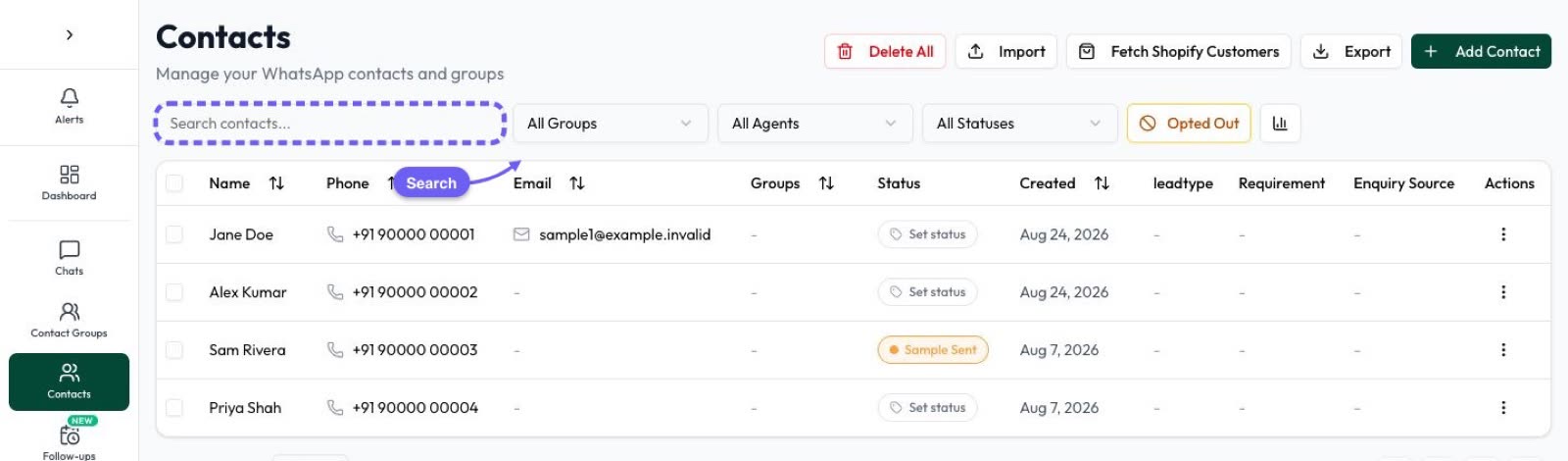
Automate AI supports authentication templates with copy-code buttons. You create them alongside your other templates and see whether Meta has approved them.
To send codes from your own app or website, use the Automate AI REST API: authenticate with your API key in an Authorization: Bearer header, send the approved template with the code, and receive webhooks for message status updates, which you can use to trigger your fallback. Learn more about the WhatsApp Business API with Automate AI.
Frequently asked questions
Can I send an OTP in a utility template?
No. Meta says only authentication templates can be used to send one-time passcodes for identity verification; marketing and utility templates cannot.
How long can a WhatsApp OTP be?
Up to 15 characters. Authentication template parameters are limited to 15 characters, and URLs, media and emojis aren’t allowed.
Does one-tap autofill work on iPhone?
No. One-tap autofill and zero-tap work only on Android; iPhone users see a copy-code button. On iOS 26 and later, keyboard suggestions offer the code automatically.
How much does a WhatsApp OTP cost in India?
₹0.1150 per delivered authentication message at Meta’s list rate from 1 October 2026, plus 18% GST, with discounts above 750,000 messages a month.
What happens if the OTP isn’t delivered in time?
WhatsApp drops messages it can’t deliver before the time-to-live ends (10 minutes by default for authentication). If you get no delivered status by then, send the code by SMS or email instead.
Can I change the wording of the OTP message?
No. The body text is fixed by Meta. You can only add the security disclaimer and the expiry warning, and choose the button.
Sources
- Meta: Authentication templates
- Meta: Copy code authentication templates
- Meta: One-tap autofill authentication templates
- Meta: Zero-tap authentication templates
- Meta: Time-to-live
- Meta: Template categorization
- Meta: Authentication-international rates
- Meta: Pricing on the WhatsApp Business Platform
WhatsApp rules and prices change. We check these guides against Meta’s documentation, but always confirm current terms with Meta before you rely on them. Questions? Message us on WhatsApp at +91 836 977 8812.