How to Schedule WhatsApp Messages for Your Business
Can you schedule a WhatsApp message? What the WhatsApp and WhatsApp Business apps allow (events and paid business broadcasts, not ordinary messages), how to schedule campaigns, reminders and recurring messages with the WhatsApp Business API, and the rules for scheduled marketing.
The WhatsApp and WhatsApp Business apps don’t have a built-in way to schedule an ordinary message for later, as of October 2026. What they do offer is scheduling for events in chats and, in some countries, for paid business broadcasts in the Business app. Third-party “WhatsApp scheduler” apps that control your phone break WhatsApp’s terms and can get your number banned.
For businesses, the reliable way to schedule WhatsApp messages is the WhatsApp Business API with a provider: you schedule a campaign, a recurring message (every Monday, on the 5th of each month) or a reminder before a date, and the provider’s servers send it on time. This guide explains both routes and the rules for scheduled marketing.
Key takeaways
- WhatsApp apps: no scheduling for normal messages; you can schedule events, and Business app business broadcasts where available.
- Avoid unofficial scheduler apps and automation tools that drive WhatsApp on your phone.
- With the API, your provider sends at the time you set: one-off campaigns, recurring messages and date-based reminders.
- Messages sent outside the 24-hour window must be approved templates to opted-in contacts.
- WhatsApp limits marketing messages per person; scheduling too many leads to failed sends (error 131049).
Can you schedule messages in the WhatsApp app?
| What | Available? | Notes |
|---|---|---|
| Schedule a normal chat message | No | No official feature in WhatsApp or WhatsApp Business as of Oct 2026 |
| Events in a chat or group | Yes | Set a date and time; guests who reply Going or Maybe get a notification when it starts |
| Business broadcasts (paid marketing messages) | In select countries | Choose a date and time; the phone must be online; Meta reviews messages and charges per delivery |
| Meta AI reminders | In limited countries | Reminders for you, not messages to customers |
Scheduling with the WhatsApp Business API
The API itself has no scheduler: a message is sent the moment your software calls Meta. So scheduling is a feature of your provider, which holds the message and sends it at the right time, even when nobody’s phone is on. Typical options:
| Type | Example | In Automate AI |
|---|---|---|
| One-off campaign | Diwali offer on 28 October at 10 AM | Campaigns → schedule date and time |
| Recurring message | Weekly menu every Monday; fee reminder on the 5th of each month | Scheduled automation: daily, weekly, monthly or on a set date |
| Date-based reminder | Birthday wishes; policy renewal 7 days before | Scheduled automation on birthday, anniversary or a custom date, with days before |
| Follow-up sequence | Day 0 welcome, day 2 brochure, day 5 offer | Drip Campaign, stops when the person replies |
| Triggered by your system | Appointment reminder 24 hours before | Your system calls the REST API at the right time |
Rules for scheduled messages
- Templates outside the 24-hour window. A scheduled message usually reaches people who haven’t written recently, so it must be an approved template.
- Opt-in. Only message people who agreed to hear from your business; see WhatsApp opt-in.
- Per-person marketing limits. WhatsApp caps how many marketing templates each person receives, based on how they engage. Blocked sends fail with error 131049; wait at least 24 hours before retrying.
- Messaging limits. Your number can message a limited number of new people per 24 hours (250 up to unlimited); large scheduled campaigns may be paced. See WhatsApp broadcast limits.
- Time to live. Undelivered messages are retried for up to 30 days by default (10 minutes for authentication codes), so a phone that’s off may get your “today only” offer late.
Best times to schedule
There’s no official best time; test with your own customers. Common sense for India:
- Avoid early mornings and late nights (before 9 AM and after 9 PM).
- Match the message to the moment: menus before lunch, reminders the evening before, offers on payday weekends.
- Split big lists into batches and check delivery and replies before sending the rest.
- Check the calendar: festivals change behaviour, and some customers don’t want promotions on certain days.
Scheduling in Automate AI, step by step
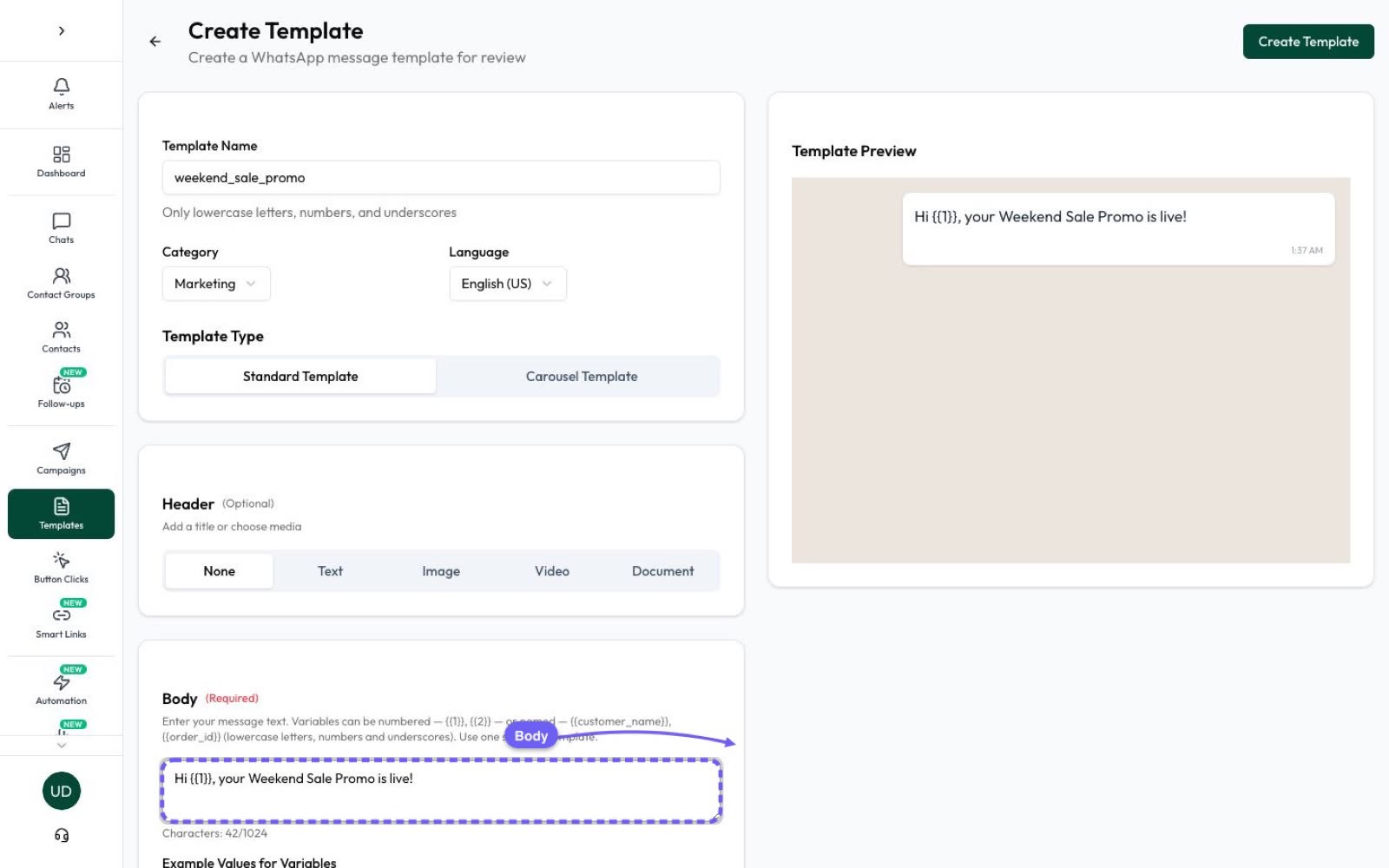
- Create or pick an approved template (Templates → Create).
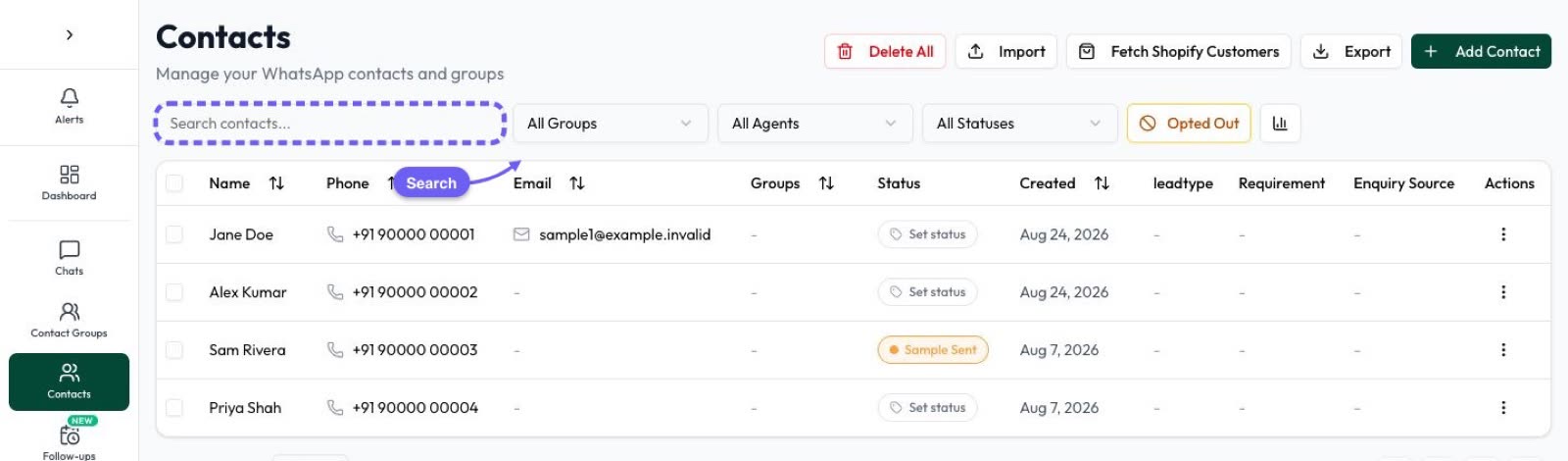
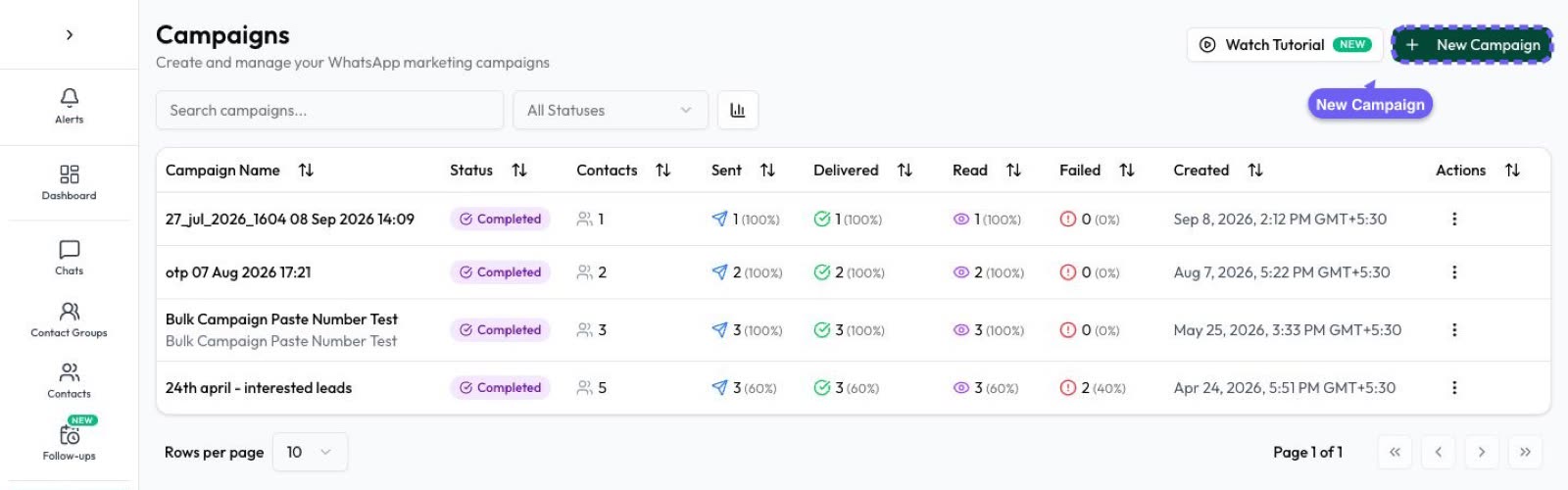
- Open Campaigns → New campaign, choose the audience by group, tag or status, and fill in variables such as the name.
- Choose Schedule, set the date and time, and save.
- For repeating messages, open Drip Campaigns and create a scheduled automation: daily, weekly, monthly, on a date, or on each contact’s birthday, anniversary or a custom date.
- After sending, check sent, delivered, read and replies live, and resend to people it missed.
Set a spending cap per automation so a recurring message can’t run up your wallet. More in WhatsApp marketing.
Frequently asked questions
Can I schedule a WhatsApp message on my phone?
Not with an official WhatsApp feature for ordinary messages, as of October 2026. You can schedule events in chats, and some countries have scheduled business broadcasts in the Business app. Businesses schedule messages through the WhatsApp Business API and a provider.
Is it safe to use WhatsApp scheduler apps?
Apps that automate WhatsApp on your phone or WhatsApp Web are unauthorised and can get your number restricted. Use the official WhatsApp Business API instead.
How do I schedule a WhatsApp broadcast to customers?
With the WhatsApp Business API: create an approved template, pick opted-in contacts, and schedule the campaign in your provider, such as Automate AI.
Can I send a WhatsApp message every month automatically?
Yes, with a scheduled automation: for example, a fee or EMI reminder template to a contact group on the 5th of every month.
Why did some scheduled messages fail?
Common reasons: the template was paused or rejected, the person reached WhatsApp’s per-user marketing limit (error 131049), they stopped your marketing messages, or the number isn’t on WhatsApp.
Sources
- WhatsApp Help Center: Events in chats
- WhatsApp Help Center: Marketing messages in the WhatsApp Business app
- Meta: Send messages (customer service window)
- Meta: Templates overview (time to live)
- Meta: Per-user marketing template limits
- Meta: Messaging limits
- WhatsApp Business Messaging Policy
WhatsApp rules and prices change. We check these guides against Meta’s documentation, but always confirm current terms with Meta before you rely on them. Questions? Message us on WhatsApp at +91 836 977 8812.