WhatsApp Auto Reply for Business: Greeting, Away and Keyword Replies
How to set up WhatsApp auto reply messages: greeting and away messages and quick replies in the WhatsApp Business app, why the API has no built-in auto-reply, keyword replies, chatbots and AI, with 15 auto reply message examples for Indian businesses.
In the WhatsApp Business app, auto replies are built in: a greeting message for new chats, an away message for when you’re closed, and up to 50 quick replies you insert by typing “/”. They run from your phone and need it to be online.
On the WhatsApp Business API there’s no built-in greeting or away message: Meta delivers each incoming message to your software, and the software decides what to reply. That’s where keyword replies, business-hours messages, chatbots and AI come in. This guide covers both, with auto reply examples you can copy.
Key takeaways
- Business app: greeting message (first message, or after 14 days of no chat), away message (always, custom schedule or outside business hours) and 50 quick replies.
- App auto replies need your phone to be online; on the API they run from your provider’s servers.
- The API has no built-in auto reply; ice breakers (up to 4) and commands (up to 30) only start conversations, and your system writes the reply.
- Inside the 24-hour window, auto replies can be any message type; outside it, only templates.
- Always offer a way to reach a person; WhatsApp’s policy requires it for automated chats.
Auto replies in the WhatsApp Business app
| Tool | What it does | Settings |
|---|---|---|
| Greeting message | Sent automatically when a customer messages you for the first time, or after 14 days without a chat | Recipients: everyone, people not in your address book, everyone except, or only selected people |
| Away message | Sent automatically when you’re unavailable | Always send, custom schedule, or outside business hours (needs hours in your profile) |
| Quick replies | Saved answers you insert by typing “/” and a shortcut | Up to 50; can include images and videos (not on Web/Desktop) |
| Lists (formerly labels) | Organise chats, e.g. New order, Paid | Up to 20 labels where lists haven’t rolled out yet |
Set them up in Business tools (or Tools) in the app. Two limits catch people out: the phone needs an internet connection for greeting and away messages to send, and when Meta’s AI agent is switched on for your app, greeting and away messages are turned off automatically.
Auto replies on the WhatsApp Business API
The API works differently. Meta’s documentation lists greeting messages, away messages, quick replies and labels as not supported on the Cloud API: those are Business app features. Instead, each incoming message arrives at your software through a webhook, and the software sends the reply. In practice your provider gives you these tools:
- Keyword auto-replies: reply automatically when a message matches a word such as “price” or “timings”.
- Business hours: an away message, or a template, when someone writes outside your opening hours.
- Welcome chatbot: a menu with buttons or a list when someone messages for the first time.
- AI assistant: answers questions from your documents and website, and hands over to a person.
- Quick replies: saved answers your whole team can insert in the shared inbox.
Meta also offers ice breakers (up to 4 tappable questions, 80 characters each, shown the first time someone chats with you) and commands (up to 30, shown when the customer types “/”). Tapping one just sends a normal message to you, so your chatbot or team still writes the answer.
15 WhatsApp auto reply message examples
Sample messages for example businesses. Keep them short, set expectations, and give a next step.
Greeting messages
- “Hi! Thanks for messaging Example Store 👋 Reply 1 for prices, 2 to track an order, or 3 to talk to our team.”
- “Welcome to Example Clinic. To book an appointment, tell us your preferred day and time. For emergencies, please call 98XXX XXXXX.”
- “Hello from Example Academy! Which course are you interested in: Class 10, Class 12 or JEE?”
- “Thanks for reaching Example Realty. Are you looking to buy or rent, and in which area?”
- “Hi! You’ve reached Example Salon. Tap Book to choose a service and time.”
Away messages
- “Thanks for your message! We’re open 10 AM to 7 PM, Monday to Saturday, and will reply first thing tomorrow.”
- “We’re closed for Diwali until 3 November. Orders placed online will ship from 4 November.”
- “Our team is busy right now. We usually reply within 30 minutes.”
- “It’s after hours, but you can still track your order here: example.com/track”
- “Thanks for writing to Example Clinic. We’re closed now; for urgent help please call 98XXX XXXXX.”
Keyword auto replies
- price → “Here’s our price list (PDF). Reply with a product name for details.”
- timings → “We’re open 10 AM to 7 PM, Monday to Saturday.”
- location → “We’re at Shop 4, Example Market, Andheri West. Map: example.com/map”
- track → “Please share your order number and we’ll check its status.”
- agent → “Connecting you to a team member now.”
Good practice for auto replies
- One clear next step per message: a question, buttons or a link.
- Don’t pretend to be a person. Make it clear when a bot is answering, and offer a human.
- Match keywords loosely (“price”, “prices”, “rate”) and test them with real messages.
- Don’t reply to every message in an ongoing conversation; that annoys customers.
- Keep sensitive details out: never ask for card numbers or health details in an automated chat.
- Review weekly: read chats where the bot failed and add the missing answers.
For bigger journeys than single replies, see WhatsApp chatbots and WhatsApp automation.
Auto replies in Automate AI
- Keyword auto-replies with text or buttons, matched exactly or anywhere in the message.
- Business hours with an away message or template when you’re closed.
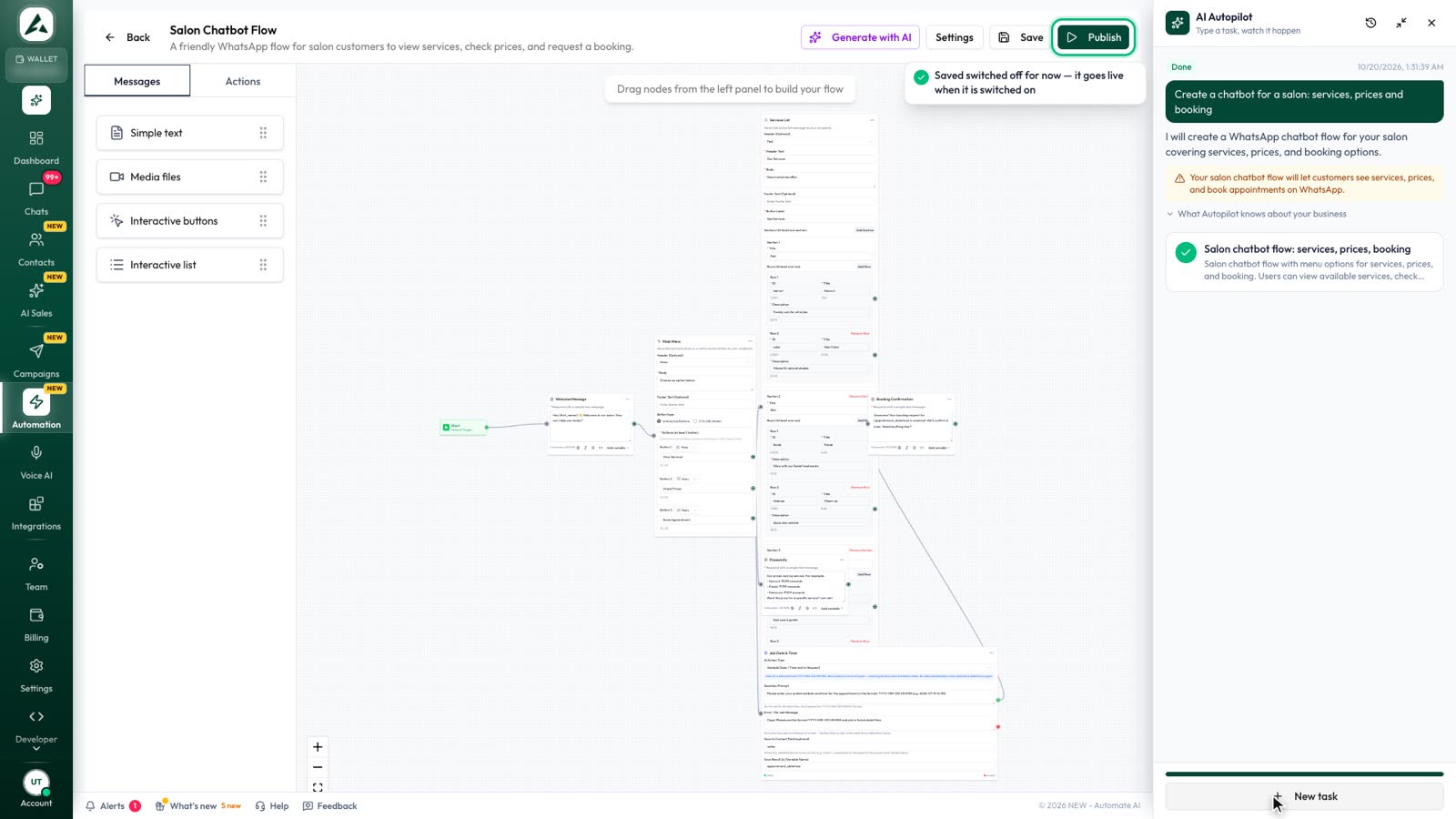
- Chatbot flows built with the no-code flow builder: menus, buttons, lists, questions and media.
- AI Assistant that answers from your documents and website, by text or voice note, and hands over when a customer asks for a person (AI Assistant).
- Quick replies your whole team can use in the shared inbox.
Everything runs on Automate AI’s servers, so replies go out even when nobody’s phone is on, and you can keep using the Business app on the same number with coexistence.
Frequently asked questions
How do I set an auto reply on WhatsApp Business?
In the WhatsApp Business app, open Business tools (or Tools) and set up a Greeting message for new chats and an Away message for when you’re closed. Choose when it sends and who receives it.
Does the WhatsApp Business API have auto reply?
Not built in. Meta sends each message to your software, which decides the reply. Providers like Automate AI offer keyword replies, business-hours messages, chatbots and AI on top of the API.
Why isn’t my WhatsApp away message sending?
In the Business app, your phone needs an internet connection, “Outside of business hours” needs hours set in your profile, and greeting and away messages switch off when Meta’s AI agent is connected.
How many quick replies can I save in WhatsApp Business?
Up to 50 in the WhatsApp Business app, each with a shortcut you call up by typing “/”.
Can a WhatsApp auto reply include buttons?
On the API, yes: a reply within the 24-hour window can include up to 3 reply buttons or a list of up to 10 options. See WhatsApp buttons and list messages.
Sources
- WhatsApp Help Center: Away messages
- WhatsApp Help Center: Greeting messages
- WhatsApp Help Center: Quick replies
- WhatsApp Help Center: Labels
- Meta: Coexistence for WhatsApp Business app users (features not supported on Cloud API)
- Meta: Conversational components (ice breakers and commands)
- Meta: Send messages (customer service window)
- Meta Newsroom: Business AI on WhatsApp for small businesses in India
- WhatsApp Business Messaging Policy
WhatsApp rules and prices change. We check these guides against Meta’s documentation, but always confirm current terms with Meta before you rely on them. Questions? Message us on WhatsApp at +91 836 977 8812.