WhatsApp Quality Rating and Template Pausing Explained
How WhatsApp rates your phone number and templates (high, medium, low), what lowers quality (blocks, reports, block reasons), how template pausing works (3 hours, 6 hours, then disabled), what changed in October 2025, and how to raise your quality rating.
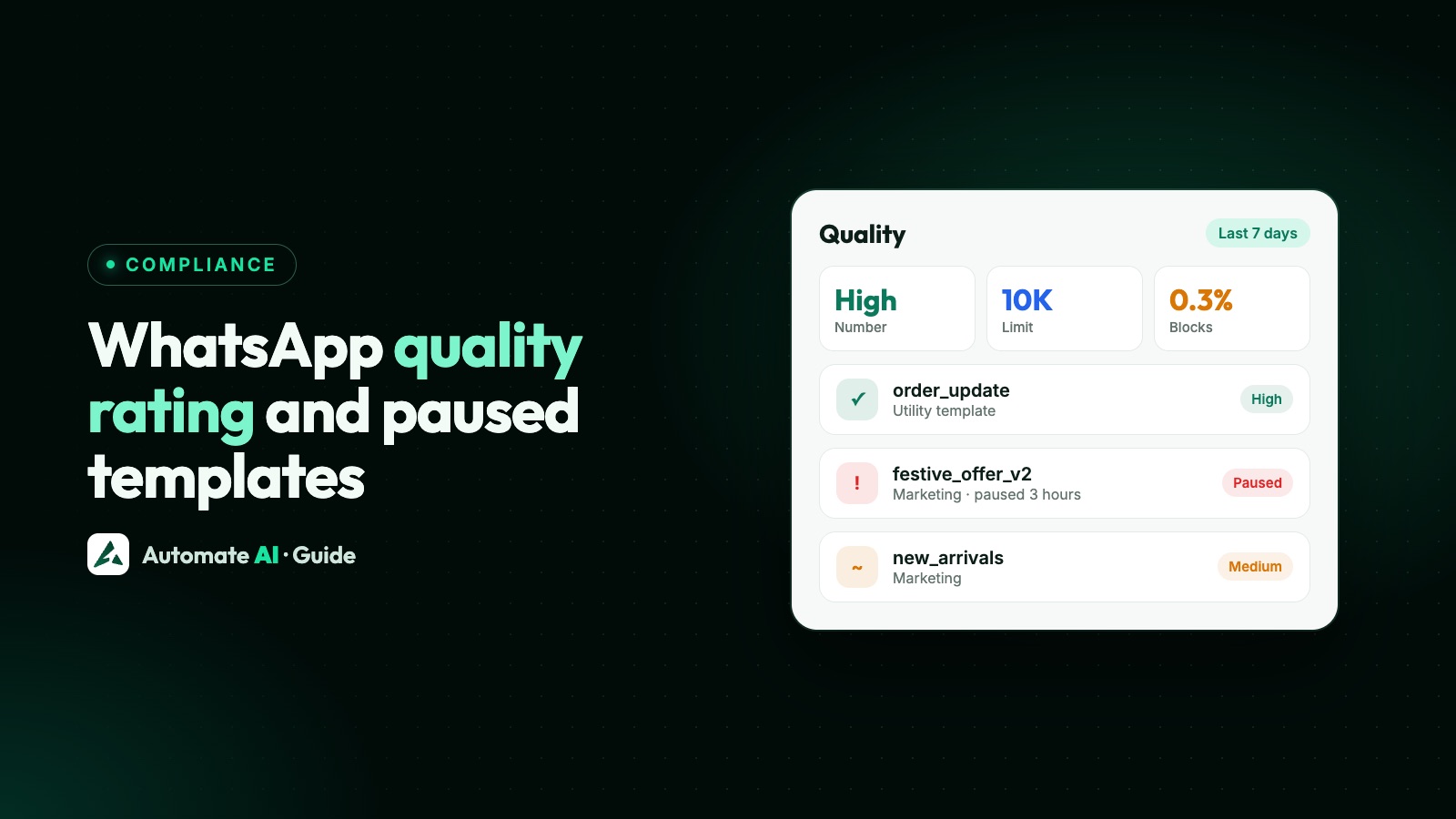
WhatsApp gives your phone number and each template a quality rating: green (high), yellow (medium) or red (low). It’s based on how people reacted to your messages over the last 7 days, mainly blocks and reports and the reasons people give, with recent messages counting more.
A red template is paused: for 3 hours the first time, 6 hours the second, and disabled the third. Since October 2025, a lower number rating no longer cuts your messaging limit by itself, but repeated low-quality templates can still lead to restrictions. Here’s how it works and how to keep your rating green.
Key takeaways
- Ratings: High (green), Medium (yellow), Low (red), from the last 7 days of customer feedback.
- Signals: blocks, reports, mutes, archives, and block reasons such as “Didn’t sign up” or “Spam”.
- Template pausing: 3 hours → 6 hours → disabled; sends to a paused template fail with error 132015 and aren’t charged.
- Messaging limits are now per business portfolio; a quality drop doesn’t downgrade the limit, but you need high quality to move up.
- The old “Flagged” and “Restricted” number statuses were retired in October 2025.
How the quality rating is worked out
Meta looks at how customers treated the messages you sent over the past 7 days, weighting recent messages more. The main signals are blocks and reports, plus mutes and archives, and the reason people choose when they block a business:
- No longer needed
- Didn’t sign up
- Spam
- Offensive messages
- No reason
Template quality also takes read rates into account. For a number sending many messages, the rating can change within minutes.
Where to see your rating
| What | Where |
|---|---|
| Phone number quality | WhatsApp Manager → Phone numbers (hover for block reasons; 30-day history) |
| Template quality | WhatsApp Manager → Message templates: Active – High / Medium / Low quality, or Quality pending |
| Through the API | quality_rating on the phone number: GREEN, YELLOW, RED or NA; template quality webhooks |
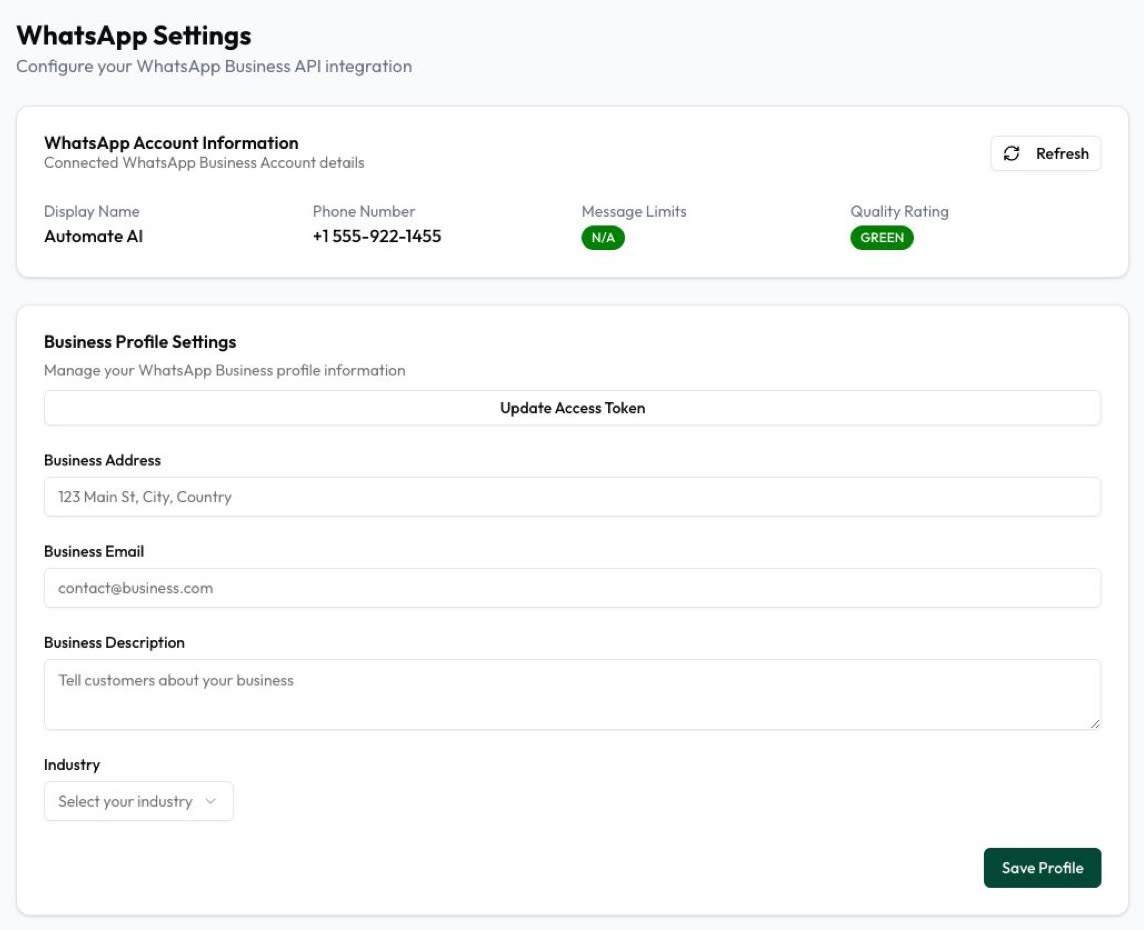
| In Automate AI | Settings → WhatsApp shows the quality rating and messaging limit; templates show their status |
Template pausing
| When a template drops to red | What happens |
|---|---|
| First time | Paused for 3 hours |
| Second time | Paused for 6 hours |
| Third time | Disabled: create a new template |
- Messages to a paused template are rejected with error 132015 and aren’t charged; a disabled one gives 132016.
- You’re told in WhatsApp Manager, by email and through the template status webhook.
- Templates unpause automatically when the time is up, or you can unpause from WhatsApp Manager.
- Editing a template sends it back to review.
- New marketing and utility templates may be paced: Meta sends to a small group first and holds the rest (
held_for_quality_assessment) while it checks reactions.
Quality and messaging limits after October 2025
Since 7 October 2025, messaging limits are set for your whole business portfolio (250, 2,000, 10,000, 100,000 or unlimited unique people per 24 hours) and shared by all your numbers. To move up automatically you need high-quality messages and to have used at least half your current limit in the last 7 days. Meta says a drop in quality no longer downgrades your limit, and the old Flagged and Restricted number statuses were retired. Policy breaches are handled separately; see WhatsApp account restricted or banned.
Meta’s tips to raise your quality rating
- Follow the WhatsApp Business Messaging Policy.
- Message only people who opted in to hear from you; see WhatsApp opt-in.
- Personalise messages: name, order, what they asked about.
- Avoid open-ended welcome messages that don’t say why you’re writing.
- Don’t send too many messages a day to the same person.
- Keep messages short and useful, with a clear next step.
From experience: segment campaigns, give people a “Stop promotions” button, honour opt-outs at once, and pause any template whose read rate falls. Our WhatsApp marketing guide covers campaign planning.
Staying green with Automate AI
- Opted-out contacts can be filtered out of campaigns automatically.
- Segments by group, tag and status keep messages relevant.
- Button Clicks shows who tapped “Stop promotions”.
- Campaign reports show delivered, read and failed counts, so a weak template stands out.
- Settings shows your number’s quality rating and messaging limit.
Frequently asked questions
What is a WhatsApp quality rating?
A score of high (green), medium (yellow) or low (red) for your phone number and each template, based on how customers reacted to your messages in the past 7 days, mainly blocks and reports.
Why is my WhatsApp template paused?
Its quality dropped to low (red). The first pause lasts 3 hours, the second 6 hours, and the third time it’s disabled.
Does a low quality rating reduce my messaging limit?
Not since October 2025: Meta says a quality drop no longer downgrades the portfolio’s limit. You still need high quality to move up a tier, and policy violations can lead to restrictions.
How can I improve my WhatsApp quality rating?
Message only opted-in people, personalise, send fewer and more relevant messages, offer an easy opt-out, and stop templates that people block or ignore.
Where can I see why customers blocked me?
In WhatsApp Manager under Phone numbers, hover over the quality rating to see block reasons.
Sources
- Meta Business Help: Quality rating of your WhatsApp phone number
- Meta: Send messages (message quality)
- Meta: Template quality
- Meta: Template pausing
- Meta: Template pacing
- Meta: Messaging limits
- Meta: Messaging limit changes
WhatsApp rules and prices change. We check these guides against Meta’s documentation, but always confirm current terms with Meta before you rely on them. Questions? Message us on WhatsApp at +91 836 977 8812.