WhatsApp Cloud API: What It Is and How to Set It Up
What the WhatsApp Cloud API is, why the On-Premises API is gone, and how to set it up: Meta app, test number, permanent system-user token, sending your first message, webhooks, throughput and messaging limits, with direct access vs a provider.
The WhatsApp Cloud API is Meta’s hosted version of the WhatsApp Business Platform: you send and receive WhatsApp messages over HTTPS through Meta’s Graph API, and Meta runs the servers. It is now the only way to use the WhatsApp Business API, because the self-hosted On-Premises API stopped working on 23 October 2025.
Meta doesn’t charge for access to the Cloud API itself; you pay per delivered message. This guide walks through setting it up yourself (developer app, test number, permanent token, first message, webhooks), the limits you’ll meet, and when it makes more sense to use a provider such as Automate AI instead.
Key takeaways
- Cloud API = Meta-hosted. No servers to run; access is free and messages are priced per delivery.
- The On-Premises API is fully retired: its last client expired on 23 October 2025.
- Setup: Meta developer account → app with the WhatsApp use case → test number → system-user permanent token → webhooks.
- Send with
POST /v26.0/<PHONE_NUMBER_ID>/messages. Outside the 24-hour window, only approved templates can be sent. - Default throughput is 80 messages per second per number, upgraded automatically to 1,000 for eligible high-volume numbers.
What the Cloud API is
Meta describes the Cloud API as the way to “programmatically message and call on WhatsApp”. It runs on the Graph API, so every action is an HTTPS request with an access token, and Meta pushes incoming messages and delivery updates to your webhook.
Before 2023 many providers ran the On-Premises API on their own servers. Meta stopped adding features to it in January 2024, blocked new registrations from July 2024, and its final client expired on 23 October 2025. Numbers left on it can no longer send or receive messages, so any guide that tells you to install a WhatsApp Business API “client” is out of date.
What you need before you start
- A Meta developer account and a business portfolio (Meta Business Manager).
- A phone number that can receive an SMS or voice call for verification and is not already registered on WhatsApp, unless you use coexistence to keep the Business app on it.
- A display name that follows Meta’s rules. See WhatsApp display name rules.
- For higher limits and up to 6,000 templates: Meta business verification.
- An HTTPS endpoint with a valid TLS certificate for webhooks (self-signed certificates aren’t accepted).
How to set up the WhatsApp Cloud API, step by step
These are the steps in Meta’s current “Get started” guide:
- Register as a Meta developer and open the App Dashboard.
- Create an app with the WhatsApp use case (“Connect with customers through WhatsApp”) and pick your business portfolio.
- Use the test number. Meta creates a test WhatsApp account and test number automatically, with relaxed limits and no payment method needed to send templates.
- Send the `hello_world` template with the temporary access token shown in the dashboard. It expires quickly, so it’s only for testing.
- Set up a webhook (see below) so you receive replies and delivery statuses.
- Create a system user in Business Settings, give it full control of the app and the WhatsApp account, and generate a permanent token with
business_management,whatsapp_business_messagingandwhatsapp_business_management. - Add your real number, verify it and register it, then add a payment method before sending templates at scale.
Sending your first message
Every message is a POST to your phone number ID. A template message, which is what you need to start a conversation, looks like this (Graph API v26.0, the latest version as of October 2026):
| Part | Value |
|---|---|
| Endpoint | POST https://graph.facebook.com/v26.0/<PHONE_NUMBER_ID>/messages |
| Header | Authorization: Bearer <ACCESS_TOKEN> |
| Body | messaging_product: "whatsapp", to: "91XXXXXXXXXX", type: "template", template: { name, language: { code }, components } |
| Reply in an open chat | type: "text" with text: { body: "…" }, or an interactive type |
The 24-hour customer service window decides what you may send: once a customer messages you, you can reply with any message type for 24 hours; outside it, only approved template messages. Interactive messages such as reply buttons and lists only work inside the window; see WhatsApp buttons and list messages.
Webhooks: receiving messages and statuses
- Verification: Meta sends a GET request with
hub.mode=subscribe,hub.verify_token(a string you choose) andhub.challenge. Reply 200 and echo the challenge. - Security: each event POST carries an
X-Hub-Signature-256header, an HMAC-SHA256 of the body using your app secret. Check it before trusting the payload. - The `messages` field delivers incoming customer messages and the sent, delivered, read and failed statuses of yours.
- Other useful fields: template status and quality updates, phone number quality updates, account alerts and user preferences (such as marketing opt-outs).
- Retries: anything other than HTTP 200 is retried for up to 7 days, so respond fast and process the event in the background.
Limits you’ll meet
| Limit | What it is | Value |
|---|---|---|
| Throughput | Messages per second per number | 80 by default; 1,000 automatically for eligible high-volume numbers; 20 for numbers also on the Business app |
| Messaging limit | Unique people you can message outside the 24-hour window per moving 24 hours, per business portfolio | 250 → 2,000 → 10,000 → 100,000 → unlimited |
| Templates | Templates per WhatsApp account | 250 unverified; 6,000 verified with an approved display name |
| Template creation | New templates per hour | 100 |
| Webhook payload | Maximum size | 3 MB |
Going over throughput returns error 130429. Messaging limits rise automatically when your quality is high and you use at least half your current limit; more in WhatsApp broadcast limits.
Cloud API directly, or through a provider?
Meta offers both: connect directly, or “pick a partner and onboard through their embedded signup”. Direct access costs nothing extra, but you build everything around the API yourself.
| You need | Direct Cloud API | Provider such as Automate AI |
|---|---|---|
| Sending and receiving | Your own code | Ready: inbox, campaigns, chatbots |
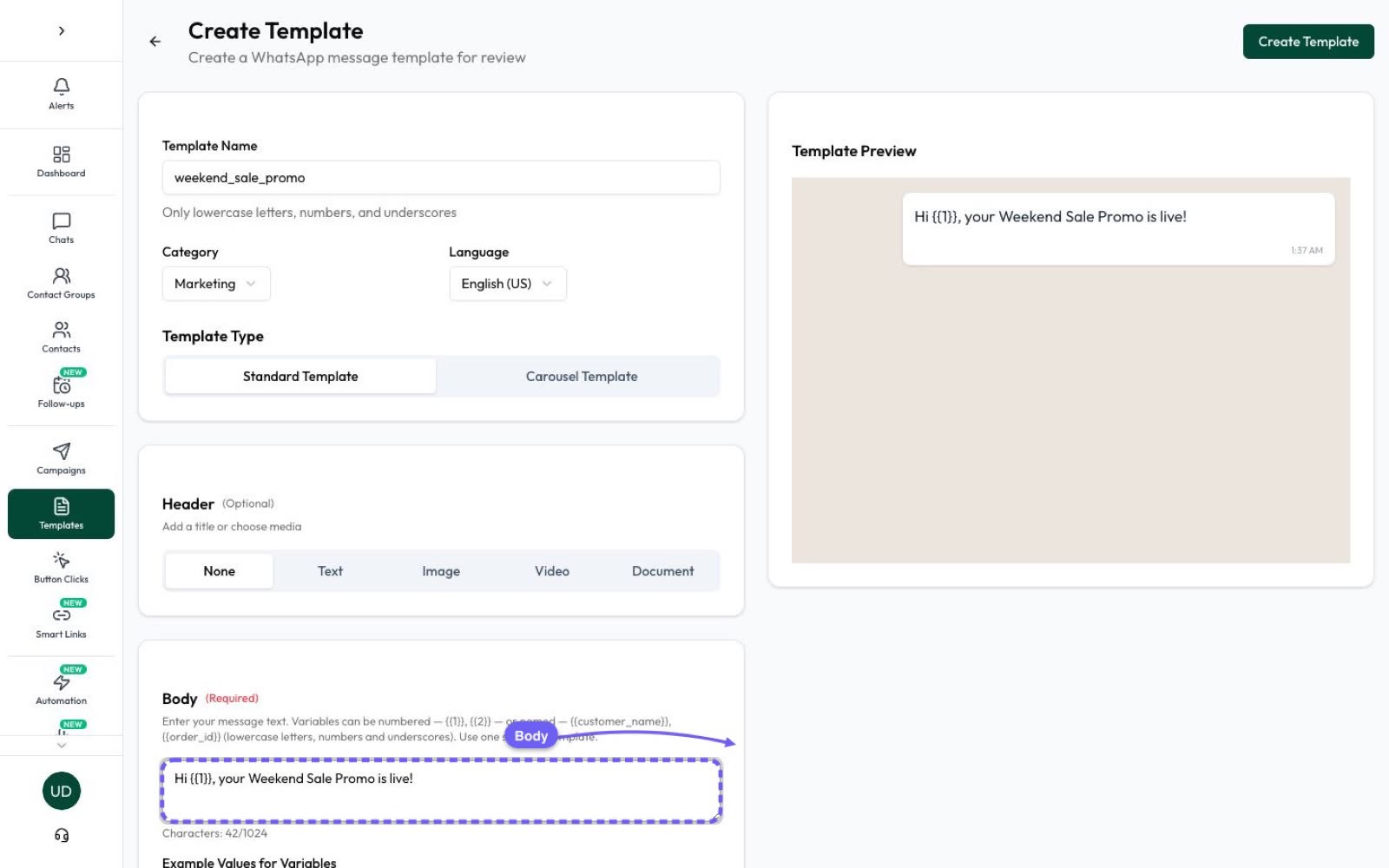
| Templates | Create via API or WhatsApp Manager | Template builder with live preview and approval status |
| Webhooks, retries, storage | You host and secure them | Handled |
| Team inbox, roles, assignment | Build it | Included |
| Billing | Meta bills your card | Prepaid wallet in INR |
| Your own integrations | Full control | REST API and webhooks on top |
If you’re comparing providers, our guide to choosing a WhatsApp Business API provider in India lists what to ask.
Using the Cloud API with Automate AI
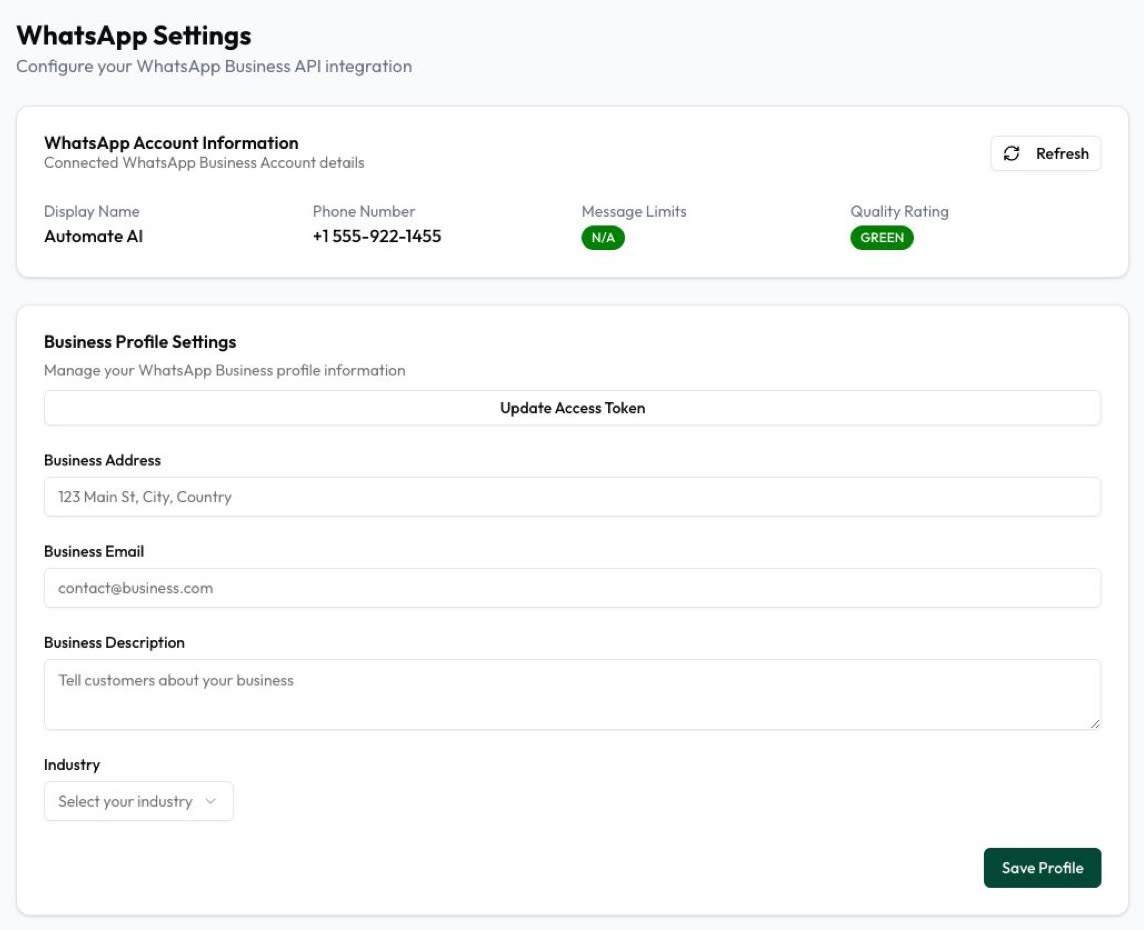
Automate AI runs on the official Cloud API. You connect your number through Meta’s signup, and Automate AI handles tokens, webhooks, templates and delivery statuses, while your team works in the shared inbox. Developers still get a REST API and webhooks for contacts, messages, templates and campaigns, so your own systems can send order updates or OTPs without hosting the WhatsApp side themselves.
Frequently asked questions
Is the WhatsApp Cloud API free?
Access is free: Meta hosts it and doesn’t charge a platform fee. You pay Meta per delivered message by category and country; see our WhatsApp API pricing in India guide.
Can I still use the WhatsApp On-Premises API?
No. Its final client expired on 23 October 2025, and numbers still on it no longer send or receive messages. The Cloud API is the only option.
How many messages per second can the Cloud API send?
80 per second per number by default. Meta upgrades eligible numbers to 1,000 automatically, at no cost, when the portfolio has an unlimited messaging limit, the number messages at least 100,000 unique users in 24 hours and its quality is yellow or better.
Why does my access token keep expiring?
Temporary and user tokens are short-lived. Create a system user in Business Settings and generate a permanent token with the WhatsApp permissions for production.
Do I need a developer to use WhatsApp Cloud API?
To use it directly, yes. A provider like Automate AI gives you the inbox, templates, campaigns and chatbots without code, and an API for when you do want to integrate.
Sources
- Meta: About the WhatsApp Business Platform
- Meta: Get started with the Cloud API
- Meta: On-Premises API sunset
- Meta: Access tokens
- Meta: Send messages
- Meta: Create a webhook endpoint
- Meta: Throughput
- Meta: Messaging limits
- Meta: Graph API changelog (v26.0)
WhatsApp rules and prices change. We check these guides against Meta’s documentation, but always confirm current terms with Meta before you rely on them. Questions? Message us on WhatsApp at +91 836 977 8812.