WhatsApp API Two-Step Verification PIN: Set, Change or Reset It
What the 6-digit two-step verification PIN on a WhatsApp Cloud API number is, when Meta asks for it, how to change or turn it off in WhatsApp Manager, what to do if nobody knows the PIN, the API calls with sample requests, the PIN error codes, and Meta’s 2026 phase-out for eligible numbers.
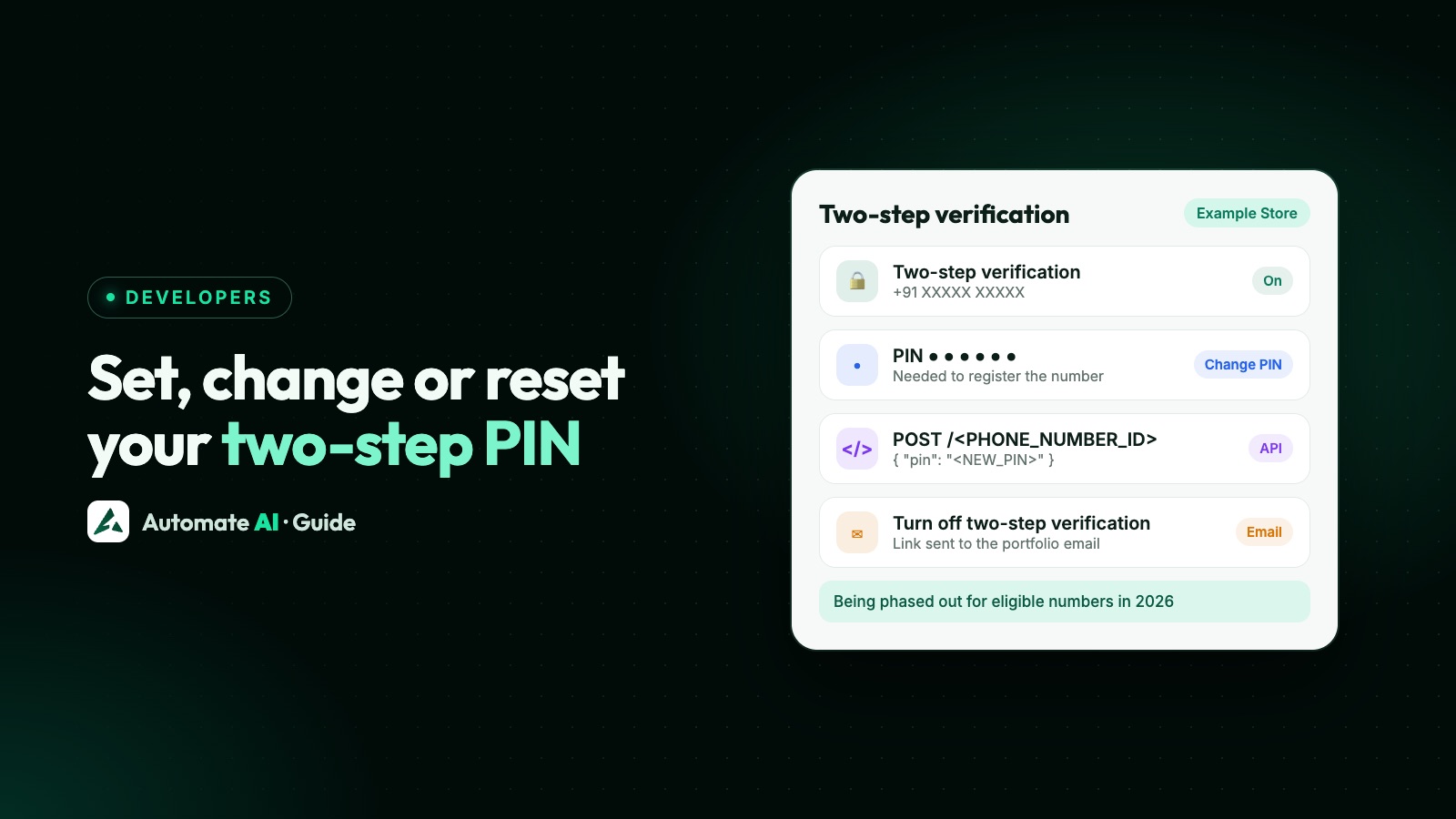
The two-step verification PIN is a 6-digit code tied to your WhatsApp Cloud API phone number: you set it when you register the number, and you can change it in WhatsApp Manager (with the current PIN) or set a new one through the API without knowing the old one. Turning it off is only possible in WhatsApp Manager, through a link Meta emails to your business portfolio’s address.
It matters when you register or re-register a number, delete it, or apply for the blue tick. Meta is also phasing the PIN out for eligible numbers from late 2026. This guide covers each case, the exact API calls with placeholder values, and what to do when nobody at your company knows the PIN.
Key takeaways
- The PIN is not the 6-digit SMS or voice code that proves you own the number; it’s a separate setting on the registered number.
- Registering with
POST /<PHONE_NUMBER_ID>/registerneeds apin: the existing PIN if one is set, otherwise the value you send becomes the PIN. - Forgot it? Set a new PIN with
POST /<PHONE_NUMBER_ID>and{ "pin": "<NEW_PIN>" }; the old PIN isn’t needed. - There’s no API to turn two-step verification off; WhatsApp Manager emails a link instead.
- Meta is deprecating the PIN for eligible numbers: if the Two-step verification tab has disappeared, there’s no PIN to manage, but keep sending a 6-digit
pinwhen registering.
What the two-step verification PIN is
Every Cloud API number goes through three steps: you add it, verify you own it with a code sent by SMS or voice call, and register it through the API. The two-step verification PIN belongs to the last step. Meta’s documentation says you must set a PIN when registering a business phone number, and that the PIN is required when changing the PIN or deleting the number from the platform.
| Code or PIN | What it is for |
|---|---|
| Verification code (SMS or voice) | Proves you own the number; requested with request_code and entered with verify_code |
| Two-step verification PIN | Set on the registered API number; used when registering, changing the PIN or deleting the number |
| Two-factor authentication on Facebook / Meta Business Suite | Protects the people who log in to your business portfolio; a different setting altogether |
| Two-step verification in the WhatsApp Business app | The app’s own PIN on your phone, if you use coexistence; managed in the app, not in WhatsApp Manager |
Meta is phasing out the PIN for eligible numbers
At the time of writing, Meta is deprecating the 6-digit PIN for eligible Cloud API phone numbers as part of its new account model. Phase 1 started rolling out on 23 September 2026, and PIN eligibility rolls out gradually by business cohort, so numbers that aren’t eligible yet keep working as before.
- In WhatsApp Manager, the Two-step verification tab no longer appears for eligible numbers. If the tab is missing, Meta says the change has already been applied and there is no PIN to create, reset or disable.
- At registration, Meta no longer uses the PIN to validate an eligible number, clears any old PIN state and doesn’t create a new one. Meta still asks you to send a valid 6-digit
pinin register calls until it announces a separate API change. - Ownership verification by code, access tokens and permissions, registration rate limits and two-step verification inside the WhatsApp apps don’t change.
When Meta asks for the PIN
- Registering a number:
POST /<PHONE_NUMBER_ID>/registerrequirespin. If two-step verification is already on, send the existing PIN; if not, the 6-digit value you send becomes the number’s PIN. - Re-registering after a display name change: once Meta approves a new display name you must call the register endpoint again within 14 days, with the PIN. See WhatsApp display name rules.
- Deleting a number in WhatsApp Manager: a number with Connected status needs the PIN to delete. Numbers that sent paid messages in the last 30 days can’t be deleted yet.
- Changing the PIN in WhatsApp Manager: you need the current PIN.
Two common situations need no PIN reset. If you connect a WhatsApp Business app number with coexistence, Meta tells providers to skip the registration step because the number is already registered. And under the new account model, numbers aren’t migrated between providers any more: the business shares its WhatsApp account, and Meta says re-registering an already-registered number succeeds without resetting the PIN.
Change the PIN in WhatsApp Manager
- Open WhatsApp Manager › Account tools › Phone numbers.
- Select your business phone number.
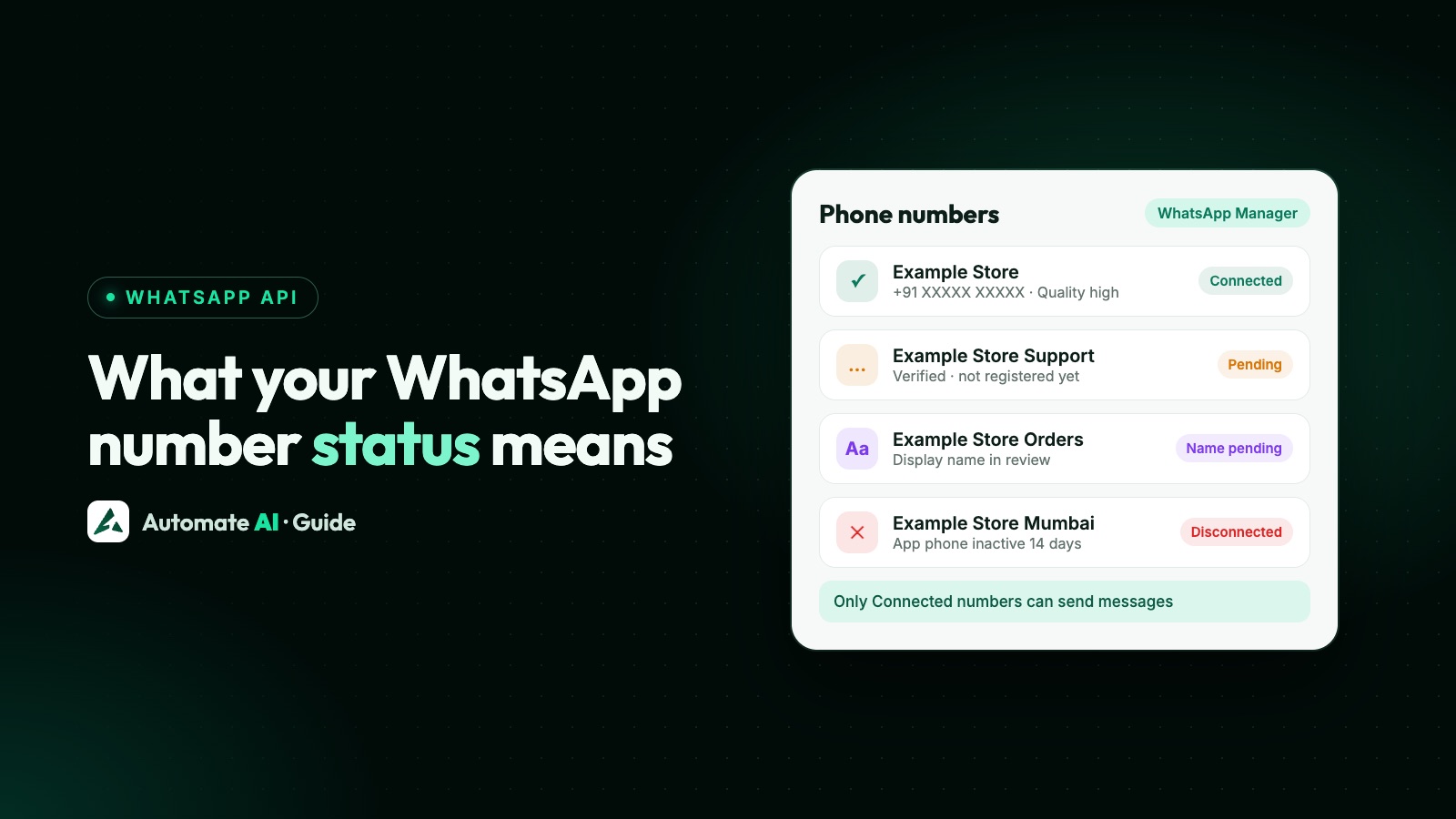
- Open the Two-step verification tab. If there’s no such tab, your number is already past the PIN phase-out.
- Click Change PIN, enter the current PIN, then enter and confirm the new 6-digit PIN.
Meta’s two-step verification page gives the same route starting from Meta Business Suite: Settings › Messaging accounts, select the account, open WhatsApp Manager from its settings, then the number’s Settings › Two-step verification › Change PIN. If you don’t have the current PIN, use the API method in the next section.
Set a new PIN through the API (when nobody knows it)
Meta’s phone number docs say that if you don’t have your PIN, you can change it using the API. The call takes only the new PIN:
| Part | Value |
|---|---|
| Method and URL | POST https://graph.facebook.com/v26.0/<PHONE_NUMBER_ID> |
| Headers | Authorization: Bearer <ACCESS_TOKEN>, Content-Type: application/json |
| Body | { "pin": "<NEW_6_DIGIT_PIN>" } |
| Success | { "success": true } |
Use a token with the whatsapp_business_management and whatsapp_business_messaging permissions for that number, such as a system user token. If a provider registered the number for you, ask them first: their app may already have the access needed to set a new PIN. v26.0 is the version in Meta’s examples at the time of writing.
Registering with the PIN
| Part | Value |
|---|---|
| Method and URL | POST https://graph.facebook.com/v26.0/<PHONE_NUMBER_ID>/register |
| Body | { "messaging_product": "whatsapp", "pin": "<6_DIGIT_PIN>" } |
| Optional | "data_localization_region": "IN" to store message data at rest in India |
| Limit | 10 register or deregister requests per number in a moving 72 hours |
Turn two-step verification off
There is no API endpoint to disable two-step verification. In WhatsApp Manager, follow the steps for changing the PIN but click Turn off two-step verification at the end. Meta sends an email with a link to the email address associated with your business portfolio; open the link to turn it off. You can switch it back on any time by setting a new PIN.
If the email never arrives, the address on the portfolio is probably old. Someone with full control of the business portfolio needs to update it in Meta Business Suite first. If nobody has full control, see business portfolio restricted or locked out.
PIN error codes and fixes
| Code | Meaning | What to do |
|---|---|---|
| 133005 | Two-step verification PIN incorrect | Check the PIN; to reset, set a new PIN (API) or turn two-step verification off and on again |
| 133008 | Too many PIN guesses for this number | Wait for the time given in the error’s details |
| 133009 | PIN entered too quickly | Check details and retry after the wait |
| 131031 | Account locked, for example after a policy breach or because the PIN in the request is wrong | Check the PIN; if it’s a policy lock, see account restricted or banned |
| 133016 | Too many register or deregister attempts | Wait until the 72-hour block lifts; don’t keep retrying |
| 133006 | Number not verified yet | Request and enter a verification code first |
Guessing old PINs is the fastest way to lock yourself out for a while. If the first attempt fails, set a new PIN through the API and register with that. Other setup statuses are explained in WhatsApp API phone number status.
Your number and Automate AI
You connect your own number to Automate AI through Meta’s embedded sign-up in the Connect WhatsApp window, where you verify it by SMS or call. After that, your team works in the shared inbox with owner, manager and agent roles, so nobody needs the PIN for day-to-day chats. Keep the PIN with the business owner, not with individual agents.
Stuck on a PIN or registration error while connecting? Call us on +91 836 977 8812 for remote support, or contact us. Don’t send us the PIN itself; we’ll guide you through resetting it in your own WhatsApp Manager or with your own token.
Frequently asked questions
What is the WhatsApp Business API two-step verification PIN?
A 6-digit PIN set on your Cloud API phone number when you register it. Meta asks for it when you register or re-register the number, change the PIN or delete the number.
I forgot my WhatsApp API PIN. How do I reset it?
Set a new PIN through the API with POST /<PHONE_NUMBER_ID> and a body of { "pin": "<NEW_PIN>" }; the old PIN isn’t needed. You can also turn two-step verification off in WhatsApp Manager through an emailed link and set a new PIN afterwards.
Can I turn off two-step verification through the API?
No. Meta says it can only be turned off in WhatsApp Manager, which emails a link to the address on your business portfolio.
Why can’t I see the Two-step verification tab in WhatsApp Manager?
Meta is phasing out the PIN for eligible Cloud API numbers. If the tab is missing, the change has been applied and there is no PIN to manage, but you should still send a valid 6-digit pin when registering.
What does error 133005 mean?
The two-step verification PIN in your request is wrong. Check it, or set a new PIN and try again. Repeated guesses lead to error 133008 and a wait.
Is the PIN the same as the code I get by SMS?
No. The SMS or voice code proves you own the number. The PIN is a separate 6-digit setting on the registered number.
Sources
- Meta: Two-step verification
- Meta: Business phone numbers (changing and disabling the PIN)
- Meta: Register a business phone number
- Meta: Account model evolution (2FA PIN deprecation)
- Meta: Display names (re-register after approval)
- Meta: Official Business Accounts
- Meta: Onboarding WhatsApp Business app users (coexistence)
- Meta: Error codes
WhatsApp rules and prices change. We check these guides against Meta’s documentation, but always confirm current terms with Meta before you rely on them. Questions? Message us on WhatsApp at +91 836 977 8812.