How to Convert Cold Leads Into Hot Leads Using AI on WhatsApp
A WhatsApp playbook for turning cold leads into hot ones with AI: sort your list, re-engage with a template, qualify in chat, follow up and hand to a person.
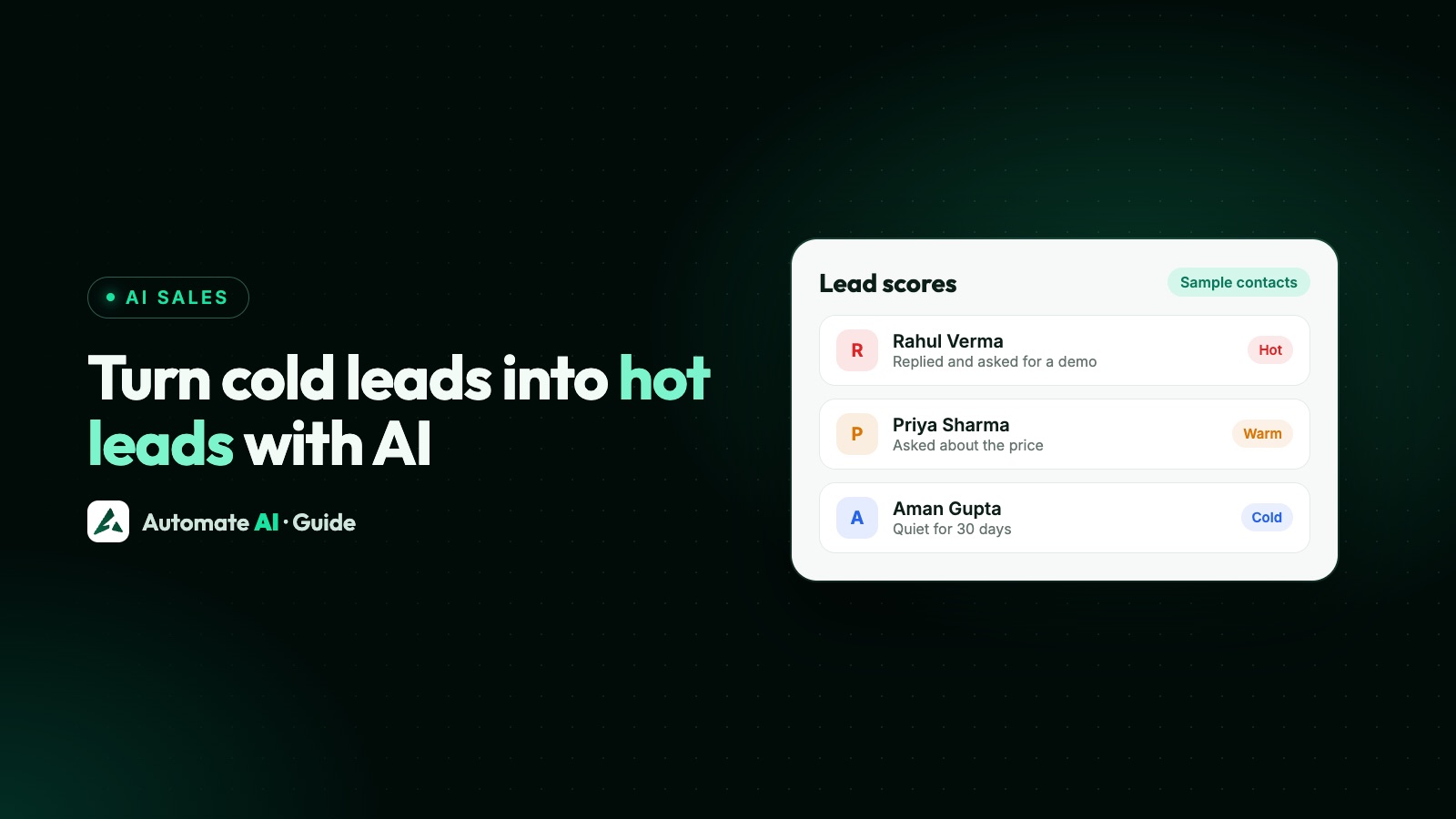
To turn cold leads into hot ones with AI, sort your list by what you know, re-engage opted-in people with one useful WhatsApp template, let AI answer and qualify those who reply, follow up the rest with a short drip sequence, and hand anyone showing buying signals to a person. AI doesn’t warm a lead up by itself. It helps your team spot who has warmed up, and answers them quickly.
This playbook shows each step using AI Sales Center and the AI Assistant in Automate AI. One thing to be clear on from the start: the AI never messages customers on its own. It replies when a customer writes, and its follow-ups are tasks for your team. The first message to a cold lead is always an approved template that you choose to send, to someone who opted in.
Key takeaways
- A cold lead went quiet; they didn’t say no. Leave out anyone who opted out or never opted in.
- AI can only score a lead once they’ve written to you, so a reply is the first thing to aim for.
- Restart the conversation with one useful approved template, not a “just checking in”.
- The AI Assistant answers replies from your own documents; it doesn’t start conversations.
- Smart Follow-up creates tasks for your team. Drip sequences send templates you approved and stop on reply.
- When buying signals appear, hand over to a person. AI finds the lead; people close the sale.
What makes a lead cold, and what AI can and can’t do
A cold lead is someone who showed interest once and has gone quiet: an old enquiry, a form nobody followed up, a chat that stopped. They haven’t said no. Often the timing was wrong or nobody replied in time.
| AI can | AI can’t |
|---|---|
| Score a lead from what they said in the chat | Score someone who has never written to you |
| Answer replies at any hour from your documents | Start a conversation with a cold lead |
| Keep replies focused on your sales goal | Know what was said on a phone call |
| Create follow-up tasks and alert your team | Send follow-ups on its own, or close the sale |
So the plan is simple: people start the conversation with a template, AI handles the replies and sorting, and people finish the job.
Step 1: Score and sort your leads
Before you message anyone, split your list. Who has opted in? Who has said no? What do you already know about the rest?
| Group | How to spot it | What to do |
|---|---|---|
| Opted out or said no | The Opted Out filter, or a closed lead | Leave them out completely |
| No record of opt-in | An old or bought list | No WhatsApp templates. Ask for opt-in another way first |
| Scored warm | AI Sales › Leads, score 50 to 79 by default | Read the reason, then start here |
| Scored cold | AI Sales › Leads, score below 50 | Send a useful template if they opted in |
| Never replied | A form or ad lead with no chat, so no score | Sort by source and date, newest first |
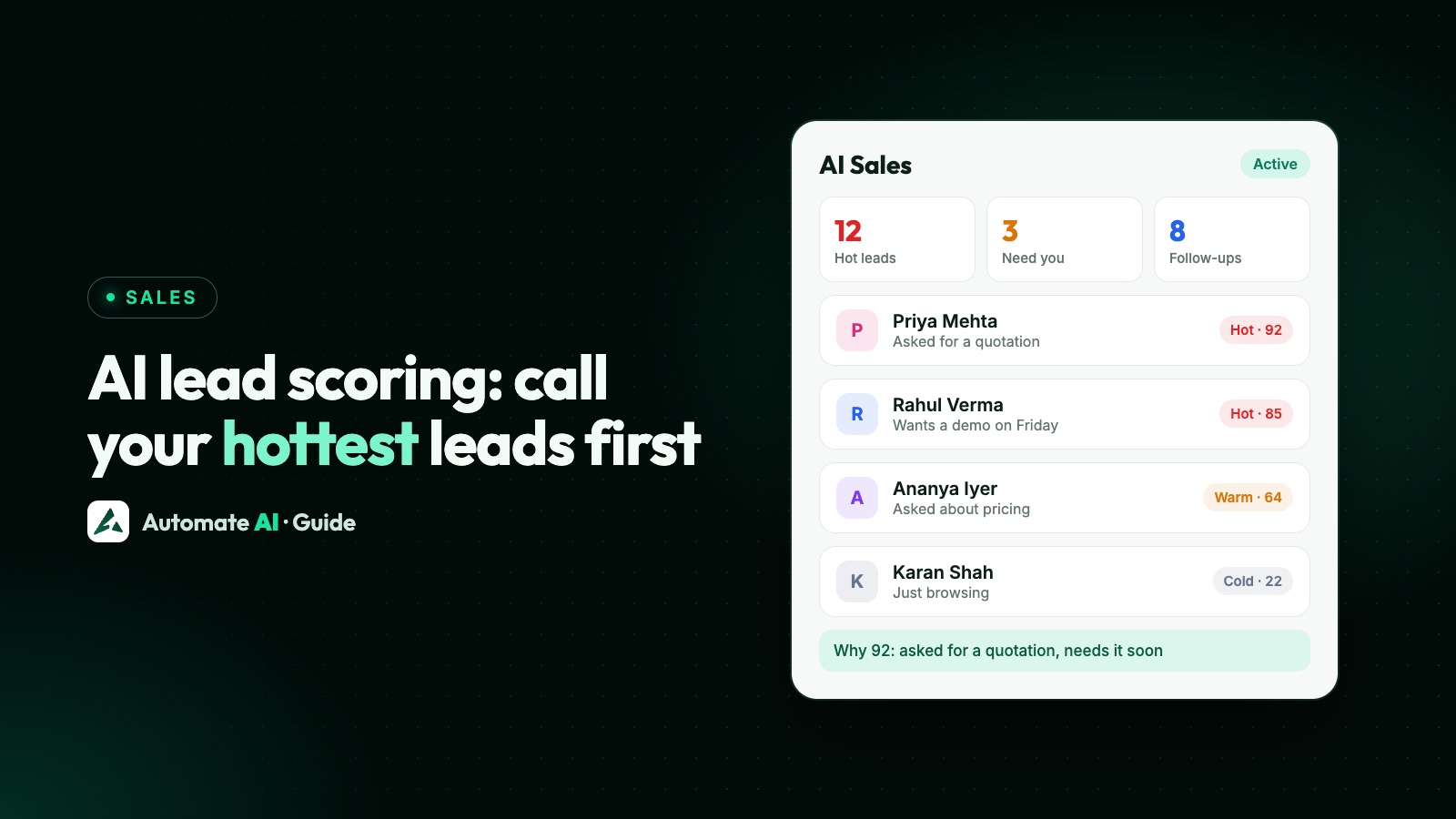
AI Sales Center reads what the customer wrote and gives a score from 0 to 100, with the reason shown in their own words. By default a lead is hot from 80 and warm from 50, and you can change both. For how the signals work, see AI lead scoring on WhatsApp.
The score comes from the customer’s messages, and a new message is what sets it off. Someone who hasn’t written since you switched it on won’t have a score yet. That’s why the next step matters: a reply gives the AI something to read, including the recent chat before it.
Step 2: Re-engage with one approved template
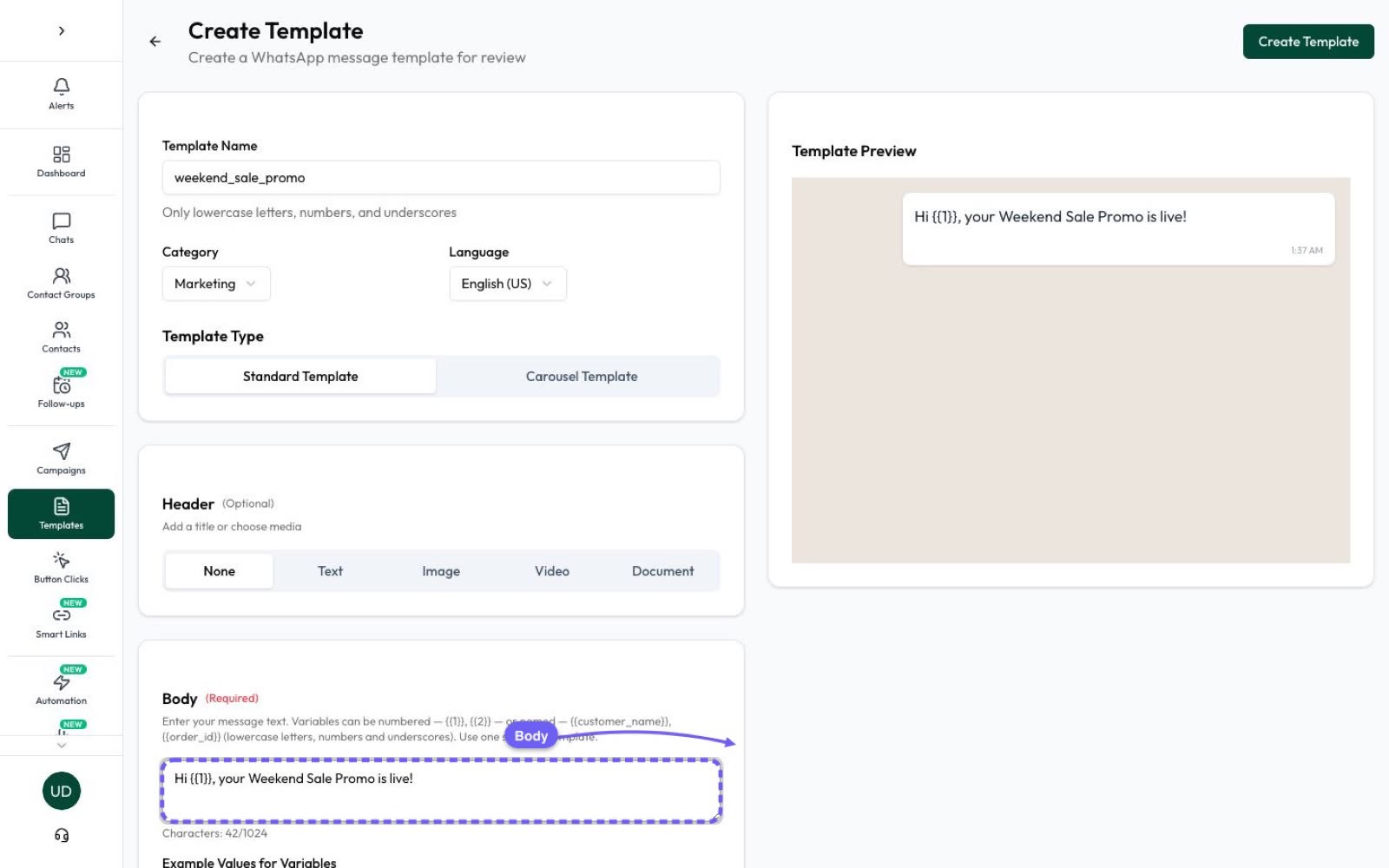
A lead who hasn’t written for 24 hours can only be sent an approved template, and only if they opted in. A message that tries to win someone back counts as marketing, so create it in that category and expect it to be charged at the marketing rate when delivered.
- Give a reason to reply. Something new: a price change, stock back, a new batch or a useful guide. “Just checking in” gives them nothing.
- Refer to what they asked about, so they remember you.
- Make the next step easy, with one question or one button.
- Add a way out. In Automate AI a typed STOP opts a contact out automatically; a button tap doesn’t.
A sample, with an example business: “Hi {{1}}, you asked about 2 BHK homes at Example Heights earlier this year. Prices for the new tower are out. Would you like the list?” [Send the price list] Footer: “Reply STOP to opt out.”
Start small. Send to your freshest group first, then watch reads, replies and blocks before you widen it. Low read rates and negative feedback can lower a template’s quality, and WhatsApp may hold back marketing from people less likely to engage (error 131049). Don’t retry those within 24 hours.
Need wording? AI Template Studio can draft it, and our template library has samples. Meta reviews every template, so check it before you submit. WhatsApp also doesn’t currently deliver marketing templates to US numbers.
Step 3: Qualify in chat with the AI Assistant
When someone replies, a 24-hour customer service window opens and you can send normal messages. This is where AI earns its keep, because the AI Assistant can answer straight away, at any hour.
- Teach it first. It answers from your knowledge base: PDF, Word or text files, or one generated from your website that you review.
- Give it a goal. AI Sales Closer keeps replies focused on your sales goal, such as booking a demo or requesting a quotation, and handles objections using only your knowledge base.
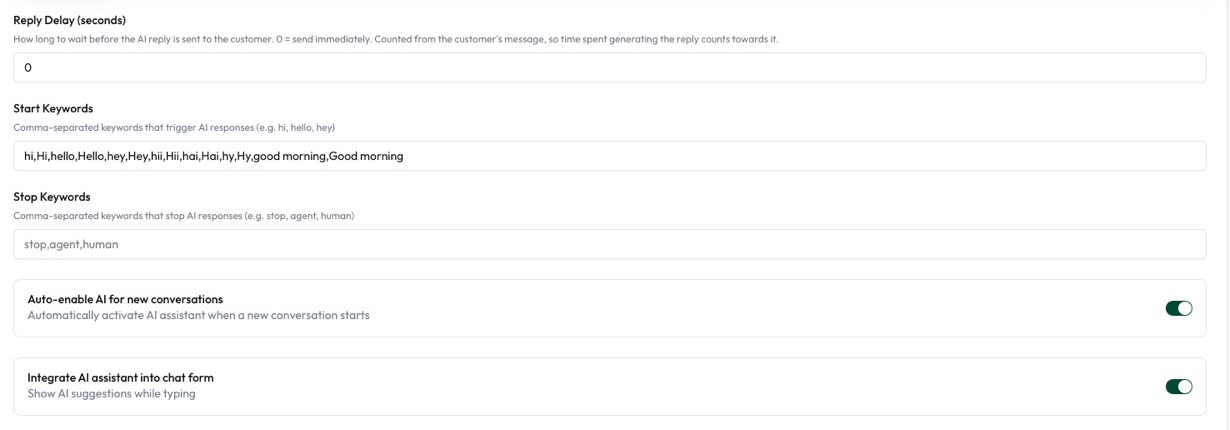
- Check that it picks up the reply. Depending on your settings, the assistant may only join on your start keywords, on new chats or in a chat it’s already in. Old contacts aren’t new chats, so choose start keywords that match likely replies.
- Test with your own number before you send to the list.
As the customer writes, the score updates. Asking about price, requesting a demo, sharing a budget or naming a deadline all push it up. An objection pulls it down a little, and “not interested” keeps it very low.
Step 4: Follow up with a drip sequence
Some people will read your template and not reply. Others will reply once and go quiet. A drip sequence reaches them with a short series of approved templates.
| Step | When | What to send (a suggestion) |
|---|---|---|
| 1 | On enrolment | Something useful, such as a guide or the answer to a common question |
| 2 | After 3 days | A short proof point, a sample or a picture of the product |
| 3 | After 7 days | A last, friendly message that makes it easy to say yes or no |
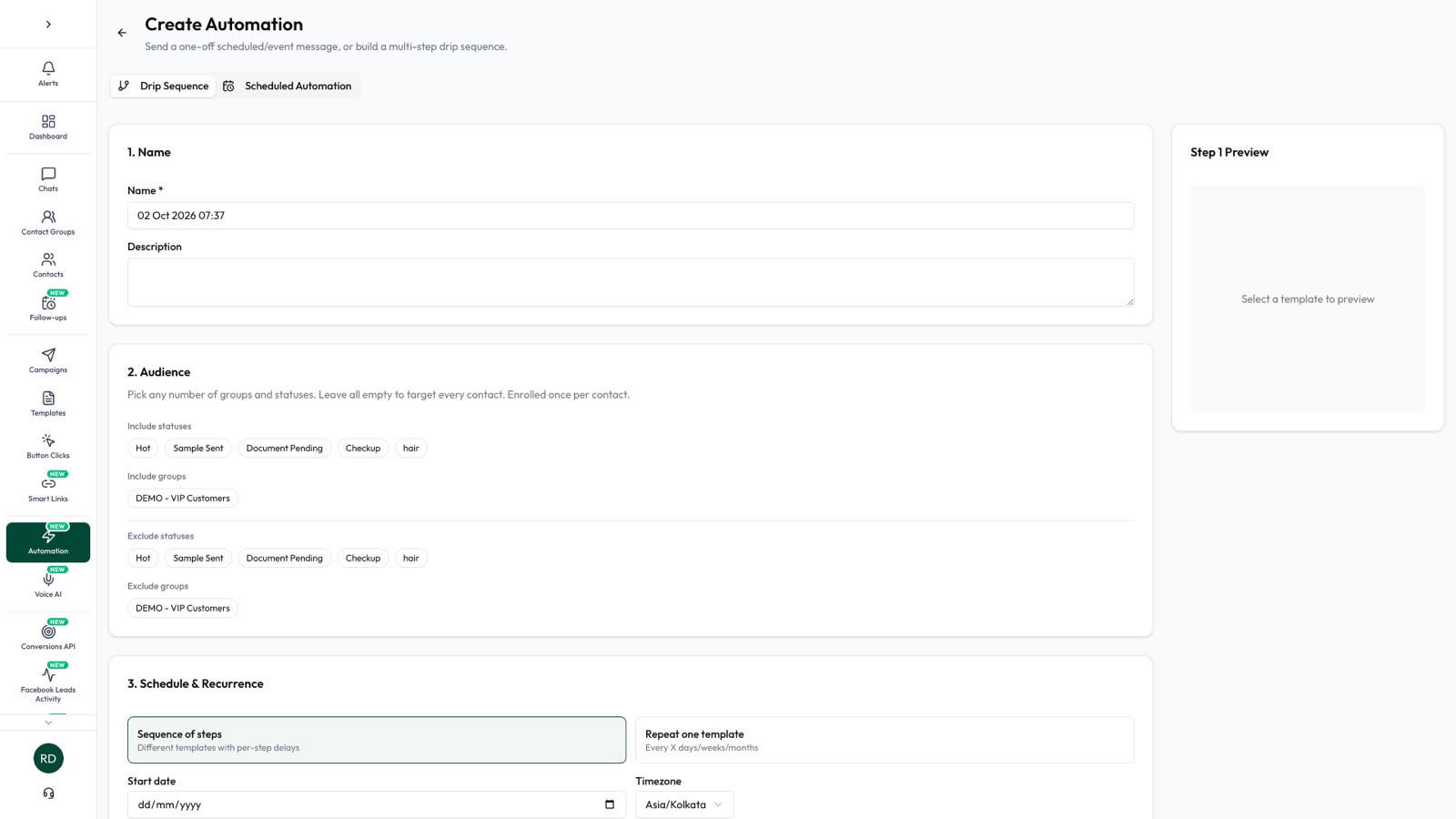
- Turn on Stop on reply, so your team or the AI Assistant can take over.
- Use business hours and a spending limit, per day, week or month.
- Pick the audience by status or group, and exclude existing customers. Each contact is enrolled once.
- Then stop. Someone who ignores all of this has given you an answer for now. There’s no official number of follow-ups, but fewer, better messages protect your quality rating.
Don’t confuse this with AI Smart Follow-up, which creates tasks for your team on the Follow-ups page and never messages the customer. If they gave a time, such as “call me after 6”, the task uses it; otherwise it’s set about a day later and asks your team to agree a time. By default these tasks keep to business hours and are capped at 3 per lead in 30 days. More in lead follow-up.
Step 5: Hand hot leads to a person
A lead turns hot when they show buying signals: asking for a price, a demo or a delivery date. That’s where the AI’s job ends, and WhatsApp’s policy requires a clear route to a human when you automate replies anyway.
- Alerts: AI Human Escalation tells the teammates you chose, in the app and on WhatsApp, when a hot lead needs a salesperson, a customer asks for a person, or the AI can’t answer.
- Context: each lead shows why it scored, what they want, any objection and a next best action. Read it before you reply.
- Quiet AI: after a team member replies by hand, the AI stays quiet for 30 minutes by default.
- Close the loop: mark each lead Converted, Not interested, Lost, Irrelevant or Spam. A lead only counts as converted when your team moves it to a status you marked as a conversion.
What to measure
| Stage | Count | What it tells you |
|---|---|---|
| Re-engagement | Delivered, read, replied | Whether the message was worth answering |
| Qualifying | Leads reaching warm or hot | Whether the conversation moves them |
| Follow-up | Replies per drip step | Which step works, and where to stop |
| Handover | Time to a personal reply | Whether hot leads get a person fast |
| Result | Conversions and cost per conversion | Whether it paid for itself |
| Side effects | Opt-outs, blocks, quality rating | Whether you’re pushing too hard |
There’s no standard win-back rate worth copying, so compare each list with your own earlier results. AI-Assisted Conversions on the AI Sales overview gives you a running count.
Set it up in Automate AI
- In AI Sales › Settings, turn on AI Sales Center, choose your sales goal and set the hot and warm thresholds.
- Choose who is alerted, and pick the statuses that mean converted.
- In the AI Assistant settings, add your knowledge base and set start and stop keywords.
- Filter your contacts, and leave out anyone opted out or without opt-in.
- Send your approved template as a campaign to a small group first.
- Add a short drip sequence for people who don’t reply.
AI Sales Center and the AI Assistant are included in Series 2, 3 and 4. AI features use your own connected AI key, so AI usage is billed by your AI provider, and WhatsApp templates are charged per delivered message. See pricing and rates by country.
Frequently asked questions
Can AI turn cold leads into hot leads by itself?
No. AI can score leads, answer replies and suggest next steps, but it needs a customer message to work with. Your team sends the template that restarts the conversation and closes the sale.
Does the AI send follow-up messages to my leads?
No. Smart Follow-up creates tasks for your team, and the AI never messages customers on its own. Drip sequences send approved templates that you set up yourself.
Can I message cold leads on WhatsApp?
Only if they opted in to hear from your business and haven’t opted out. If they haven’t written in the last 24 hours, the message must be an approved template.
How does AI decide a lead is hot?
AI Sales Center picks out buying signals from the customer’s own messages, such as asking about price or a demo, and adds up a score from 0 to 100. By default a lead is hot from 80.
How many messages should I send a cold lead?
There’s no official number. One re-engagement template and two or three helpful follow-ups is a sensible limit. Stop as soon as they reply or say no.
What happens when a cold lead replies after months?
A 24-hour window opens, so you can reply normally. AI Sales Center reads the recent conversation and scores the lead, and your team can take over at any point.
Sources
- Meta: Send messages (customer service window)
- Meta: Get opt-in for WhatsApp
- WhatsApp Business Messaging Policy
- Meta: Template categorization
- Meta: Template quality
- Meta: Per-user marketing template limits
- Automate AI: AI Sales Center
WhatsApp rules and prices change. We check these guides against Meta’s documentation, but always confirm current terms with Meta before you rely on them. Questions? Message us on WhatsApp at +91 836 977 8812.