Write WhatsApp Templates with AI (and Get Them Approved)
How to write WhatsApp message templates with AI that pass Meta’s review: choosing the category, variables and sample values, component limits, briefs that get good drafts, worked examples, and how AI Template Studio in Automate AI drafts, checks and submits them.
AI can draft a WhatsApp template in seconds, but approval still depends on Meta’s rules: the right category, variables with sample values, and every part within its limit. Let AI write the words, then check them against the rules before you submit.
This guide sets out the rules a draft must pass, how to brief an AI so its first draft is close, worked examples, and how AI Template Studio does it in Automate AI (Templates › Generate with AI). For template basics, see WhatsApp template messages; if one has already been rejected, see why WhatsApp templates get rejected.
Key takeaways
- Choose the category first: marketing for offers and nudges, utility for non-promotional updates about something the customer did or asked for, authentication only for codes.
- Every variable needs a sample value; a template can’t start or end with a variable, and numbered variables must run in order.
- Stay inside Meta’s limits: header 60 characters, body 1,024, footer 60, button text 25.
- Brief the AI like a colleague: the offer, the audience, the deadline, one action and the tone.
- Passing an automatic check doesn’t guarantee approval: Meta reviews every template, and a decision can take up to 24 hours.
What AI is good at with templates, and what you still decide
| Let AI do it | Decide yourself |
|---|---|
| Turn a one-line idea into clear WhatsApp copy | Whether the offer, price and dates are right |
| Write three versions in different tones | Which version fits your brand |
| Shorten, expand or rewrite on request | The category, when a message mixes an update and an offer |
| Suggest buttons, a header and sample values | Whether you have opt-in to send it |
| Make a matching header picture | Every claim the message makes |
AI writes fluent text, which makes it tempting to approve without reading. Read every draft as if a customer will screenshot it.
The rules every draft must pass
Category
Meta defines three categories. Utility templates follow up on something the customer did or asked for and must be non-promotional: order confirmations, shipping updates, account alerts or a survey about a specific order. Marketing covers offers, launches, abandoned-cart reminders and anything else promotional, and it is also the category for mixed or unclear content. Authentication is only for one-time passcodes. Meta also reviews approved templates and can move one from utility to marketing, normally with a day’s notice.
Variables and sample values
- Use numbered variables in order ({{1}}, {{2}}, {{3}}), or named ones in lowercase with underscores ({{customer_name}}).
- Add a sample value for every variable when you submit; reviewers use them to see the real message.
- Don’t start or end the message with a variable: Meta rejects “dangling” parameters.
- Don’t use too many variables for the length of the message; add fixed words around them.
- Keep special characters such as #, $ or % out of variables.
Component limits
| Part | Limit |
|---|---|
| Header | Optional. Text up to 60 characters with at most 1 variable, or an image, video or document |
| Body | Required. Up to 1,024 characters |
| Footer | Optional. Up to 60 characters, text only |
| Buttons | Up to 10 in total: up to 10 quick replies, 2 website buttons, 1 phone number and 1 copy code. Button text up to 25 characters |
| Website button | Link up to 2,000 characters, with at most one variable, at the end |
| Name | Lowercase letters, numbers and underscores |
Meta also rejects a template whose body and footer repeat one you already have, and content that breaks its Commerce or Business policies, such as asking for full ID numbers or threatening language.
Brief the AI: what to tell it
A vague brief gets a vague template. Give the AI the same five things you’d give a copywriter:
- The message: the offer or update in one sentence, with the real numbers.
- Who it’s for: new leads, past buyers, people with an order on the way.
- When: the deadline or date, if there is one.
- One action: shop, reply, book or pay.
- Tone and language: friendly or formal, English or Hindi.
| Vague brief | Better brief |
|---|---|
| “Diwali offer” | “Diwali sale at Example Store: 20% off silk sarees until Sunday, free delivery above ₹999, for past buyers. Friendly, English, one button to view the collection.” |
| “Payment reminder” | “Reminder that an invoice is due on a date, with the amount and a link to pay online. Polite, no offers.” |
| “Follow up with leads” | “Follow-up for people who asked about our 2 BHK homes in Wakad and went quiet. One question: would a weekend site visit help? Short and friendly.” |
Examples that follow the rules
Sample templates; names, stores and numbers are examples. Sample values are shown after each one.
Marketing: festive offer
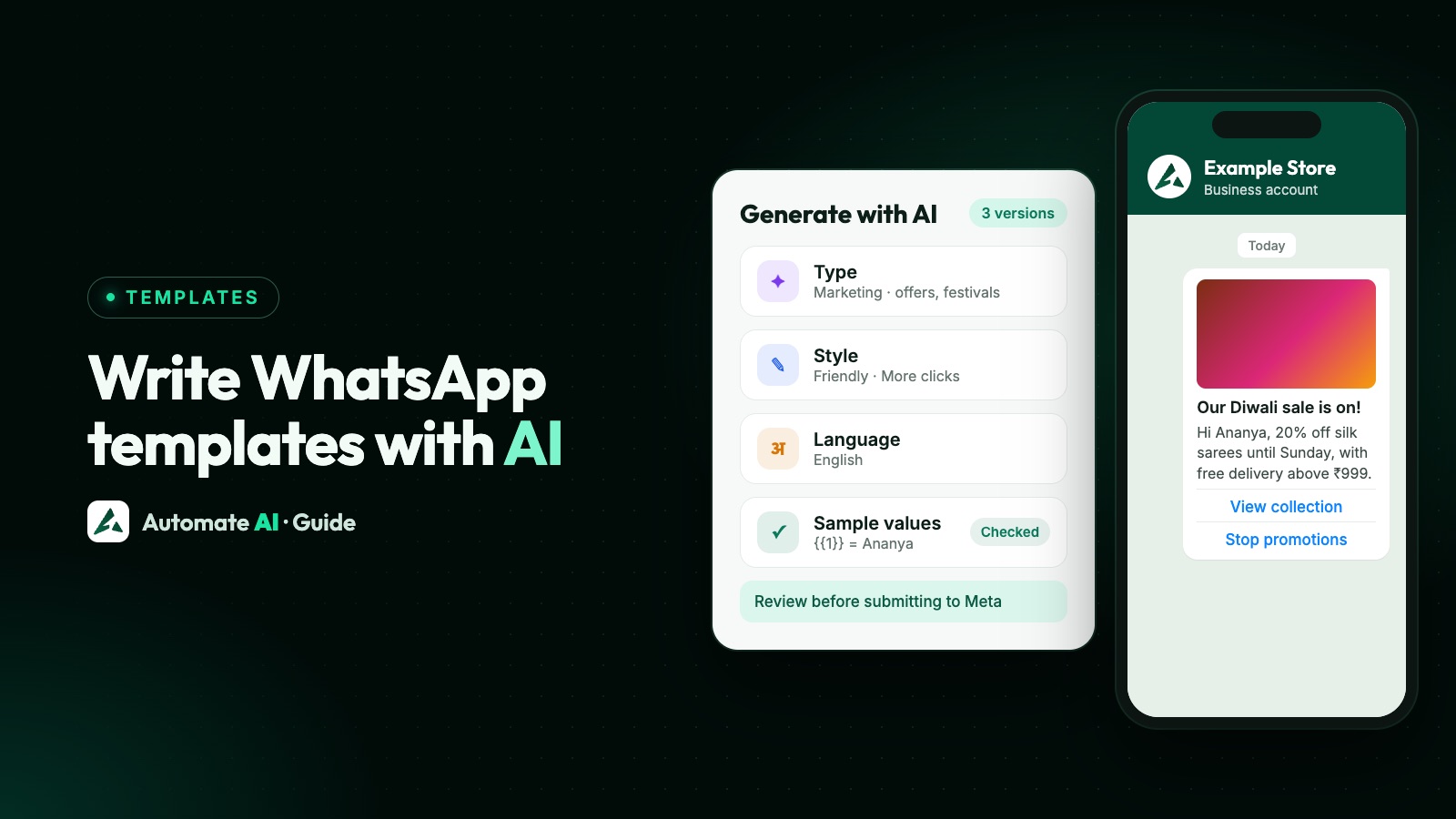
“Hi {{1}}, our Diwali sale is on at Example Store: 20% off silk sarees until Sunday, with free delivery above ₹999. Tap below to see this week’s picks.” Buttons: View collection, Stop promotions. Sample: {{1}} = Ananya.
Utility: order shipped
“Hi {{1}}, your order {{2}} has been shipped and should reach you by {{3}}. You can track it with the button below.” Button: Track order, a link ending in the order number. Samples: Ananya, #1042, 2 November.
Utility: payment due
“Hello {{1}}, this is a reminder that invoice {{2}} for {{3}} is due on {{4}}. You can pay online using the link below. Thank you.” Samples: Rahul, INV-2041, ₹4,500, 5 November.
Before and after
| Draft | Problem | Fixed |
|---|---|---|
| “{{1}}, 50% OFF!!! Order now {{2}}” | Starts and ends with a variable; shouting | “Hi {{1}}, our weekend sale is on: 50% off selected kurtas until Sunday. Tap below to shop.” |
| “Your order is confirmed. Also, get 10% off your next order with code SAVE10!” | An update mixed with an offer, so it will be marketing | Send the confirmation as utility; send the offer separately, to people who opted in |
| “Hi {{1}} {{2}}, appointment {{3}}” | Variables side by side; almost no fixed text | “Hi {{1}}, this is a reminder of your appointment at Example Clinic on {{2}} at {{3}}. Reply 1 to confirm.” |
Write a template with AI Template Studio in Automate AI
AI Template Studio lives in Templates › Generate with AI and is included in Series 2, 3 and 4.
- Choose what to create: a New template (describe it and get 3 versions) or Similar to existing, which starts from one of your approved templates. The approved one is never changed; new versions are saved as drafts.
- Choose the type of message: Marketing (offers, launches, festivals), Utility (orders, reminders, updates) or Code (OTP).
- Describe it the way you’d tell a colleague, or pick a ready idea: Festival sale, New launch, Payment reminder, Order update or Event invite. Choose the language: English, Hindi, Marathi, Gujarati, Tamil and many more.
- Choose the style: Professional, Friendly, Exciting, Formal or Short; the goal (More clicks or More replies); the header (none, text, image or video); and, if you like, your website link and phone number for buttons.
- Generate 3 versions and pick one to edit. Nothing is sent until you submit it.
- Edit the name, category, language, header, body, sample values (“Meta reviews these”), footer and buttons. AI edit can Shorten, Expand, Rewrite or Regenerate, with an optional instruction such as “increase urgency”. For an image header, generate a picture with AI or upload your own.
- Review before submitting to Meta: the Studio checks the draft against Meta’s limits and variable rules, tidies formatting without changing your wording, and lists anything to fix. Then press Submit to Meta for review.
Beyond Meta’s published rules, the Studio also flags two variables side by side and warns that link shorteners are often rejected. Your drafts and earlier prompts stay under Drafts & history. You can also ask AI Copilot on the Templates page to “Write a festive offer template”, “Write a follow-up template” or “Write a thank-you template”; it drafts the template and submits it only after your OK.
A 10-point check before you submit
- The category matches the content; any offer makes it marketing.
- Every variable has a realistic sample value.
- No variable at the very start or end of the message.
- Numbered variables run from {{1}} with no gaps.
- The body is under 1,024 characters and reads well on a phone.
- Prices, dates and stock are true for everyone who will receive it.
- One clear action, with button text of 25 characters or fewer.
- Your full website link, not a shortened one.
- Marketing templates give people a way to stop, such as a Stop promotions button.
- You have opt-in from everyone you’ll send it to.
After you submit: review, category changes and cost
- Review: templates are reviewed automatically, and a decision can take up to 24 hours. Rejected templates can’t be sent; fix and resubmit, or appeal.
- Category changes: Meta may move an approved template from utility to marketing, normally with a day’s notice, by email, by webhook and in WhatsApp Manager.
- Cost in India from 1 October 2026: ₹0.8631 per delivered marketing message and ₹0.1150 per utility or authentication message (Meta’s fee), and utility templates are charged even inside an open 24-hour window.
- Reach: WhatsApp limits how many marketing templates each person receives, based on their engagement, so a well-targeted template beats a broad one.
- Template limits: 250 templates per WhatsApp Business account until your business portfolio is verified, then up to 6,000, with up to 100 new templates an hour.
For what to do once a template is live, see WhatsApp template messages, and for message ideas, 30 follow-up message examples.
Frequently asked questions
Will Meta approve a template written by AI?
Meta reviews the template, not who wrote it. A draft in the right category, with sample values and within Meta’s limits, has a good chance, but approval is never guaranteed.
Can AI choose the category for me?
In AI Template Studio you choose the type (Marketing, Utility or Code) before it writes. Meta has the final say, and a template that mixes an update with an offer is treated as marketing.
Can AI write WhatsApp templates in Hindi?
Yes. Choose Hindi or another WhatsApp template language in the Studio. Meta doesn’t translate templates, so each language version counts as its own template.
Why does Meta need sample values?
Reviewers use them to see what customers will actually receive. Templates with variables must include samples when you submit them.
Can AI make the header image?
Yes. In AI Template Studio, choose an image header and generate a picture with AI, or upload your own.
Which plans include AI Template Studio?
AI Template Studio is included in Series 2, 3 and 4 at no extra charge.
Sources
- Meta: Template categorization
- Meta: Template components and limits
- Meta: Templates overview (names, parameters, limits)
- Meta: Template review
- Meta: Per-user marketing template limits
- Meta: Pricing on the WhatsApp Business Platform
- Meta: Getting opt-in for WhatsApp
WhatsApp rules and prices change. We check these guides against Meta’s documentation, but always confirm current terms with Meta before you rely on them. Questions? Message us on WhatsApp at +91 836 977 8812.