WhatsApp Follow-Up Messages: 30 Examples for Every Situation
30 WhatsApp follow-up message examples for quotes, leads who went quiet, site visits and demos, payment links, ad enquiries, purchases and old leads, each labelled free-form or template and marketing or utility, plus how follow-up reminders and Re-inquiry work in Automate AI.
A good WhatsApp follow-up is short, about the one thing the customer asked for, and sent in the right format: a normal message if they wrote to you in the last 24 hours, an approved template if they didn’t.
Below are 30 examples for seven everyday situations, each labelled with how you can send it and the category it would most likely get under Meta’s definitions. After the examples: how Automate AI makes sure your team actually sends them, with ringing reminders, repeating reminders by status and Re-inquiry tags. For how often to follow up, see lead follow-up cadence; for the window itself, see the 24-hour window.
Key takeaways
- Within 24 hours of the customer’s last message you can send any message; after that, only an approved template.
- Rule of thumb: promoting, persuading or re-engaging is marketing; a non-promotional update about something the customer did or asked for is utility.
- An update with an offer added becomes marketing, so send the two separately.
- One message, one question. Use the customer’s name and the thing they asked about.
- Automate AI rings each person’s own reminders on time, repeats them by status and tags leads who write again as Re-inquiry.
How to read the labels
| Label | What it means |
|---|---|
| Free-form | A normal message. Only possible within 24 hours of the customer’s last message (the customer service window). |
| Template · utility | Must be an approved template once the window has closed. Non-promotional, and about something the customer did or asked for. |
| Template · marketing | Must be an approved template once the window has closed. Anything promotional or persuasive, and anything mixed or unclear. |
The categories are our reading of Meta’s definitions; Meta reviews every template, has the final say and can move a utility template to marketing later. Cost matters too: in India from 1 October 2026, Meta charges ₹0.8631 per delivered marketing message and ₹0.1150 per utility message, and utility templates are charged even inside an open window. Marketing templates also count toward WhatsApp’s per-person marketing limit, except those sent while the customer’s window is open.
Quotes and quiet leads (examples 1–9)
After you send a quote
| # | Message | Send as |
|---|---|---|
| 1 | “Hi Ananya, here’s the quote for 50 printed mugs we discussed. Shall I block a print slot for Thursday?” | Free-form (same day) |
| 2 | “Did the quote open properly on your phone? I can send it as a PDF instead.” | Free-form |
| 3 | “Hi {{1}}, your quotation {{2}} from Example Store is ready and valid until {{3}}. Reply here if you’d like any changes.” | Template · utility (likely: requested, no sales push) |
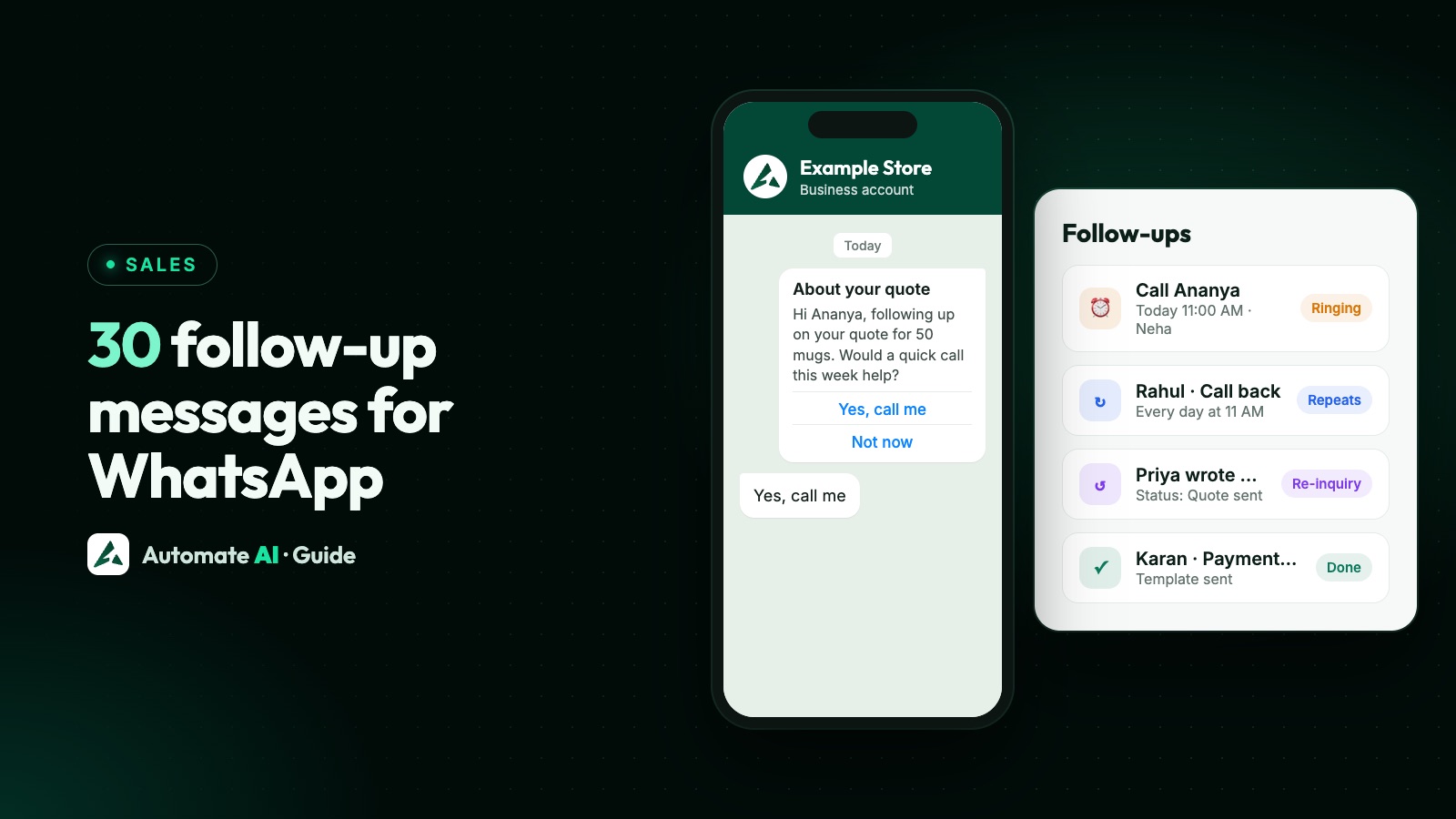
| 4 | “Hi {{1}}, following up on your quote for {{2}}. Would a quick call this week help you decide?” Buttons: Yes, call me · Not now | Template · marketing |
| 5 | “Hi {{1}}, any questions on the quote for {{2}}? Happy to adjust quantities or delivery dates to suit you.” | Template · marketing |
When a lead stops replying
| # | Message | Send as |
|---|---|---|
| 6 | “Hi Rahul, did that answer your question about delivery to Pune?” | Free-form (within 24 hours) |
| 7 | “Hi {{1}}, still thinking about {{2}}? Here are the three questions customers ask most before buying.” Button: See answers | Template · marketing |
| 8 | “Hi {{1}}, no rush at all. Reply LATER and we’ll check back next month, or tap Stop promotions.” | Template · marketing |
| 9 | “Hi {{1}}, I’ll close your enquiry about {{2}} for now so we don’t keep messaging you. Just reply here if you still need it.” | Template · marketing (likely) |
Two or three nudges, spaced out, are plenty. After that, stop, and only include the lead in occasional campaigns if they opted in to updates.
Visits, demos and payments (examples 10–18)
Around a site visit or demo
| # | Message | Send as |
|---|---|---|
| 10 | “Hi Priya, we missed you at Example Heights today, no problem at all. Would Sunday 11 AM or 4 PM suit you better?” | Free-form (if she wrote in the last 24 hours) |
| 11 | “Hi {{1}}, your site visit at {{2}} on {{3}} was missed. Reply 1 to choose a new time or 2 to cancel.” | Template · utility |
| 12 | “Hi {{1}}, your demo booked for {{2}} didn’t take place. Pick a new time with the button below.” Button: Choose a time | Template · utility |
| 13 | “Hi {{1}}, sorry we couldn’t meet. Here’s a two-minute video tour of the {{2}} you asked about. Shall we try this weekend?” | Template · marketing |
| 14 | “Thanks for your time on the call, Arjun. As promised, here’s the pricing sheet and the demo recording.” | Free-form (right after the call, if he messaged today) |
After you send a payment link
| # | Message | Send as |
|---|---|---|
| 15 | “Here’s the payment link for order #1042 (₹1,299). Tell me once it’s done and I’ll confirm dispatch.” | Free-form |
| 16 | “Hi {{1}}, a reminder that payment of {{2}} for order {{3}} is pending. You can pay securely with the link below.” Button: Pay now | Template · utility |
| 17 | “Hi {{1}}, the payment for order {{2}} wasn’t completed. If you’d still like the order, you can try again with the link below.” | Template · utility |
| 18 | “Hi {{1}}, we’ve received your payment of {{2}} for order {{3}}. Thank you! We’ll share tracking once it ships.” | Template · utility |
Ad enquiries, purchases and old leads (examples 19–30)
After an enquiry from an ad
| # | Message | Send as |
|---|---|---|
| 19 | “Hi! Thanks for messaging us from our Instagram ad 👋 Which size are you looking for: S, M, L or XL?” | Free-form (reply within minutes) |
| 20 | “Here’s the price list you asked for. Shall I check stock in your size?” | Free-form |
| 21 | “Hi {{1}}, you asked about {{2}} from our ad. It’s still available in your size. Shall I keep one aside?” | Template · marketing |
| 22 | “Hi {{1}}, thanks for your enquiry about {{2}} on Facebook. I’m Neha from Example Realty. When is a good time for a quick call?” | Template · marketing (likely) |
When someone messages you from a Click-to-WhatsApp ad, your replies are free during the free window if you reply within 24 hours, so answer fast. Leads from Facebook lead forms haven’t messaged you, so the first message must be a template, sent only if the form collected their opt-in to hear from you. See Facebook lead ads to WhatsApp.
After a purchase
| # | Message | Send as |
|---|---|---|
| 23 | “Hi {{1}}, thanks for your order {{2}}! It’s confirmed and will be packed today. We’ll message you when it ships.” | Template · utility |
| 24 | “Hi {{1}}, how was your order {{2}}? Rate it from 1 to 5 with the buttons below.” | Template · utility (a survey about a specific order) |
| 25 | “So glad it reached you safely, Ananya! Quick tip: dry-clean silk and store it in a cotton cloth so it lasts.” | Free-form (she wrote today) |
| 26 | “Hi {{1}}, hope you’re enjoying the {{2}}! Customers who bought it also love our matching dupattas. Take a look?” | Template · marketing |
Re-engaging an old lead
| # | Message | Send as |
|---|---|---|
| 27 | “Hi {{1}}, it’s been a while since you asked about {{2}}. Prices for the new batch are out. Want the updated list?” Buttons: Send price list · Stop promotions | Template · marketing |
| 28 | “Hi {{1}}, new 2 BHK homes have opened at Example Heights in {{2}}, the area you asked about. Shall I share the floor plans?” | Template · marketing |
| 29 | “Hi {{1}}, our new JEE batch starts on {{2}}. Would you like the timetable and fees?” | Template · marketing |
| 30 | “Hi {{1}}, are you still interested in {{2}}? Reply YES for updates, or tap Stop promotions and we won’t message you about it again.” | Template · marketing |
Only re-engage people who opted in to hear from you, and stop when they say so: WhatsApp’s policy requires you to respect opt-out requests made on or off WhatsApp. See handling opt-outs.
Turning an example into a template
- Swap names and details for variables ({{1}}, {{2}}) and add a realistic sample value for each.
- Don’t start or end the message with a variable: “Hi {{1}}, …” and a closing sentence solve both.
- Keep promotional words out of utility templates; any offer makes it marketing.
- Add quick-reply buttons (“Yes, call me”, “Not now”) so replying takes one tap, and Stop promotions on marketing templates.
In Automate AI, Templates › Generate with AI (AI Template Studio, in Series 2, 3 and 4) can turn any of these into three versions and check them against Meta’s rules; see write WhatsApp templates with AI.
How Automate AI keeps follow-ups on time
Reminders that ring
From a chat, add a follow-up with a date, a time and a note (internal only; the customer never sees it). At that time the reminder rings and keeps ringing until you press Done or Stop; Snooze rings again at the new time. You only hear your own reminders, and the Alerts bell shows only follow-ups you set yourself (“Follow-up due now” or “in N min”). On busy days a batch shows as one line, such as “250 follow-ups due now”. The Follow-ups page lists every follow-up as Pending, Overdue, Missed or Completed, by team member.
Send the message at the follow-up time
Switch on Also send a message to the customer and the follow-up also goes out on WhatsApp at that time: free text, with a fallback template that is sent instead if the 24-hour window has closed, or a template. Without a fallback, a free-text follow-up fails rather than breaking WhatsApp’s rules.
Repeating reminders by status
In Settings › Contact Statuses, turn on Auto Follow-up for a status such as “Call back”: moving a contact to it then requires a follow-up with a note, prefilled at the status’s fixed time. Add reminders before it’s due, and turn on Auto Recurring to repeat every few hours or days. Repeating reminders ring at the status time (for example 11 AM) and skip days you’re closed. If you set one for your own time, it rings then, and the next day’s goes back to the status time.
A follow-up that isn’t done rings once more the next day at the status time. If it’s still not done, it moves to Missed quietly: no more ringing and no new automatic follow-ups for it until someone marks it done, sets a new follow-up or changes the status.
Re-inquiry: leads who write again
Once someone on your team changes a lead’s status (after a call, say), any new message from that lead marks the chat Re-inquiry, and the tag goes when the status is changed again. Find these chats in the Re-inquiry tab in Chats or from the Dashboard. Only a person’s status change counts. For final statuses such as “Lead converted”, turn the Re-inquiry tag off in Settings › Contact Statuses.
Automatic follow-up messages
Settings › Auto Follow-ups sends a sequence of messages in order after a contact’s last message and stops when the contact replies. Each step can be text or a template, wait a set time, keep to business hours and apply only to contacts with a chosen status; any step sent more than 24 hours after the customer’s last message needs to be a template. For longer sequences, use Drip Campaigns (guide).
Set it up in Automate AI
- In Settings › Contact Statuses, create your stages (for example New, Interested, Quote sent, Site visit booked, Won, Lost) and turn on Auto Follow-up with a fixed time for the ones that need a call back.
- Turn the Re-inquiry tag off for final statuses such as Won.
- Create the templates you need from the examples above, in Templates or with Generate with AI, and wait for approval.
- In a chat, add a follow-up with a note. Switch on Also send a message to the customer if the message can go out by itself, and pick a fallback template.
- Optionally, set up Settings › Auto Follow-ups for a short sequence that stops on reply.
- Each morning, open Follow-ups and the Re-inquiry tab. Managers can check Team › Staff activity for follow-ups set, done and missed by each person.
Follow-ups, statuses and Re-inquiry are part of the shared team inbox. To find out who to follow up first, see AI lead scoring.
Frequently asked questions
Can I send a WhatsApp follow-up after 24 hours?
Yes, but only as an approved template. Within 24 hours of the customer’s last message you can send any message.
Is a follow-up message marketing or utility?
It depends on the content. A non-promotional update about something the customer did or asked for, such as a booking, payment or order, is usually utility. A nudge to buy, a reminder about a quote or an offer is marketing, and so is any mix of the two.
How many follow-ups should I send?
Fewer than you think: a same-day reply and one or two helpful nudges, stopping as soon as they reply or say no. Our lead follow-up cadence guide has a full schedule.
Can Automate AI send the follow-up message for me?
Yes. When you add a follow-up, switch on “Also send a message to the customer” and choose free text with a fallback template, or a template. It goes out at the follow-up time.
Why did a follow-up reminder stop ringing?
A follow-up that isn’t done rings once more the next day at the status time, then moves to Missed quietly until someone marks it done, sets a new follow-up or changes the status.
What does Re-inquiry mean?
The lead wrote again after someone on your team changed their status. The tag stays until the status is changed again.
Does everyone hear every follow-up reminder?
No. You only hear your own reminders, and the Alerts bell shows only follow-ups you set yourself.
Sources
- Meta: Send messages (customer service window)
- Meta: Template categorization
- Meta: Pricing on the WhatsApp Business Platform
- Meta: Per-user marketing template limits
- Meta: Getting opt-in for WhatsApp
- WhatsApp Business Messaging Policy
WhatsApp rules and prices change. We check these guides against Meta’s documentation, but always confirm current terms with Meta before you rely on them. Questions? Message us on WhatsApp at +91 836 977 8812.