WhatsApp Drip Campaigns: Set Up a Sequence That Stops When Customers Reply
How to plan and build a WhatsApp drip campaign: who enters, how many steps, delays counted from enrollment, templates, stop on reply, business hours and budgets, three example sequences, and how to read step-by-step results.
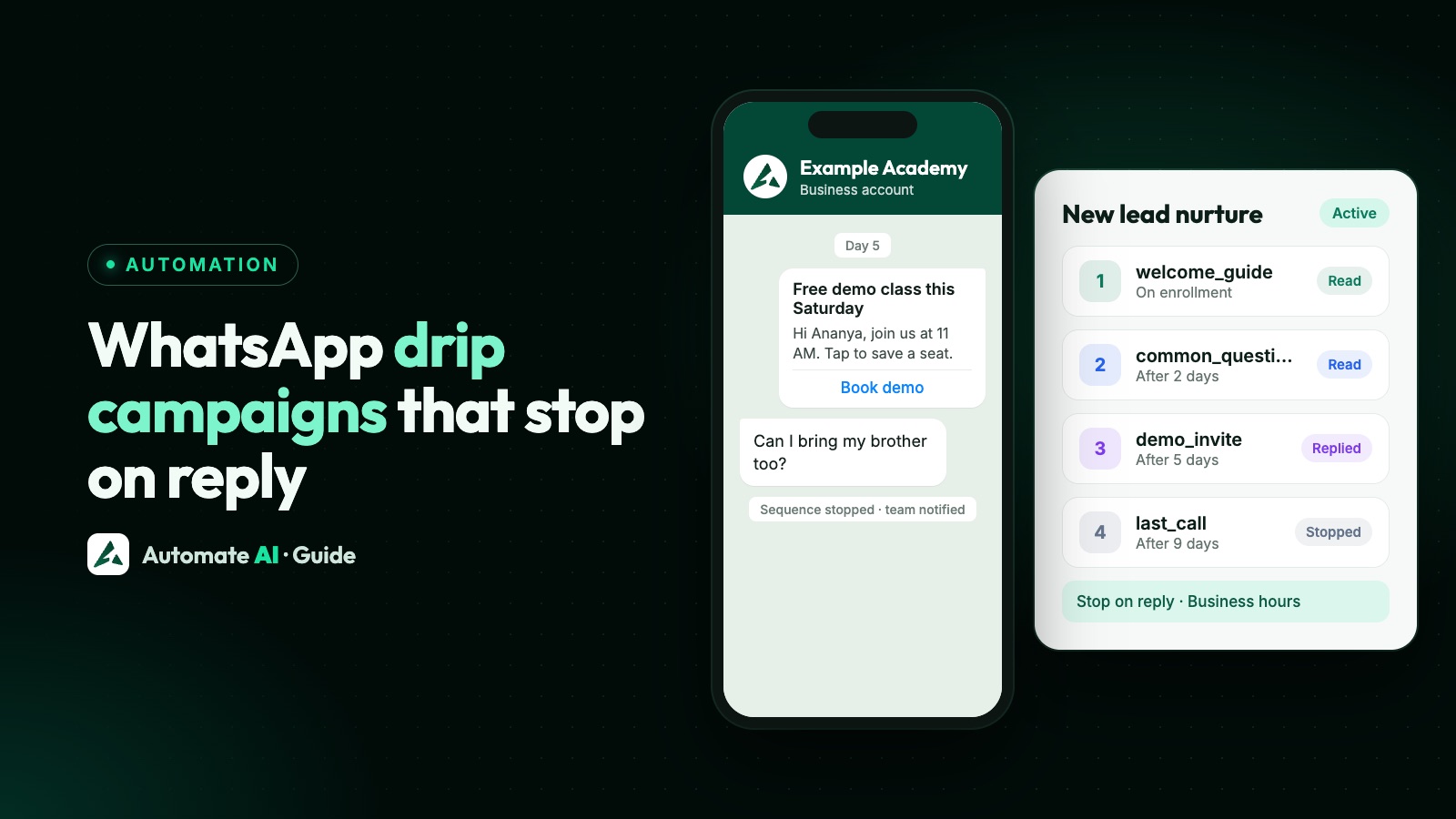
A WhatsApp drip campaign is a short series of approved template messages that goes out automatically over days or weeks after someone joins a list, and a good one stops the moment the customer replies. You decide who enters, what each step says and how long to wait; the software does the sending and steps aside when a real conversation starts.
This is the hands-on version: how to plan a sequence, the WhatsApp rules every step must follow, three example sequences you can adapt, and exactly how to build and measure one in Automate AI, where Drip Campaigns now sit under Campaigns. For the wider picture of what to automate on WhatsApp, read WhatsApp automation: follow-ups and drip campaigns.
Key takeaways
- Steps that go out more than 24 hours after a contact’s last message must be approved templates, sent only to people who opted in.
- Plan three to five steps with real gaps between them, and put useful content before the offer.
- In Automate AI every step’s delay is counted from enrollment, not from the previous step.
- Stop on reply hands the chat to your team; a typed STOP opts the contact out of every sequence.
- Promotional steps are marketing templates and count towards WhatsApp’s per-user marketing limits.
- Check each step’s read, reply and tap numbers, and cut the steps that don’t earn their place.
How a WhatsApp drip campaign works
Every drip has four parts. Get them right on paper first and the setup takes minutes.
| Part | What it means | Example |
|---|---|---|
| Audience (the trigger) | Who enters the sequence. A contact joins when they match it, and each contact joins once. | Contacts with the status “New enquiry”, except the group “Customers” |
| Steps | The messages, in order. Each one is an approved template. | Welcome → common questions → demo invite → last call |
| Delays | How long to wait before each step goes out. | On joining, then on day 2, day 5 and day 9 |
| Stop rules | What ends the sequence early for that person. | They reply, opt out or move to “Not interested” |
The trigger is usually a status or a group: when a new lead gets your default status, a salesperson changes a status, or contacts are imported into a group, they match the audience and the first step goes out. Unlike a one-off scheduled campaign, a drip runs for each person on their own clock.
The WhatsApp rules every step must follow
- Templates after 24 hours. Once the 24-hour customer service window closes, you can only send pre-approved templates, and drip steps are usually days apart. See WhatsApp template messages.
- Opt-in first. You may only message people who opted in to hear from your business; see WhatsApp opt-in.
- The right category. Utility templates must be non-promotional and specific to the person, such as an update about their booking. Offers, nudges and mixed content are marketing. Meta decides at review.
- Per-user marketing limits. WhatsApp may cap how many marketing templates one person receives, based on their recent engagement. Held-back messages fail with error 131049; Meta advises waiting at least 24 hours before trying that person again.
- Every step costs money. Meta charges per delivered template: in India, from 1 October 2026, ₹0.8631 for marketing and ₹0.1150 for utility, and utility templates are charged even inside an open window.
- A way out and a way to a person. WhatsApp’s policy says to respect every request to stop, and automated experiences need a clear path to a human.
Plan the sequence before you build it
- Pick one audience and one goal. “New coaching enquiries who haven’t booked a demo” is a drip. “Everyone, to sell more” is a broadcast.
- Decide the exit. What should end it early: a reply, a sale (a status change) or an opt-out?
- Keep it short. Three to five steps is plenty; every extra marketing step costs money and risks a block.
- Lead with value. Answers and what people asked for first; the offer later.
- Space the steps. Days apart, not hours.
- Write a graceful last step. “Reply YES if you’d like a call, otherwise we won’t message you about this again” closes the loop and earns trust.
Delays are counted from enrollment
In Automate AI, each step’s delay is measured from the moment the contact joined the sequence, not from the step before. If Step 2 is “after 2 days” and Step 3 is “after 5 days”, Step 3 arrives three days after Step 2. Write your timeline as days since joining:
| Step | Delay you enter | Arrives |
|---|---|---|
| Step 1 | Sent on enrollment | Day 0 |
| Step 2 | After 2 days | Day 2 |
| Step 3 | After 5 days | Day 5 (3 days after Step 2) |
| Step 4 | After 9 days | Day 9 (4 days after Step 3) |
Three example sequences (sample data)
Adapt these to your business. Categories are a guide: Meta decides at review, and one promotional line makes a template marketing.
1. Coaching enquiry nurture
Audience: status “New enquiry”, excluding “Demo booked” and “Not interested”.
| When | Template (sample text) | Category |
|---|---|---|
| On enrollment | “Hi {{1}}, thanks for your interest in Example Academy. Here’s our course guide with batch timings and fees.” | Marketing |
| After 2 days | “Most parents ask about weekend batches and study material. Here are quick answers. Anything else you’d like to know?” | Marketing |
| After 5 days | “Free demo class this Saturday at 11 AM. Tap to save a seat.” [Book demo] | Marketing |
| After 9 days | “Admissions for the April batch close soon. Reply YES and a counsellor will call you. Reply STOP to opt out.” | Marketing |
2. Site-visit follow-up for real estate
Audience: status “Visit done”, excluding “Booked” and “Not interested”.
| When | Template (sample text) | Category |
|---|---|---|
| On enrollment | “Thanks for visiting Example Heights today, {{1}}. Here is the floor plan of the 2 BHK you saw.” | Likely utility, if it stays about their visit |
| After 3 days | “Discussing it with family? Here are answers to the questions buyers ask most.” | Marketing |
| After 7 days | “Planning a home loan? Here’s the document checklist our buyers use.” | Marketing |
| After 14 days | “Still looking? Reply LATER and we’ll check back next month.” | Marketing |
3. Quote follow-up for B2B
Audience: status “Quote sent”, set by the salesperson after emailing the quote.
| When | Template (sample text) | Category |
|---|---|---|
| On enrollment | “Hi {{1}}, we’ve emailed your quote from Example Traders. Reply here if any item or quantity needs changing.” | Likely utility, with no promotion |
| After 3 days | “Prices on your quote are held until the end of the month. Shall we reserve stock?” | Marketing |
| After 8 days | “If the timing isn’t right, reply LATER and we’ll follow up next quarter.” | Marketing |
Build it in Automate AI, step by step
Drip Campaigns moved under Campaigns in October 2026; it used to be Automation › Schedule.
- Create and submit your templates in Campaigns › Templates, and wait until each shows Approved.
- Open Campaigns › Drip Campaigns and click New Drip Campaign. Keep the Drip Sequence tab. (The other tab, Scheduled Automation, sends one template on a schedule or on birthdays and anniversaries.)
- 1. Name: something your team will recognise, such as “JEE enquiry nurture”.
- 2. Audience: pick statuses and groups to include and to exclude. Leave all four empty and every contact is included, so be deliberate. Each contact is enrolled once.
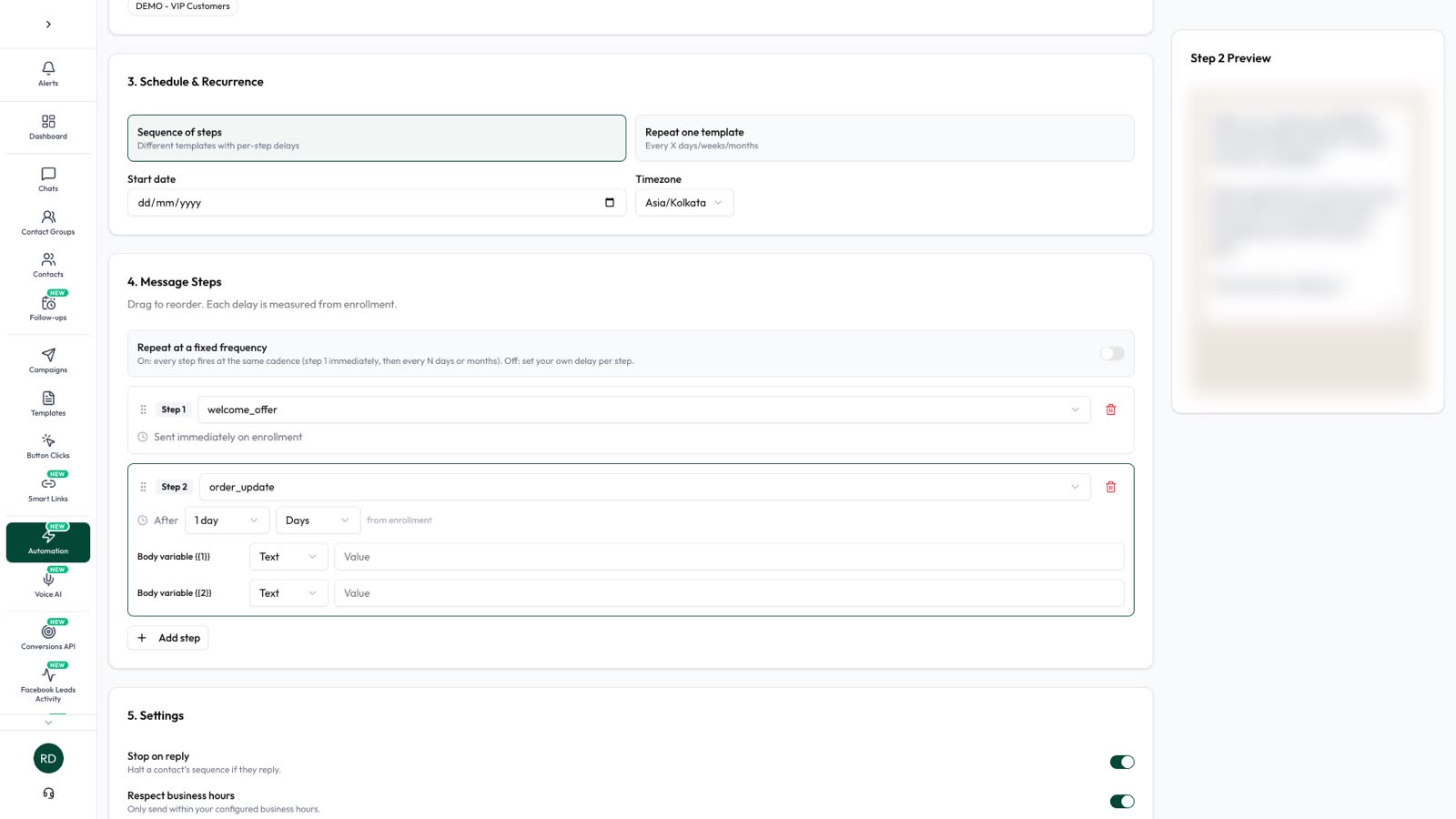
- 3. Schedule & Recurrence: choose Sequence of steps, an optional start date and your time zone. (Repeat one template sends the same template every few days, weeks or months instead.)
- 4. Message Steps: choose an approved template for each step and fill its variables with fixed text or a contact field such as First Name. Step 1 goes out on enrollment; for later steps set After a number of minutes, hours, days, weeks or months. Drag steps to reorder them.
- 5. Settings: keep Stop on reply and Respect business hours on (both are on by default). Your hours come from Settings › Business Hours, and messages due outside them wait until you open.
- 6. Budget Control: optionally set a daily, weekly or monthly spending limit in rupees. When it’s used up, the remaining sends wait for the next period instead of failing.
- Click Save as Draft to finish later, or Save & Activate to start. Contacts who already match are enrolled within about a minute, and new ones as they join the audience.
Read the results step by step
Open Campaigns › Drip Campaigns, click ⋮ next to the sequence and choose Step analysis. The top row counts people: Total, Active, Completed, Stopped (reply), Opted out and Cancelled (they left the audience, or the drip was switched off). Below it, each step shows Sent, Delivered, Read, Replied, CTA (button taps) and Failed.
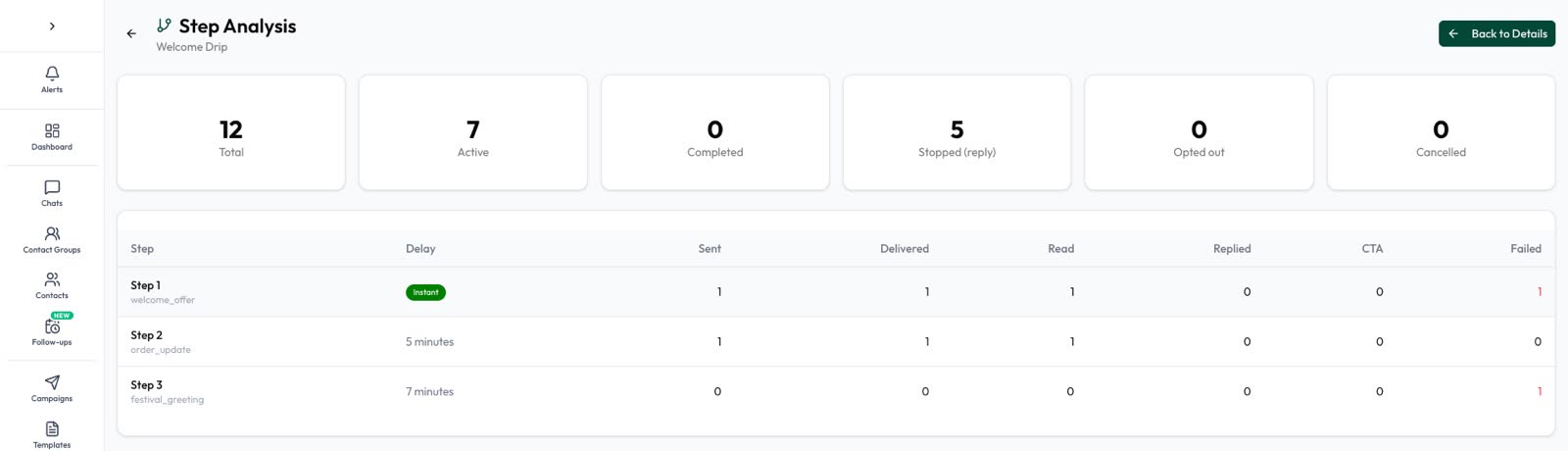
- Reads drop sharply at one step: rewrite its first line or move it later.
- Replies cluster after one step: that message works; consider sending it earlier.
- Opt-outs after a step: soften it or remove it.
- Failures: open the sequence’s details, filter by Failed and read each error. 131049 is WhatsApp’s per-user marketing limit.
The details page also shows total spend and exports every message to CSV.
Common mistakes
- An empty audience by accident. No statuses or groups selected means every contact, all enrolled when you activate.
- Overlapping drips. A contact can be in more than one active sequence. Use exclusions so a new lead doesn’t get two welcome series.
- Only offers. Four promotions in a row is a broadcast with extra steps. Mix in answers, proof and help.
- Looping promotions. “Repeat infinitely” keeps cycling until the contact replies, opts out or you switch the sequence off. Keep it for reminders people asked for.
Need wording for the steps? See WhatsApp follow-up message templates, and for sales teams, WhatsApp lead follow-up.
Frequently asked questions
What is a WhatsApp drip campaign?
A series of approved WhatsApp template messages sent automatically over days or weeks after a contact joins an audience, usually stopping as soon as the contact replies.
Can a drip campaign send normal text messages?
Not once the 24-hour customer service window has closed, and drip steps are usually days apart. Plan every step as an approved template; in Automate AI every drip step is a template.
Does a WhatsApp drip stop when the customer replies?
In Automate AI it does when Stop on reply is on, which is the default: a typed reply ends that contact’s sequence. Button taps count as clicks, and a typed STOP or one of your opt-out keywords opts the contact out of every sequence.
How many steps should a WhatsApp drip have, and how far apart?
There is no official number. Three to five steps, a few days apart, works for most businesses. Fewer, better steps cost less and are less likely to be blocked.
Can new leads join a drip that is already running?
Yes. In Automate AI anyone who starts matching the audience, for example when they get the “New enquiry” status, is enrolled automatically within about a minute and starts at Step 1 on their own timeline.
What does a WhatsApp drip campaign cost?
You pay for each delivered template: Meta’s fee plus your provider’s charge. The pricing calculator helps you estimate a sequence.
Sources
- Meta: Send messages (customer service window and opt-in)
- Meta: Template categorization
- Meta: Per-user marketing template limits
- Meta: Pricing on the WhatsApp Business Platform
- Meta: Get opt-in for WhatsApp
- WhatsApp Business Messaging Policy
- Automate AI: Drip Campaign
WhatsApp rules and prices change. We check these guides against Meta’s documentation, but always confirm current terms with Meta before you rely on them. Questions? Message us on WhatsApp at +91 836 977 8812.