Send Facebook Lead Ads Leads to WhatsApp Automatically
How to send every Facebook lead-form lead a WhatsApp message automatically: consent wording for the form, the first template, a separate template for each ad, the lead activity log, follow-ups and troubleshooting, with setup steps in Automate AI.
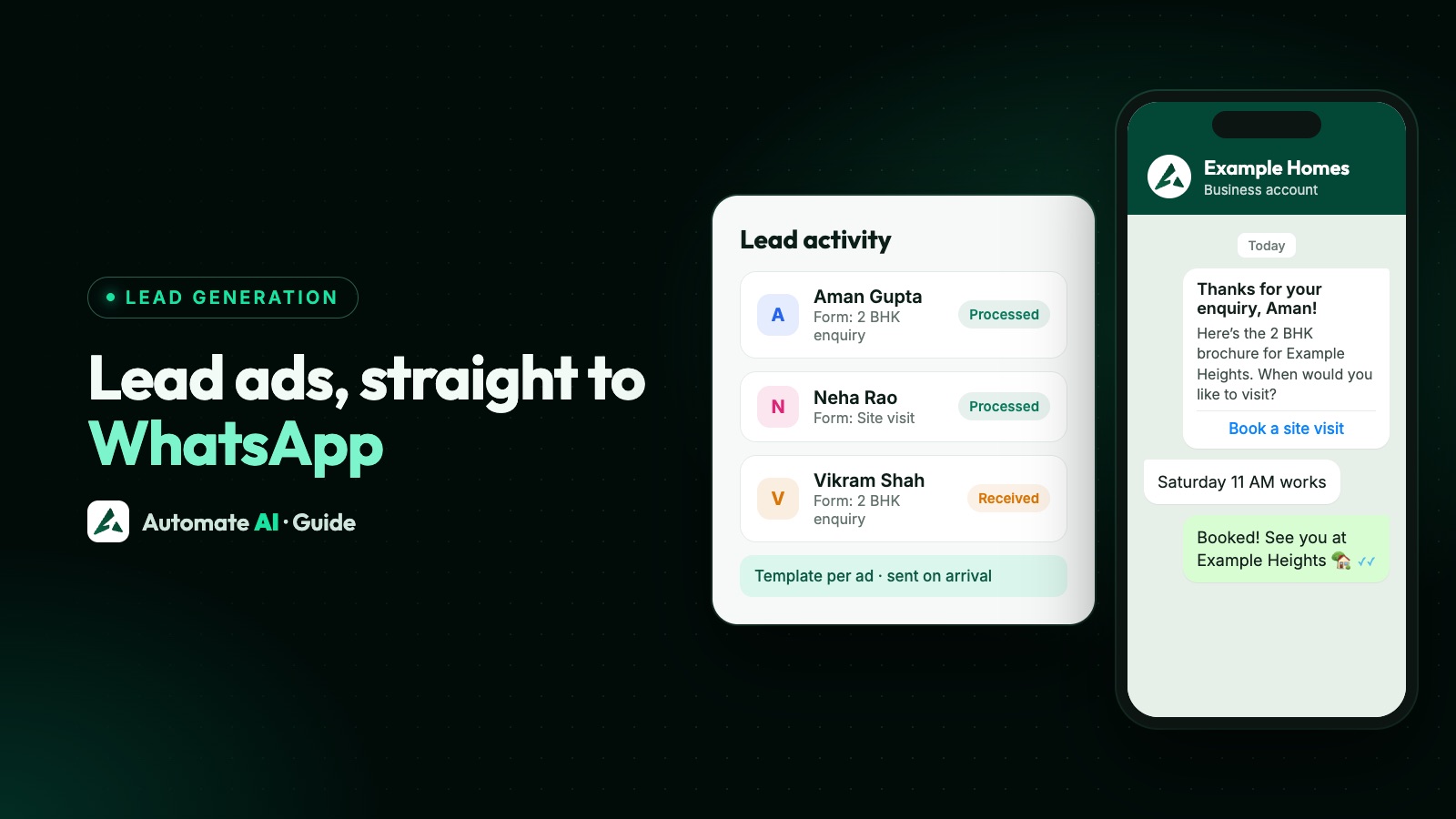
Connect the Facebook Pages that run your lead ads to a WhatsApp Business API tool, and each new form submission is saved as a contact and sent an approved WhatsApp template moments later, while the person still remembers filling in the form. No CSV downloads, and no copying numbers into a phone.
This guide covers what to put on the form so you have permission to message people, what the first message should say, how to give each ad its own message, and how to check that every lead arrived. The later sections show the setup in Automate AI’s Facebook Lead Ads integration. For other ways to win leads on WhatsApp, see WhatsApp lead generation.
Key takeaways
- Lead ads collect a form, so you write first on WhatsApp, and that first message must be an approved template.
- Say on the form that you’ll contact people on WhatsApp, and name your business.
- Make the phone number a form question: a lead without a usable number can’t be added or messaged.
- Give each ad its own template, so the reply matches what the person asked about.
- Use the lead activity log to see every lead, the form it came from and whether it was processed.
- Plan what happens next: a person or a drip after the first message, stopping when they reply.
Lead ads or Click-to-WhatsApp ads?
| At a glance | Lead ads (instant form) | Click-to-WhatsApp ads |
|---|---|---|
| What the person does | Fills in a short form without leaving the app | Taps the ad and a WhatsApp chat opens |
| Who writes first | You do, with an approved template | They do |
| Message charges | Normal template charges | A free entry point window of up to 7 days opens if you reply within 24 hours |
| Good for | Qualifying questions up front, and people not ready to chat | Quick questions and fast conversations |
Many businesses run both. More on the second kind in Click-to-WhatsApp ads, which you can also create from Automate AI (Click-to-WhatsApp Ads).
Get permission on the form
WhatsApp only lets businesses message people who have opted in. Meta’s opt-in guide says the opt-in must make clear that the person is agreeing to receive messages from your business, and must name the business. A form that only asks for a phone number doesn’t say that, so add it.
- Ask for the phone number and keep the question required; it is how the lead becomes a WhatsApp contact.
- Add a clear consent line, for example in the form’s intro or a custom disclaimer: “By submitting, you agree that Example Homes may contact you on WhatsApp and by phone about this enquiry.”
- Keep promotions separate. If you’ll also send offers later, Meta recommends collecting opt-in for each type of message, such as updates and offers, so people aren’t surprised.
- Follow local law on consent and personal data, and keep a record of which form each lead used.
Write the first message
The first message decides whether the lead replies. Send it straight away, make it obviously about what they asked for, and end with one easy next step.
- Name the topic of the ad: “the 2 BHK at Example Heights”, not “our services”.
- Deliver what they wanted: a brochure, a price list or slot options.
- One question or one button: “Book a site visit” or “Call me back”.
- Say who you are, so the message clearly matches the form they filled in.
The category affects approval and price. A non-promotional message about the person’s specific request can be utility; anything that promotes or persuades is marketing, and mixed content counts as marketing. Meta decides at review. In India, from 1 October 2026, Meta charges ₹0.1150 per delivered utility template and ₹0.8631 per marketing template.
Sample first messages (sample data)
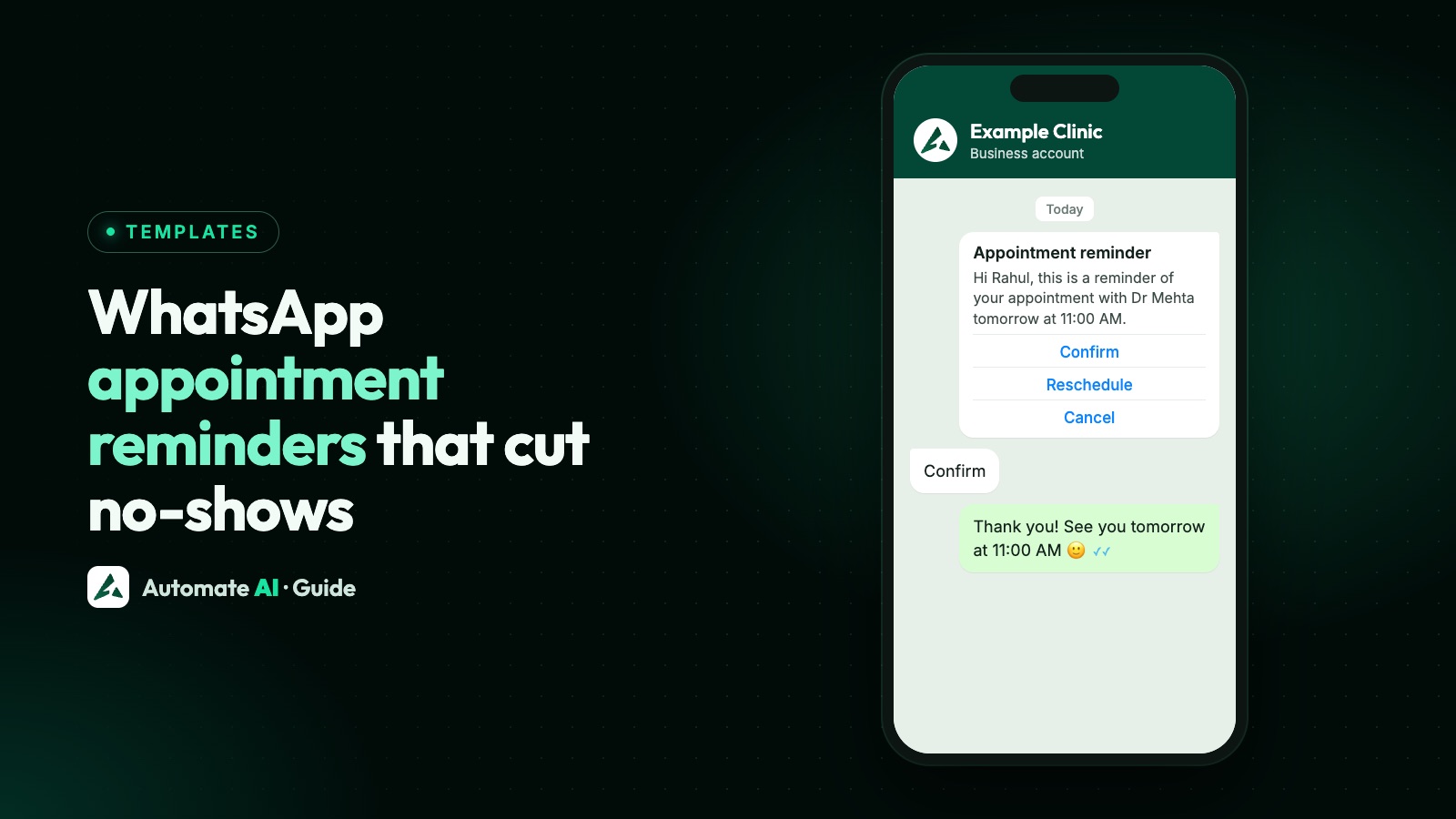
- Real estate: “Hi {{1}}, thanks for your enquiry about Example Heights. Here’s the 2 BHK brochure. When would you like to visit?” [Book a site visit]
- Coaching: “Hi {{1}}, thanks for asking about Example Academy’s weekend batch. Reply with your child’s class and we’ll share timings and fees.”
- Home services: “Hi {{1}}, we’ve received your request for an AC service quote from Example Cooling. Which day suits you for a visit?” [Tomorrow] [This weekend]
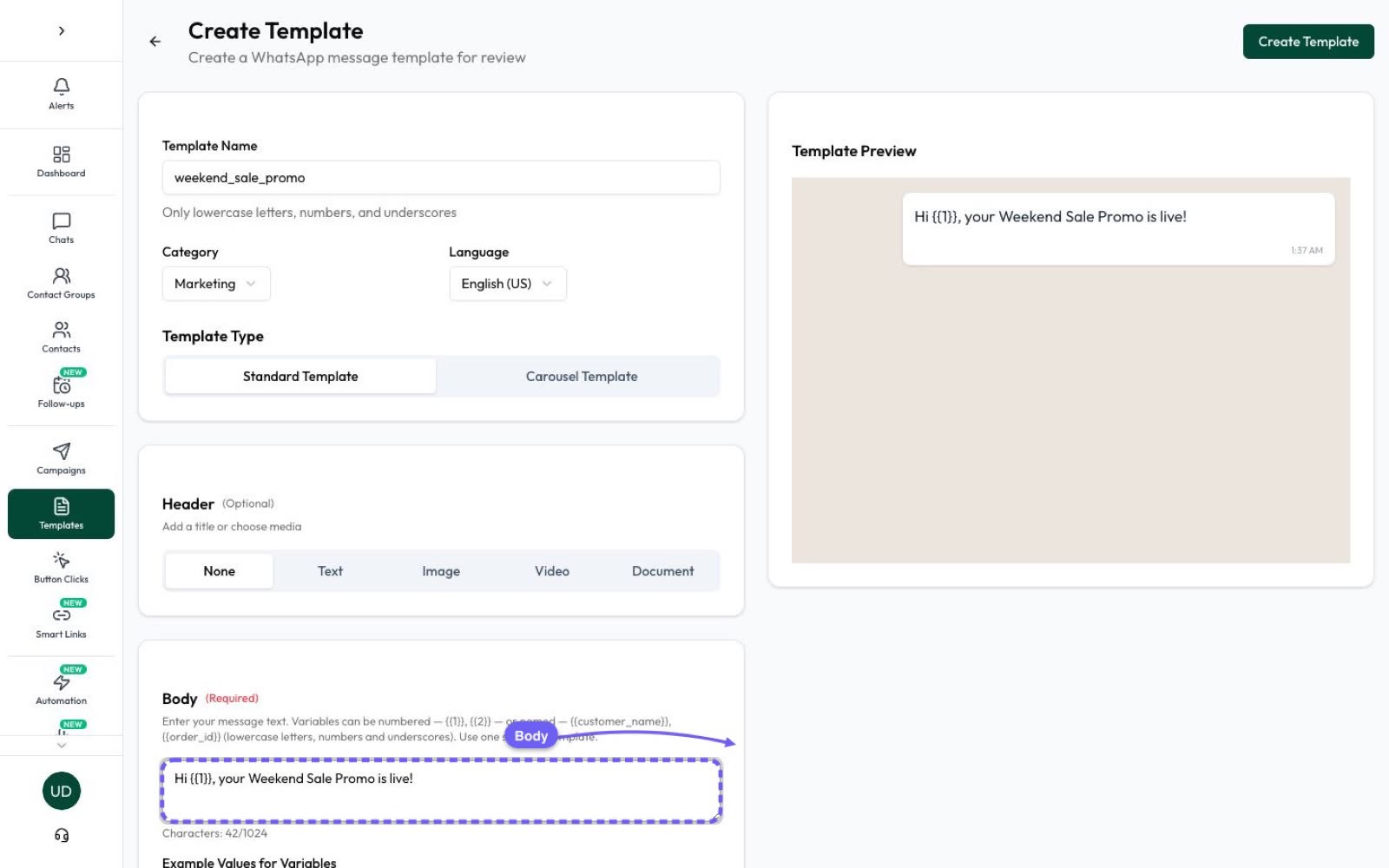
In Automate AI, {{1}} in a lead template is filled with the lead’s first name. The next numbered variables follow a fixed order: last name, phone, email, city, state, country and postcode for {{2}} to {{8}}.
Set it up in Automate AI, step by step
Open Integrations › Facebook Leads (the same screen is also under Settings › Facebook Leads). Only the account owner or a manager can connect Pages. Setup has four steps:
- Turn on & connect Pages. Switch Facebook Leads on, click Continue with Facebook, sign in, allow the permissions it asks for and tick the Pages that run your lead ads. You can also paste a Facebook token and click Load Pages.
- Message for all leads. Choose A WhatsApp template (recommended, because it always delivers), A plain message (it only delivers if the lead has chatted with you in the last 24 hours, which new leads usually haven’t) or Nothing (just save the contact).
- Separate message per ad. Give any ad its own approved template. Ads appear here once they have sent a lead, or add one by its ID from the Ad ID column in Meta Ads Manager. Ads without their own template get the message from step 2.
- Review & save. Check the Pages, the default message and the per-ad templates, then click Save. Leads from the ticked Pages start arriving straight away.
From then on, each lead with a phone number is saved as a contact. If the number already belongs to a contact, that contact is updated (only empty fields are filled in) rather than duplicated, and each lead gets the message once.
Check every lead in the activity log
On the Facebook Leads screen, click Lead activity. Each row shows the lead’s name and phone, its status (received, processed or failed), the Page, the form name and ID, the lead ID and when it arrived.
- Test after setup: submit the form with your own number and check that the lead shows as processed and the WhatsApp message arrives.
- Form names tell you which form, and so which offer, each lead came from: handy when one Page runs several campaigns.
- Processed, but no message? Check that the lead gave a usable phone number and that the template is still approved.
- Failed rows usually point to a Facebook access problem; connect again and allow every permission.
After the first message: follow up and hand over
When a lead replies, a 24-hour customer service window opens and your team, a chatbot or the AI Assistant can answer with normal messages. Every chat lands in the shared inbox.
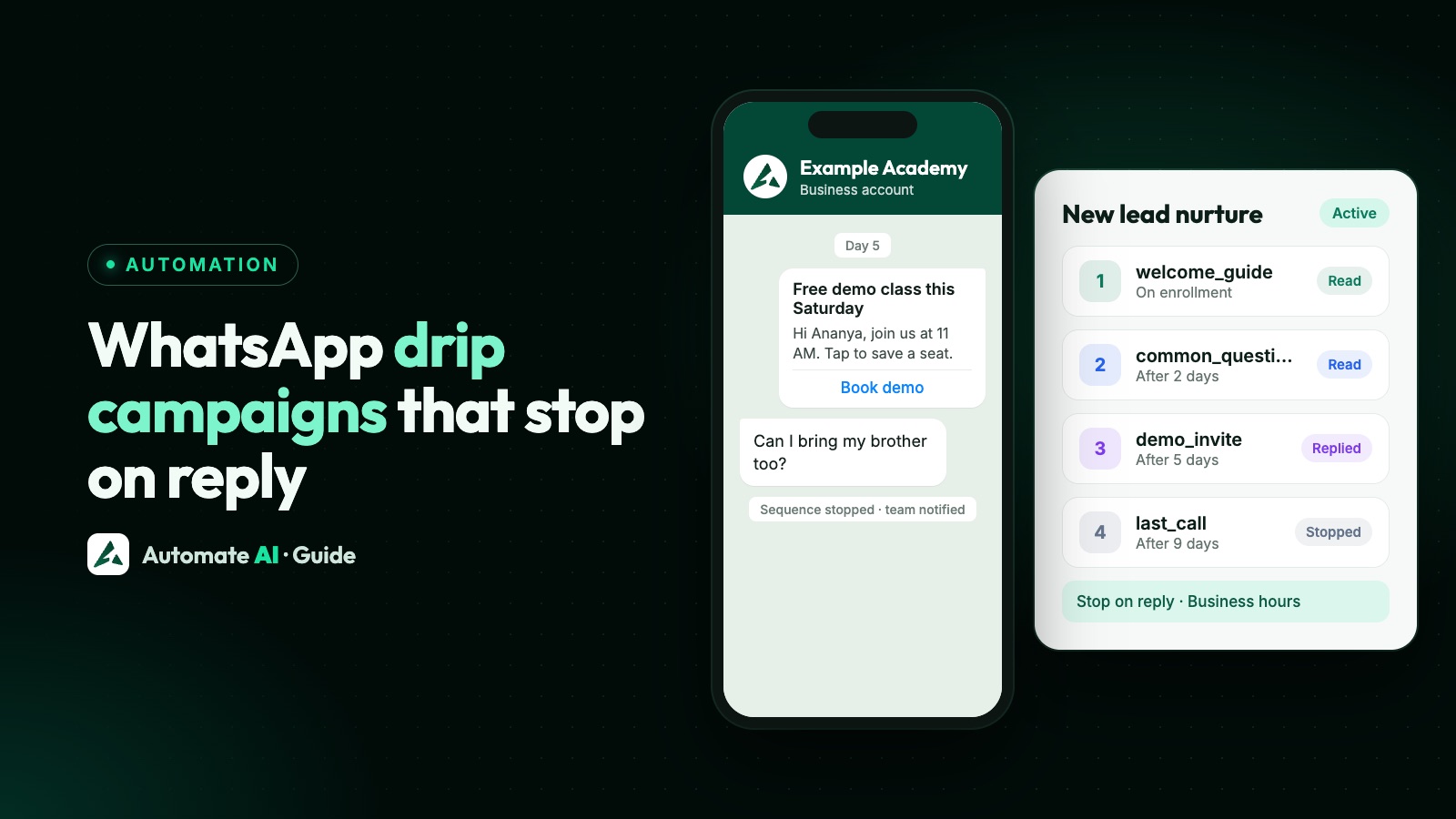
- No reply? Once your team gives the lead a status such as “New lead”, a WhatsApp drip campaign aimed at that status can send two or three helpful templates over a week and stop when they reply.
- Keep the big conversations human: pricing, objections and visits. See WhatsApp lead follow-up.
- Prioritise: on Series 2, 3 and 4, AI Sales Center scores leads from what they say in the chat.
Disconnecting and troubleshooting
| Problem | What to do |
|---|---|
| You want leads to stop | Click Disconnect Facebook. Leads stop and the saved Facebook login and Page access are deleted; your message settings are kept for when you reconnect. |
| “Facebook did not grant” a permission | Click Continue with Facebook again and allow everything; leads may not arrive until you do. |
| The plain message never arrives | New leads haven’t opened a 24-hour window. Choose a template instead. |
| A lead is in the log but not in Contacts | The form didn’t give a usable phone number. |
| An ad sends the wrong message | Check step 3. If an ad’s template isn’t approved, the lead gets the default message instead. |
Frequently asked questions
Can Facebook lead form leads get a WhatsApp message automatically?
Yes. With the WhatsApp Business API and an integration such as Automate AI’s, each new lead is saved as a contact and sent an approved template within moments of submitting the form.
Do I need a template to message a Facebook lead on WhatsApp?
Yes, in almost every case. A new lead hasn’t messaged you, so there is no open 24-hour window, and outside it only approved templates can be sent.
How do I get consent to WhatsApp my lead ads leads?
Add a clear line to the form, for example in a custom disclaimer, saying that your named business will contact them on WhatsApp about their enquiry, and keep the phone number required.
Can different ads send different WhatsApp messages?
Yes. In Automate AI you can give any ad its own approved template; leads from other ads get the default message.
What if the lead is already a contact?
Automate AI matches by phone number and updates the existing contact instead of creating a duplicate, filling in only fields that were empty.
Is this the same as Click-to-WhatsApp ads?
No. Click-to-WhatsApp ads open a chat that the customer starts. Lead ads collect a form, and your business sends the first WhatsApp message as a template.
Sources
- Meta: Webhooks for Lead Ads (real-time leads)
- Meta Business Help: Add a custom disclaimer to your lead ad with instant form
- Meta: Get opt-in for WhatsApp
- Meta: Send messages (customer service window)
- Meta: Template categorization
- Meta: Pricing on the WhatsApp Business Platform
- WhatsApp Business Messaging Policy
- Automate AI: Facebook Lead Ads integration
WhatsApp rules and prices change. We check these guides against Meta’s documentation, but always confirm current terms with Meta before you rely on them. Questions? Message us on WhatsApp at +91 836 977 8812.