How to Handle WhatsApp Opt-Outs and Unsubscribe Requests
How to handle WhatsApp opt-outs on the Business API: WhatsApp’s own Stop control and error 131050, Meta’s rule to honour every opt-out request, adding a “Stop promotions” quick-reply button, keeping an opt-out list, when you can message someone again, and why ignored opt-outs lead to blocks and restrictions.
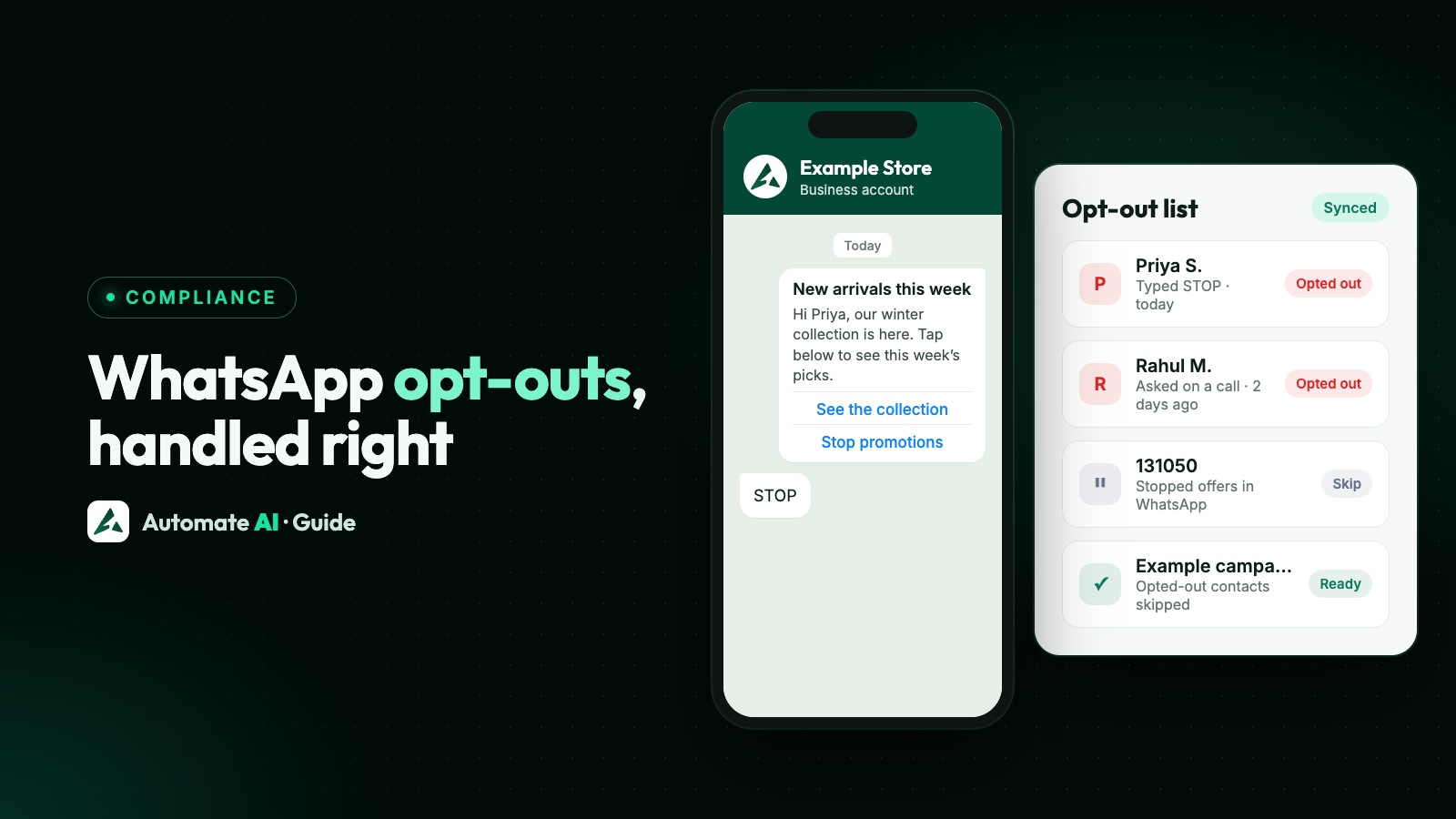
When someone asks to stop hearing from you on WhatsApp, you must stop, wherever they asked: in the chat, by email, on a call or in your shop. WhatsApp’s Business Messaging Policy requires businesses to respect every request to block, discontinue or opt out, and customers can also stop your marketing themselves from the chat, after which your marketing templates to them fail with error 131050.
Handling opt-outs well protects your number as much as it protects your customers: someone who can opt out easily doesn’t need to block or report you. This guide covers the ways people opt out, how to add an opt-out button, what to do when a request arrives, how to keep a reliable opt-out list, when you may message someone again, and what ignoring opt-outs costs you.
Key takeaways
- Meta’s policy: honour all opt-out requests, on or off WhatsApp, and tell people clearly how to opt out of specific kinds of messages.
- Customers can tap Stop on offers and announcements in your chat. Your marketing templates then fail with 131050, but they still get messages such as delivery updates and OTPs.
- Meta’s template docs suggest a quick-reply button for opting out of marketing, such as “Stop promotions”. WhatsApp doesn’t act on the tap; you must.
- Keep one opt-out list for every channel and check it before every campaign.
- Ignored opt-outs turn into blocks and reports, which lower quality ratings, pause templates and can lead to restrictions.
The ways customers opt out
| How they opt out | What happens | Your job |
|---|---|---|
| Tap Stop on offers and announcements in your chat | WhatsApp stops delivering your marketing templates; sends fail with 131050 | Mark them opted out of marketing; keep needed updates going |
| Tap your opt-out button | WhatsApp does nothing: the tap is just a message to you | Mark them opted out yourself, quickly |
| Type “STOP” or a similar word | WhatsApp does nothing, but your software can catch it | Opt them out automatically, or by hand |
| Ask by phone, email or in person | Nothing on WhatsApp | The policy still applies: mark them opted out |
| Block (and maybe report) you | Your messages stop reaching them, and it counts against your quality | Treat it as a full opt-out and review why it happened |
Every one of these beats a block. The aim is to make opting out easier than blocking.
What WhatsApp’s own controls do
Every business chat on WhatsApp has controls for offers and announcements. According to WhatsApp’s Help Centre, a customer can open your chat, tap Stop and confirm, and later tap Resume to get them again. They can also tell WhatsApp whether they’re interested in your offers, or block and report you.
- Stopped customers still get other messages they chose to receive, such as boarding passes, delivery updates and one-time passwords. The Stop control is about marketing.
- Your marketing templates fail with 131050: “This recipient has chosen to stop receiving marketing messages on WhatsApp from your business”. Meta’s advice is not to retry.
- Software can be told automatically. The
user_preferenceswebhook fires when a customer stops or resumes marketing messages, with the valuestoporresume. - “Not interested” is softer. It can reduce how many of your marketing messages that person receives and offers them the option to stop completely, but it doesn’t trigger the webhook.
Add an opt-out button to marketing templates
Meta’s template documentation describes the quick-reply button this way: a common use is letting customers easily opt out of marketing messages. Meta’s own examples are labelled “Unsubscribe from Promos” and “Unsubscribe from All”. Many businesses use “Stop promotions”.
- Button labels can be up to 25 characters, and a template can have up to 10 quick-reply buttons.
- Quick replies must be grouped together, either before or after any website or phone buttons, not mixed in between them.
- Templates with four or more buttons, or a quick reply combined with another button type, can’t be viewed on WhatsApp desktop; customers are asked to open them on their phone.
- A tap is a message from the customer, so it also opens a 24-hour window in which you can reply with a normal message.
Sample marketing template with an opt-out button
“Hi {{1}}, our winter collection is now in store at Example Store. Tap below to see this week’s picks.” Buttons: [See the collection] [Stop promotions]
Sample text with a placeholder business. If your software opts people out when they type a keyword, you can also add a footer such as “Reply STOP to opt out”. And say how to opt out when you collect consent, as Meta’s opt-in guidance recommends; see WhatsApp opt-in.
What to do when someone opts out
- Mark the contact as opted out the same day, with the scope: marketing only, or everything if they asked you to stop all messages.
- Remove them from anything already scheduled: campaigns, drip sequences and follow-ups that would send marketing.
- Confirm once, briefly, if you like. Meta lists opt-out confirmation as a utility use, with the example: “Thank you for confirming your opt-out preference. You will no longer receive messages from us on WhatsApp.” If they’ve just tapped a button, a normal reply inside the 24-hour window does the job.
- Keep only the messages they still need. Someone who stopped promotions may still expect order or appointment updates. Someone who asked you to stop everything should get nothing more.
- Record it: date, time, channel (button, chat, call, email, in store) and what they opted out of.
Keep an opt-out list that actually works
Meta doesn’t prescribe how you store opt-outs, but the policy covers requests made anywhere, so your list has to be the single source of truth for every team and system. For each person, keep:
- Phone number with country code, and name.
- Date and time of the opt-out.
- Where it came from: WhatsApp’s Stop control (131050 or the webhook), your button, a chat reply, a call, an email or a store visit.
- Scope: marketing only, or all messages.
- Any later opt-in, with the same details.
Check the list before every campaign, not just once a month. The most common slip is a re-import: a spreadsheet from sales or an old CRM export quietly adds opted-out people back to your audience. Import into the same contact records rather than creating duplicates, and filter opted-out contacts out before you send.
Re-opt-in: when can you message them again?
WhatsApp’s policy doesn’t set a waiting period for asking again, and it doesn’t need one: the customer decides. Treat an opted-out person as off-limits for marketing until they clearly opt back in themselves:
- They tap Resume in WhatsApp’s offers and announcements control; the
user_preferenceswebhook reportsresume. - They message you and ask for offers, or tap a button such as “Yes, send me offers” in a chat they started.
- They give a fresh opt-in elsewhere, such as a website or checkout checkbox, which must say they’re opting in and name your business.
Don’t send a marketing template asking “Do you want to hear from us again?” to someone who opted out: that’s the very message they asked you not to send. Record the new opt-in the same way you recorded the opt-out.
Why ignoring opt-outs costs you
- Blocks and reports. People who can’t get you to stop will block you, often picking reasons like “Didn’t sign up” or “No longer needed”.
- Lower quality ratings. Meta rates your number from the last seven days of feedback, including blocks, reports and block reasons, and rates each template on negative feedback and read rates. See WhatsApp quality rating.
- Paused templates. A template that drops to low quality is paused for 3 hours, then 6 hours, then disabled.
- Rate limits and restrictions. Meta says its systems rate-limit businesses whose quality stays low, and the policy allows it to limit or remove access for violations. See WhatsApp account restricted or banned.
More ways to keep blocks down are in how to reduce WhatsApp blocks and spam reports.
Managing opt-outs in Automate AI
- Typed keywords opt people out automatically. When a customer’s whole message is stop, stopall, unsubscribe, unsub, optout, cancel, quit or end (any capitals, punctuation ignored, so “STOP” or “Stop.” count but “don’t stop” doesn’t), the contact is marked as opted out of WhatsApp: campaigns skip them and any drip campaigns they’re in stop.
- Add your own keywords. Owners and managers can add opt-out keywords in Settings › General › Opt-out Settings, such as a word in Hindi or your own phrase. For these added keywords the app can send an editable confirmation reply; the built-in words above opt people out without a reply.
- Button taps are recorded, not acted on. A “Stop promotions” quick-reply tap shows up in Button Clicks, so you can see who tapped it and mark them as opted out, or ask people in the template to type STOP instead.
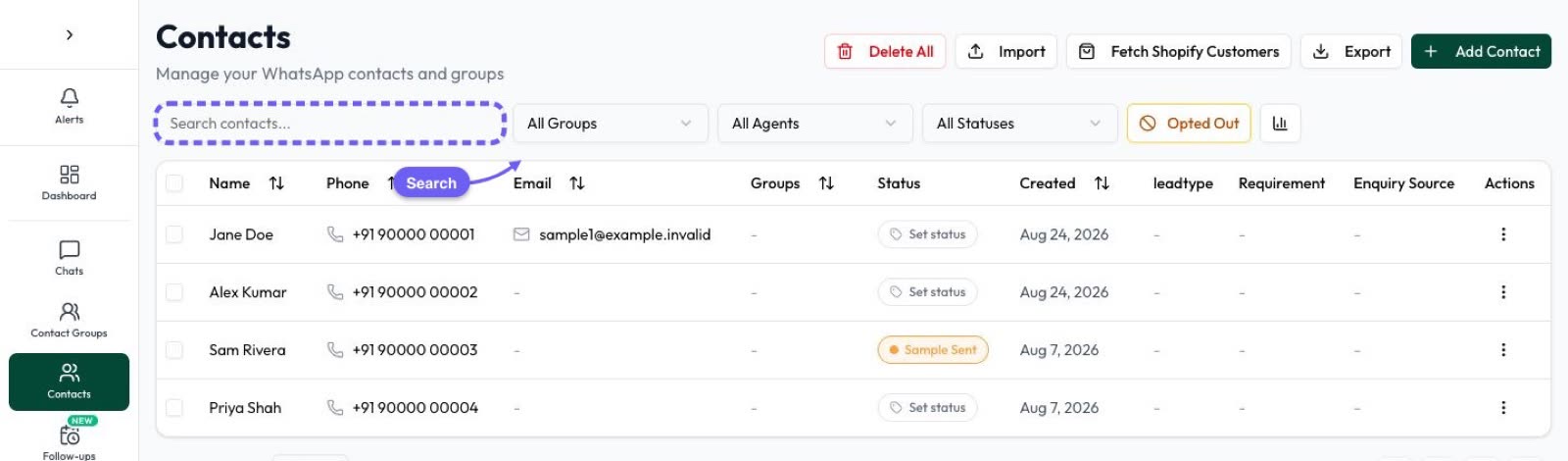
- Mark anyone by hand. For requests made by phone, email or in store, your team can mark the contact as opted out. The contacts list has an Opted Out filter.
- Create templates in the app, submit them to Meta and see their approval status.
- Use groups, tags and custom fields to record the scope and source of each opt-out or opt-in.
- Drip campaigns stop on reply, so a customer who writes back isn’t sent the rest of the sequence. See drip campaigns and WhatsApp campaigns.
Frequently asked questions
Do I have to honour opt-outs on WhatsApp?
Yes. WhatsApp’s Business Messaging Policy says you must respect all requests to block, discontinue or opt out of your messages, whether they come on WhatsApp or anywhere else.
What does WhatsApp error 131050 mean?
The customer has stopped marketing messages from your business using WhatsApp’s offers and announcements control. Don’t retry; mark them as opted out of marketing. Utility messages they need can still be sent.
Does WhatsApp stop messages automatically when someone taps “Stop promotions”?
No. A quick-reply button you add to your template just sends you a message. Your team or software has to mark the person as opted out. In Automate AI, typing a keyword such as STOP opts the contact out automatically, while button taps are recorded in Button Clicks for your team to act on.
Can someone who stopped promotions still get order updates?
Yes. WhatsApp says people who stop offers and announcements still get other messages they chose to receive, such as delivery updates and one-time passwords. If they asked you to stop all messages, stop everything.
How do I know if a customer turned marketing back on?
Meta’s user_preferences webhook reports a resume event when a customer turns marketing messages back on in WhatsApp. A customer can also opt in again by asking you in a chat or through a new opt-in form.
Should my opt-out button say “STOP” or “Unsubscribe”?
Any clear label up to 25 characters works. Meta’s examples are “Unsubscribe from Promos” and “Unsubscribe from All”; “Stop promotions” is also common.
Sources
- WhatsApp Business Messaging Policy
- Meta: Get opt-in for WhatsApp
- Meta: Marketing templates (user preferences for marketing messages)
- Meta: user_preferences webhook reference
- Meta: Template components (quick-reply buttons)
- Meta: Template categorization (opt-in management)
- Meta: Error codes
- WhatsApp Help Center: Controls when communicating with businesses
- Meta Business Help: About your WhatsApp Business phone number’s quality rating
WhatsApp rules and prices change. We check these guides against Meta’s documentation, but always confirm current terms with Meta before you rely on them. Questions? Message us on WhatsApp at +91 836 977 8812.