WhatsApp Business Account Review: Pending, Approved or Rejected
Meta’s policy review of a new WhatsApp Business Account explained: how it differs from business verification and display name review, what Meta checks, the Pending, Approved, Rejected and Deferred statuses, what a rejection or restriction looks like, how to ask for another review, and how to pass first time.
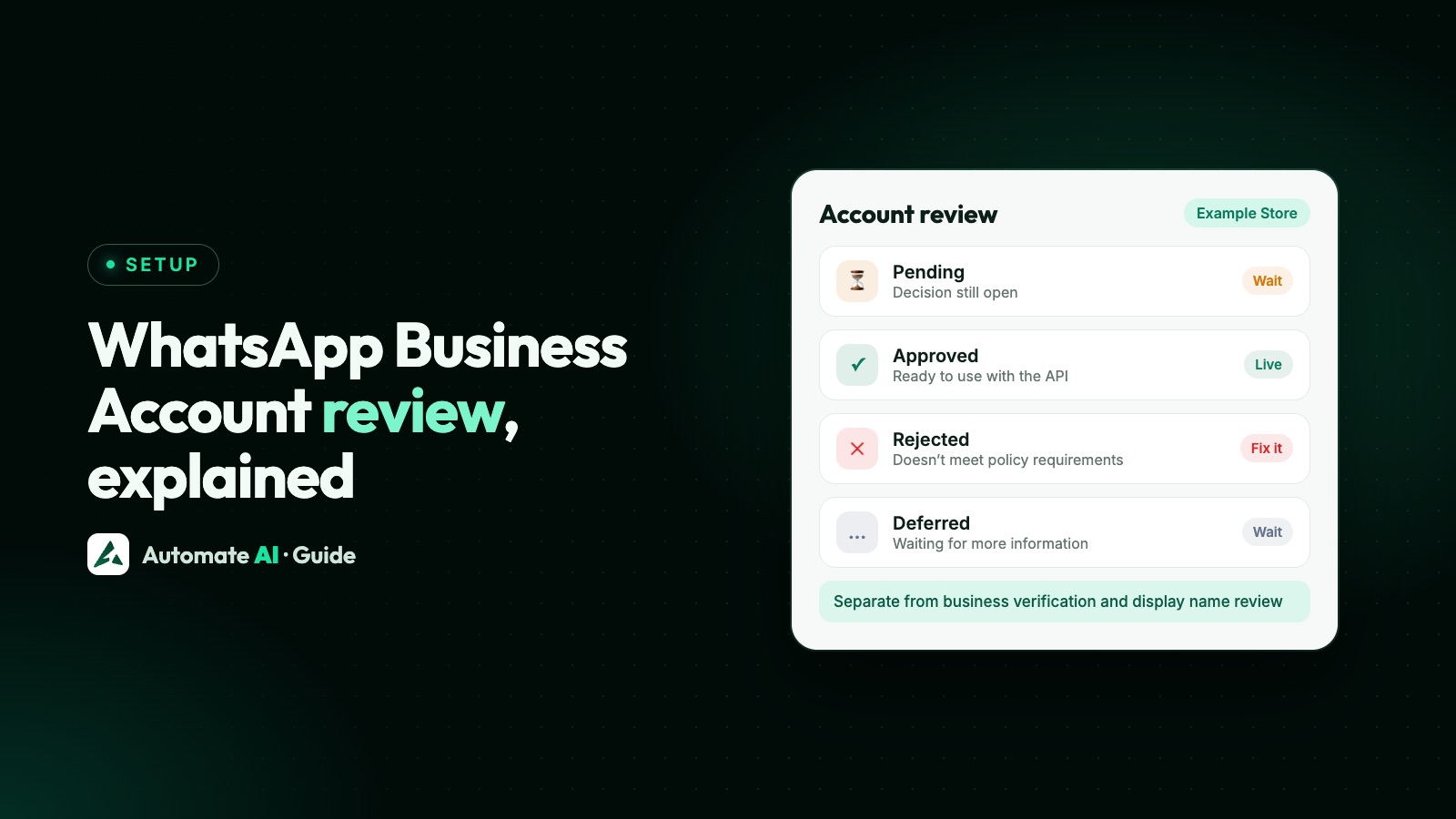
When you create a WhatsApp Business Account, Meta reviews it against its WhatsApp policies; the result is Approved (ready to use with the API), Pending or Deferred (it can’t be used with the API yet), or Rejected (it doesn’t meet Meta’s policy requirements). This is a separate check from business verification and from the display name review.
For most businesses the review runs in the background after signup and nobody notices it. When it doesn’t pass, the fix depends on what Meta found. This guide explains what the review looks at, where to see the status, what a rejection or restriction looks like, how to ask Meta to look again, and how to set up so you pass first time.
Key takeaways
- Meta reviews each new WhatsApp account “against our policy guidelines”; the status is
PENDING,APPROVED,REJECTEDorDEFERRED. - Account review, business verification and display name review are three different checks, done at different times.
- Since May 2022, the account check is triggered automatically in the background after signup instead of blocking you before you start.
- Meta doesn’t publish a timeframe for the account review in its developer documentation.
- Policy violations after approval are handled in Business Support Home, where you can request a review; decisions typically take 24 to 48 hours.
Three different reviews, often confused
| Review | What Meta checks | When | Where you see it |
|---|---|---|---|
| WhatsApp account review | The WhatsApp account against Meta’s WhatsApp policies | Automatically after signup | account_review_status field, account_review_update webhook, your provider |
| Business verification | That your business portfolio belongs to a real, registered business | When you start it in Security Centre | Meta Business Suite › Security Centre |
| Display name review | That the number’s display name follows Meta’s guidelines | When you reach a higher messaging limit, or change the name | WhatsApp Manager › Phone numbers (Name column), name_status |
Templates and the blue-tick Official Business Account have their own reviews too. If your question is about verification documents, see Meta business verification; if it’s about the name customers see, see WhatsApp display name rules.
What the account review checks
Meta’s webhook reference says the account is reviewed “against our policy guidelines”. It doesn’t publish a checklist, but the WhatsApp Business Messaging Policy says WhatsApp may use automated processing and human review teams to review account information, business profile information and reported messages, and may also evaluate a business’s opt-in flows. The policy also requires that businesses:
- Maintain a WhatsApp Business profile with customer support contact information (an email address, website or phone number).
- Keep all information accurate and up to date.
- Only message people who gave their number and opted in.
- Don’t buy, sell or promote goods and services the policy prohibits; see businesses WhatsApp doesn’t allow.
Meta’s changelog explains why the review is easy to miss: since 2 May 2022, WhatsApp account checks and display name review are no longer required to get started. After signup, a compliance check with the WhatsApp platform policy is triggered automatically and runs in the background.
The four statuses: Pending, Approved, Rejected, Deferred
| Status | Meta’s meaning | What to do |
|---|---|---|
| APPROVED | The WhatsApp account is approved and ready for use | Nothing; carry on setting up templates and campaigns |
| PENDING | A decision is still pending; the account currently can’t be used with the APIs | Wait; check your business details and profile are complete and accurate |
| DEFERRED | The decision has been deferred or is awaiting more information; the account currently can’t be used with the APIs | Look for requests from Meta in email, Meta Business Suite and Business Support Home |
| REJECTED | The account doesn’t meet Meta’s policy requirements and can’t be used with the APIs | Find the reason, fix it, and contact support (see below) |
Developers can read the status with GET /<WABA_ID>?fields=account_review_status, and Meta sends the account_review_update webhook to the Messaging account when the decision changes. If you work with a provider, they receive these and can tell you the status.
How long does the review take?
Meta’s developer documentation doesn’t give a timeframe for the WhatsApp account review, so be wary of anyone who promises one. For comparison, Meta does publish these timings for related reviews:
| Review | Timing Meta gives |
|---|---|
| Appeal of a WhatsApp policy violation | Typically 24 to 48 hours |
| Business verification | See our guide to Meta business verification |
| Display name | No timing; it runs when you reach a higher messaging limit |
| Official Business Account request | If denied, you can apply again after 30 days |
What a rejection or restriction looks like
A problem can show up during signup, in the review status, or later as a policy restriction on an approved account:
- During signup: “The Meta Business Account that you selected can’t be verified.” Meta explains this means the business portfolio doesn’t comply with its policies to use the WhatsApp Business Platform. Another message says you can only create a limited number of WhatsApp Business Accounts before your business verification and WhatsApp account checks are complete.
- In the review status:
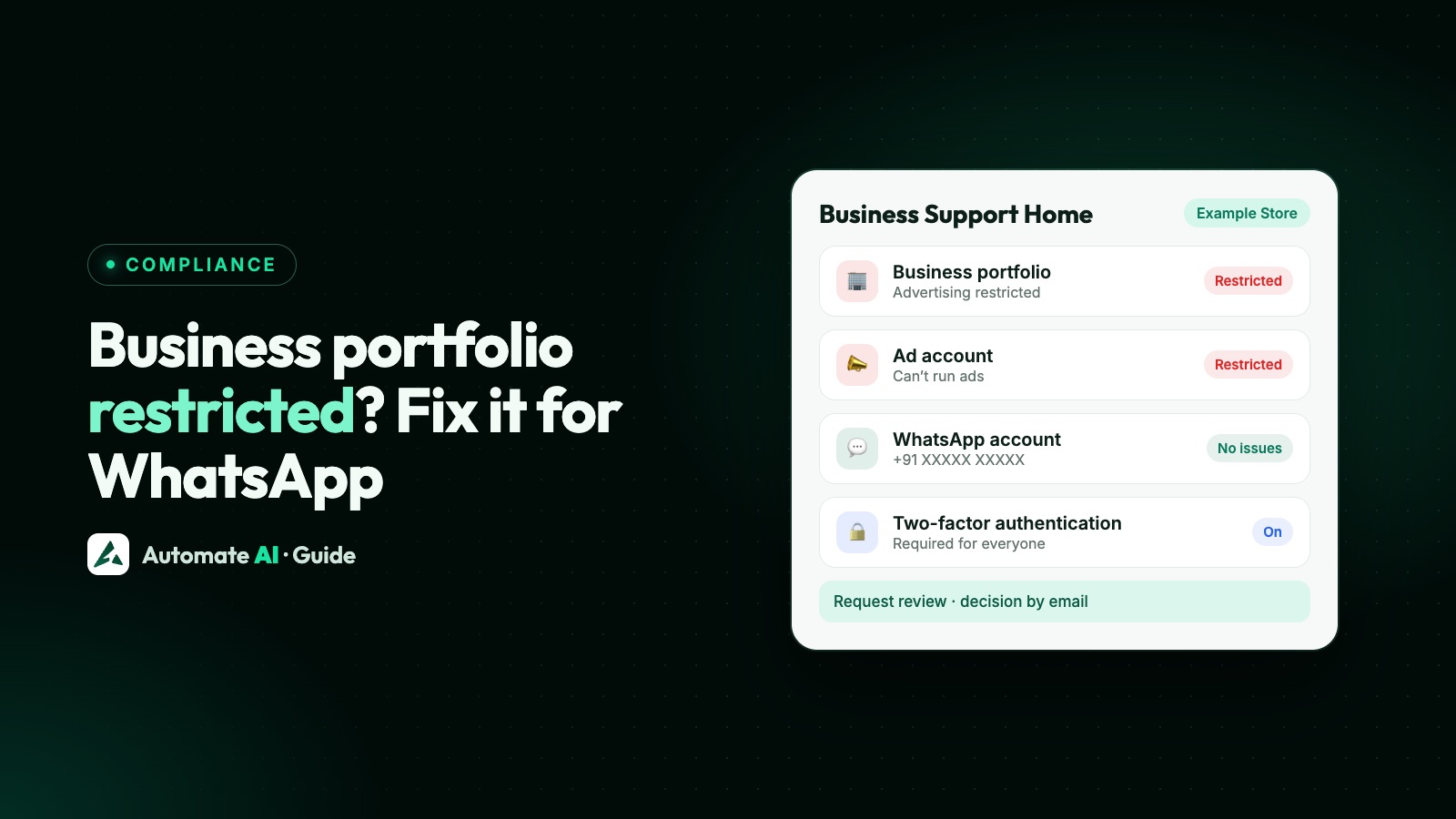
REJECTED,PENDINGorDEFERRED, as above. - After approval: a policy violation shows as a banner in WhatsApp Manager, a notification and email to all portfolio admins, and details in Business Support Home. Repeated violations lead to template blocks of 1 or 3 days, messaging blocks of 5, 7 or 30 days, an account lock and finally permanent disablement; severe harms such as scams lead to immediate offboarding.
- In the API: error 368 or 131031 means the WhatsApp Business Account is restricted or disabled for a policy violation.
More on restrictions after approval in WhatsApp account restricted or banned, and on portfolio-level problems in Meta business portfolio restricted.
How to ask for another review
For a policy violation or restriction
- Open Meta Business Suite › All tools › Business Support Home.
- Select the Messaging account, then the violation, and click Request review.
- Enter supporting details and click Submit. The request moves to In Review.
- Meta’s decision arrives through Business Manager, typically in 24 to 48 hours: Unchanged or Reversed.
Not every spam violation can be appealed; sometimes you have to wait for the restriction to end.
For a rejected or stuck account review
Meta’s developer documentation doesn’t describe a separate appeal button for the account review itself. What it does say:
- Check Meta Business Suite and Business Support Home (select your business › WhatsApp accounts) for the reason and any restrictions.
- If your business verification was rejected, Meta emails the detailed reasons; you can resubmit if you think it was an error.
- Contact support: all developers can use Meta developer support, enterprise developers can open a Direct Support ticket, and Meta asks businesses that work through a Solution Partner to contact that partner.
How to pass the review first time
- Use a real, active Facebook account with no history of problems to create the business portfolio; Meta’s signup errors flag new and suspicious accounts.
- Keep your legal name, address and website consistent across your business profile and documents. Meta’s partner-led verification, for example, rejects submissions whose legal name, address or website don’t match the business profile.
- Fill in your business profile with a support email, website or phone number, and keep it accurate.
- Check your category is allowed under WhatsApp’s Business and Commerce policies before you sign up.
- Plan your opt-in: where customers give their number and agree to hear from you. See WhatsApp opt-in.
- Choose a display name that clearly matches your brand.
- Don’t create several WhatsApp Business Accounts under an unverified business; Meta limits this until verification and account checks are complete.
- Verify your business when you’re ready to scale; it’s also one way to raise your messaging limit.
Getting set up with Automate AI
Sign up on user.theautomate.ai and open the Connect WhatsApp window, which runs Meta’s embedded sign-up: you verify your own number by SMS or call and choose or create your business portfolio. Meta, not Automate AI, makes the review decisions. Once you’re connected, you create templates in the app and see Meta’s approval status, send campaigns to the contacts or groups you choose, and campaigns skip contacts marked as opted out.
If signup stops at a review or restriction message, call us on +91 836 977 8812 for remote support, or contact us, and we’ll help you read what Meta is asking for. More on getting started: WhatsApp Business API.
Frequently asked questions
What is the WhatsApp Business Account review?
Meta’s check of a new WhatsApp account against its policy guidelines. The result is Approved, Pending, Deferred or Rejected; only an approved account is ready to use with the API.
How long does WhatsApp Business Account review take?
Meta’s developer documentation doesn’t give a timeframe. Since 2022 the check runs automatically in the background after signup.
Is the account review the same as business verification?
No. Business verification confirms your business portfolio belongs to a real, registered business and is done in Security Centre. The account review checks the WhatsApp account against WhatsApp’s policies.
What does REJECTED mean for a WhatsApp Business Account?
Meta says the account doesn’t meet its policy requirements and can’t be used with the APIs. Check Business Support Home for the reason, fix it and contact support or your provider.
Can I appeal a WhatsApp Business Account decision?
Policy violations and restrictions can be appealed in Business Support Home with Request review, typically decided in 24 to 48 hours. For the initial account review, Meta’s docs point you to Meta Business Suite and support rather than a separate appeal button.
Do I need a website for the WhatsApp Business Account review?
Meta’s policy requires customer support contact details on your business profile, which can be an email, website or phone number. Business verification has its own requirements; see our guide to Meta business verification.
Sources
- Meta: account_review_update webhook
- Meta: WhatsApp Business Account API reference (account_review_status)
- Meta: Manage Messaging accounts (review status)
- Meta: WhatsApp Business Platform changelog (April 2022)
- WhatsApp Business Messaging Policy
- Meta: Embedded Signup errors
- Meta: Policy enforcement
- Meta: Error codes
- Meta: Display names
- Meta: Official Business Accounts
- Meta: WhatsApp support
- Meta: account_update webhook (partner-led verification rejection reasons)
WhatsApp rules and prices change. We check these guides against Meta’s documentation, but always confirm current terms with Meta before you rely on them. Questions? Message us on WhatsApp at +91 836 977 8812.