How to Increase Your WhatsApp Messaging Limit
How WhatsApp Business API messaging limits work since Meta moved them to the business portfolio: the 250, 2,000, 10,000, 100,000 and unlimited tiers, where to see your limit, the three paths to 2,000, automatic upgrades, why a business stays stuck and what to do, step by step.
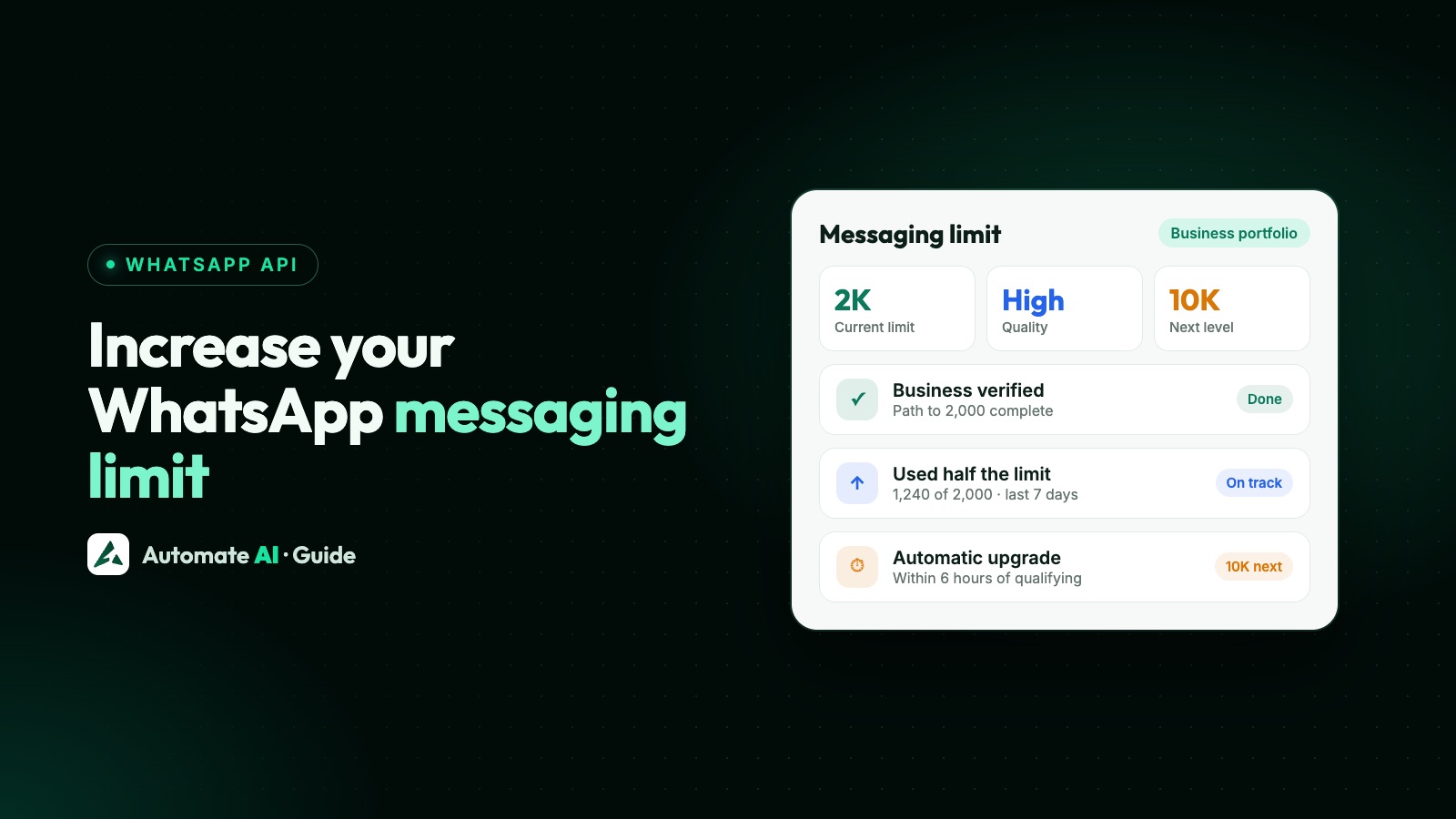
To increase your WhatsApp messaging limit, first reach 2,000 by verifying your business (or one of Meta’s two other scaling paths), then keep sending high-quality templates and use at least half your limit within 7 days, and Meta raises it one level at a time to 10,000, 100,000 and unlimited. Each automatic increase takes effect within 6 hours of qualifying.
Since 7 October 2025 the limit belongs to your whole business portfolio, not to one phone number, and a drop in quality no longer lowers it. This guide explains how the limit is counted, where to check it, why many businesses stay stuck at 250, and a step-by-step plan to move up, from Meta’s documentation at the time of writing.
Key takeaways
- The limit counts unique people you message outside a customer service window in a moving 24 hours. Replies inside an open window don’t count.
- New portfolios start at 250. Three paths lead to 2,000: business verification, verification by your partner, or 2,000 delivered templates to unique people in 30 days using high-quality templates.
- After 2,000, Meta raises the limit one level within 6 hours when your messages are high quality and you used at least half your current limit in the last 7 days.
- All numbers in a portfolio share one limit, so adding numbers doesn’t add capacity.
- Check it in WhatsApp Manager › Account tools › Messaging limits, or with the
whatsapp_business_manager_messaging_limitAPI field.
How WhatsApp messaging limits work in 2026
Meta defines the messaging limit as the maximum number of unique WhatsApp users your business can deliver messages to outside a customer service window, within a moving 24-hour period. A customer service window opens when a customer messages you, so replies to people who wrote to you in the last 24 hours don’t use up the limit; see the 24-hour window. Messaging the same person three times still counts as one person.
| Limit | How you get there |
|---|---|
| 250 | Starting limit for a newly created business portfolio |
| 2,000 | Complete one of three scaling paths, then pass Meta’s message-quality check |
| 10,000 | Automatic scaling |
| 100,000 | Automatic scaling |
| Unlimited | Automatic scaling |
Since 7 October 2025, limits are set at the business portfolio level and shared by every business phone number in it. One busy number can use the whole portfolio’s capacity, and a newly registered number starts with the portfolio’s limit straight away instead of at 250. Meta says this means you no longer need extra numbers to reach higher limits.
Where to see your current limit
- WhatsApp Manager › Account tools › Messaging limits: the panel Meta added for portfolio-based limits, with your current limit and scaling information. The Overview panel’s Limits section shows it too.
- WhatsApp Manager › Account tools › Phone numbers: each number’s status, quality rating and messaging limit.
- API: request the
whatsapp_business_manager_messaging_limitfield on a phone number, WhatsApp Business Account or business portfolio, for exampleGET /<PHONE_NUMBER_ID>?fields=whatsapp_business_manager_messaging_limit. The oldermessaging_limit_tierfield is deprecated. - Webhooks:
business_capability_updatereports the new limit inmax_daily_conversations_per_business(TIER_250,TIER_2K,TIER_10K,TIER_100KorTIER_UNLIMITED). When Meta approves the increase to 2,000, it also emails you and sends a developer alert.
Step 1: get from 250 to 2,000
Meta lists three scaling paths. Complete any one of them:
- Verify your business in Meta Business Suite › Security Centre. See Meta business verification for the steps and documents.
- Have your partner verify your business, if a partner onboarded you and offers partner-led verification.
- Deliver 2,000 template messages outside customer service windows to unique people within a 30-day moving period, using templates with a high quality rating.
Completing a path isn’t the end. Meta then analyses your message quality and approves or denies your portfolio for automatic scaling. If approved, the limit rises to 2,000 immediately and you get an email and developer alert. If denied, the limit stays where it is and Meta sends an account_alerts webhook telling you what to try next:
| Alert | What Meta says | What to do |
|---|---|---|
| INCREASED_CAPABILITIES_ELIGIBILITY_DEFERRED | Not enough message signal yet, identity verification was rejected, or quality is too low | Keep using the platform for several days with high-quality templates, or verify your business |
| INCREASED_CAPABILITIES_ELIGIBILITY_FAILED | Limits can’t be increased because of past messaging activity | Complete the 2,000-template path or business verification; contact support if Meta’s message asks you to |
| INCREASED_CAPABILITIES_ELIGIBILITY_NEED_MORE_INFO | Limits can’t be increased based on past activity, and Meta needs more information | Complete identity verification in Security Centre, or the 2,000-template path |
The alert text itself is specific. Meta’s messages include “Use WhatsApp Business platform actively for several days and follow our messaging policies” and “Your messaging quality was too low to unlock more capabilities at this time”, which suggests submitting business documents for verification instead.
Step 2: automatic upgrades to 10,000, 100,000 and unlimited
Once your portfolio is at 2,000, Meta checks two things and raises the limit by one level within 6 hours when both are true:
- You are sending high-quality messages across all your business phone numbers and templates.
- In the last 7 days, your business has used at least half of its current messaging limit. At 2,000, that means having used at least 1,000 of it.
Meta judges message quality from how people received your messages over the past 7 days, weighted towards recent ones: blocks, reports, mutes, archives and the reasons people give when they block you. Since October 2025 a quality drop doesn’t downgrade your limit, but you won’t move up while quality is low. More in WhatsApp quality rating.
Why your limit is stuck (and the fix for each)
| Symptom | Likely cause | Fix |
|---|---|---|
| Still at 250 after weeks | No scaling path completed: business not verified, and fewer than 2,000 high-quality template deliveries in 30 days | Start business verification, or keep sending useful templates to opted-in contacts |
| Path completed, still 250 | Meta’s quality check denied or deferred you | Read the alert email or account_alerts webhook and follow it |
| “Display name not approved” in health status | Meta limits numbers whose display name isn’t approved yet; it says the limit increases after approval | Fix the name to meet display name rules |
| Stuck at 2,000 or 10,000 | You haven’t used half your limit in the last 7 days | Nothing is wrong; the next level comes when your real volume grows |
| Stuck despite high volume | Quality isn’t high: people block, report or ignore your templates | Segment, personalise, send less often, and drop templates people block |
| Sends fail with 131064 | Meta limited messaging for template classification violations | Categorise templates honestly; the restriction lifts after the enforcement period |
To see whether anything is holding a number back, request health_status on it: Meta returns AVAILABLE, LIMITED (with a reason in additional_info) or BLOCKED (with an error and possible solution) for the number, its WhatsApp Business Account, the business portfolio and the app. Policy restrictions are different from limits; see WhatsApp account restricted or banned.
Do business verification or the blue tick raise the limit?
Business verification is one of the three paths to 2,000, and it brings other benefits: Meta raises your registered phone number cap from 2 to 20, and verified portfolios can have up to 6,000 templates per account once a number has an approved display name. Verification alone doesn’t take you past 2,000; automatic scaling does that.
An Official Business Account (the blue tick) needs a verified portfolio, an approved display name, two-step verification on the number and at least 30 days on the platform. Meta’s messaging limit documentation doesn’t list it as a way to raise limits; its main benefits are the blue checkmark and being findable in WhatsApp search. See the WhatsApp verified badge.
Step-by-step plan to raise your limit
- Check where you are in WhatsApp Manager › Account tools › Messaging limits.
- Verify your business if you haven’t: it’s one of the three routes to 2,000, and unlike the template route it doesn’t depend on how much you send. Make sure your legal name, address and website match your documents.
- Get your display name right so the review that runs when you move up doesn’t hold the number back.
- Build an opted-in list. Message only people who agreed to hear from you; see WhatsApp opt-in.
- Send templates people want: order updates, reminders and relevant offers to the right segment, not one blast to everyone.
- Grow volume steadily so that over a week you genuinely use at least half your limit.
- Watch quality after every campaign and pause templates that get blocked or reported. Give people an easy way to stop promotions; see WhatsApp opt-out.
- Don’t add numbers for capacity. All numbers share the portfolio’s limit.
- If Meta denies you, read the alert and do exactly what it suggests before trying again.
Tracking your limit in Automate AI
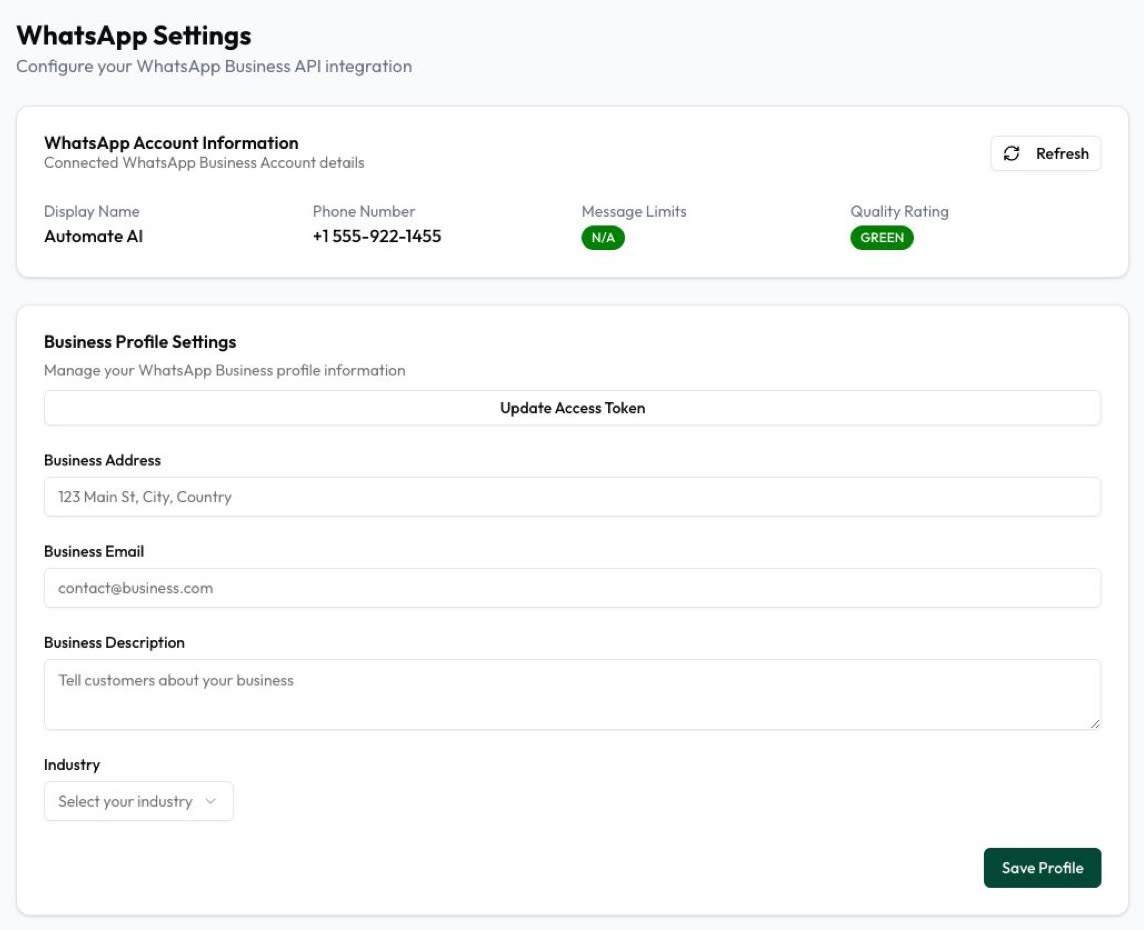
You connect your own WhatsApp number to Automate AI through Meta’s embedded sign-up, so the limit belongs to your business portfolio. Settings › WhatsApp shows the connected number’s message limit and quality rating. In Campaigns you send approved templates to the contacts or groups you choose, now or scheduled, and watch sent, delivered, read, failed and clicked counts live, with the reason for each failure. Contacts marked as opted out are skipped automatically, which helps keep quality high while your volume grows.
We can’t raise a limit for you; only Meta does that. If you’re unsure why yours isn’t moving, contact us and we’ll go through your settings and campaigns with you.
Frequently asked questions
What is the WhatsApp messaging limit?
The maximum number of unique people your business portfolio can message outside a customer service window in a moving 24 hours: 250, 2,000, 10,000, 100,000 or unlimited.
How do I increase my WhatsApp limit from 250 to 2,000?
Verify your business, have your onboarding partner verify it, or deliver 2,000 templates to unique people within 30 days using high-quality templates. Meta then checks your message quality and approves or denies the increase.
How long does a WhatsApp limit upgrade take?
Reaching 2,000 is immediate once Meta approves. Later automatic increases take effect within 6 hours of meeting the criteria.
Why is my WhatsApp limit stuck at 250?
Usually because no scaling path is complete (the business isn’t verified and you haven’t delivered 2,000 high-quality templates in 30 days), or Meta deferred or denied the increase because of low quality or missing identity verification. The alert email tells you which.
Does adding another number increase my messaging limit?
No. Since October 2025 the limit is set per business portfolio and shared by all its numbers.
Does a low quality rating reduce my messaging limit?
Not any more. Meta says a quality drop no longer downgrades the limit, but you need high-quality messages to move up.
Sources
- Meta: Messaging limits
- Meta: Changes to messaging limits (October 2025)
- Meta: account_alerts webhook
- Meta: business_capability_update webhook
- Meta: Messaging and calling health status
- Meta: Send messages (message quality)
- Meta: Display names
- Meta: Official Business Accounts
- Meta: Business phone numbers (registered number cap)
- Meta: WhatsApp accounts and Messaging accounts (template limits)
- Meta: Error codes
WhatsApp rules and prices change. We check these guides against Meta’s documentation, but always confirm current terms with Meta before you rely on them. Questions? Message us on WhatsApp at +91 836 977 8812.