How to Reduce WhatsApp Blocks and Spam Reports
What WhatsApp blocks and spam reports do to your quality rating, templates and account, the feedback signals Meta documents (block reasons, read rates, Stop and Not interested), and a practical checklist: opt-in, segmentation, frequency, timing, clear sender identity, an opt-out button, small test sends and read-rate tracking.
You reduce WhatsApp blocks and spam reports by sending fewer, more relevant messages to people who expect them, and by making it easier to opt out than to block. Blocks, reports and the reasons people give feed straight into the quality ratings Meta gives your phone number and each template.
Those ratings decide whether a template keeps sending or gets paused, and whether your messaging limit can grow. This guide explains what a block or report actually does, the feedback signals Meta documents, why people block businesses, and a checklist you can run before every campaign.
Key takeaways
- Meta rates your number on feedback from the last 7 days, weighted to recent messages: blocks, reports, mutes, archives and block reasons.
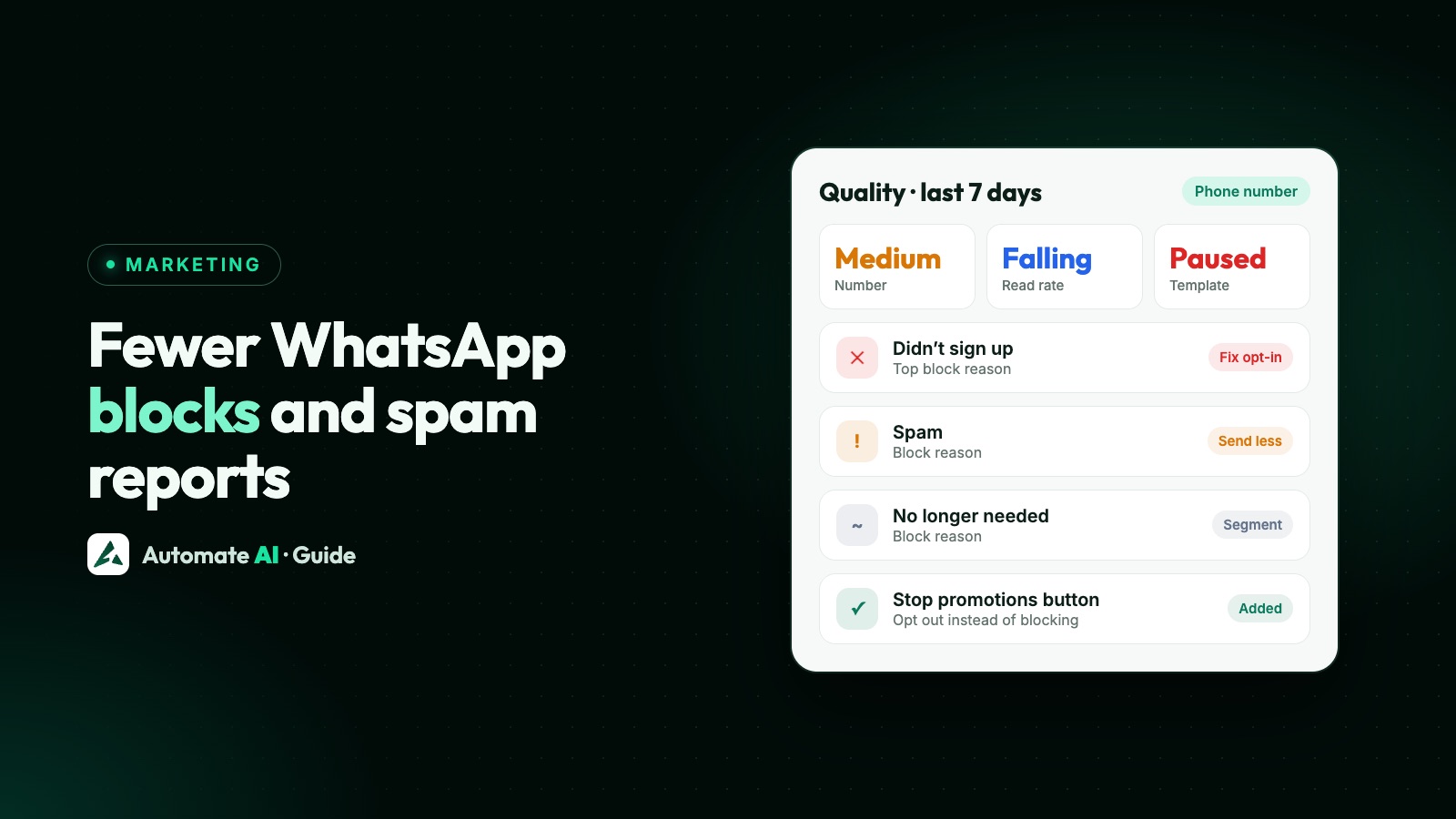
- Block reasons are No longer needed, Didn’t sign up, Spam, Offensive messages or No reason; you can see them in WhatsApp Manager when quality is medium or low.
- Templates are rated on negative feedback and read rates; a low-quality template is paused 3 hours, then 6, then disabled.
- Most blocks come from messages people didn’t expect or get too often. Segment, personalise and cap frequency.
- Add a “Stop promotions” button, test new templates on a small engaged group, and watch read rates after every send.
What a block or report actually does
When a customer blocks your business, your messages stop reaching them, and WhatsApp lets them say why. When they report you, WhatsApp receives up to five of the last messages you sent them. WhatsApp says it might use block and report information to take action on an account or limit the messages it can send, and the business can’t see who blocked or reported it. The knock-on effects on the Business Platform:
- Phone number quality drops (green, yellow, red), based on the last seven days of feedback.
- Template quality drops; a red template is paused and eventually disabled. See WhatsApp quality rating.
- Paced campaigns get cut short. New templates and large sends from smaller businesses can be released in batches; if early feedback is bad, held messages are dropped (errors 132015 and 135000).
- Growth stalls. Since October 2025 a quality drop no longer lowers your messaging limit, but you need high-quality messages to move up a tier. See messaging limit increase.
- Rate limits and enforcement. Meta says its systems rate-limit businesses whose quality stays low for a sustained period. Error 131048 means there are restrictions on how many messages your number can send, and Meta’s fix is to check your quality status. Policy breaches lead to restrictions; see WhatsApp account restricted or banned.
The feedback signals Meta documents
| Signal | What Meta says | Where you see it |
|---|---|---|
| Blocks and block reasons | Part of your number’s quality over the past 7 days | WhatsApp Manager › Phone numbers: hover over a yellow or red rating |
| Reports, mutes and archives | Also counted in message quality | Reflected in the quality rating |
| Read rates | Low read rates can push a template to yellow or red | Template quality in WhatsApp Manager; read counts in your reports |
| “Not interested” feedback | Can reduce how many of your marketing messages that person receives | Not reported to you directly |
| Stop offers and announcements | Your marketing templates to them fail | Error 131050 and the user_preferences webhook |
Meta doesn’t publish how many blocks or what read rate tips a template into a lower rating, and high-traffic numbers can see their rating change within minutes. Treat any rise in blocks as a reason to stop and look, not a number to stay under.
Why people block businesses, and what to change
| Block reason | Usual cause | What to change |
|---|---|---|
| Didn’t sign up | Bought, old or borrowed lists; consent buried in terms | Message only people who opted in to hear from your business; see WhatsApp opt-in |
| No longer needed | Messages kept coming after the purchase or enquiry ended | Stop sequences on reply or purchase; drop long-inactive contacts from marketing |
| Spam | Too many messages, generic blasts, the same offer again and again | Segment, cap frequency, make each message worth reading |
| Offensive messages | Pushy, shaming or threatening tone | Polite, factual wording, especially for payment reminders |
| No reason | Often a mix of the above, or an unclear sender | Say who you are and why you’re writing in the first line |
A checklist before every campaign
Who you send to
- Opted-in contacts only, with a record of when and how they agreed.
- Opted-out contacts removed, including requests made by phone, email or in store. See WhatsApp opt-outs.
- A segment, not everyone. Send each offer to the people it’s for: recent buyers, a city, a product interest.
- Engaged people first. Those who replied or bought recently are likelier to read and less likely to block.
How often and when
- Don’t send too many messages a day, which is one of Meta’s own quality guidelines. Space campaigns out and don’t stack several offers in a week to the same person.
- Send at reasonable local hours. Early-morning and late-night promotions feel intrusive.
- Don’t retry straight away. For error 131049, Meta asks you to wait at least 24 hours.
What you send
- Make the sender obvious. Use a display name customers recognise and say who you are in the first line. See WhatsApp display name.
- Personalise with the customer’s name and something relevant to them, as Meta recommends.
- No open-ended “Hi, how are you?” openers; Meta advises against them. Say why you’re writing.
- Keep it short and useful, with one clear next step.
- Add a “Stop promotions” quick-reply button to marketing templates and honour every tap.
Test, then scale
- Send a new template to a small, engaged group first and check reads, replies and button taps before the full send.
- Watch read rates. A template that people don’t open drifts towards low quality.
- Check quality after each campaign in WhatsApp Manager, including block reasons on the number.
How Meta’s own safeguards slow a bad send
Meta already tests some sends on a small group for you, and knowing how helps you read your reports:
- Template pacing. New marketing templates (and templates without a green rating) can be sent to some people first while the rest are held as
held_for_quality_assessment. Good feedback releases them; bad feedback pauses the template and drops the held messages with error 132015. - Business portfolio pacing. Portfolios that sent fewer than 500,000 templates in the past 365 days have large sends released in batches. If feedback suggests suspicious activity, the remaining messages are dropped with error 135000 and the portfolio is reviewed.
- Template pausing. A red template is paused for 3 hours the first time, 6 hours the second, and disabled the third. Sends to a paused template are rejected and not charged.
When blocks spike: what to do
- Pause the campaign and any automation using the same template.
- Check the template and number ratings in WhatsApp Manager, and hover over the number’s rating for block reasons.
- Find the segment. Which list, import or source did the blockers come from? “Didn’t sign up” points to consent; “Spam” points to frequency or relevance.
- Fix the cause: remove contacts without a clear opt-in, rewrite the message, or narrow the audience.
- Edit or replace the template. Editing sends it back to review; a paused template can also be unpaused manually in WhatsApp Manager.
- Restart small, with your most engaged customers, and watch the next send closely.
Keeping blocks down with Automate AI
- Segments: send campaigns to chosen groups of contacts, organised by groups, tags, statuses and custom fields, now or scheduled for a sensible hour.
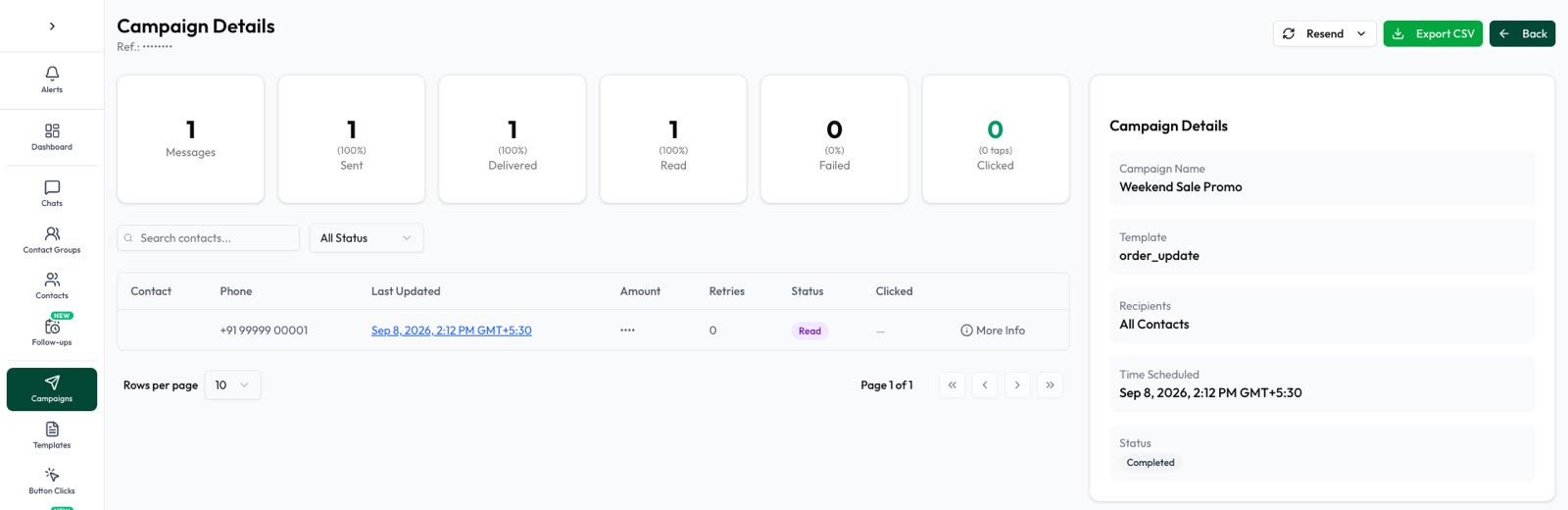
- Live campaign stats: sent, delivered, read, failed and clicked counts, with the failure reason on each failed message, so a template people ignore stands out.
- Opt-out handling: a customer who types STOP (or another opt-out keyword) is marked as opted out automatically, so campaigns skip them. Taps on a “Stop promotions” button show up in Button Clicks for your team to mark as opted out.
- Resend with care: you can resend a campaign to people at Sent, Delivered or Read. Use it sparingly: a second nudge to someone who read and ignored the first can feel like spam.
- Fast replies: the shared inbox helps your team answer quickly when customers reply. See WhatsApp campaigns.
Frequently asked questions
Does one block hurt my WhatsApp quality rating?
Meta rates quality on feedback from the past seven days across your messages, weighted to recent ones, and doesn’t publish thresholds. A single block is part of that picture; a pattern of blocks after one campaign is what lowers ratings.
Can I see who blocked or reported my business?
No. WhatsApp says block and report information is anonymous to the business. In WhatsApp Manager you can see block reasons for your number when its rating is medium or low.
What are the WhatsApp block reasons?
No longer needed, Didn’t sign up, Spam, Offensive messages, or No reason.
How many marketing messages can I send without being blocked?
There’s no published safe number. Meta’s guidance is to avoid sending too many messages per day, and per-user limits already reduce marketing to people who don’t engage. Send fewer, more relevant messages to segmented, opted-in contacts.
Does a “Stop promotions” button really reduce blocks?
It gives people a way out that isn’t a block. Meta’s template docs describe opt-out quick-reply buttons as a common use, but WhatsApp doesn’t act on the tap: you must stop sending marketing to that person.
My template was paused. Is my number at risk?
Pausing doesn’t affect the number at first, and other high-quality templates keep sending. Meta says a business that keeps sending low-quality templates can see its phone number affected over time.
Sources
- Meta Business Help: About your WhatsApp Business phone number’s quality rating
- Meta: Service messages (message quality)
- Meta: Template quality rating
- Meta: Template pausing
- Meta: Template pacing
- Meta: Business portfolio pacing
- Meta: Marketing templates (user preferences)
- Meta: Get opt-in for WhatsApp
- Meta: Error codes
- WhatsApp Help Center: Controls when communicating with businesses
- WhatsApp Help Center: About reporting and blocking
WhatsApp rules and prices change. We check these guides against Meta’s documentation, but always confirm current terms with Meta before you rely on them. Questions? Message us on WhatsApp at +91 836 977 8812.