Connect WhatsApp to Zoho Bigin: New Contacts and Deals, Automatically
How to send WhatsApp contacts to Zoho Bigin without duplicates, open a deal for each new lead and move its pipeline stage when your team changes the contact’s status, with a stage-mapping plan, setup steps in Automate AI and troubleshooting.
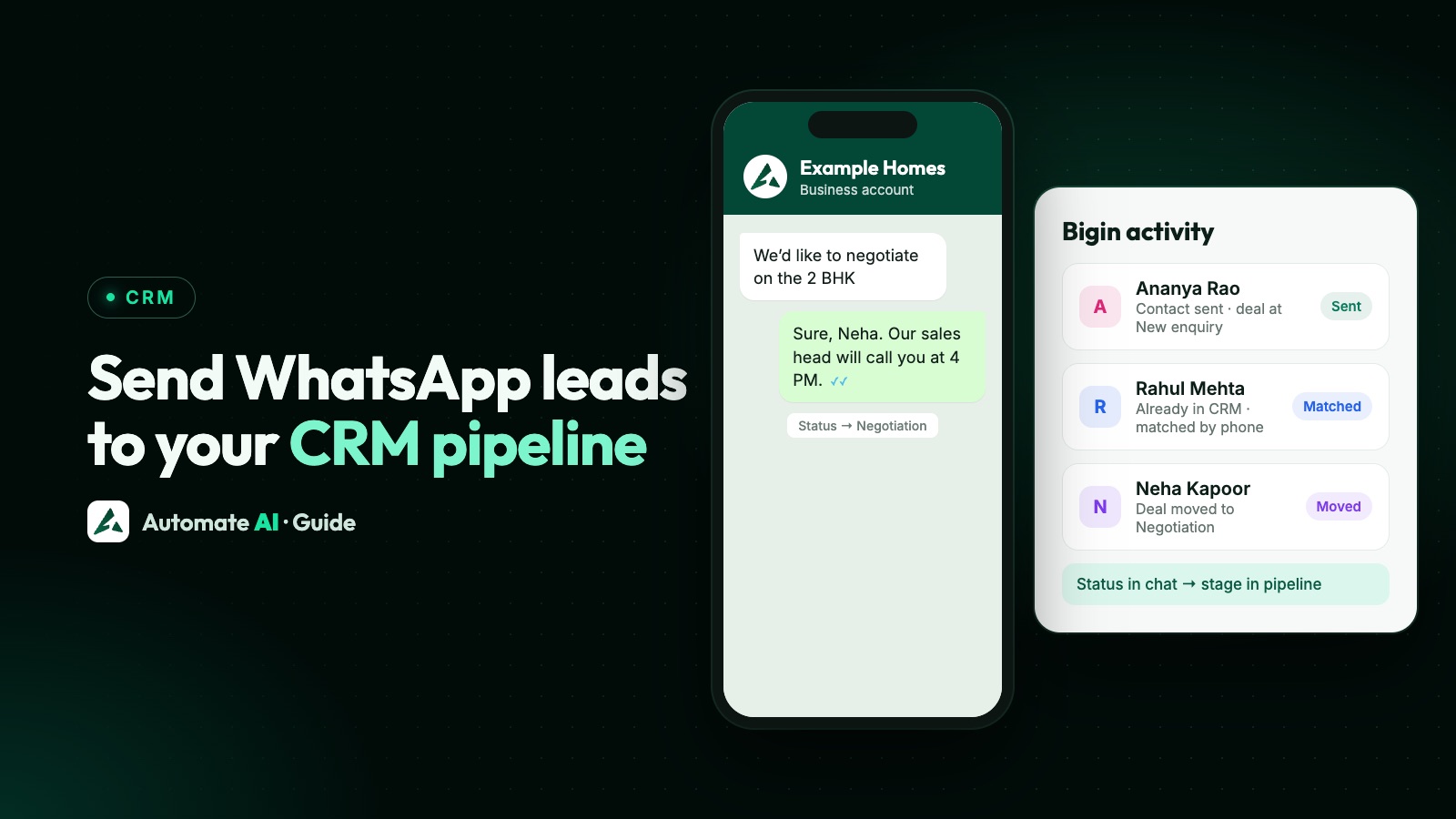
Automate AI’s Zoho Bigin integration sends each new WhatsApp contact to Bigin within a few minutes, links people Bigin already knows instead of adding them twice, and can open a deal that moves stage whenever your team changes the contact’s status in the inbox.
It suits teams that talk to customers on WhatsApp but run their pipeline in Bigin: salespeople keep working in chats, and the pipeline stays current without anyone retyping names and numbers. This guide explains what is sent, how to map statuses to stages, how to set it up and what to check when something doesn’t arrive.
Key takeaways
- The sync runs one way, from Automate AI to Bigin. Changes made in Bigin don’t come back.
- Only contacts added after you connect (while sending is on) are sent, never your whole address book.
- Bigin is searched by phone, then email before anything is created, so existing contacts are linked, not duplicated.
- Optional deals open in the pipeline and stage you choose, and move when the contact’s status changes.
- Plan a short status → stage map before you connect, and test it with one contact.
- Only the account owner or a manager can connect, change or disconnect it.
What gets sent to Bigin
| In Automate AI | In Bigin |
|---|---|
| A new contact, from a WhatsApp chat, a lead form, an import or added by hand | A Bigin contact with first and last name, mobile number and email, and the description “Added from Automate AI (WhatsApp)” |
| A new contact who is already in Bigin (same phone or email) | Linked to the existing Bigin contact; nothing new is added |
| A new contact, with deals switched on | A deal named after the contact, ending “(WhatsApp)”, in your chosen pipeline and sub-pipeline |
| A status change to a status you mapped | That contact’s deal moves to the mapped stage |
Bigin needs a last name, so a contact with only a first name is sent with that name as the last name, and a contact with no name at all is sent under their phone number.
What isn’t sent: chat messages, notes and tags; contacts added before you connected or while sending was switched off; and stage changes for contacts that have no deal. Nothing flows back from Bigin to Automate AI.
Plan the pipeline before you connect
In Bigin, a Team Pipeline holds one business process such as sales, sub-pipelines split it when part of the process needs its own stages, and stages are the steps a record moves through. Decide three things first:
- Which pipeline and sub-pipeline WhatsApp leads belong in, for example a sub-pipeline called “WhatsApp enquiries”.
- The starting stage for every new WhatsApp contact.
- Which statuses move the deal. Use the statuses your team already sets in the inbox, and leave the rest on “Don’t move the deal”.
Example mapping (sample data)
| Status in Automate AI | Stage in Bigin | Why |
|---|---|---|
| (new contact) | New enquiry (starting stage) | Every new WhatsApp contact starts here |
| Interested | Qualified | The salesperson confirmed a real need |
| Site visit booked | Visit scheduled | A meeting is fixed |
| Negotiation | Negotiation | Price discussion is under way |
| Booked | Closed won | The sale is made |
| Not interested | Closed lost | Keeps the pipeline honest |
The stage names here are examples. The setup screen loads your own pipelines, sub-pipelines and stages from Bigin. If a new contact already has a mapped status when it is sent, its deal opens at that status’s stage instead of the starting stage.
One place to update: the status in the chat
Because the sync runs one way, the status in Automate AI is what moves the deal. Agree on a routine with the team:
- Salespeople change the status in the chat, with a short note, right after a call or visit. The deal follows within minutes.
- Moving a deal by hand in Bigin doesn’t change the WhatsApp status, so the two can drift apart. If someone does, they should update the status too.
- Re-inquiries are a cue. When a lead your team had moved on writes again, the chat is marked Re-inquiry, a reminder to update the status, and with it the deal.
- Keep statuses few and clear. Six well-understood statuses map cleanly; twenty overlapping ones don’t.
For statuses, reminders and lead scoring on the WhatsApp side, see WhatsApp CRM and the shared inbox.
Set it up in Automate AI, step by step
- Go to Integrations › Zoho Bigin and click Connect with Zoho Bigin. Sign in to Zoho and allow access. The connection uses your Zoho account’s own data centre, such as zoho.in for India.
- Back in Automate AI, the card shows your Bigin organisation, email and data centre. Under What to send, switch on Send new contacts to Bigin.
- To open deals, switch on Also open a deal for each new contact, then choose the Pipeline, Sub-pipeline and Starting stage.
- Under Status → stage, pick a stage for each status that should move the deal, or leave it on “Don’t move the deal”.
- Click Save. Add a test contact with your own number, wait a few minutes, and check both Bigin and the activity list.
Only the account owner or a manager can connect Bigin, change these settings or see the activity list; other team members can’t change anything here.
Read the activity list
Below the settings, the activity list shows what happened to each contact: sent, matched to an existing Bigin contact, deal opened, deal moved, or failed with Bigin’s reason. The card above it counts contacts sent and shows when the app last checked.
- Sending is gentle. New contacts go to Bigin in small batches, so a large import takes a while to arrive.
- Bigin’s API limits. If Bigin’s daily API limit is reached, sending pauses and carries on by itself later.
- Login problems. If Zoho refuses the login twice in a row, the card asks you to Connect again.
- One record refused. If Bigin rejects one contact’s data, that contact is skipped and listed; the others carry on.
How matching avoids duplicates
Before creating anything, Automate AI searches Bigin for the contact’s phone number, comparing the last 10 digits of the Mobile and Phone fields, and then for the email address. A match is linked instead of added. Each Automate AI contact is linked to one Bigin contact and sent once, and if that person already has a deal in the chosen pipeline, the deal is kept instead of a second one being opened.
- Because only the last 10 digits are compared, “+91 98XXX XXXXX” and “098XXXXXXXX” count as the same number.
- Clean up obvious duplicates inside Bigin before you connect; the integration links to the first match it finds.
- Ask the team to save email addresses when customers share them: email is the second way a match is found.
Privacy, consent and disconnecting
- Only what’s needed is shared: names, mobile number and email go to Bigin. Conversations stay in Automate AI.
- Consent still applies. Having someone in a CRM doesn’t mean they agreed to WhatsApp messages. WhatsApp requires opt-in that names your business, and you must honour every request to stop. See WhatsApp opt-in.
- Disconnect: click Disconnect on the card. Contacts stop being sent and the saved Zoho login is removed; everything already in Bigin stays there.
Keeping lists in a spreadsheet instead? See Connect WhatsApp to Google Sheets. Capturing leads from ads? See Facebook Lead Ads to WhatsApp.
Frequently asked questions
Can I connect WhatsApp to Zoho Bigin?
Yes. In Automate AI, Integrations › Zoho Bigin connects your Bigin account so new WhatsApp contacts are sent to Bigin within a few minutes, with an optional deal for each.
Does the integration send WhatsApp chats to Bigin?
No. It sends contact details (name, mobile number and email) and, if you choose, a deal. Conversations stay in Automate AI.
Will it create duplicate contacts in Bigin?
It is designed not to. Bigin is searched by phone number, then email, before anything is created, and a match is linked instead of added again.
Are my existing contacts sent when I connect?
No. Only contacts added after you connect, while sending is switched on, are sent. Contacts added while it is off are not sent later.
Can a status change move a deal stage in Bigin?
Yes. Map each status to a stage, and when someone changes a contact to that status in Automate AI, the contact’s deal moves to the mapped stage within minutes.
Does a change in Bigin update Automate AI?
No. The integration runs one way, from Automate AI to Bigin, so update the status in the chat to keep both in step.
Sources
- Zoho Bigin Help: Pipelines, sub-pipelines, stages and stage transition rules
- Zoho Bigin Help: Create and manage pipeline records
- Meta: Get opt-in for WhatsApp
- WhatsApp Business Messaging Policy
- Automate AI: Shared Inbox
WhatsApp rules and prices change. We check these guides against Meta’s documentation, but always confirm current terms with Meta before you rely on them. Questions? Message us on WhatsApp at +91 836 977 8812.