Connect WhatsApp to Google Sheets: Two-Way Contact Sync
What a WhatsApp and Google Sheets integration can do, how Automate AI’s two-way contact sync works (paste a sheet link, sync every 1 to 24 hours, groups and birthdays), use cases for lead lists and campaign audiences, Drive backups and keeping customer data safe.
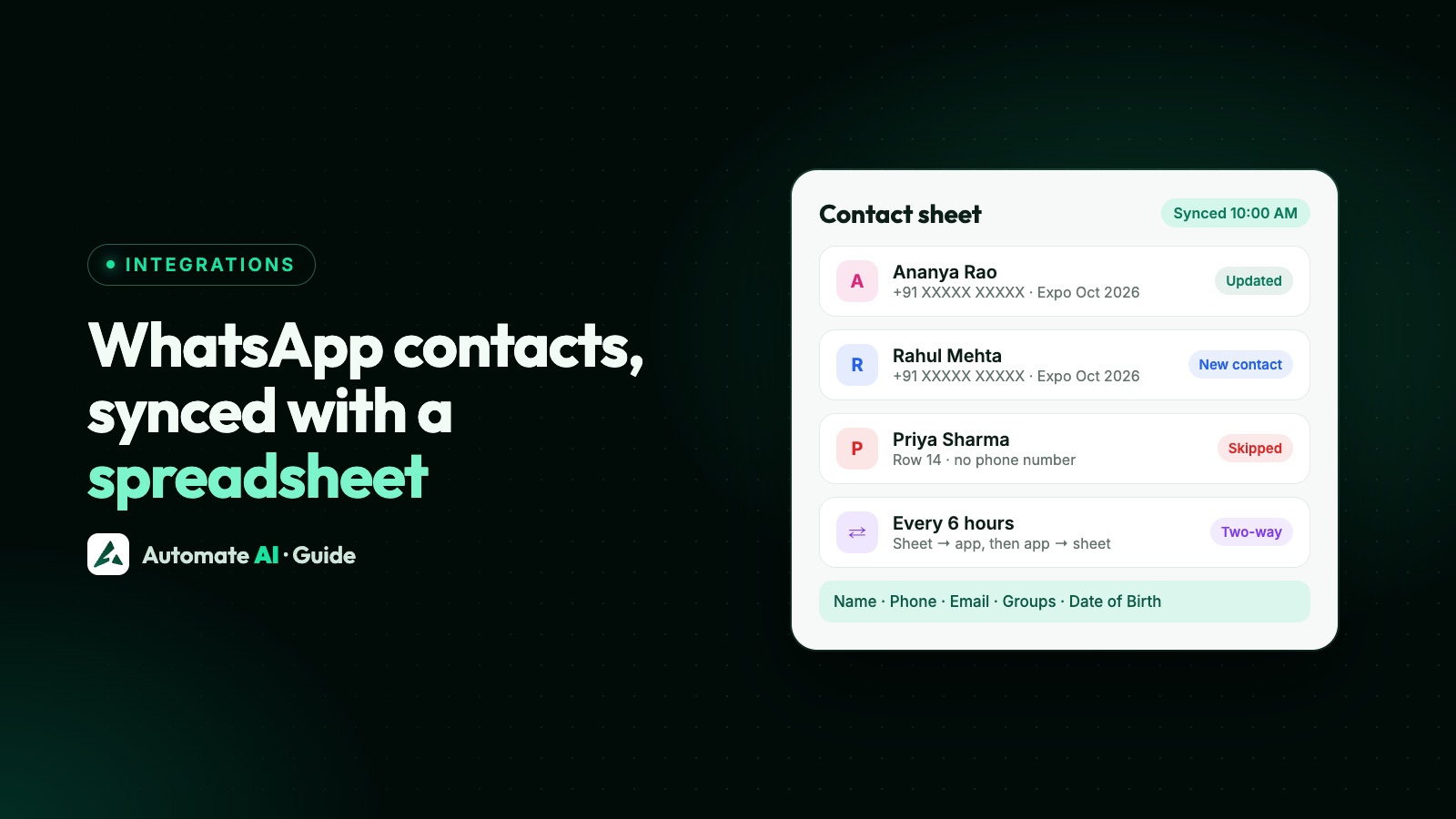
In Automate AI, Google Sheets works as a two-way contact list: rows you add or edit in a sheet create or update your WhatsApp contacts, and every contact in the app is written back to the sheet, every 1 to 24 hours or whenever you click Sync Now.
That makes a sheet a handy place for a sales team to drop in leads, tidy names in bulk or prepare a campaign audience by group. It is a contact sync, not a message log: chats, orders and campaign results stay in the app. This guide shows exactly what syncs, how to set it up without overwriting a sheet you care about, and where it fits.
Key takeaways
- The sync covers contact details: name, phone, email, address, groups and date of birth.
- Sheet edits update contacts, and new rows with a phone number become new contacts.
- Linking a sheet you already use imports it, then rewrites the tab in the sync format, so link a copy.
- Deleting a row doesn’t delete the contact; delete it in the app instead.
- A number in a sheet is not consent: only message people who opted in.
- Separately, you can back up contacts as an Excel file in a Drive folder on a schedule.
What syncs, and in which direction
| Column | Sheet → app | App → sheet |
|---|---|---|
| First Name, Last Name | Yes | Yes |
| Phone | Yes (required for new rows) | Yes |
| Email, Address | Yes | Yes |
| Contact Groups | Yes: comma-separated names; a new name creates the group | Yes |
| Date of Birth | Yes | Yes |
| UUID, Sync Hash | Link each row to its contact: don’t edit them | Written by the app |
Not in the sheet: chats and messages, statuses, tags, custom fields, campaign results and orders. For a one-off file that includes statuses and your own fields, use Contacts › ⋯ › Export instead.
How each sync run works
Every run reads the sheet first and writes the app’s contacts back second, so edits made in the sheet aren’t overwritten.
- Read the sheet. Rows changed since the last sync update the matching contact. Rows with an empty UUID and a phone number become new contacts.
- Skip problems. New rows without a phone number, invalid numbers and numbers that already belong to a contact are skipped and listed in the sync history with their row number.
- Rewrite the tab. Every contact in the app is written back, including ones added in the app since the last run. Contacts deleted in the app disappear from the sheet.
Use cases that work well
A shared lead list for a sales team
Salespeople add enquiries from calls, walk-ins or an expo to the sheet, with a group name such as “Expo Oct 2026”. After the next sync they are contacts in that group, ready for a welcome template or a drip campaign aimed at the group. Only message people who agreed to hear from you on WhatsApp, and note how they agreed.
Campaign audiences by group
Type one or more group names in the Contact Groups column, separated by commas, then choose that group when you create a campaign in Campaigns. The sheet replaces a contact’s groups with what the cell says, so list every group the contact should stay in.
Bulk clean-up
Fixing hundreds of names or adding missing emails is faster in a spreadsheet. Edit the cells, click Sync Now, and the contacts update.
Birthday messages
Fill in the Date of Birth column, and a Scheduled Automation in Campaigns › Drip Campaigns can send a birthday template to each contact on the day. See how to schedule WhatsApp messages.
What it isn’t for
Order sheets, stock lists and chat logs don’t sync: the integration only knows contact columns. If you take orders on WhatsApp, look at the Online Store, and for leads arriving from ads, the Facebook Lead Ads integration.
Set it up in Automate AI, step by step
- Go to Settings › Google Drive and click Connect with Google. Sign in with the Google account that owns the sheet or can edit it.
- Under Contact Sheet, paste the sheet’s link in Use one of your Google Sheets and click Use this sheet. You can also pick one from Your sheets, or type a name under Or create a new spreadsheet and click Create. The app syncs the tab called “Contacts”, or the first tab if there isn’t one.
- In Sheet Sync Settings, switch on Enable Automatic Sync, choose a Sync Interval (every hour, or every 6, 12 or 24 hours) and click Save Settings.
- Click Sync Now for the first run, then open Sheet Sync History to see how it went, including the row number and reason for anything it couldn’t import.
Disconnecting Google on the same page stops both the sheet sync and the Drive backup below.
Back up contacts to Google Drive
On the same page, Excel Backup to Drive saves all your contacts as an Excel file in a Drive folder on a schedule. Switch on Enable Automatic Export, set the Export Interval (Hours) and choose a Destination Folder, or create a new folder right there. Each file is named with its date and includes each contact’s status and groups along with the contact details, so it’s a useful snapshot even if you never use the sheet sync. Export History lists past backups.
Keep customer data safe
- Share the sheet carefully. Google’s sharing roles are Viewer, Commenter and Editor. Anyone with Editor access can change your contacts through the sync, so give it only to people who should.
- Never make it public. The sheet holds every contact’s phone number.
- Consent is still your job. Adding a number to the sheet doesn’t mean the person agreed to WhatsApp messages. WhatsApp requires opt-in that names your business, and you must honour requests to stop. See WhatsApp opt-in.
- Delete in the app. Removing a row doesn’t delete the contact (the row comes back on the next sync). Delete the contact in Automate AI and it leaves the sheet.
- Mind the backups. The Excel files contain the same data, so keep the Drive folder private too.
Troubleshooting
| Message or symptom | What to do |
|---|---|
| “No phone column found” | The linked tab has data the app can’t read, so automatic sync stops. Clear the tab, pick another sheet or create a new one. |
| “We couldn’t open that sheet” | Check the link, and that the Google account connected in Automate AI can edit the sheet. |
| “Google authorization expired” | Click Reconnect Google. |
| “Spreadsheet not found” | The sheet was deleted or access was removed. Automatic sync is switched off until you choose a sheet again. |
| “Duplicate phone” on a row | A contact with that number already exists. Edit that contact’s row instead of adding a new one. |
| A deleted row came back | Expected: the sheet mirrors the app. Delete the contact in the app. |
For keeping a sales pipeline in a CRM rather than a sheet, see Connect WhatsApp to Zoho Bigin and WhatsApp CRM.
Frequently asked questions
Can I connect WhatsApp to Google Sheets?
Yes, through a WhatsApp Business API tool. In Automate AI, Settings › Google Drive connects your Google account and syncs your WhatsApp contacts with a Google Sheet both ways.
Is the Google Sheets sync one-way or two-way?
Two-way for contact details. Edits and new rows in the sheet update the app first, then every contact in the app is written back to the sheet.
How often does the sheet sync?
Every hour, or every 6, 12 or 24 hours, whichever you choose, and any time you click Sync Now.
Can I send WhatsApp messages from Google Sheets?
Not from the sheet itself. Add contacts and their group in the sheet, let it sync, then send an approved template campaign to that group in Automate AI.
Will deleting a row delete the contact?
No. The row comes back on the next sync. Delete the contact in the app and it is removed from the sheet.
Does it sync chats, statuses or orders?
No. Only contact details sync: names, phone, email, address, groups and date of birth. The Excel backup to Drive includes statuses.
Sources
- Google Drive Help: Share files from Google Drive
- Google Docs Editors Help: Find what’s changed in a file (version history)
- Meta: Get opt-in for WhatsApp
- Meta: Send messages (opt-in and the customer service window)
- WhatsApp Business Messaging Policy
- Automate AI: WhatsApp Marketing
WhatsApp rules and prices change. We check these guides against Meta’s documentation, but always confirm current terms with Meta before you rely on them. Questions? Message us on WhatsApp at +91 836 977 8812.