AI Chat Summaries and Auto-Status: Sort a Busy WhatsApp Inbox
A triage routine for busy WhatsApp team inboxes: one-tap AI chat summaries, AI that sets a chat’s status only when it’s sure, an Irrelevant list for spam and wrong numbers, one reply to quick message bursts, and a per-chat chatbot switch.
To keep a busy WhatsApp inbox under control, sort before you read: let AI summarise long chats and set the obvious statuses, move spam and wrong numbers out of the way, and save your team’s attention for the chats that need judgement.
This guide gives you a daily triage routine for a shared inbox and the rules that keep AI help safe: summaries that say what they left out, statuses that never overrule a person, and automation that steps aside when a human takes over. It then shows how Automate AI’s Chat Tools handle each step. For the wider support workflow, see WhatsApp customer service.
Key takeaways
- Triage in the same order every time: unread and unassigned first, then re-inquiries, then open chats.
- A useful summary gives key facts, the customer’s need, where it stands, open questions and the next step, and says when older messages were left out.
- Let AI change a status only when it’s sure, only to statuses you chose, never over a person’s recent change, and always with the reason logged.
- Mark spam, wrong numbers and job seekers irrelevant so bots, AI and auto follow-ups stop replying, without deleting anything.
- When a person takes over a chat, switch the chatbot off for that chat only; AI replies have their own switch.
Why busy WhatsApp inboxes go wrong
Most team inboxes don’t fail because of volume alone. They fail in the same few ways:
- Long chats nobody has time to read, so a reassigned lead is asked the same questions again.
- Statuses that are never updated, so “New” holds half the database and reports mean little.
- Junk mixed with leads: spam, wrong numbers, job seekers and vendors take the same space as buyers, and the chatbot keeps answering them.
- Bots that restart mid-conversation: the customer types “hi” again and the welcome menu fires while a salesperson is negotiating.
- One reply per message: the customer sends three quick lines and gets three near-identical answers.
Each problem has a simple fix, and AI helps with most of them, as long as a person stays in charge.
A 15-minute triage routine
Run this at the start of each shift. The tab names are Automate AI’s, but the order works in any shared inbox.
- Unread and Unassigned: give every new chat an owner. Auto-assignment can share them round-robin.
- Re-inquiry: leads who wrote again after someone changed their status. They are often warm, so answer them early.
- Long or inherited chats: read the summary instead of scrolling, then reply.
- Junk: mark spam, wrong numbers and job seekers irrelevant in one step.
- Open chats: check each one has a status and a next step; anything without one gets a follow-up.
Catch up in seconds with a one-tap chat summary
A good summary is short and structured, so anyone on the team can pick up the chat. Ask for these five parts:
| Part | Example (sample data) |
|---|---|
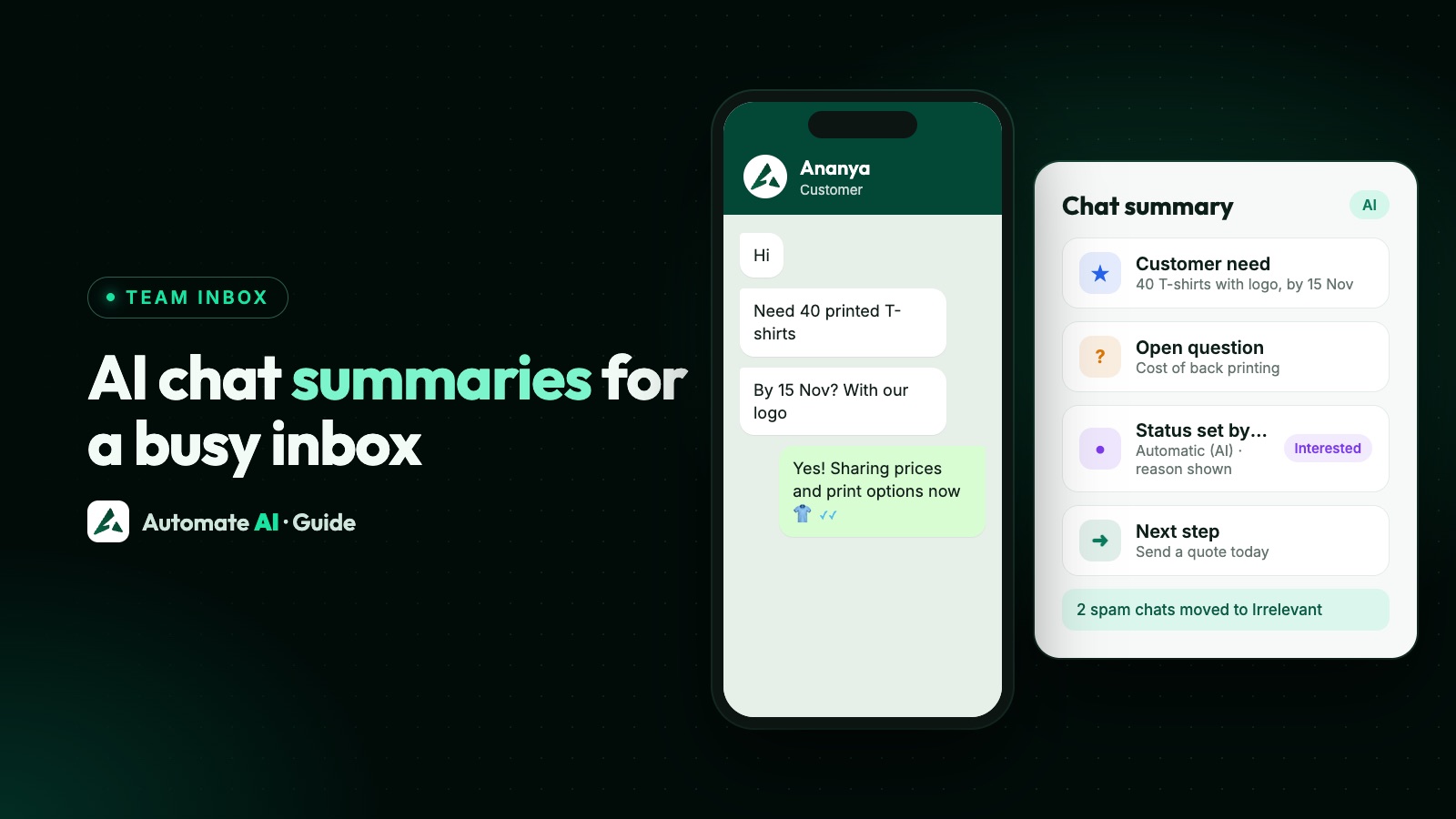
| Key facts | Ananya, Pune · 40 printed T-shirts · event on 15 November · budget about ₹12,000 |
| Customer need | T-shirts with her company logo, delivered before the event |
| Where it stands | Price list sent; waiting for the logo file. Status: Interested |
| Open questions | Cost of printing on the back; delivery charge to Pune |
| Next step | Send a quote with back printing today |
In Automate AI, switch on Chat summary and a Summary button appears in every chat’s header. One tap reads up to the last 300 messages and writes exactly these parts (Key facts, Customer need, Where it stands, Open questions and Next step) in plain English for your team, even when the chat is in Hindi or another language. The summary is kept until you press Refresh; if new messages arrive, it tells you to refresh, and on very long chats it says how many older messages were left out. Your business can write up to 100 summaries a day.
Use it before calling a lead back, when a chat is reassigned, or after a weekend. The summary is for your team only; nothing is sent to the customer.
Let AI set the status, with guardrails
Statuses only help if they’re current, and keeping them current is the job people skip. AI can do it, but only inside tight rules:
- You choose which statuses the AI may set, for example Interested or Price shared, and nothing else.
- It acts only when it’s sure, and leaves the chat alone otherwise.
- People win: it never changes a status a person set in the last 24 hours.
- Every change is visible, with who made it (the AI) and why.
That is how AI auto-status works in Automate AI. A few minutes after a customer writes, the AI reads the recent chat and, when it is sure, moves the contact to one of the statuses you picked. It only moves chats that have no status, the default status or one of your picked statuses, and each change appears in the chat’s Activity as “Automatic (AI)” with the reason. Statuses that need a follow-up get no follow-up time from the AI: a person sets that.
You can also let the AI mark chats irrelevant, only when it is very sure: spam, wrong numbers, job seekers, vendors and personal chats. A chat your team has marked “not irrelevant” is never marked again.
Move junk out of the way: irrelevant chats
Deleting junk loses its history, and archiving alone doesn’t stop your chatbot from answering. Marking a chat irrelevant does both jobs: it records why, and it stops automated replies.
In Automate AI, open the chat, tap ⋮ and choose Mark as irrelevant. Pick a reason: Spam or promotion, Wrong number, Job seeker / not a customer, Vendor or sales pitch, Personal chat, or Other (with a short note). In the same step you can archive the chat, block the number or set a status. From then on the AI Assistant, chatbot and auto follow-ups stop replying to that chat; your team can still reply by hand. These chats live under the Irrelevant tab, and Not irrelevant undoes it.
One reply when customers send several quick messages
Many customers type the way they talk: “Hi”, “need 40 shirts”, “by 15 Nov?”. A bot that answers each line separately sounds robotic, repeats itself and spends three service messages where one would do.
Automate AI’s AI Assistant now waits a few seconds for the customer to finish and sends one reply that answers all of them. To show customers someone is on it, turn on Settings › General › Show “typing…” to customers: they see “typing…” while your team or the AI prepares a reply, and their message is marked as read.
When a person takes over: switch the chatbot off for one chat
When a salesperson is in the middle of a conversation, you don’t want a welcome message or a flow to start again because the customer typed “hi”. Open the chat, tap ⋮ and choose Turn chatbot off. Flows, welcome messages and keyword replies stop for that chat only, and you reply as usual. Turn chatbot on brings them back. Every change shows in the chat’s Activity.
| Switch | What it stops | Where |
|---|---|---|
| Turn chatbot off | Flows, welcome messages and keyword replies in this chat | Chat › ⋮ menu |
| AI replies off | AI Assistant replies in this chat | Switch in the chat header |
| Mark as irrelevant | AI Assistant, chatbot and auto follow-ups in this chat | Chat › ⋮ menu (with Irrelevant chats on) |
For handover the other way, from AI to a person, the AI Assistant can alert your team on WhatsApp when a customer asks for a person or it can’t answer, and wait while you reply. See the shared team inbox.
Set up Chat Tools in Automate AI
- Go to Settings › Chat Tools. Only the account owner or a manager can change these, and each tool stays off until switched on.
- Switch on Irrelevant chats to add Mark as irrelevant to every chat and the Irrelevant tab to Chats.
- Switch on Chat summary to add the Summary button.
- Switch on AI auto-status and tick the statuses the AI may set (create them first in Settings › Contact Statuses).
- Optionally turn on Let the AI mark chats irrelevant (it needs Irrelevant chats on).
- Press Save, then read a few chats’ Activity during the first week.
Chat Tools aren’t a separate add-on. Like the AI Assistant, Chat summary and AI auto-status run on your own connected AI key (Settings › AI Assistant); if none is set up, the app asks you to add it there first.
Frequently asked questions
Does the customer see the chat summary?
No. The summary is for your team only; nothing is sent to the customer.
How much of the chat does the summary read?
Up to the last 300 messages. On longer chats it says how many older messages were left out, and it’s kept until you press Refresh.
Can AI overwrite a status my salesperson set?
Not within 24 hours of a person’s change, and only to statuses you picked in Settings › Chat Tools. Every AI change shows in the chat’s Activity as “Automatic (AI)” with the reason.
What happens to a chat marked irrelevant?
The AI Assistant, chatbot and auto follow-ups stop replying to it. Your team can still reply by hand, and Not irrelevant undoes it.
If I turn the chatbot off for a chat, does the AI stop too?
No. Turning the chatbot off stops flows, welcome messages and keyword replies; AI replies have their own switch in the chat header.
Who can switch Chat Tools on?
The account owner or a manager, in Settings › Chat Tools.
Sources
- Meta: Send messages (customer service window)
- Meta: Pricing on the WhatsApp Business Platform
- WhatsApp Business Messaging Policy
- Automate AI: Shared Team Inbox
WhatsApp rules and prices change. We check these guides against Meta’s documentation, but always confirm current terms with Meta before you rely on them. Questions? Message us on WhatsApp at +91 836 977 8812.