How to Send a WhatsApp Template Message with the API
How to send a WhatsApp template message with the Cloud API: the request body, named and positional variables, image headers, dynamic URL buttons, quick-reply payloads, coupon copy-code buttons, language codes, the response and common errors, with examples for Indian businesses.
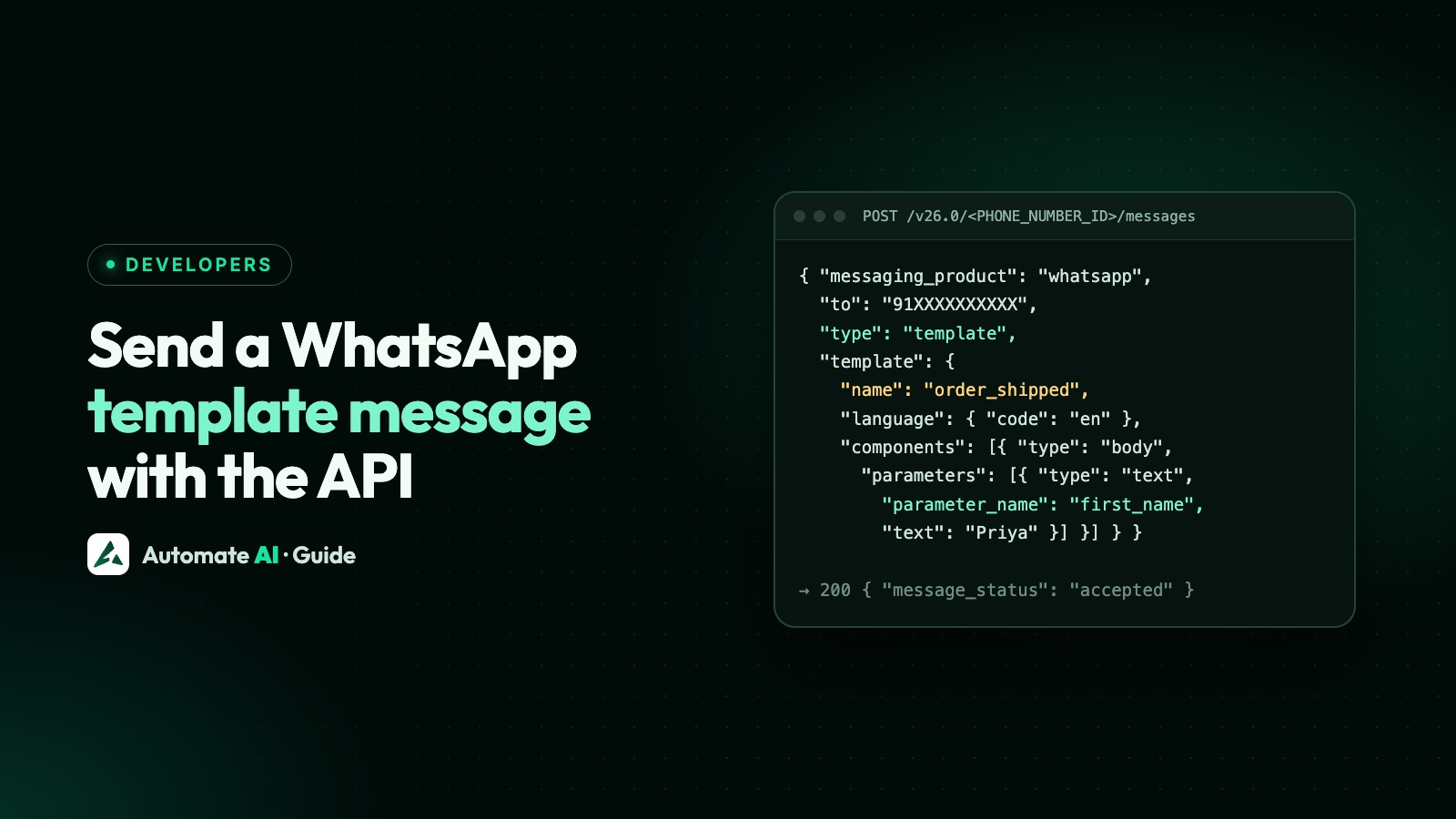
To send a WhatsApp template message with the Cloud API, POST to https://graph.facebook.com/v26.0/<PHONE_NUMBER_ID>/messages with type: "template", the template’s name, its language code, and a components array that fills in the variables: body text, header media and button values.
Templates are the only messages you can send outside the 24-hour customer service window, so this is the request behind every order update, reminder and campaign. Below are working request shapes from Meta’s documentation (Graph API v26.0, the current version) and the mistakes that cause most errors.
Key takeaways
- Endpoint:
POST /v26.0/<PHONE_NUMBER_ID>/messageswith a Bearer token. - Body:
messaging_product,to,type: "template",template: { name, language: { code }, components }. - Templates created with named parameters take
parameter_name; positional ones take values in order. - Buttons are addressed by
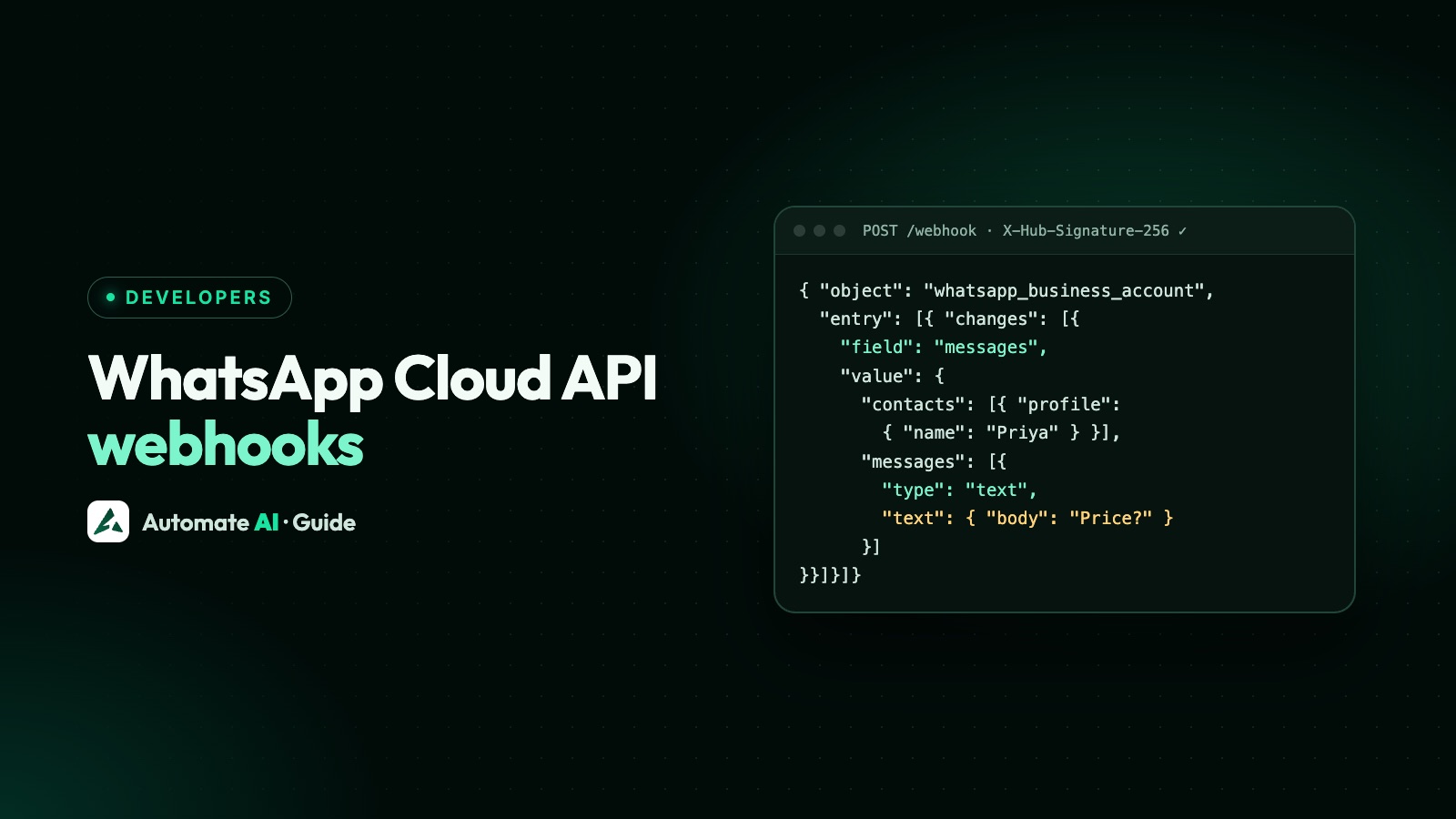
index(from 0); URL buttons take one variable appended to the URL. - A success response means accepted, not delivered; delivery comes by webhook.
The basic request
| Part | Value |
|---|---|
| Method and URL | POST https://graph.facebook.com/v26.0/<PHONE_NUMBER_ID>/messages |
| Headers | Authorization: Bearer <TOKEN>, Content-Type: application/json |
| Body | { "messaging_product": "whatsapp", "to": "91XXXXXXXXXX", "type": "template", "template": { "name": "order_update", "language": { "code": "en" }, "components": [ … ] } } |
Send the recipient’s number with country code and no plus sign or spaces (a leading + also works). The template must be approved in that language, and the person must have opted in to messages from you; see WhatsApp opt-in.
Filling in body variables
Positional variables ({{1}}, {{2}})
The default. Send values in the same order as the template: { "type": "body", "parameters": [ { "type": "text", "text": "Priya" }, { "type": "text", "text": "ORD-1042" } ] }.
Named variables ({{first_name}})
If the template was created with parameter_format: "named", name each value, in any order: { "type": "body", "parameters": [ { "type": "text", "parameter_name": "first_name", "text": "Priya" }, { "type": "text", "parameter_name": "order_id", "text": "ORD-1042" } ] }. Names use lowercase letters and underscores. Named variables make long templates much easier to maintain.
Header with an image, video or document
If the template has a media header, send it as a header component: { "type": "header", "parameters": [ { "type": "image", "image": { "link": "https://example.com/diwali.jpg" } } ] }. You can use id instead of link for media uploaded to Meta first, which Meta recommends; a link must be publicly reachable. Images can be up to 5 MB, video 16 MB and documents 100 MB.
Buttons: URL, quick reply and copy code
| Button | Component |
|---|---|
| Dynamic URL (e.g. order tracking) | { "type": "button", "sub_type": "url", "index": "0", "parameters": [ { "type": "text", "text": "ORD-1042" } ] } → appended to the template’s URL |
| Quick reply with a payload | { "type": "button", "sub_type": "quick_reply", "index": "1", "parameters": [ { "type": "payload", "payload": "stop_promos" } ] } → comes back in the webhook when tapped |
| Coupon copy code | { "type": "button", "sub_type": "copy_code", "index": "1", "parameters": [ { "type": "coupon_code", "coupon_code": "DIWALI20" } ] } (up to 20 characters) |
Button index starts at 0 and follows the order in the template. Static buttons (a fixed URL or phone number) need no component. Limits for each button type are in WhatsApp buttons and list messages; OTP buttons are in WhatsApp OTP.
Language codes
The language.code must match the language the template was approved in: for example en, en_US, en_IN (English, India), hi (Hindi), or other Indian languages such as mr, ta, te, bn, gu, kn and ml; check Meta’s supported languages list for the exact code. Error 132001 usually means the name or language code doesn’t match an approved template.
The response
A successful call returns { "messaging_product": "whatsapp", "contacts": [ { "input": "91XXXXXXXXXX", "wa_id": "91XXXXXXXXXX" } ], "messages": [ { "id": "wamid.…", "message_status": "accepted" } ] }. Save the wamid ID: status webhooks (sent, delivered, read, failed) refer to it. A message_status of held_for_quality_assessment means Meta is pacing a new marketing template while it checks reactions; see WhatsApp quality rating.
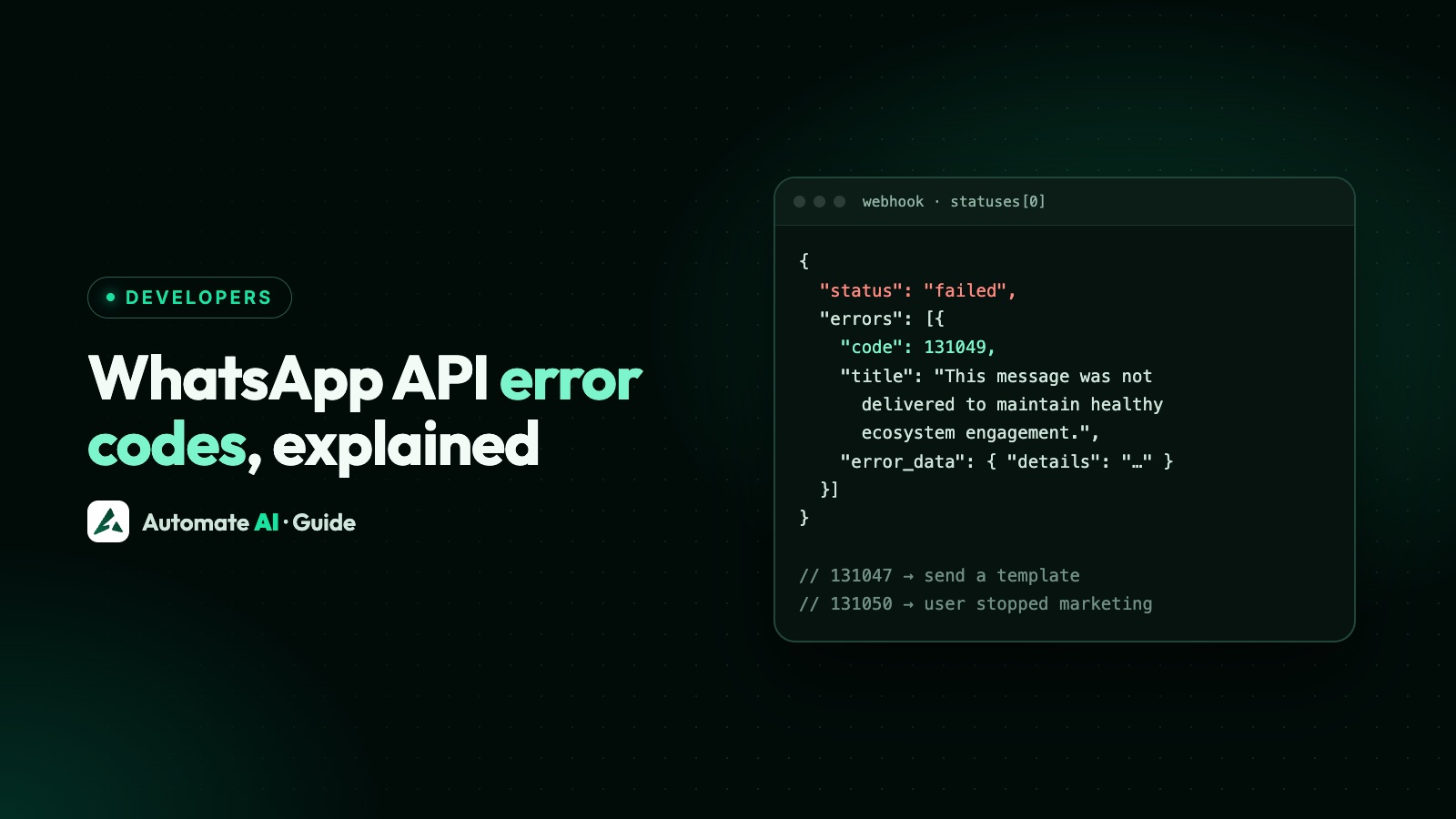
Failures come back either in the response or later as a failed status; see WhatsApp API error codes.
Example: an order update for an Indian store
- Template
order_shipped(utility,en): “Hi {{first_name}}, your order {{order_id}} has shipped and should arrive by {{date}}.” with a URL buttonhttps://example.com/track/{{1}}. - Body component with
first_name,order_idanddateas named parameters. - Button component,
sub_type: "url",index: "0", textORD-1042. - Send, store the returned
wamid, and update the order when thedeliveredandreadstatuses arrive.
Sending templates through Automate AI
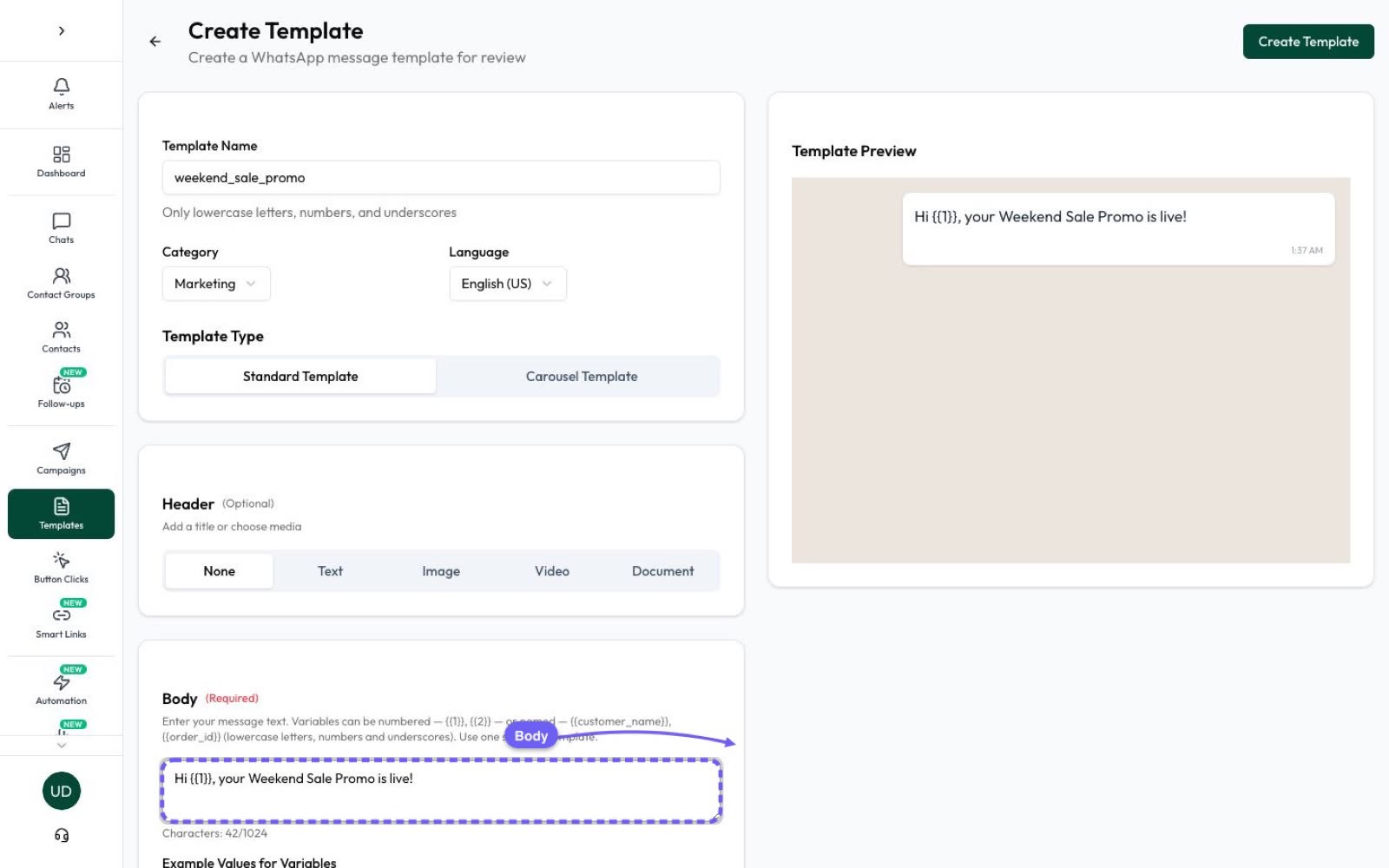
With Automate AI you don’t manage Meta tokens or webhooks. Create the template in the builder (with a live preview and Meta’s approval status), then send it from a campaign, a chatbot, a drip sequence, or from your own system with the Automate AI REST API and SDKs for PHP, Node.js, Python, Java and Ruby. Delivery statuses show up in the inbox and reports.
Frequently asked questions
What is the API endpoint to send a WhatsApp template message?
POST https://graph.facebook.com/v26.0/<PHONE_NUMBER_ID>/messages with a Bearer access token and type: "template" in the JSON body.
How do I pass variables to a WhatsApp template?
In a body component’s parameters array: in order for positional templates ({{1}}, {{2}}), or with parameter_name for templates created with named parameters.
How do I send an image in a WhatsApp template?
Add a header component with a parameter of type image and either a public link or the ID of media you uploaded to Meta.
Why does my template message fail with error 132001?
The template doesn’t exist in that language or isn’t approved. Check the template name, the language code and its status.
Does a successful response mean the message was delivered?
No, only accepted. Delivery and read receipts arrive as status webhooks for the returned message ID.
Sources
- Meta: Send messages
- Meta: Templates overview (named and positional parameters)
- Meta: Template components
- Meta: Template media
- Meta: Coupon code templates
- Meta: Supported languages
- Meta: Template pacing
WhatsApp rules and prices change. We check these guides against Meta’s documentation, but always confirm current terms with Meta before you rely on them. Questions? Message us on WhatsApp at +91 836 977 8812.