AI Copilot for WhatsApp Teams: What It Does in Each Part of the App
What an AI copilot does for a WhatsApp team, how it differs from an AI assistant that replies to customers, the approvals that keep people in charge, and what Automate AI’s AI Copilot (AI Autopilot in the app) does in Contacts, Templates, Campaigns, Automation and more.
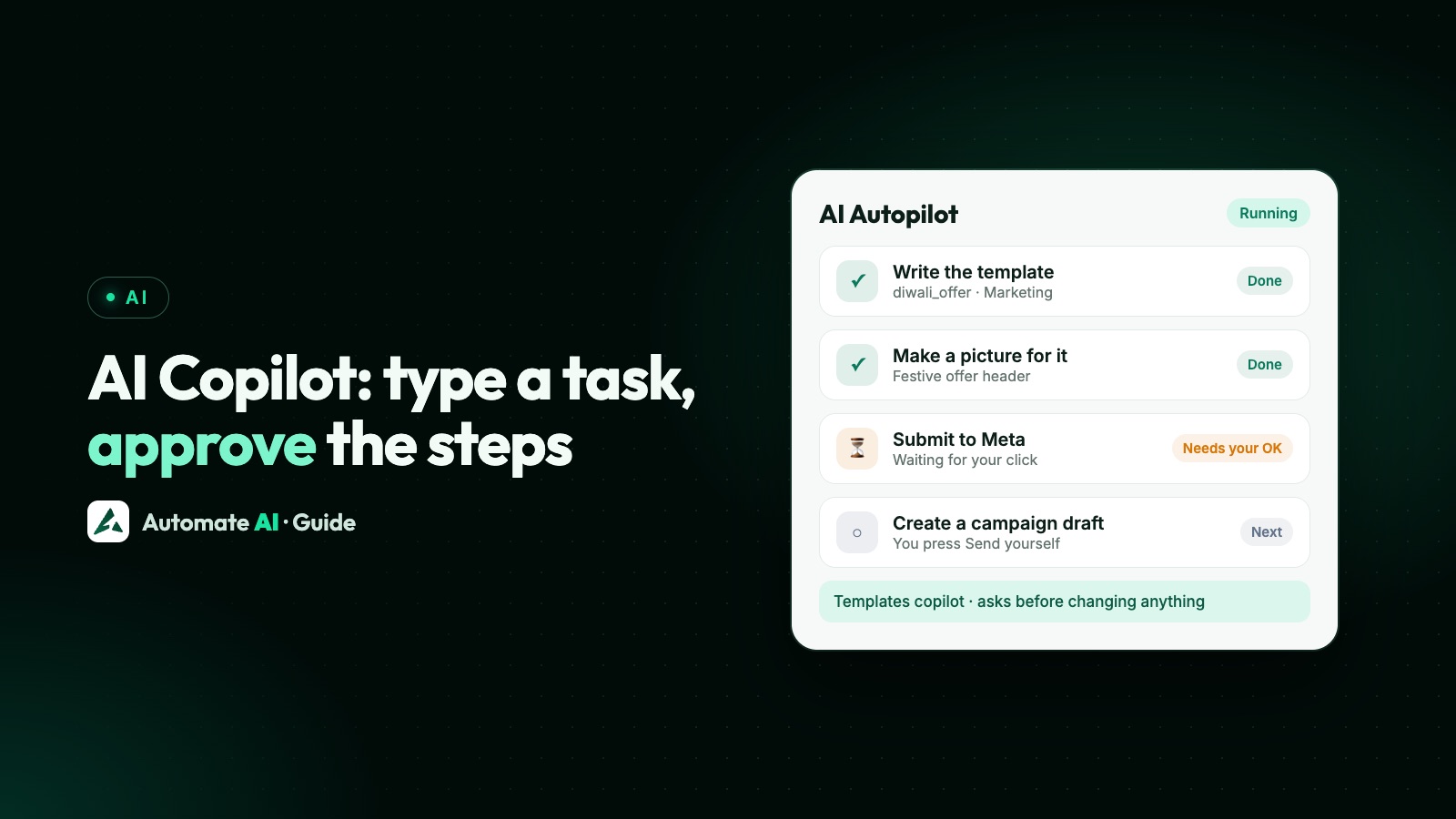
An AI copilot works for your team, not your customers: you type a job such as “set up a welcome flow”, it plans the steps, does the setup inside your WhatsApp software and waits for your OK before anything important changes. An AI assistant is the other half of the picture: it answers customers in the chat.
This guide explains which jobs suit a copilot, the approvals that keep a person in charge, and what Automate AI’s AI Copilot (shown as AI Autopilot in the dashboard) does in Contacts, Templates, Campaigns, Automation, Follow-ups, Smart Links, Store and AI Sales. For AI that talks to customers, read WhatsApp AI agents.
Key takeaways
- A copilot sets things up and answers questions for your team; an AI assistant replies to customers. Most businesses use both, for different jobs.
- A trustworthy copilot shows its plan first and asks before it creates, switches on, submits or changes anything.
- Give it repeatable setup: templates, welcome flows, contact groups, statuses, campaign drafts and “where are we lagging?” questions.
- Keep people in charge of what customers see: campaign sends, final template wording and anything involving money.
- In Automate AI, each section has an AI copilot button with its most common jobs. AI Copilot is included in Series 2, 3 and 4.
Copilot, assistant, suggestions, scoring: four different AI jobs
“AI” in WhatsApp software can mean very different things. Before you switch anything on, be clear about who each one works for and who approves its work.
| AI feature | Works for | What it does | Who approves |
|---|---|---|---|
| AI Copilot (AI Autopilot in the app) | Your team | Sets things up in your account and answers questions about your numbers | You, before any step that changes data |
| AI Assistant | Your customers | Replies in chats from your knowledge base, by text or voice | Your rules: keywords, handover and a switch in every chat |
| AI Assist in the reply box | An agent in a chat | Suggests a reply based on the conversation | The agent edits it and presses send |
| AI Sales Center | Your sales team | Scores leads, suggests the next step and creates follow-up tasks | Your team decides what to do |
Mixing these up causes most disappointments with AI. A copilot won’t answer a customer at 11 pm, and an AI assistant won’t build your template library. Pick the tool by the job.
What a good AI copilot does, and what it must never do
A copilot that can change your account is powerful, so judge it by its guardrails, not by its demo. Whichever software you use, look for these:
- A plan before action. Every task becomes a list of steps you can read, correct or skip before pressing Start.
- Approval for anything that matters. Creating, switching on, publishing, submitting or changing business data should wait for your click.
- Work you can watch. It should open the real page and fill it in front of you, so your team learns where things live.
- Pause, stop or correct at any time.
- Hard limits. No sending campaigns or messages, no payments, no deleting, and no changes to team members, keys, billing or your WhatsApp connection.
- Respect for roles. An agent’s copilot shouldn’t be able to do what the agent can’t.
Section by section: what AI Copilot does in Automate AI
Automate AI puts an AI copilot button on the main pages of each section, with that section’s most common jobs. One click starts the job as an AI Autopilot task: it plans the steps, shows them and asks before changing anything. Something else… lets you type your own job for that section.
| Section | Ready jobs | What you get |
|---|---|---|
| Contacts | Create a VIP customers group · Set up my sales pipeline statuses · Add a “Hot lead” tag · Add a City field | The group, statuses (New, Interested, Follow-up, Converted, Not interested), tag or custom field, after your OK |
| Templates | Write a festive offer template · Write a follow-up template · Write a thank-you template | A template draft (an offer template can get a matching AI-made picture), submitted to Meta only after your OK |
| Campaigns | Bring back quiet leads · Plan a festive offer campaign · Which campaigns worked best? | A campaign draft with an approved template that you send yourself, or an answer from your own results |
| Automation | Set up a welcome flow · Auto-reply with my price list · Set up my AI chatbot | A chatbot flow, a keyword auto-reply or AI Assistant settings; anything going live waits for your OK |
| Follow-ups | Where are we lagging? · Who needs a follow-up today? | An answer from your own follow-ups, with fixes you can start in one click |
| Smart Links | Create a WhatsApp link for my website | A smart link that opens a chat with your business |
| Store | Set up my WhatsApp store · Add products to my store · Publish my store | Your online store and products; publishing waits for your OK (owners and managers) |
| AI Sales | Which leads are most likely to buy this week? · Where are we losing leads? | An answer from your own numbers, with next steps |
On a computer the button sits in the bottom bar next to Alerts and Help; on phones and tablets it floats at the bottom right. It doesn’t appear on editors or create forms, so it never covers their buttons. Chats have their own helper instead (AI Assist in the reply box), and the dashboard has Autopilot check-ins.
Ask it how the business is doing
A copilot is also useful for questions you’d otherwise answer with a spreadsheet. Ask AI Autopilot “Where are we lagging in conversions?” and it answers from your own numbers: contacts, chats waiting for a reply, follow-ups, campaigns, templates, chatbot and store. It points to the biggest drop and lists what to do, in order. One click turns a fix into a planned task, and you press Start.
The dashboard’s How you are doing card shows today, this week or this month, with a one-click fix for each thing to improve, and you can switch on a daily, weekly or monthly check-in notification. Good questions for a weekly review:
- “Where are we lagging in conversions this month?”
- “Which of my recent campaigns worked best, and why?”
- “Where are we lagging with follow-ups this week, and what should we fix?”
- “Which leads need a follow-up today?”
Human in the loop: approvals, “Do everything” and handover
In AI Autopilot, every step that creates, switches on, publishes, submits or changes business data is marked Needs your OK and waits for your click. Only opening a page, guiding you and reading your numbers run by themselves. You can pause, stop or correct a task at any time.
For a task you trust, the Do everything without asking switch approves every step of that task up front. Use it for low-risk setup such as tags, groups and statuses. Keep it off when a step submits a template to Meta, switches a chatbot on or publishes your store, at least until you’ve checked a few results. Even with it on, Autopilot cannot send campaigns or messages, touch your wallet or payments, delete anything, or change team members, keys, billing or your WhatsApp connection. Where it can’t act, it shows you the steps on the real page and you do the clicks.
Handover to people on the customer side is a separate setting. The AI Assistant hands a chat to a person when it can’t answer or the customer asks for one, alerts up to 10 team numbers on WhatsApp and waits while you reply, and every chat has an AI on/off switch in its header. WhatsApp’s Business Messaging Policy asks businesses using automation to have “prompt, clear, and direct escalation paths” to a person.
Which AI for which job
| Job | Use | Why |
|---|---|---|
| A customer asks for prices at 11 pm | AI Assistant | Answers from your knowledge base and hands over when needed |
| An agent wants a first draft of a tricky reply | AI Assist in the reply box | The agent edits before sending |
| You need a Diwali offer template | AI Copilot (Templates) or Templates › Generate with AI | Drafts and checks it; you approve the submission |
| A new sales team needs pipeline statuses and tags | AI Copilot (Contacts) | Repeatable setup in a few clicks |
| You want to know who to call first | AI Sales Center | Scores leads from what they actually said |
| You inherit a 200-message chat | Chat summary (Settings › Chat Tools) | Key facts, need and next step in one tap |
More on each: AI chat summaries and auto-status, AI lead scoring and writing templates with AI.
Use AI Copilot in Automate AI, step by step
- Check your plan. AI Copilot (AI Autopilot in the dashboard) is included in Series 2, 3 and 4. The section buttons appear wherever AI Autopilot is on for your business.
- Fill in your AI Assistant details (Automation › AI Assistant). Autopilot uses these details about your business when it plans.
- Open a section, for example Templates, and click AI copilot in the bottom bar (on a phone, the floating button). Pick a ready job, or choose Something else… and type your own.
- Read the plan. Correct or skip any step, then press Start.
- Approve the steps marked Needs your OK as they come up, or pause or stop if something looks wrong.
- Check the result on the page Autopilot opens: the template in the Studio, the flow in the builder, the campaign draft or the store.
- For bigger jobs, use the Autopilot button at the bottom of the left menu: type the task, attach a PDF, pasted text or a contact sheet, and press Plan it.
Some jobs depend on your role: setting up the AI Assistant or the online store is for owners and managers. See AI Copilot and pricing.
Frequently asked questions
Is AI Copilot the same as AI Autopilot?
Yes. On this site we call it AI Copilot; in the Automate AI dashboard it appears as AI Autopilot, and each section’s “AI copilot” button starts an Autopilot task.
Does AI Copilot reply to my customers?
No. It works for your team inside the app. Replies to customers come from the AI Assistant, which has its own settings, keywords and human handover.
Can AI Copilot send a campaign?
No. It can create a campaign draft with an approved template; you review it and press Send yourself on the Campaigns page.
Will it submit a template to Meta without asking?
Not by default: submitting is marked Needs your OK. It only runs without asking if you turn on “Do everything without asking” for that task.
Can agents use AI Copilot?
Yes, within their role. Jobs such as setting up the AI Assistant or the online store are for owners and managers.
Which plans include AI Copilot?
Series 2, 3 and 4 include it at no extra charge. Series 1 is for marketing only.
Sources
- Meta Terms for WhatsApp Business Platform (sec. 4.7, AI Providers)
- WhatsApp Business Messaging Policy (escalation paths)
- Automate AI: AI Copilot
- Automate AI: AI Assistant
WhatsApp rules and prices change. We check these guides against Meta’s documentation, but always confirm current terms with Meta before you rely on them. Questions? Message us on WhatsApp at +91 836 977 8812.