WhatsApp Catalogue Not Showing: Causes and Fixes
Why a WhatsApp catalogue, its items or prices don’t show, on the Business app or the API: review, visibility settings, catalogue links and how to fix each one.
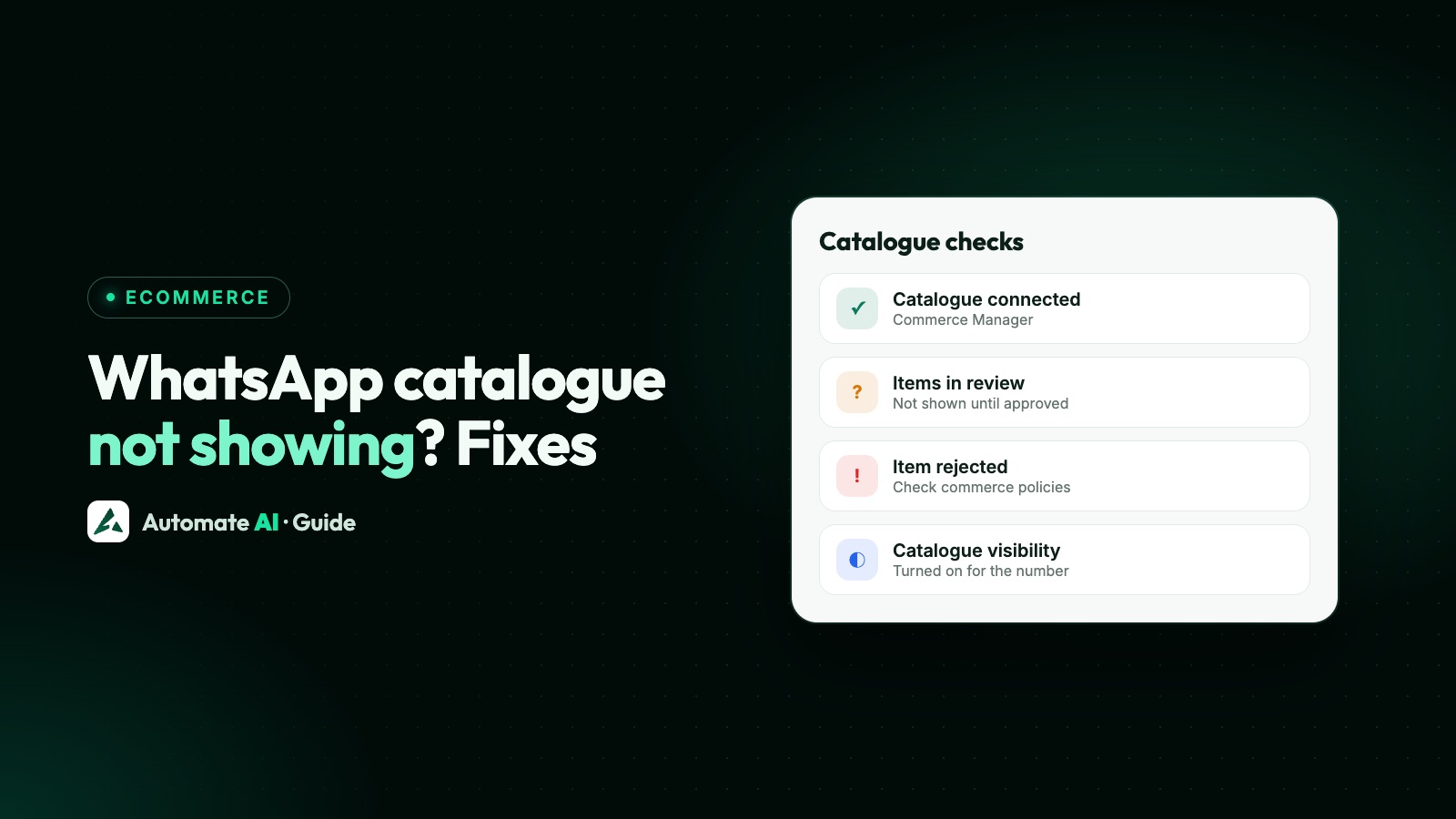
A WhatsApp catalogue usually doesn’t show for one of four reasons: the items are still in review or were rejected, the catalogue is switched off or hidden, it isn’t connected to the right WhatsApp account, or the item breaks WhatsApp’s commerce rules. On the WhatsApp Business API there’s one more common cause: the catalogue setting on your phone number starts switched off, so the shop icon stays hidden until you turn it on.
This guide helps you find which one applies, for both the free WhatsApp Business app and numbers on the API, and what to do about it. If you haven’t built a catalogue yet, start with our WhatsApp catalogue guide, which covers setup, carts and payments.
Key takeaways
- On the API, the catalogue starts hidden: Meta’s
is_catalog_visiblesetting defaults to false, so turn it on for each phone number. - A WhatsApp account can have only one catalogue, and it must be connected to that account in WhatsApp Manager.
- Items are reviewed automatically against WhatsApp’s commerce rules. Rejected items don’t show, and you can appeal in Commerce Manager.
- Prices in a catalogue are only available in some countries, so a missing price isn’t always a fault.
- An “Invalid catalog link” message means the catalogue is switched off for that number.
Find your cause in one minute
Start with what you, or your customer, actually see. Each row points to the section with the fix.
| What you see | Most likely cause | Where to fix it |
|---|---|---|
| No shop icon on your business profile (API number) | Catalogue visibility is off for the number | Commerce settings on the phone number |
| No shop icon on your profile (Business app) | No approved items yet, or all items are hidden | Tools › Catalogue (Business tools on older versions) |
| Catalogue shows but some items are missing | Items in review, rejected or hidden | Catalogue item list, or Commerce Manager |
| Products show but no Add to cart button | Cart is switched off | Commerce settings on the phone number |
| “Invalid catalog link” when tapping a link | Catalogue is switched off for the number | Commerce settings on the phone number |
| Items show but prices don’t | Prices aren’t offered in your country, or no price was added | Item details |
| Your software says no catalogue is connected | No catalogue connected to the WhatsApp account | WhatsApp Manager |
Catalogue not showing on the WhatsApp Business app
On the free app, you build the catalogue under Tools › Catalogue (Business tools on older versions). You can list up to 500 items, each with up to 10 photos or videos. If customers can’t see it, check these in order:
- Wait for review. WhatsApp reviews each new item before it appears. A new item, or one you just edited, may not show straight away.
- Check collections. WhatsApp reviews each collection too, and says this should take no more than 24 hours. Until then customers won’t see it.
- Unhide items. You can hide items that are out of stock. If every item is hidden, there’s nothing for customers to see.
- Check the item itself. Each item needs a name, and WhatsApp asks for the country of origin. Incomplete items are easy to miss in a long list.
- Check what you sell. Items that break WhatsApp’s commerce rules are flagged and won’t show. See the section on rejected items below.
WhatsApp’s Help Center also says some shopping features may not be available to every user yet, so one customer not seeing something isn’t always a fault on your side.
Catalogue not showing on the WhatsApp Business API
On the API, products live in a Meta catalogue that you create in Commerce Manager (or through Meta’s Commerce API) and then connect to your WhatsApp account. Meta allows one catalogue per WhatsApp account, and the same catalogue serves every phone number in it. Most “not showing” problems on the API come down to three settings.
1. The catalogue isn’t connected
In WhatsApp Manager, check that a catalogue is connected to your WhatsApp account. If you already have a Meta catalogue for Facebook or Instagram shopping, Meta’s advice is to use that one rather than make a new one. If a Solution Partner (your WhatsApp provider) manages your WhatsApp account, Meta’s guide says you give the partner permission to manage your catalogue in Meta Business Suite and Commerce Manager, and the partner then connects it in WhatsApp Manager.
2. Catalogue visibility is off
Meta’s commerce settings are set for each business phone number, through POST /<PHONE_NUMBER_ID>/whatsapp_commerce_settings. The is_catalog_visible setting controls the shop (storefront) icon and the catalogue buttons in chats and on the business profile, and it defaults to false. While it’s off, Meta says the icon and catalogue buttons are hidden everywhere and the catalogue preview disappears from your profile.
3. The cart is off
The other setting, is_cart_enabled, defaults to true. If someone switched it off, customers still see products and details, but the cart buttons disappear from every view. That’s why some businesses report “products show but customers can’t order”.
| Setting | Default | When it’s off |
|---|---|---|
| is_catalog_visible | false | No shop icon or catalogue buttons; catalogue links say “Invalid catalog link” |
| is_cart_enabled | true | Products show, but no cart buttons |
Items rejected or missing after review
Meta reviews items automatically when they’re added to a catalogue connected to a WhatsApp account. Items that break the rules are flagged, and the business is pointed to WhatsApp’s commerce policies. Customers can also report products, and reported products are reviewed again.
WhatsApp’s Business Messaging and Commerce Policy says catalogues must also follow the Meta Commerce Policy. It bans selling, among others, alcohol, tobacco, drugs, medical and healthcare products, weapons, adult products, real-money gambling and multi-level marketing. Our list of businesses and products WhatsApp doesn’t allow covers this in full.
What to do
- Find the flagged items. Open your catalogue in Commerce Manager and look for items that weren’t approved.
- Fix what you can. Remove anything the policy bans, and make sure photos are clear and details complete and accurate.
- Request a review if it was a mistake. Meta says you can appeal disapproved items in Commerce Manager, and its Commerce Policies page says you can ask for a review of catalogue items rejected in error, including on the WhatsApp Business app.
- Remove items you can’t sell. Repeated breaches can lead to Meta limiting or ending your access to commerce features, or further action on the account.
Prices not showing in the catalogue
WhatsApp’s Help Center says the option to add prices to a catalogue is only available in certain countries. If you don’t see a price field when adding an item, this is the likely reason, and there’s no setting to switch it on.
If you can add prices but customers don’t see one on a particular item, open the item and check a price was actually saved. On the API, prices come from the product data in your Meta catalogue, so fix them there. Meta says changes to a price, title, description or image reach customers once their WhatsApp receives the update, so allow a little time.
When prices aren’t possible in your country, put a short price range in the description, or reply with the price in the chat when a customer asks.
Catalogue link not working
A catalogue link is a wa.me address with /c/ before your number, such as https://wa.me/c/91XXXXXXXXXX. Meta’s guide says that when the catalogue is switched off for that number, tapping this link, or the View catalogue button, shows an “Invalid catalog link” message.
- Check the number format. Country code and number, with no plus sign, spaces or leading zero.
- Check visibility. On the API,
is_catalog_visiblemust be true for that number. - Check there’s something to show. A catalogue whose items are all hidden or in review looks empty.
- Test from another phone, not from the business account.
A catalogue link is different from a chat link. For links that open a chat with a message typed in, see how to create a WhatsApp link and QR code.
Catalogue and cart settings in Automate AI
If your number is connected to Automate AI, you don’t need to call Meta’s API yourself to fix the two settings above. Owners and managers can open Settings › WhatsApp and find the WhatsApp Shop box with two switches:
| Switch | What it does |
|---|---|
| Show catalog | Shows the shop button on your WhatsApp profile and in chats |
| Allow cart | Lets customers add products to a cart and send it to you as an order |
Both need a catalogue connected to your WhatsApp account in Meta Commerce Manager first. If something’s missing, such as a connected catalogue, the box shows WhatsApp’s reason.
Automate AI’s Online Store gives you your own store page with categories, products and add-ons, payment by Razorpay or cash on delivery, and a WhatsApp message at each order step. It’s included in Series 2, 3 and 4 (see pricing). For order updates and cash-on-delivery checks, read WhatsApp API for ecommerce.
A short checklist before you contact support
- Test from a phone that isn’t logged in to the business account.
- Business app: at least one approved, unhidden item; collections given up to 24 hours.
- API: one catalogue connected to the WhatsApp account in WhatsApp Manager.
- API: catalogue visibility on for this phone number; cart on if you want orders.
- Rejected items checked in Commerce Manager, fixed or appealed.
- Nothing in the catalogue that WhatsApp’s commerce rules ban.
If everything above checks out and the catalogue still doesn’t show, contact WhatsApp support from the app, or ask your WhatsApp provider to raise it with Meta, and give them the phone number and catalogue name.
Frequently asked questions
Why is my WhatsApp catalogue not showing to customers?
Usually because items are still in review or were rejected, every item is hidden, or, on the API, catalogue visibility is switched off for the number. Check from a phone that isn’t logged in to the business account.
Why is the catalogue not showing on my WhatsApp Business API number?
Meta’s is_catalog_visible setting defaults to false, so the shop icon stays hidden until you turn it on for that phone number. The catalogue must also be connected to your WhatsApp account in WhatsApp Manager.
Why can’t I add prices to my WhatsApp catalogue?
WhatsApp’s Help Center says adding prices is only available in certain countries. If you don’t see the price field, put a price range in the description or share prices in the chat.
What does “Invalid catalog link” mean?
Meta says this message appears when the catalogue is switched off for the number. Turn catalogue visibility back on and test the link again.
How long does WhatsApp take to review catalogue items?
WhatsApp says collections should be reviewed within 24 hours. Items are reviewed before they show, and Meta gives no fixed time for items, so allow a little time after adding or editing one.
Can I have more than one catalogue on the WhatsApp API?
No. Meta allows one catalogue per WhatsApp account, shared by every phone number in it.
Can I turn on the WhatsApp catalogue from Automate AI?
Yes. Owners and managers can use the WhatsApp Shop box in Settings › WhatsApp to show the catalogue and allow the cart, once a catalogue is connected in Meta Commerce Manager.
Sources
- Meta: Catalogs overview
- Meta: Upload inventory (one catalogue per account)
- Meta: Catalog link messages
- Meta: Set commerce settings
- WhatsApp Help Center: How to create and maintain a catalog
- WhatsApp Help Center: About shopping on WhatsApp
- WhatsApp Help Center: How to create and manage a collection
- Meta Commerce Policies
- WhatsApp Business Messaging and Commerce Policy
WhatsApp rules and prices change. We check these guides against Meta’s documentation, but always confirm current terms with Meta before you rely on them. Questions? Message us on WhatsApp at +91 836 977 8812.