How to Turn Off AI Replies in the WhatsApp Business App
Pause or delete Meta Business Agent in the WhatsApp Business app, stop AI in one chat, and what happens to Meta AI, greeting messages and your data.
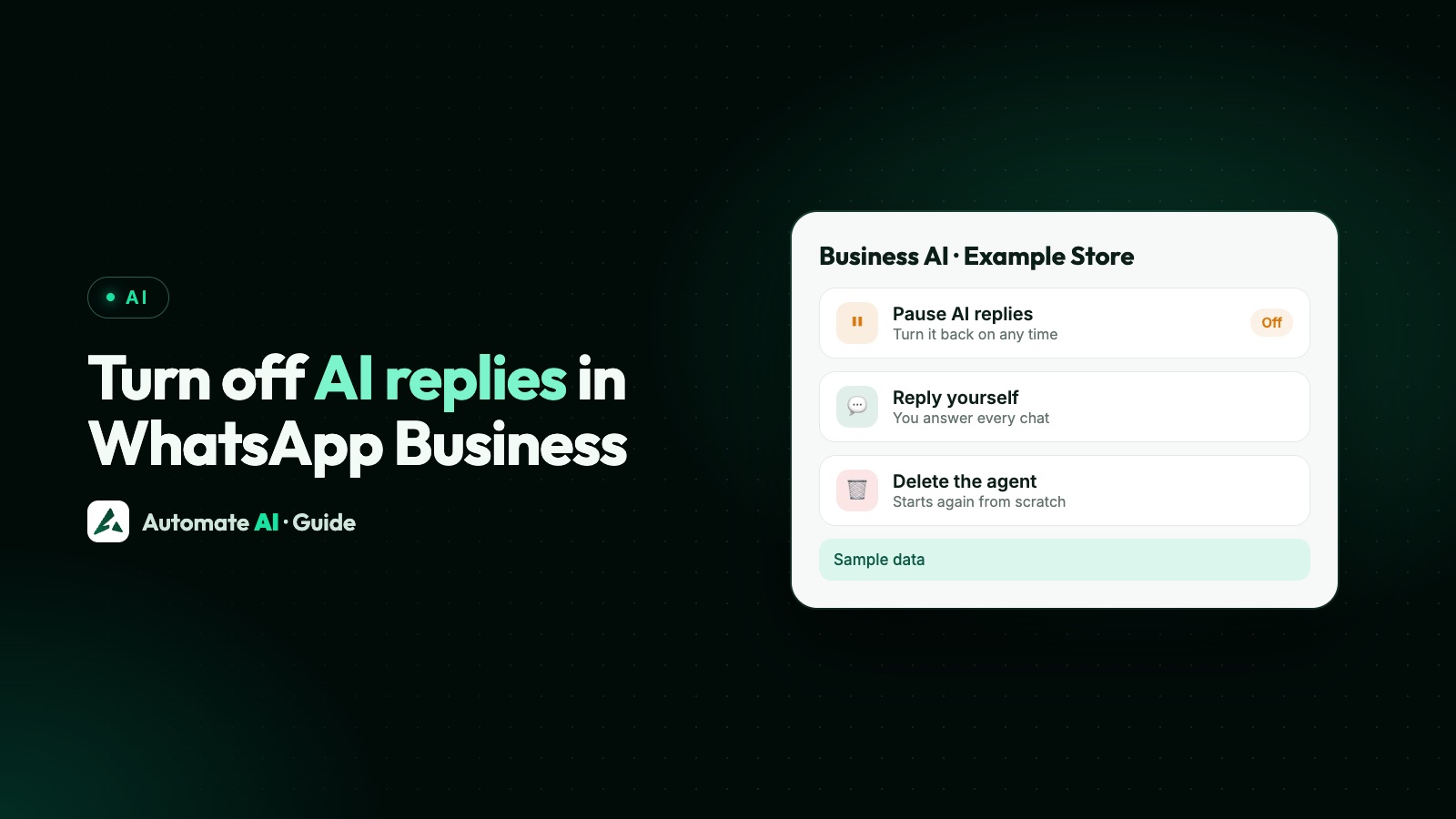
To turn off AI replies in the WhatsApp Business app, tap Tools › Meta Business Agent › Response settings › Disconnect AI, then choose Pause AI replies to stop it in new chats, or Disconnect and delete my AI to remove it completely. To stop it in a single chat, just reply to the customer yourself: WhatsApp says that pauses the AI in that chat until you unmute it.
Which option is right depends on what you want back. Pausing keeps your AI set up, but WhatsApp doesn’t describe it as stopping Meta from learning from your chats. Deleting stops your messages being shared to improve AI at Meta and brings back greeting messages, but you’ll have to set it up from scratch if you change your mind. This guide covers both, plus the other “AI” in the app, Meta AI, which works differently.
Key takeaways
- Pause: Tools › Meta Business Agent › Response settings › Disconnect AI › Pause AI replies. It stops replying in new chats.
- Delete: the same path, then Disconnect and delete my AI, a short survey and Submit. Setting it up again starts from scratch.
- One chat: reply yourself and the AI stops answering that chat until you unmute it.
- Greeting messages are switched off automatically while Meta Business Agent is connected. To use them again, WhatsApp says you must delete it.
- Meta AI, the assistant you chat with, is a different thing: it doesn’t answer your customers, and the Help Center describes deleting its chats, not removing it.
First, which AI do you want to turn off?
The WhatsApp Business app can show several things called AI, and they’re switched off in different ways. Work out which one you’re dealing with before you change anything:
| What you see | What it is | Does it reply to customers? | How to stop it |
|---|---|---|---|
| Your AI agent, Meta Business Agent or Business AI under Tools | Meta’s AI that answers customers for your business | Yes | Pause or delete it (below) |
| A Meta AI icon in your Chats tab | Meta AI business assistant, which helps you with tasks like product descriptions | No | Don’t use it, and delete its chats |
| Meta AI in the search bar or as a chat | Meta AI, the general assistant in WhatsApp | No | Delete its chats or reset them |
| AI on your API number, through a platform | Your own AI assistant, run by your software provider | Yes | Switch it off in that platform |
Customers can tell when Meta Business Agent is answering. WhatsApp says the chat shows “Uses AI from Meta” under your name, and AI-written messages are marked AI. If your customers see those labels and you didn’t mean to turn the AI on, the steps in the next section stop it.
How to pause Meta Business Agent
Pausing is the gentle option. Your AI keeps its setup and knowledge, it just stops answering new chats. These are WhatsApp’s steps:
- Open the WhatsApp Business app and tap Tools.
- Tap Meta Business Agent, then Response settings.
- Tap Disconnect AI.
- Tap Pause AI replies.
WhatsApp says this stops Meta Business Agent from responding to customers in subsequent new chats. It doesn’t say pausing removes the AI from chats it’s already in, so if a customer is mid-conversation with the AI, reply to them yourself as well (see the one-chat steps below).
There’s a second way to pause. In the AI’s reply settings, WhatsApp offers a choice of which chats it answers: all new one-to-one chats, one-to-one chats except with your contacts, chats from your Facebook or Instagram ads, or Paused for new chats but learning. That last one stops automatic replies to new chats.
How to delete Meta Business Agent completely
Delete it if you’ve decided you don’t want Meta’s AI answering customers at all. WhatsApp’s steps:
- Tap Tools › Meta Business Agent.
- Tap Response settings › Disconnect AI › Disconnect and delete my AI.
- Fill in the short survey about your experience.
- Tap Submit.
What changes when you delete it, according to WhatsApp:
- You stop sharing your messages with Meta to improve AI at Meta.
- You get back full use of the features the AI limits, such as broadcast lists, disappearing messages and greeting and away messages.
- If you want the AI again later, you have to go through setup again from the start.
Before you delete, you can ask for a copy of your AI data. WhatsApp says you can request a report from Tools › Your AI agent › Download your data, using the phone app rather than WhatsApp Web.
How to stop AI in just one chat
Often you don’t want the AI gone, you just want to handle one customer yourself: a complaint, a big order or a regular who expects you. You don’t need a setting for this.
- Open the customer’s chat.
- Type and send your reply as normal.
- From then on, WhatsApp says the AI stops generating responses in that chat until you unmute it or change your AI reply settings.
Two more rules from WhatsApp’s setup page help here. The AI won’t jump into an ongoing conversation unless the chat has been inactive for seven days. And if you do want it back in a particular chat, open the chat, tap More options › AI replies and turn it on, or tap Restart AI replies in that chat.
WhatsApp also says you’ll get a notification when the AI decides a customer needs your attention, so you can step in on the chats that matter without watching every one.
Pause or delete: which to choose
| Pause AI replies | Disconnect and delete my AI | |
|---|---|---|
| Replies to new chats | Stops | Stops |
| Keeps your AI’s setup | Yes | No, you set it up again from scratch |
| Meta keeps learning from your chats | Not ruled out: the “paused but learning” setting and muted chats are still collected | No, sharing for AI improvement stops |
| Greeting messages | Stay off: WhatsApp says you must delete the agent to use them | Available again |
| Broadcast lists and disappearing messages | May still be limited | Available again |
| Best for | A busy week when you want to answer everything yourself | You don’t want Meta’s AI on your number at all |
A simple rule: pause if you might turn it back on within weeks, delete if you’re unhappy with its answers or don’t want your chats used for AI training.
If you relied on greeting and away messages before, note that WhatsApp says greeting messages are switched off automatically when Meta Business Agent is connected, and to use them you need to delete it. Once it’s deleted, check Tools › Greeting message and Away message and switch them back on, because WhatsApp doesn’t say they come back on by themselves.
Can you turn off Meta AI in WhatsApp Business?
Meta AI is the assistant you can chat with or ask through the search bar. It isn’t Meta Business Agent and it doesn’t answer your customers. WhatsApp describes it as an optional service. Its Help Center explains how to use it and how to delete your chats with it, but doesn’t describe a setting that removes it from the app.
What you can do:
- Just don’t use it. WhatsApp says only messages that mention @Meta AI, or that people choose to share with Meta AI, can be read by Meta. Your other personal chats stay end-to-end encrypted.
- Delete chats with it: open the Meta AI chat, tap the chat history icon, tap and hold a chat, then Delete chat › Delete. Deleted chats can’t be restored.
- Reset its copy of a chat: in that chat, send /reset-ai. To reset every chat you’ve had with Meta AI, including group chats, send /reset-all-ais.
The Meta AI business assistant in the Business app is similar: WhatsApp describes it as an optional service that helps you with tasks like product descriptions, catalog content and profile suggestions, opened from the Meta AI icon in the Chats tab. Its Help Center page doesn’t describe an off switch either. It’s a helper for you, not a bot that answers your customers.
What your customers can do
Even with the AI on, customers aren’t stuck with it. WhatsApp tells them they can ask to stop receiving AI-generated messages from the business, or stop chatting with the business altogether. If the AI can’t help, WhatsApp says it will try to connect them with you.
Customers can also send /download-ai-info to request their AI chat data, or /reset-ai to delete it, in a chat that uses AI from Meta.
So if a customer writes “I want to talk to a person”, treat it as a hand-off: reply yourself, which pauses the AI in that chat, and answer the question properly. Here’s a sample reply you can save as a quick reply:
“Hi Priya, this is Arjun from Example Store. Sorry the automatic replies didn’t help. I’ve got your chat now. Could you tell me your order number and what went wrong?”
If you want AI replies, but on your own terms
Some businesses turn Meta’s AI off because they want more control: answers from their own price list, a clear hand-off to staff, and no AI in certain chats. That’s what an AI assistant on the WhatsApp Business API is for. See WhatsApp AI agents for Meta’s rules and costs, and is there a free WhatsApp AI chatbot? for the options side by side.
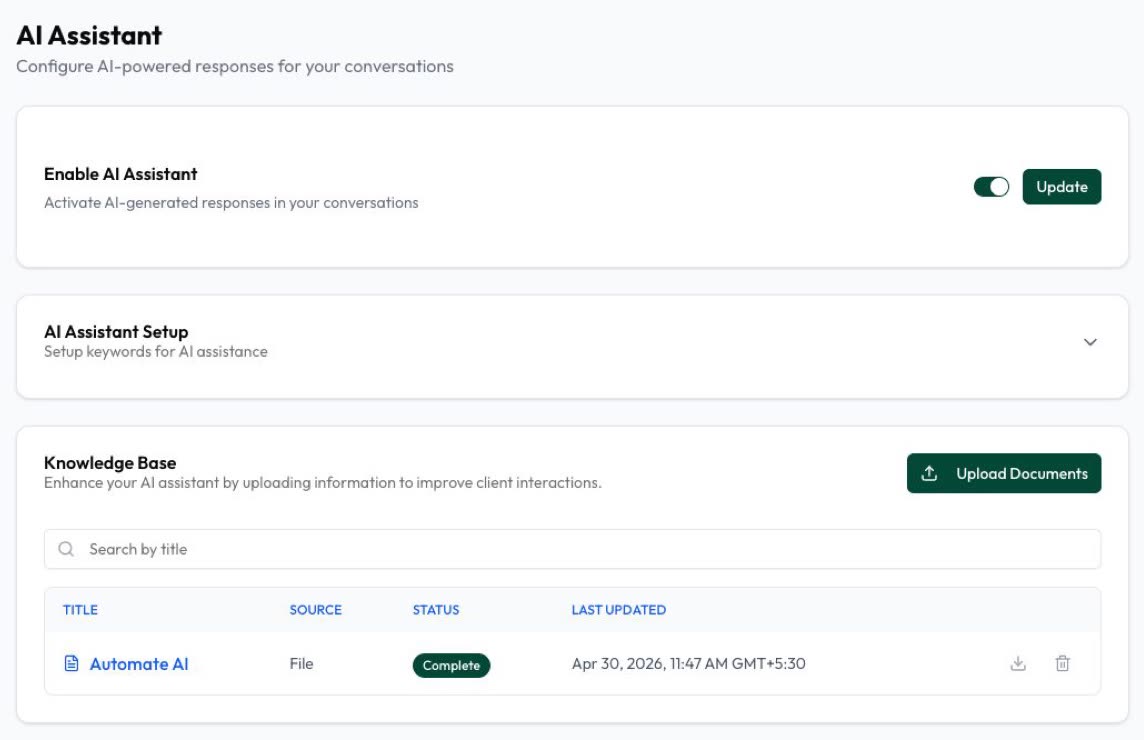
Automate AI’s AI Assistant answers from your own documents or website and gives you several ways to turn it off:
- One switch in Settings › AI Assistant turns it on or off for the whole account.
- A switch in every chat turns AI replies off and hands that chat to a person.
- Stop keywords, such as “agent” or “human”, switch the AI off when a customer types them.
- Contact statuses such as Lead converted stop auto replies for that contact.
- Hand-over alerts go to up to 10 team numbers on WhatsApp, and the AI waits while your team replies.
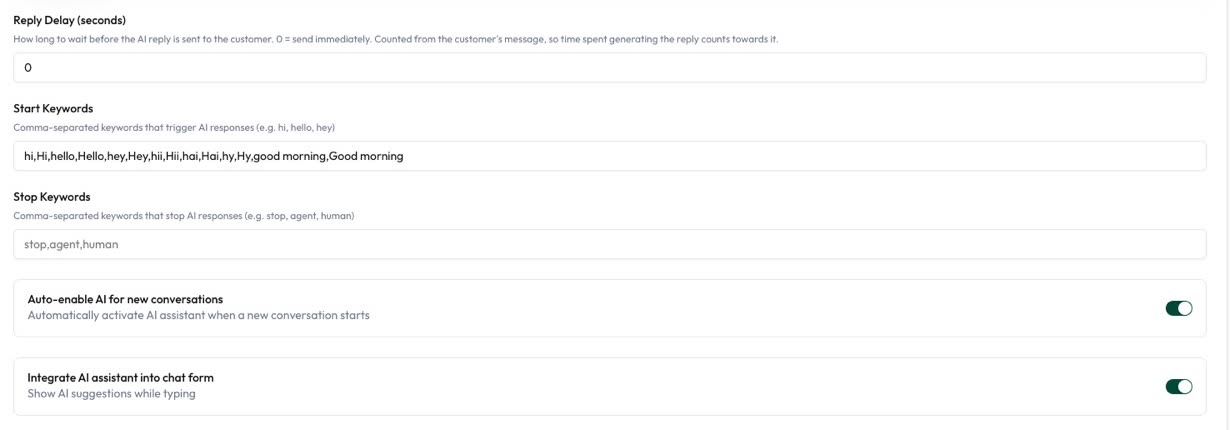
The AI Assistant is included in the AI Assistant + Marketing + Automation Plan and Series 4. If you want to keep using the Business app on the same number, WhatsApp coexistence explains how the app and the API share one number. We suggest you pause or delete Meta Business Agent before switching on another AI, so customers don’t get answers from two assistants.
Frequently asked questions
How do I turn off AI replies in WhatsApp Business?
Tap Tools › Meta Business Agent › Response settings › Disconnect AI, then Pause AI replies to stop it in new chats, or Disconnect and delete my AI to remove it completely.
How do I stop the AI in one customer’s chat?
Reply to the customer yourself. WhatsApp says replying manually pauses Meta Business Agent in that chat until you unmute it.
Does pausing stop Meta using my chats?
Not necessarily. WhatsApp says the “Paused for new chats but learning” setting keeps collecting data from new chats, and muted chats are still collected. Deleting the agent is what stops your messages being shared to improve AI at Meta.
Why did my greeting message stop working?
Greeting messages are switched off automatically while Meta Business Agent is connected. WhatsApp says you need to delete the agent to use them again, then switch them back on in Tools.
If I delete Meta Business Agent, can I turn it back on?
Yes, if it’s available for your business, but you go through setup again from the start.
Can I remove Meta AI from WhatsApp Business?
WhatsApp’s Help Center doesn’t describe a setting that removes it. Meta AI is optional and doesn’t reply to your customers. You can delete your chats with it, or send /reset-ai or /reset-all-ais to reset them.
Sources
- WhatsApp Help Center: How to pause or delete Meta Business Agent
- WhatsApp Help Center: How to set up Meta Business Agent
- WhatsApp Help Center: About using Meta Business Agent to chat with customers
- WhatsApp Help Center: How to use greeting messages
- WhatsApp Help Center: About chatting with businesses that use AI from Meta
- WhatsApp Help Center: About Meta AI
- WhatsApp Help Center: How to delete your chats with Meta AI
- WhatsApp Help Center: About Meta AI business assistant
WhatsApp rules and prices change. We check these guides against Meta’s documentation, but always confirm current terms with Meta before you rely on them. Questions? Message us on WhatsApp at +91 836 977 8812.