Voice Notes on the WhatsApp API: Send, Receive and Transcribe
Send voice notes with the WhatsApp API, receive and download the ones customers record, and turn them into text: formats, sample JSON, limits and fixes.
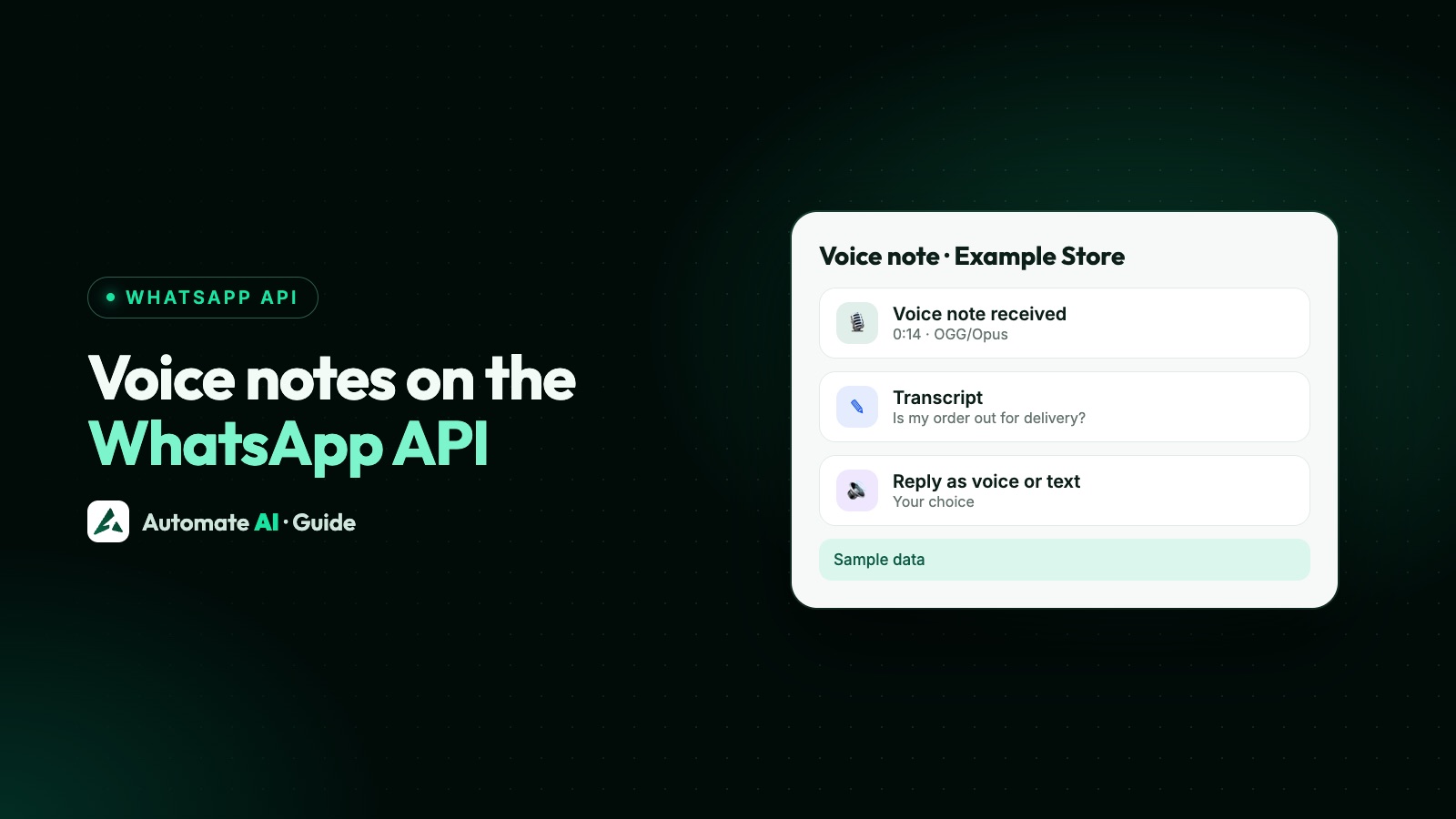
To send a voice note with the WhatsApp API, upload an OGG file encoded with the OPUS codec, then POST a message with "type": "audio" and "audio": { "id": "<MEDIA_ID>", "voice": true }. Leave out voice: true and it goes as ordinary audio; use another file type or codec and voice message transcription fails.
Voice notes customers send reach your webhook as audio messages marked "voice": true, with a media ID you use to download the file. The API sends no transcript, so turning a voice note into text is a step you add yourself. This guide covers all three: sending, receiving and transcribing, plus the limits and errors that trip people up.
Key takeaways
- A voice note is an audio message with
voice: true, and the file must be OGG with the OPUS codec. Without the flag it’s ordinary audio; with another format, transcription fails. - The play icon only appears for files of 512 KB or less; audio can be up to 16 MB, but bigger files show a download icon.
- Since 17 March 2026, you get a
playedstatus webhook the first time a customer plays a voice note you sent. - Incoming voice notes arrive as
audiowith"voice": true. Download them through the media ID: the download URL lasts 5 minutes, webhook media IDs 7 days. - WhatsApp makes its own transcripts on the customer’s phone, and the webhook carries no text. To read voice notes as text, download and transcribe them yourself.
Voice note or audio file: what’s the difference?
Both go out as "type": "audio". One optional flag decides how WhatsApp shows them. Here’s what Meta’s audio and media documentation says about each:
| Voice note | Ordinary audio | |
|---|---|---|
| How you send it | "audio": { "id": "…", "voice": true } | "audio": { "id": "…" }, with voice left out or false |
| File format | OGG with the OPUS codec only | AAC, AMR, MP3, M4A, or OGG with OPUS (mono) |
| How it shows | Like a recorded voice note, with a play icon if 512 KB or less | An audio file |
| Transcript on the customer’s phone | Yes, if they have transcripts on | Only for OPUS-encoded OGG files |
played status webhook | Yes, on the first play | No |
| Maximum size | 16 MB | 16 MB |
Audio messages take no caption, so if you want to add a line of text, send it as a separate text message. And both are free-form messages: you can only send them while the customer’s 24-hour customer service window is open.
How to send a voice note with the API, step by step
- Check the window. The customer must have messaged you in the last 24 hours. Template headers take an image, video, GIF or document, not audio, so there’s no voice note option outside the window.
- Prepare the file. OGG container, OPUS codec, one channel (mono). Keep it at 512 KB or less if you want the play icon.
- Upload it.
POST https://graph.facebook.com/v26.0/<PHONE_NUMBER_ID>/mediaas multipart form data withfile,typeset toaudio/oggandmessaging_productset towhatsapp. - Keep the ID. The response is
{ "id": "<MEDIA_ID>" }. Uploaded media lasts 30 days unless you delete it. - Send the message to
POST https://graph.facebook.com/v26.0/<PHONE_NUMBER_ID>/messageswith your access token in theAuthorization: Bearerheader and the JSON below. - Watch your webhook for
sent,delivered,readand thenplayedwhen the customer listens.
The message body, with made-up values:
{ "messaging_product": "whatsapp", "recipient_type": "individual", "to": "919800000000", "type": "audio", "audio": { "id": "<MEDIA_ID>", "voice": true } }
A link to a public file works instead of id, but Meta doesn’t recommend it. A successful response gives you a message ID starting with wamid, which only means Meta accepted the request. Images, documents and the other media types are covered in how to send images and documents with the WhatsApp API.
Getting the audio format right
Most voice note problems are file problems. Meta lists OGG as supported only with OPUS codecs and mono input, and says plain audio/ogg without OPUS isn’t supported. If you send another file type or codec as a voice note, transcription on the customer’s side fails.
If your audio starts life as an MP3, WAV or M4A, convert it before uploading. With the free tool ffmpeg, a typical command is:
ffmpeg -i reply.mp3 -c:a libopus -b:a 32k -ac 1 reply.ogg
-c:a libopusencodes with OPUS, which voice notes need.-ac 1makes it mono, which Meta requires for OGG.-b:a 32kkeeps the file small. As rough arithmetic of our own, 512 KB at 32 kbps is a little over two minutes of speech, so most short replies stay under the play-icon limit.- Upload with
typeset toaudio/ogg. A MIME type that doesn’t match the file is a common cause of error 131053.
Receiving voice notes from customers
When a customer records a voice note and sends it, your webhook gets a messages event with "type": "audio". The audio object holds:
| Field | What it is |
|---|---|
id | The media ID. Use it to get a download URL. |
mime_type | For voice notes, usually audio/ogg; codecs=opus |
sha256 | The file’s SHA-256 hash, to check the download |
voice | true when it was recorded with WhatsApp’s own voice recording feature |
url | A media URL you can download directly with your access token. Meta began releasing it gradually on 12 November 2025, so it may not be in your webhooks yet. |
To get the file:
- Ask for the URL:
GET https://graph.facebook.com/v26.0/<MEDIA_ID>with your token. The response hasurl,mime_type,sha256andfile_size. - Download it: a GET to that
urlwith the sameAuthorization: Bearerheader. Without the token, the request fails. - Be quick. The URL expires after 5 minutes; ask for a new one if you’re late. Media IDs from webhooks expire after 7 days, so store the file yourself.
A 404 Not Found on the download means the URL went stale: get a fresh one and retry, then renew your token if it still fails. The full download flow for every media type, with code, is in how to receive and download media from the WhatsApp Cloud API.
Transcribing voice notes into text
WhatsApp has its own voice message transcripts, but they’re made on the phone. WhatsApp says transcripts are generated on your device, and the user turns them on in Settings › Chats › Voice message transcripts. None of that text reaches your business, and the webhook has no transcript field. If your team or your bot needs the words, you transcribe the file yourself.
A simple pipeline looks like this:
- Receive the webhook and reply
200quickly, then hand the media ID to a background job so slow downloads don’t hold up your webhook. - Download the OGG file as above and keep it in your own storage.
- Send it to a speech-to-text service that accepts OGG/OPUS. Many do; if yours doesn’t, convert it to WAV or MP3 first with ffmpeg.
- Save the text next to the message, keyed by the message ID, so your inbox, CRM or bot can show and search it.
- Pass the text to your bot as if the customer had typed it, so voice notes get the same answers as text.
- Language: customers often switch languages, or mix them. Pick a service that detects the language, or set the one you expect.
- Short notes first: most voice notes are short, but set a size or length cap so one long recording doesn’t hold up the queue.
- Keep the audio: a transcript can be wrong, so let your team play the original before acting on anything important.
- Privacy: the audio and text are customer data. Tell customers in your privacy notice that voice notes may be transcribed, and remember that a transcription service you use receives the audio.
Replying to voice notes, and the played status
A customer’s voice note opens or refreshes the 24-hour window, just like a text. Inside it you can reply with text, a voice note or both. A voice reply suits customers who sent one first, but long recordings are hard to skim, so keep the key detail, such as an order number or a time, in text as well.
For voice notes you send, the status webhook adds a fifth value to sent, delivered, read and failed:
played: the first time the customer’s device plays your voice note. Only the first play triggers it, and it applies to voice notes only, not ordinary audio. Meta started sending it on 17 March 2026.
That makes played a better sign than read that a voice reply actually got heard. The other statuses and how to verify webhook signatures are in our WhatsApp Cloud API webhooks guide.
Voice notes in Automate AI
If you’d rather not build the pipeline yourself, Automate AI handles voice notes on the official Cloud API:
- Shared inbox: voice notes customers send play in the chat and can be downloaded, and your team can record a voice message from the microphone and send it. See the shared team inbox.
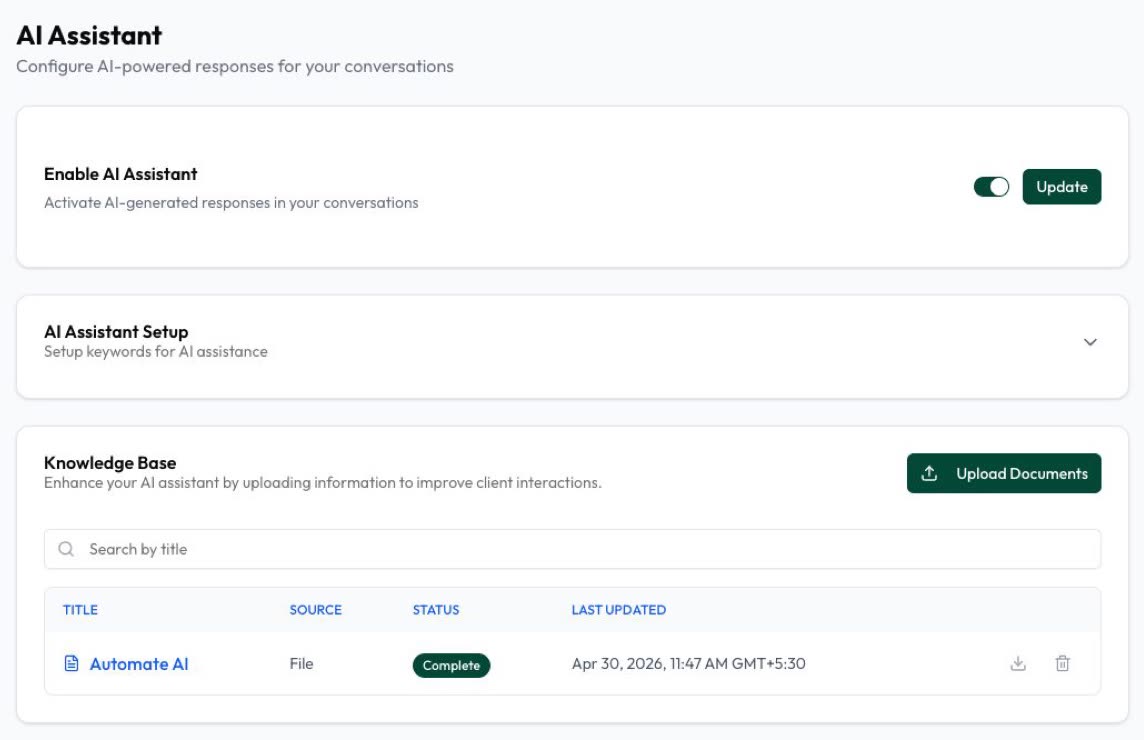
- Transcripts for AI chats: with your own AI key connected, when the AI Assistant is answering a chat, the app transcribes the customer’s voice note so the AI can reply to it, and the text shows under the voice note in the inbox. Chats the AI isn’t answering aren’t transcribed.
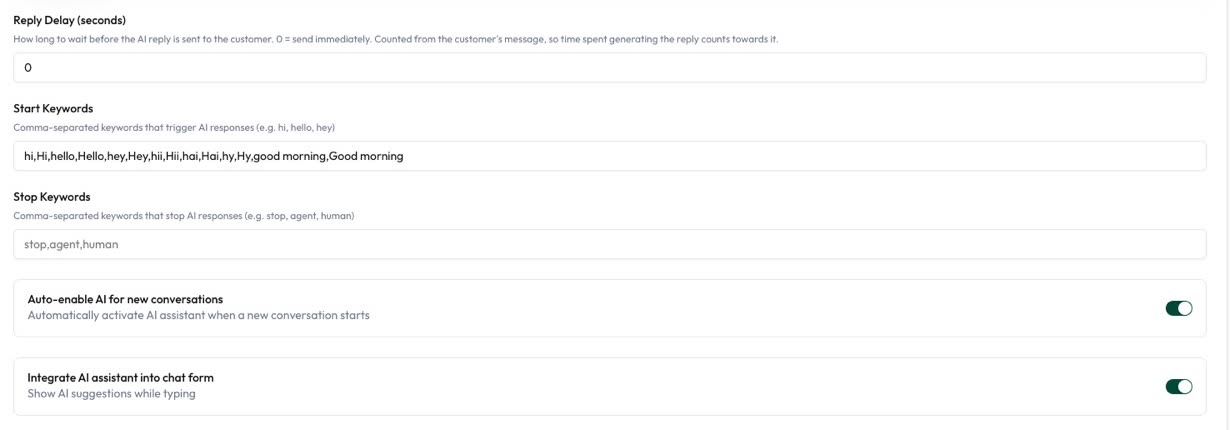
- Voice replies: with your own AI key connected, in Settings › AI Assistant › Language & Voice Replies, choose Reply as Text, Voice (a voice note instead of text) or Both (text first, then a voice note), and Speak replies to voice notes only or every message. The text of each voice reply shows in the inbox too.
- Limits you set: a longest voice note of 10 to 180 seconds and a number of voice replies per day. Replies over either limit go as text.
- Languages: turn on Detect the customer’s language to have the assistant reply in each customer’s language (it’s off by default). A few languages, including Telugu, Bengali, Gujarati, Malayalam, Punjabi and Odia, get a written reply in that language instead of a voice note.
The AI Assistant is included in the AI + Automation Plan and Series 4; see pricing.
Common voice note problems and fixes
| Problem | Likely cause | Fix |
|---|---|---|
| Arrives as ordinary audio, not a voice note | voice was left out or set to false | Send with "voice": true |
| Voice note transcript fails on the customer’s phone | The file isn’t OGG with the OPUS codec | Convert to OGG/OPUS mono before uploading |
| Shows a download icon instead of play | The file is over 512 KB | Shorten it or lower the bitrate |
| Error 131053 | Meta couldn’t upload the media, often a MIME type that doesn’t match the file | Check the file with file -I and upload as audio/ogg |
| Error 131047 | More than 24 hours since the customer last replied | Send an approved template instead; its header can’t be audio |
No played status | It was sent as ordinary audio, or hasn’t been played yet | Send with "voice": true |
| Error 131052 on an incoming note | The customer’s media couldn’t be downloaded | Ask the customer to send the file another way, outside WhatsApp |
| 404 on download | The 5-minute media URL expired | Ask for a new URL with the media ID and retry |
More codes and what to do about them are in our guide to WhatsApp API error codes.
Frequently asked questions
Can I send a voice message with the WhatsApp API?
Yes. Upload an OGG file encoded with OPUS, then send "type": "audio" with "audio": { "id": "<MEDIA_ID>", "voice": true }. It shows like a recorded voice note.
Why does my voice note arrive as ordinary audio?
Because voice: true was left out or set to false. Add the flag, and make sure the file is mono OGG with the OPUS codec, or voice message transcription fails.
What is the size limit for a WhatsApp voice note?
Audio can be up to 16 MB, but the play icon only appears for files of 512 KB or less. Bigger files show a download icon.
Does the WhatsApp API give me a transcript of a customer’s voice note?
No. WhatsApp’s own transcripts are made on the user’s phone and aren’t sent to businesses. Download the audio and transcribe it with a speech-to-text service.
How do I know a customer listened to my voice note?
Since 17 March 2026, your webhook gets a played status the first time they play a voice note you sent. It isn’t sent for ordinary audio.
Can I send a voice note to someone who hasn’t messaged me?
No. Voice notes are free-form messages, so they need an open 24-hour window, and template headers take an image, video, GIF or document, not audio. Start with an approved template and send the voice note once they reply.
How long can I download a customer’s voice note?
Media IDs from webhooks expire after 7 days, and each download URL lasts 5 minutes. Download and store the file soon after the webhook arrives.
Sources
- Meta: Audio messages (voice flag, OPUS, 512 KB, played status)
- Meta: Media (formats, sizes, upload and download)
- Meta: Audio messages webhook reference
- Meta: Status messages webhook reference
- Meta: Template media (header types)
- Meta: Error codes
- WhatsApp Blog: Introducing voice message transcripts
WhatsApp rules and prices change. We check these guides against Meta’s documentation, but always confirm current terms with Meta before you rely on them. Questions? Message us on WhatsApp at +91 836 977 8812.