How to Receive and Download Media From the WhatsApp Cloud API
Download photos, documents and voice notes customers send on the WhatsApp Cloud API: webhook fields, the media URL, sample code, expiry times and fixes.
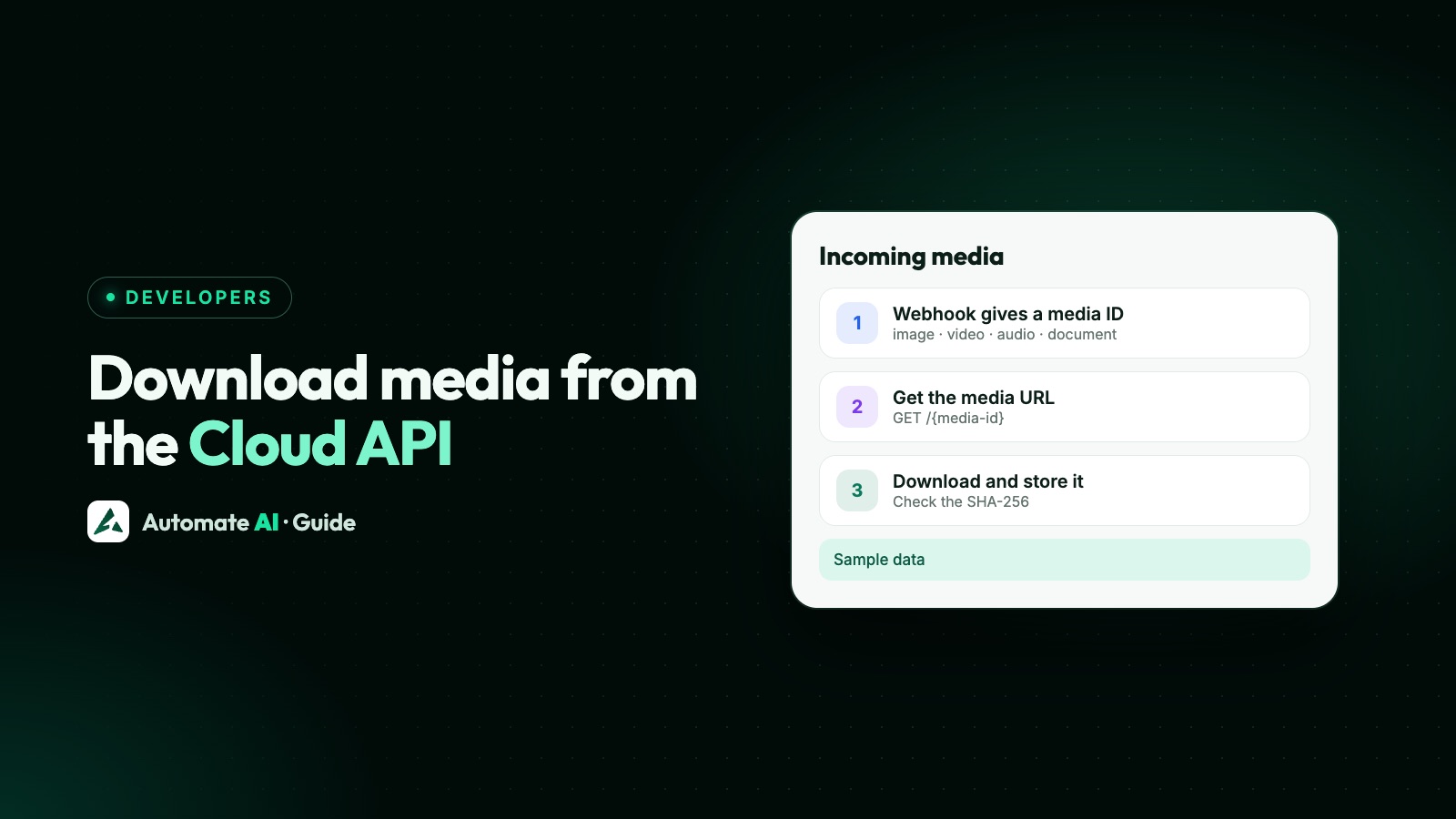
To download media from the WhatsApp Cloud API, take the media id from the webhook, call GET https://graph.facebook.com/v26.0/<MEDIA_ID> to get a download url, then GET that URL with your access token in the Authorization: Bearer header. The file comes back as binary data.
The URL expires after 5 minutes and webhook media IDs after 7 days, so download soon and keep your own copy. This guide shows what each media webhook contains, the download in curl, Python and Node.js, how to check and store the file, and how to fix the download and upload errors developers hit most.
Key takeaways
- A media webhook gives you a media ID, MIME type and SHA-256 hash, not the file. Newer webhooks may also carry a direct
url, released gradually since 12 November 2025. - Download in two calls:
GET /<MEDIA_ID>for the URL, then GET the URL with your token. Without the token, the download fails. - Timers: download URLs last 5 minutes, webhook media IDs 7 days, and media you upload 30 days.
- A 404 on the download usually means a stale URL: ask for a new one, then renew your token if it still fails.
- Upload errors are mostly file problems: error 131053 often means the MIME type doesn’t match the file.
How receiving media works
When a customer sends a photo, video, voice note, document or sticker, Meta doesn’t push the file to you. Your webhook gets a message that points to it, and you fetch the file yourself. There are three things to keep track of, each with its own lifetime:
| What | Where it comes from | How long it lasts |
|---|---|---|
Media ID (id) | The incoming message webhook | 7 days |
| Download URL | GET /<MEDIA_ID>, or the webhook’s url field where you have it | 5 minutes |
| The file | A GET to the download URL with your token | As long as you keep it |
| Media you upload yourself | POST /<PHONE_NUMBER_ID>/media | 30 days, unless you delete it |
The practical rule: treat Meta as a short-term handover point, not storage. Download each file as it arrives and store it somewhere you control.
What a media webhook contains
Media arrives in a normal messages webhook. The type field tells you which object to read, and every media object has the same core fields:
| Type | Fields | Extra field |
|---|---|---|
image | id, mime_type, sha256, url | caption if the customer added one |
video | id, mime_type, sha256, url | caption |
audio | id, mime_type, sha256, url | voice: true for a note recorded in WhatsApp |
document | id, mime_type, sha256, url | filename, such as receipt.pdf, and caption |
sticker | id, mime_type, sha256, url | animated: true or false |
A trimmed image message, with made-up values:
{ "from": "919800000000", "id": "wamid.HBgL…", "timestamp": "1762500000", "type": "image", "image": { "caption": "Is this the right model?", "mime_type": "image/jpeg", "sha256": "<HASH>", "id": "<MEDIA_ID>" } }
Meta began adding the url field to these webhooks gradually on 12 November 2025, so some of your webhooks may have it and others not. Build for the media ID, and use url as a shortcut when it’s there. The rest of the payload, and how to check the signature, is in our WhatsApp Cloud API webhooks guide.
How to download a file, step by step
- Reply to the webhook first. Return
200straight away and put the media ID in a queue, so a slow download doesn’t hold up your webhook. - Get the URL.
GET https://graph.facebook.com/v26.0/<MEDIA_ID>withAuthorization: Bearer <TOKEN>. If you run several numbers, you can add?phone_number_id=<PHONE_NUMBER_ID>: the request is then only processed if the business phone number ID in the query matches the ID of the business phone number the media was uploaded on. - Read the response. It holds
url,mime_type,sha256,file_sizeandid. - Download. GET the
urlwith the sameAuthorizationheader. The body is the file; theContent-Typeheader gives its MIME type. - Check and save it. Compare the hash, pick a file name and store it (see below).
- Record it. Save the file’s location against the message ID, so your inbox or CRM can show it later.
In curl, with placeholders:
curl "https://graph.facebook.com/v26.0/<MEDIA_ID>" -H "Authorization: Bearer <TOKEN>"
curl "<MEDIA_URL>" -H "Authorization: Bearer <TOKEN>" -o photo.jpg
Sample code in Python and Node.js
Both examples assume you have the media ID from the webhook and a permanent system-user token. Error handling is left out to keep them short.
Python (requests)
h = {"Authorization": f"Bearer {TOKEN}"}info = requests.get(f"https://graph.facebook.com/v26.0/{media_id}", headers=h).json()file = requests.get(info["url"], headers=h)open(f"{media_id}.jpg", "wb").write(file.content)
Setting up Python with the API from scratch is covered in our WhatsApp API Python guide.
Node.js (built-in fetch)
const h = { Authorization: "Bearer " + TOKEN };const info = await (await fetch("https://graph.facebook.com/v26.0/" + mediaId, { headers: h })).json();const res = await fetch(info.url, { headers: h });await fs.promises.writeFile(mediaId + ".jpg", Buffer.from(await res.arrayBuffer()));
Check the HTTP status of each call before you trust the body. A failed first call returns an error object instead of a url, and a failed download returns an error instead of the file.
Checking, naming and storing the file
Check the hash
The webhook and the media URL response both carry a sha256 of the file. Hash what you downloaded and compare. In Meta’s webhook examples the hash is base64-encoded, so compare it with the base64 form of your SHA-256 digest; Meta doesn’t state the encoding, so if every file fails the check, try hex. A mismatch means a broken download: fetch it again.
Give it the right extension
Only documents come with a filename. For everything else, pick the extension from mime_type:
| MIME type | Extension |
|---|---|
image/jpeg, image/png | .jpg, .png |
image/webp (stickers) | .webp |
video/mp4, video/3gpp | .mp4, .3gp |
audio/ogg; codecs=opus (voice notes) | .ogg |
audio/mpeg, audio/mp4, audio/aac, audio/amr | .mp3, .m4a, .aac, .amr |
application/pdf | .pdf |
Don’t trust a customer’s filename as a path on your server. Store files under a name you generate, such as the media ID, and keep the original name only as a label.
Store it safely
- Private storage: customer photos and documents are personal data. Keep them in private storage and give your team signed or logged-in links, not public URLs.
- Size: documents can be large (incoming media over 100 MB fails with error 131052), so stream big downloads to disk instead of holding them in memory.
- Retention: decide how long you keep files and delete them on schedule. Meta’s 7-day limit is for its copy, not yours.
Download errors and how to fix them
| What you see | What it means | Fix |
|---|---|---|
404 Not Found on the download | The media URL went stale | Ask GET /<MEDIA_ID> for a new URL and retry; if it still fails, renew your token |
| Download fails with no token | The media URL needs your access token | Send Authorization: Bearer <TOKEN> on the download too |
| Error 190 | Your access token has expired | Get a new access token; a permanent system-user token avoids this |
| Error 200 | No access token was provided | Add the token to the request |
| Error 10 | Permission not granted or removed | Check the token’s permissions in the access token debugger |
| Error 131052 in the webhook | Meta couldn’t download the media the customer sent, for example a file over 100 MB | Check the error details and ask the customer to send it another way |
| Media ID no longer works | Webhook media IDs expire after 7 days | Download as the webhook arrives; old files can’t be recovered from Meta |
If no media webhooks arrive at all, work through our webhook not receiving messages checklist.
Fixing media upload errors
The other half of the media API is uploading, with POST /<PHONE_NUMBER_ID>/media and three form fields: file, type (the MIME type) and messaging_product set to whatsapp. When a send with media fails, error 131053, “Unable to upload the media used in the message”, is the one you’ll see most. Work through these:
- Check the real file type. Meta suggests
file -I <file>on the command line. A PNG renamed to.jpg, or uploaded asimage/jpeg, fails. - Check it’s on the supported list. Images JPEG, PNG or static WebP; video MP4 or 3GPP; audio AAC, AMR, MP3, M4A or OGG with OPUS; documents PDF, Word, Excel, PowerPoint or TXT.
- Check the size. Images 5 MB, video and audio 16 MB, documents 100 MB, stickers 100 KB static or 500 KB animated.
- Check the image itself. Images must be 8-bit RGB or RGBA, and those over 4,096 pixels on an edge are rejected.
- Read the details. The failed message’s status webhook includes an error with details; log the whole thing.
Video that uploads but won’t play on Android, link versus media ID, and template header media are covered in how to send images and documents with the WhatsApp API. For other codes, see WhatsApp API error codes.
How Automate AI handles media customers send
If you use Automate AI instead of your own code, none of this needs building. On the official Cloud API, the app downloads each photo, video, voice note, document or sticker a customer sends in the background and saves its own copy, so it shows in the chat in the shared team inbox. Your team can view it there and download images, videos, audio and documents.
- AI Assistant: in the AI + Automation Plan and Series 4, the AI Assistant can read photos, PDFs and short videos when you turn them on (each is a separate AI Media Understanding switch, off by default), and listen to voice notes, with your own AI key connected, so it can answer questions about them.
- Sending media back: attach files in the inbox, or use templates with an image, video or document header in campaigns.
- Your own systems: developers can still connect through the WhatsApp Business API.
Frequently asked questions
How do I download media from the WhatsApp Cloud API?
Call GET /<MEDIA_ID> with your access token to get a download URL, then GET that URL with the same Authorization: Bearer header. The response body is the file.
How long is a WhatsApp media URL valid?
5 minutes. After that, ask GET /<MEDIA_ID> for a new one. The media ID itself, from a webhook, lasts 7 days.
Why do I get a 404 when downloading WhatsApp media?
Usually the URL expired. Get a fresh URL with the media ID and retry. If it still fails, renew your access token.
Does the webhook include the image itself?
No. It includes a media ID, the MIME type, a SHA-256 hash and, for some accounts since 12 November 2025, a direct url. You download the file yourself with your token.
Can I download a customer’s media after 7 days?
No. Media IDs from webhooks expire after 7 days, so download and store files as they arrive.
What does WhatsApp error 131053 mean?
Meta couldn’t upload the media in your message, often because the MIME type doesn’t match the file or the type isn’t supported. Check it with file -I and against Meta’s list of formats and sizes.
How do I know which file extension to use?
Documents include a filename. For other media, use the mime_type from the webhook, such as image/jpeg for .jpg or audio/ogg for a voice note.
Sources
- Meta: Media (upload, retrieve, download, delete, formats)
- Meta: Image messages webhook reference
- Meta: Document messages webhook reference
- Meta: Audio messages webhook reference
- Meta: Video messages webhook reference
- Meta: Sticker messages webhook reference
- Meta: Error codes
WhatsApp rules and prices change. We check these guides against Meta’s documentation, but always confirm current terms with Meta before you rely on them. Questions? Message us on WhatsApp at +91 836 977 8812.