How to Send Images and Documents With the WhatsApp API
Send images, video, audio, documents and stickers with the WhatsApp API: formats, size limits, template media sizes, sample JSON and common errors.
To send an image with the WhatsApp API, POST to /<PHONE_NUMBER_ID>/messages with "type": "image" and an image object holding either the id of media you uploaded to Meta or a public link, plus an optional caption. Documents, video, audio and stickers work the same way with their own type.
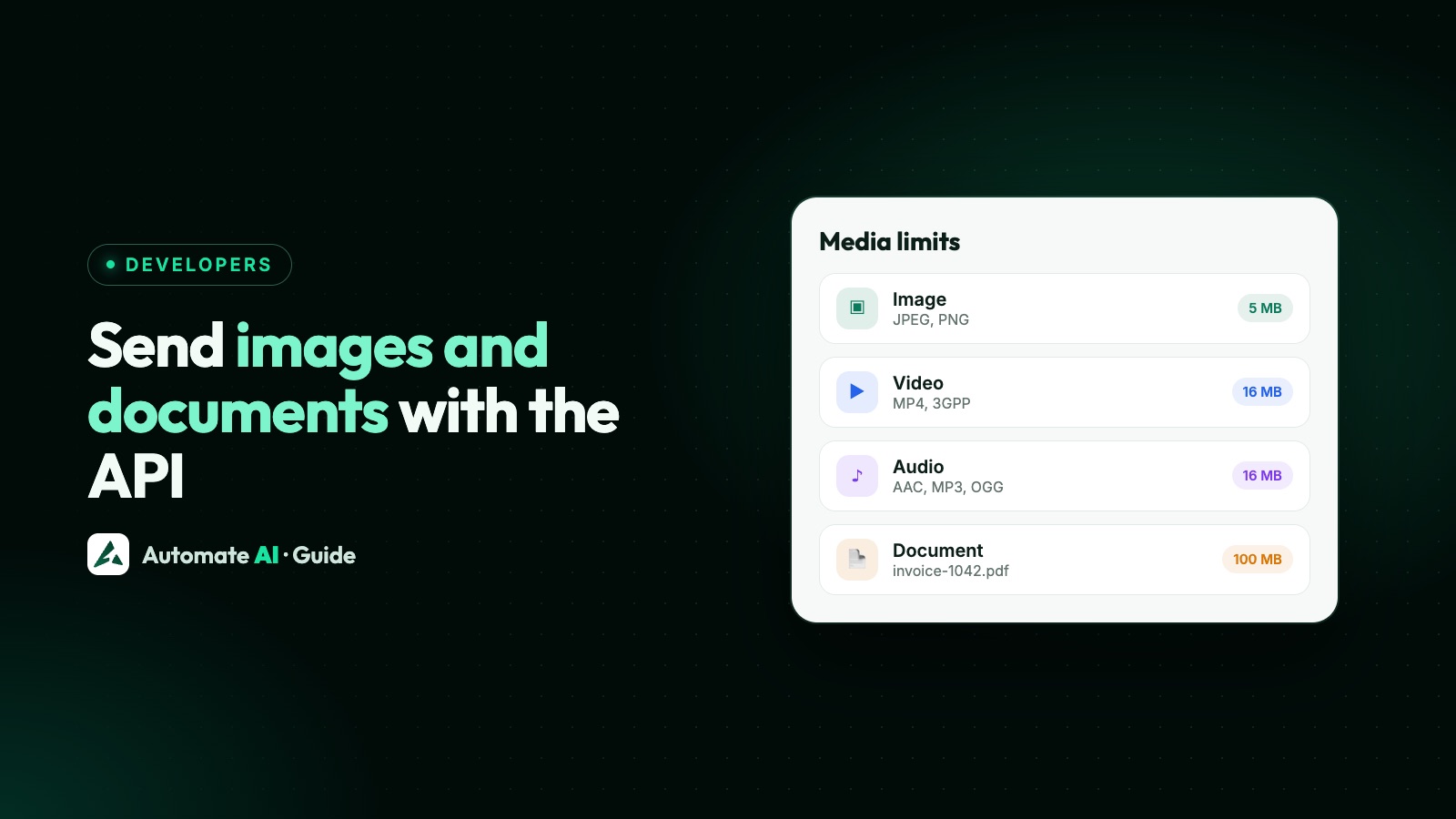
Images can be up to 5 MB, video and audio 16 MB, documents 100 MB, and stickers 100 KB (static) or 500 KB (animated). This guide covers every media type, the formats Meta accepts, the limits that apply to template header media, sample requests you can copy, receiving media from customers, and the errors you’re most likely to hit.
Key takeaways
- Five media message types: image, video, audio, document and sticker. Each is a normal message with its own
type. - Meta recommends uploading first and sending the media ID. A
linkmust be on a public server, and Meta caches it for 10 minutes. - Limits: images 5 MB, video 16 MB, audio 16 MB, documents 100 MB, stickers 100 KB or 500 KB. Template header media follows the same general limits.
- Captions go on images, videos and documents, up to 1,024 characters. Give documents a
filenamewith its extension. - Media messages are free-form, so they need an open 24-hour window. Outside it, send a template with a media header.
Media types and limits at a glance
These are the formats and sizes in Meta’s media documentation. Anything not listed may be refused.
| Type | Formats | Max size | Caption |
|---|---|---|---|
| Image | JPEG, PNG, static WebP | 5 MB | Yes, 1,024 characters |
| Video | MP4, 3GPP (H.264 video, AAC audio) | 16 MB | Yes, 1,024 characters |
| Audio | AAC, AMR, MP3, M4A, OGG (OPUS codec, mono) | 16 MB | No caption field |
| Document | PDF, Word, Excel, PowerPoint, TXT | 100 MB | Yes, 1,024 characters |
| Sticker | WebP | 100 KB static, 500 KB animated | No caption field |
Two more rules sit behind the table. Media messages are free-form messages, so you can only send them while a customer’s 24-hour customer service window is open. And the file’s MIME type must match its extension, or the upload fails.
Media ID or link: two ways to attach a file
Every media object takes either id or link, never both.
| Media ID (`id`) | Link (`link`) | |
|---|---|---|
| How | Upload to /<PHONE_NUMBER_ID>/media, then send the returned ID | Send the URL of a file on your own server |
| Meta’s advice | Recommended, for better performance | Allowed, but not recommended |
| Lasts | Uploaded media and its ID last 30 days unless you delete them | As long as your URL works |
| Watch out for | Re-upload after 30 days | Must be publicly reachable; Meta caches it for 10 minutes |
If you send the same link within 10 minutes, Meta reuses its cached copy. Changed the file but kept the URL? Add a random query string, such as ?v=2, to make Meta fetch it again.
How to send an image, step by step
- Check the window. The customer must have messaged you in the last 24 hours. If not, use a template with an image header instead.
- Prepare the file. A JPEG or PNG under 5 MB, 8-bit RGB or RGBA, no more than 4,096 pixels on any edge.
- Upload it.
POST https://graph.facebook.com/v26.0/<PHONE_NUMBER_ID>/mediaas multipart form data with three fields:file,type(the MIME type, such asimage/jpeg) andmessaging_productset towhatsapp. - Keep the ID. The response is
{ "id": "<MEDIA_ID>" }. - Send the message.
POST https://graph.facebook.com/v26.0/<PHONE_NUMBER_ID>/messageswith the JSON below and your access token in theAuthorization: Bearerheader. - Watch your webhook for the sent, delivered and read statuses, or a failure with an error code.
The upload as a curl command, with placeholders:
curl -X POST "https://graph.facebook.com/v26.0/<PHONE_NUMBER_ID>/media" -H "Authorization: Bearer <TOKEN>" -F "file=@offer.jpg;type=image/jpeg" -F "type=image/jpeg" -F "messaging_product=whatsapp"
And the message itself:
{ "messaging_product": "whatsapp", "recipient_type": "individual", "to": "919800000000", "type": "image", "image": { "id": "<MEDIA_ID>", "caption": "Your Example Store order, packed and ready" } }
A successful call returns the recipient’s wa_id and a message ID starting with wamid. That only means Meta accepted the request; delivery comes later through webhooks.
Sample requests for every media type
Only the type and the media object change. The top of each request (messaging_product, recipient_type, to) stays the same as above. All values are made-up examples.
Document with a file name
"type": "document", "document": { "id": "<MEDIA_ID>", "filename": "invoice-1042.pdf", "caption": "Invoice for order 1042" }
Include the extension in filename. WhatsApp picks the file icon from it, and the customer taps to download.
Image from a link
"type": "image", "image": { "link": "https://example.com/media/new-menu.jpg", "caption": "This week’s menu" }
Video
"type": "video", "video": { "id": "<MEDIA_ID>", "caption": "How to set up your Example Fan in 60 seconds" }
Voice message
"type": "audio", "audio": { "id": "<MEDIA_ID>", "voice": true }
With voice: true, the file must be OGG with the OPUS codec. It then shows like a recorded voice note, with a transcript if the customer has transcripts set to automatic. The play icon only appears for files of 512 KB or less; bigger ones show a download icon. Leave out voice to send ordinary audio, such as an MP3. Since 17 March 2026, voice messages also get a “played” status webhook the first time they’re played.
Sticker
"type": "sticker", "sticker": { "id": "<MEDIA_ID>" }
Media in template headers, and their size limits
Outside the 24-hour window, the only way to send media is a template with a media header. The header can hold an image, a video or a document, Meta doesn’t list separate limits for header media; the media you send follows the general media limits in the table above: images up to 5 MB, video up to 16 MB and documents up to 100 MB.
| Stage | What you give Meta |
|---|---|
| Creating the template | A sample file uploaded with the Resumable Upload API, sent as header_handle |
| Sending the template | A header parameter with the media id (recommended) or a public link |
The sample you upload at creation is only for Meta’s review. Each send needs its own header file, which is how one approved template can carry a different product photo for every customer. The full request, with body variables and buttons, is in our guide to sending a WhatsApp template message with the API.
Getting images and videos accepted
Most media failures come down to the file, not the request. Meta’s format notes:
- Images must be 8-bit RGB or RGBA. Static WebP is converted to JPEG. Animated WebP, WebP that can’t be decoded and images over 4,096 pixels on an edge are rejected.
- Videos must use H.264 video and AAC audio, with one audio track or none. Android WhatsApp can’t play H.264 “High” profile with B-frames, so use Main profile without B-frames, or Baseline.
- Put the video index first. Meta asks for the moov box before the mdat box. In ffmpeg, add
-movflags faststart. - Voice notes must be OGG with OPUS, mono. Plain
audio/oggwithout OPUS isn’t supported. - Documents: stick to PDF, Word, Excel, PowerPoint and TXT, the document types Meta lists as supported.
- Match the MIME type to the extension. A
.jpguploaded asimage/pngfails with error 131053.
Receiving images and files from customers
When a customer sends a photo or PDF, your webhook gets a message with a media ID, not the file. To fetch it:
- Ask for the URL:
GET /<MEDIA_ID>, which returns a download URL. It expires after 5 minutes, so ask again if you’re late. - Download it: a GET to that URL with your access token in the
Authorizationheader. Without the token the download fails. - Store it yourself. Media IDs from webhooks can be downloaded for 7 days.
A 404 on download means the URL went stale: fetch a new one and retry, then renew your token if it still fails. If a customer sends a file over 100 MB, you get a webhook with error 131052, so ask them to send something smaller.
Common media errors and how to fix them
| Code | What it means | Fix |
|---|---|---|
| 131053 | Meta couldn’t upload the media in your message | Check the format, size and that the MIME type matches the extension |
| 131047 | More than 24 hours since the customer last replied | Send a template with a media header instead |
| 131051 | Unsupported message type | Use one of the listed types: image, video, audio, document, sticker |
| 131052 | Couldn’t download media the customer sent | Ask them to send it again, smaller, or another way |
| 131009 | A parameter value isn’t valid | Check the media object: id or link, not both, and the right field names |
| 190 | Your access token has expired | Use a permanent system-user token |
One problem doesn’t come with a code: a video that sends but won’t play on Android phones. Check for the H.264 High profile with B-frames described above and re-encode it. More codes are in our guide to WhatsApp API error codes.
Sending media with Automate AI
If you’d rather not upload files and handle webhooks yourself, Automate AI does it for you on the official Cloud API:
- Shared inbox: attach images, videos, audio or documents, or paste and drag files in, record a voice note, and add a caption to go with them. You can rename a document before it goes. The app checks size limits before uploading (5 MB images, 16 MB video and audio, and documents up to 48 MB), so you don’t wait for a file that would be refused.
- Campaigns: templates can have an image, video or document header. When the template has one, the app asks for the file before it sends.
- Chatbots: a flow can reply with images and files, included in Series 2, 3 and 4. See the chatbot builder.
- AI Template Studio (Series 2, 3 and 4): an image you upload for a header is converted to a JPG or PNG under 5 MB, and a video is compressed to 16 MB or less in a format Android plays.
Developers can still connect their own systems through the Automate AI REST API and webhooks. Templates with media headers are set up in the campaign tools.
Frequently asked questions
How do I send an image with the WhatsApp API?
Upload it to /<PHONE_NUMBER_ID>/media, then POST to /<PHONE_NUMBER_ID>/messages with "type": "image" and "image": { "id": "<MEDIA_ID>" }, plus a caption if you want one. A public link works instead of an ID.
What is the maximum image size on the WhatsApp API?
5 MB for JPEG, PNG and static WebP images. Video and audio can be 16 MB, documents 100 MB, and stickers 100 KB static or 500 KB animated.
What is the WhatsApp template media size limit?
Meta doesn’t list separate limits for header media; it follows the general media limits: images up to 5 MB, video up to 16 MB and documents up to 100 MB.
Should I use a media ID or a link?
Meta recommends uploading and sending the media ID for better performance. Uploaded media lasts 30 days. A link must be on a public server, and Meta caches it for 10 minutes.
Can I send a PDF on WhatsApp through the API?
Yes. Send "type": "document" with the media ID or link, a filename such as invoice-1042.pdf and an optional caption. Documents can be up to 100 MB.
Why does my image send fail with error 131053?
Meta couldn’t process the media. Check the format and size, and that the MIME type matches the file extension.
Can I send an image to someone who hasn’t messaged me?
Not as a media message. Use an approved template with an image header, and make sure the person has opted in to messages from you.
Sources
- Meta: Media (formats, sizes, upload and download)
- Meta: Image messages
- Meta: Document messages
- Meta: Video messages
- Meta: Audio messages
- Meta: Sticker messages
- Meta: Template media
- Meta: Error codes
WhatsApp rules and prices change. We check these guides against Meta’s documentation, but always confirm current terms with Meta before you rely on them. Questions? Message us on WhatsApp at +91 836 977 8812.