WhatsApp for Businesses With Several Branches
WhatsApp for multiple locations: one number with branch routing or a number per branch, Meta’s limits, what each setup costs you, and how to choose.
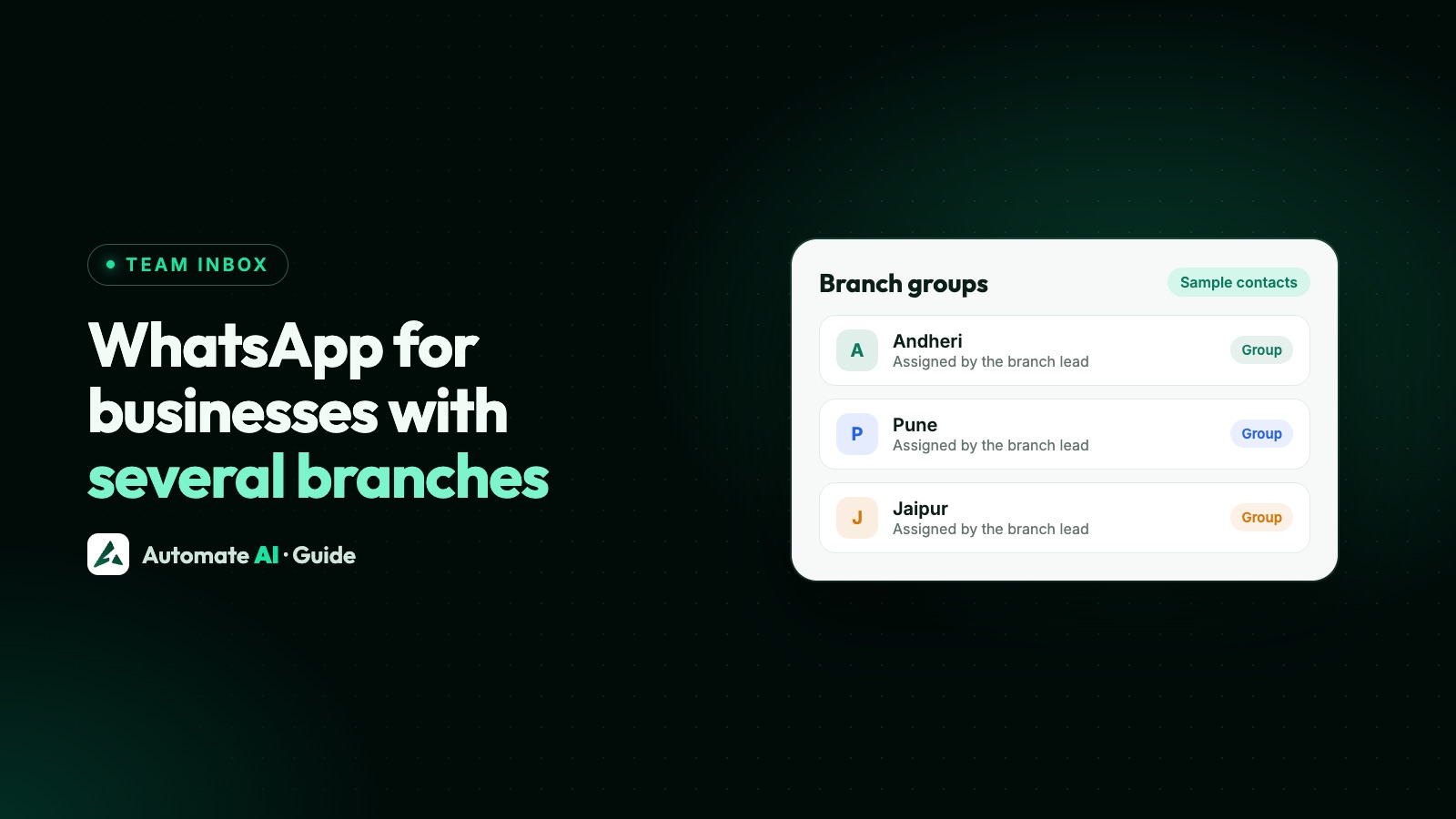
A business with several branches has two real options on WhatsApp: one number that sends each chat to the right branch, or a separate number for each branch. For most businesses that sell the same thing everywhere, one number is simpler, and customers only have to remember one. A number per branch suits branches that run like separate businesses.
This guide compares the two, gives Meta’s limits on numbers and messaging, and explains what each means in Automate AI, where one account holds one WhatsApp number.
Key takeaways
- One number keeps every customer in one history. Your job is routing each chat to the right branch.
- A number per branch gives each one its own inbox, profile and name, but customers can reach the wrong one and data stays apart.
- Meta starts a new portfolio at 2 phone numbers, rising to 20 once verified or at a 2,000 messaging limit.
- Messaging limits are shared by every number in a portfolio, so more numbers don’t mean more reach.
- In Automate AI, each account has one WhatsApp number, so a number per branch means a separate account and plan for each.
- Connecting a number doesn’t bring old chats: Automate AI doesn’t import past chats or phone contacts.
One number or one per branch?
| What changes | One number, routed to branches | A number per branch |
|---|---|---|
| What customers save | One contact, wherever they go | A different contact for each branch |
| Display name and profile | One, for the whole brand | One per number, so each can show its area |
| Who sees chats | Your team, assigned by branch | Only that branch’s team |
| Customer history | All in one place | Split across branches |
| Campaigns | Filter by a branch group | Sent and managed for each number |
| Reach limit from Meta | Shared portfolio limit | Still the shared portfolio limit, if in one portfolio |
| Set-up and running work | One setup, plus routing rules | Repeated for every branch |
If you’re asking how several people answer one number, that’s a different question, covered in one WhatsApp number for multiple employees. This post is about how branches share out, or split, the work.
What Meta allows
These limits apply whichever provider you use, and they come from Meta’s documentation:
| Limit | What Meta says |
|---|---|
| Phone numbers | New business portfolios are capped at 2 registered numbers. The cap rises automatically to 20 when the business is verified or reaches a 2,000 messaging limit |
| Messaging limit | Set at portfolio level and shared by all numbers in it. New portfolios start at 250, then 2,000, 10,000, 100,000 and unlimited |
| Display name | Provided when you register each number, so each number has its own |
| Throughput | Read for each phone number |
The second row surprises people. The messaging limit counts how many different people you can reach outside customer service windows in a rolling 24 hours, and Meta warns that one number can use up the portfolio’s whole allowance. So if Branch 1 sends a big campaign, Branch 2 can run out of room. Adding numbers to the same portfolio doesn’t add reach. See how to raise your messaging limit.
There’s also a small cost point. Since 1 October 2026, Meta gives each business phone number 1,000 free service messages a month, then charges for the rest. Templates are charged per delivered message either way. So several numbers can mean several free allowances, but check Meta’s pricing page for your country before you build a plan around it.
Option 1: one number, routed to branch staff
This is the usual choice for chains, clinics with several sites, coaching centres, and showrooms that share one brand. The design goal is simple: work out the branch early, then get the chat to a person there. In Automate AI, it looks like this (the chatbot is included in Series 2, 3 and 4):
- Make a group per branch in Contacts, such as “Andheri” and “Pune”.
- Add your team under Team, each with their own login. Agents see only the chats assigned to them, unless you allow them to see all chats in Settings › Auto Assignment, so a branch agent won’t read another branch’s customers, as long as automatic assignment stays off there. Owners and anyone with the Manager role see every chat, at every branch.
- Ask the branch at the start. In the chatbot builder, a new-contact flow shows a list of branches. It only reaches first-time contacts, so start the same flow from a keyword too, such as “branch”, for customers already in your list. A WhatsApp list holds up to 10 rows in total, so with more branches, ask for the city first.
- Record the answer. Each option leads to an Add to Group step for that branch, then a Send Email step that tells the branch manager someone’s waiting.
- Assign the chat. A manager opens the chat, sees the contact’s group, and assigns it to someone at that branch.
- Answer location questions with facts. Put each branch’s address and hours in the chatbot, or in the AI Assistant’s knowledge base.
Departments in Team are labels for your own organising, and they don’t route chats. Business hours are also set once for the account, so if branches keep different hours, spell them out in the chatbot or the knowledge base.
Shortcut: branch links and QR codes
You can skip the menu when you already know the branch. WhatsApp’s click to chat links can pre-fill a message in this format: https://wa.me/91XXXXXXXXXX?text=ANDHERI. Print that as a QR code on the branch counter, and the customer only has to tap send. Keep the menu as a fallback for anyone who arrives another way.
Then give each branch its own short keyword flow with an Add to Group step. Keywords work best as one unusual word (“ANDHERI”, not “Andheri West”), because a multi-word keyword has to match the whole message. A one-word keyword matches anywhere in a message, so “Is Pune open?” would start a PUNE flow. Add to Group also replaces a contact’s main group, so a branch group can take the place of a group such as “VIP”. See WhatsApp links and QR codes.
Option 2: a number for each branch
This fits franchises, branches with their own owners or budgets, and businesses where customers only ever deal with their local branch. Each number has its own display name and profile, so the chat can show the right area, as long as the name meets Meta’s display name rules.
In Automate AI, one account connects one WhatsApp number. So a number per branch means one Automate AI account per branch, each with:
- its own plan and message wallet
- its own contacts, chats, team and settings
- its own templates, chatbots and campaigns, set up separately
There’s no combined inbox or report across accounts. If a customer who usually visits Andheri messages your Pune number, Pune sees a new contact, with none of the Andheri history. Each branch also needs its own phone number that can receive a code, and that number has to be free of any other WhatsApp account, or be connected through coexistence.
How to choose
| If this is true | Lean towards |
|---|---|
| Customers use any branch, and you sell the same things everywhere | One number |
| You run one brand-wide campaign calendar | One number |
| A central team can assign chats | One number |
| Each branch has a separate owner or its own accounts | A number per branch |
| Branches must not see each other’s customers at all | A number per branch |
| Customers should see the local branch name in WhatsApp | A number per branch |
| You have 2 or 3 branches and not many chats | One number, and start simple |
A mixed approach also works: one number for the main brand and most branches, and separate numbers only for franchise partners. It’s usually easier to start with one number and split a branch off later than to merge several numbers afterwards, because a number’s chats don’t move with you.
Moving existing branch phones to the platform
Many businesses start with each branch running its own WhatsApp Business app on a shop phone. Before you connect these, know what comes across and what doesn’t:
- Past chats don’t come across. Automate AI doesn’t import past chats or phone contacts, so export anything you need to keep first.
- New chats do. After connecting, new customer messages show in the inbox. With coexistence, messages sent from the phone app show there too.
- Choosing one number: if you merge into one, tell customers on the old numbers. A status update and a note on the old profile will do it. Your old numbers won’t forward chats for you.
- Contacts: build the list from your own records, and only keep people who agreed to hear from you. See how to get opt-in.
The steps for the connection itself are in our coexistence guide.
Campaigns across branches
With one number, keep campaigns local by using the branch groups. A Pune offer goes only to the Pune group, so Andheri customers don’t get it. Remember that every campaign draws on the same messaging limit, so stagger big sends instead of letting branches launch at once.
Someone should own the calendar. Marketing messages to the same person pile up quickly if each branch sends its own, and blocks or reports can hurt your quality rating for every branch on that number. Separate numbers in one portfolio still share the messaging limit, so the calendar matters there too.
Use local details in templates, with the branch name, address and hours as variables. Keep marketing and service messages separate too: template categories explains why.
A checklist before you go live
- Pick one number or several, using the table above.
- List every branch with its address, hours and a named person who owns the chats.
- Set up a group per branch, or an account per branch.
- Write a one-line branch question for new contacts, add a keyword for existing ones, and test both on your own phone.
- Decide who assigns chats, and who covers when that person is away. Keep automatic assignment off.
- Print branch QR codes for counters, bills and shop windows.
- Agree who may send campaigns and when.
- Tell customers which number to use, on the old numbers and profiles.
Then check a week of chats. Look for unassigned chats, customers who picked the wrong branch, and what your team keeps retyping. Those three show you what to fix first in the shared inbox.
Frequently asked questions
Can one WhatsApp number be used for multiple locations?
Yes. Customers message one number, and you ask which branch they want, or use a branch link or QR code, then assign the chat to staff there.
How many WhatsApp numbers can one business have?
On the WhatsApp Business Platform, a new business portfolio is capped at 2 registered numbers. Meta raises that to 20 automatically once the business is verified or reaches a 2,000 messaging limit.
Does each number get its own messaging limit?
No. Messaging limits are set for the business portfolio and shared by all its numbers, so one number can use up the allowance.
Can one Automate AI account hold several WhatsApp numbers?
No. One account connects one number. A number per branch means a separate account for each, with its own plan, wallet, contacts and team.
Can Automate AI assign chats to a branch automatically?
Not by branch. Auto-assignment is round-robin across all active agents. A chatbot can put the customer in a branch group, and a manager then assigns the chat.
Will my branch’s old WhatsApp chats move to Automate AI?
No. Automate AI doesn’t import past chats or phone contacts. New messages show in the inbox after you connect the number.
Can branch staff see each other’s chats?
Agents see only chats assigned to them, unless you turn on the setting that lets agents view all chats. Owners and managers see every chat.
Sources
- Meta: Business phone numbers
- Meta: Messaging limits
- Meta: Pricing on the WhatsApp Business Platform
- WhatsApp Help Center: How to use click to chat
WhatsApp rules and prices change. We check these guides against Meta’s documentation, but always confirm current terms with Meta before you rely on them. Questions? Message us on WhatsApp at +91 836 977 8812.