How to Send WhatsApp Messages With Python (Cloud API)
Send WhatsApp messages with Python and the Cloud API: text, template and image examples with requests, error codes, and a small Flask webhook for replies.
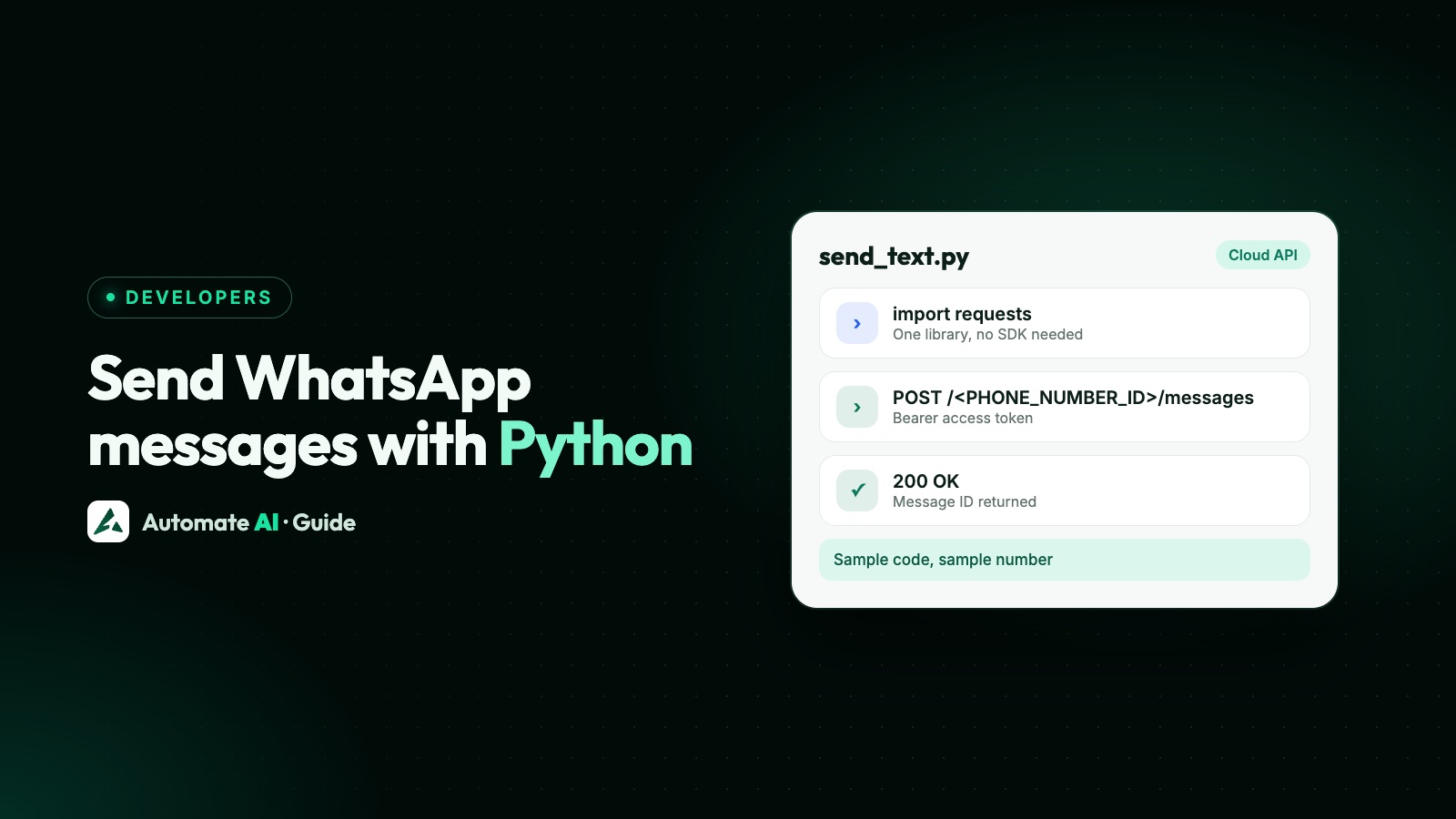
To send a WhatsApp message with Python, POST a JSON body to https://graph.facebook.com/v26.0/<PHONE_NUMBER_ID>/messages with the requests library and a Bearer access token. You don’t need a WhatsApp-specific library: Meta’s Cloud API is plain HTTPS and JSON, and requests plus Flask for the webhook is all it takes.
This tutorial gives working Python for a text message, a template message, an image by link, error handling, and a minimal Flask webhook that verifies Meta and receives replies. The request formats follow Meta’s documentation for Graph API v26.0, the current version as of November 2026.
Key takeaways
- You need a phone number ID, an access token and a recipient who has opted in. No extra library beyond
requests. - Every message is the same call:
requests.post(URL, headers=HEADERS, json=payload)with a differenttype. - Outside the 24-hour window, only an approved template can be sent.
- Read
error.codefrom failed responses; 190, 131047 and 132001 cover most first-day problems. - The webhook needs a GET handler for verification and a POST handler that checks the signature and returns 200 quickly.
What you need before you start
- Python 3 and two packages:
pip install requests flask. - A phone number ID. From API Setup in your Meta app, or
GET /<WABA_ID>/phone_numbers. It isn’t the phone number itself; see how to find your WhatsApp Business Account ID and phone number ID. - An access token. The temporary token in API Setup works for a first test but expires quickly. For anything real, use a permanent system-user token, as described in our WhatsApp Cloud API setup guide.
- A recipient who has agreed to hear from you. While testing, use your own phone as a To number on Meta’s test number.
Set up a send helper
Save this at the top of a file called whatsapp.py; every snippet in this guide, including the webhook, goes in the same file. Each row is one line of Python. It reads your settings from environment variables and gives you one function to send any message type.
| Line | What it does |
|---|---|
import os, hmac, hashlib, requests | The standard library plus requests (hmac and hashlib are for the webhook later) |
TOKEN = os.environ["WHATSAPP_TOKEN"] | Your system-user access token |
PHONE_NUMBER_ID = os.environ["PHONE_NUMBER_ID"] | The ID of the number you send from |
API_VERSION = "v26.0" | Graph API version; update it when Meta releases a new one |
URL = f"https://graph.facebook.com/{API_VERSION}/{PHONE_NUMBER_ID}/messages" | The Messages endpoint |
HEADERS = {"Authorization": f"Bearer {TOKEN}", "Content-Type": "application/json"} | The two headers in Meta’s examples |
def send(payload): return requests.post(URL, headers=HEADERS, json=payload, timeout=10) | Sends any message body and returns the response |
Meta released v26.0 on 29 July 2026 and uses it in its examples. Check the Graph API changelog for the latest version when you build, and keep API_VERSION in one place so upgrading is a one-line change.
Send a text message
A text message works only inside the 24-hour customer service window, which opens when the customer messages you. The body follows Meta’s format exactly:
| Step | Python |
|---|---|
| Send | r = send({"messaging_product": "whatsapp", "recipient_type": "individual", "to": "919800000000", "type": "text", "text": {"preview_url": False, "body": "Hi Priya, your table for 4 is booked for 8 pm today."}}) |
| Check | print(r.status_code, r.json()) |
| Save the message ID (only when the send worked) | message_id = r.json()["messages"][0]["id"] if r.ok else None |
tois the number with its country code, written as digits as in Meta’s examples, such as919800000000.preview_urlset toTrueasks WhatsApp to try to show a preview of the first link inbody.- The message ID (
wamid…) is what delivery and read statuses refer to later, so store it.
A successful response means Meta accepted the message, not that it was delivered. Delivery arrives later at your webhook. Outside the window you’ll get error 131047; send a template instead. More on the window in the WhatsApp 24-hour rule.
Send a template message
Templates are the only messages you can send to start a conversation or after the window closes. The template must be approved in the language you request. For a template named order_update with the body “Hi {{1}}, your order {{2}} has shipped.”:
| Part | Python |
|---|---|
| Body variables | params = [{"type": "text", "text": "Priya"}, {"type": "text", "text": "ORD-1042"}] |
| Send | r = send({"messaging_product": "whatsapp", "to": "919800000000", "type": "template", "template": {"name": "order_update", "language": {"code": "en"}, "components": [{"type": "body", "parameters": params}]}}) |
| No variables | Leave out components, as with Meta’s sample hello_world template in a new account |
Values go in the same order as {{1}}, {{2}}. Templates created with named parameters take a parameter_name on each value instead. Headers with media, URL buttons, quick-reply payloads and coupon codes are all extra components; the JSON for each is in how to send a WhatsApp template message with the API, and it drops straight into the same send() call.
Send an image by link
Inside the 24-hour window you can send an image from a public URL with an optional caption of up to 1,024 characters:
| Step | Python |
|---|---|
| Send | r = send({"messaging_product": "whatsapp", "recipient_type": "individual", "to": "919800000000", "type": "image", "image": {"link": "https://example.com/menu.jpg", "caption": "This week’s menu"}}) |
- The link must be on a public server. Images can be JPEG, PNG or static WebP, up to 5 MB.
- Meta recommends uploading the file and sending its media ID instead of a link, for better performance. Swap
"link"for"id". - Documents and video work the same way with
"type": "document"or"video". Audio uses"type": "audio"too, but takes no caption.
Uploading media, every media type’s limits and media errors are covered in how to send images and documents with the WhatsApp API.
Handle errors
A failed call returns a JSON error object. Build your handling around the integer code, not the title in message, which Meta says will eventually be deprecated. error.error_data.details explains the likely cause, and fbtrace_id helps Meta’s support find the request.
| Python | Why |
|---|---|
err = {} if r.ok else r.json().get("error", {}) | Read the error object (empty when the send worked) |
if err: print(err.get("code"), err.get("error_data", {}).get("details")) | Log the code and Meta’s explanation |
| Code | Meaning | What to do |
|---|---|---|
| 190 | Access token expired | Use a permanent system-user token |
| 100 | Unsupported or misspelled parameter | Compare your JSON with Meta’s reference, key by key |
| 131047 | More than 24 hours since the customer last messaged you | Send an approved template |
| 132001 | Template doesn’t exist in that language or isn’t approved | Check the name, language code and status |
| 130429 | Throughput limit reached | Slow down and retry later, with a growing delay |
The full list is in WhatsApp API error codes. Some failures only show up later, as a failed status at your webhook.
Receive replies with a small Flask webhook
To get customer messages and delivery statuses, Meta POSTs to a webhook URL you own. This minimal Flask app handles both parts. Add it to the same whatsapp.py, below the send helper. Indentation rule: rows marked “Inside verify” or “Inside receive” are indented 4 spaces under that function; every other row starts at the left margin.
| Where | Python |
|---|---|
| Top | import os, hmac, hashlib (already there if you kept the helper’s first line) |
| Top | from flask import Flask, request, abort |
| Top | def handle(messages, statuses): print(messages, statuses), a stub to replace with your own code or a queue |
| Top | VERIFY_TOKEN = os.environ["VERIFY_TOKEN"] and APP_SECRET = os.environ["APP_SECRET"] |
| Top | app = Flask(__name__) |
| Verification | @app.get("/webhook") then def verify(): |
| Inside verify | if request.args.get("hub.mode") == "subscribe" and request.args.get("hub.verify_token") == VERIFY_TOKEN: return request.args.get("hub.challenge", ""), 200 |
| Inside verify | abort(403) |
| Events | @app.post("/webhook") then def receive(): |
| Inside receive | expected = "sha256=" + hmac.new(APP_SECRET.encode(), request.get_data(), hashlib.sha256).hexdigest() |
| Inside receive | if not hmac.compare_digest(request.headers.get("X-Hub-Signature-256", ""), expected): abort(401) |
| Inside receive | values = [c["value"] for e in request.get_json().get("entry", []) for c in e.get("changes", [])] |
| Inside receive | for v in values: handle(v.get("messages", []), v.get("statuses", [])) |
| Inside receive | return "OK", 200 |
- Verification: when you save the callback URL in the App Dashboard, Meta sends a GET with
hub.mode,hub.verify_tokenandhub.challenge. Return the challenge with 200 if the token matches. - Signature: each POST has an
X-Hub-Signature-256header, an HMAC-SHA256 of the raw body made with your app secret.request.get_data()gives the raw bytes, andhmac.compare_digestcompares safely. - Messages and statuses: customer messages are in
value["messages"](text inm["text"]["body"], sender inm["from"]), and your delivery updates invalue["statuses"]. Loop over every entry and change; one POST can hold several. - Speed: write
handle()so it only queues the work, then return 200. Slow responses lead to retries and duplicates, so de-duplicate by message ID.
To try it, set the environment variables and run flask --app whatsapp run --port 8000. Meta can only reach a public HTTPS URL, so put the app behind a public address with a valid certificate and save that URL plus /webhook as the callback URL in the App Dashboard. Flask’s built-in server is for development. In production, run the app behind a proper WSGI server on HTTPS with a valid certificate; Meta doesn’t accept self-signed certificates. Payloads, statuses and retries are explained in WhatsApp Cloud API webhooks, and if events don’t show up, work through WhatsApp webhook not receiving messages.
Is there a Python library, and is it free?
This guide uses no WhatsApp-specific package, deliberately. Meta documents the Cloud API as HTTP requests, so requests covers everything and you always match Meta’s current format. Be careful with packages that automate WhatsApp Web or a personal account: they aren’t the official API and can get numbers banned; see unofficial WhatsApp APIs.
Using the Cloud API from Python costs nothing extra: Meta hosts it without a platform fee, and what you pay for is mainly the template messages you send, charged by category and country. The details are in is the WhatsApp API free?.
Python with Automate AI
If you’d rather not run the WhatsApp side yourself, Automate AI connects your number, hosts Meta’s webhooks and gives your team a shared inbox, campaigns and chatbots. Your Python code can still send messages and templates and manage contacts through Automate AI’s REST API, with SDKs that include Python, and receive developer webhooks such as message received and message status update. The API, SDKs and webhooks are included on Series 2, 3 and 4; see the WhatsApp Business API page and pricing.
Frequently asked questions
How do I send a WhatsApp message with Python?
Use requests.post to https://graph.facebook.com/v26.0/<PHONE_NUMBER_ID>/messages with a Bearer token and a JSON body containing messaging_product: "whatsapp", to, type and the message content.
Do I need a Python library for the WhatsApp API?
No. The Cloud API is plain HTTPS and JSON, so requests is enough. Avoid packages that automate WhatsApp Web; they aren’t the official API.
Can I send a WhatsApp message with Python to someone who hasn’t messaged me?
Only with an approved template, and only to people who have opted in. Free-form text, images and buttons need an open 24-hour window.
Why does my Python script get error 190?
The access token has expired. The token in API Setup is temporary; generate a permanent system-user token in Business Settings.
How do I receive WhatsApp messages in Python?
Run a webhook, for example with Flask: answer Meta’s verification GET with the challenge, check the X-Hub-Signature-256 signature on each POST, read value["messages"], and return 200 quickly.
Which Graph API version should I use?
The current one. As of November 2026 that’s v26.0, released on 29 July 2026. Keep the version in one setting so upgrades are easy.
Sources
- Meta: Send messages
- Meta: Text messages
- Meta: Image messages
- Meta: Templates overview
- Meta: Error codes
- Meta: Create a webhook endpoint
- Meta: Graph API changelog
WhatsApp rules and prices change. We check these guides against Meta’s documentation, but always confirm current terms with Meta before you rely on them. Questions? Message us on WhatsApp at +91 836 977 8812.