How to Connect WhatsApp to n8n
Connect WhatsApp to n8n with its WhatsApp Business Cloud and Trigger nodes, or with Automate AI’s REST API and webhooks. Setup, limits and example workflows.
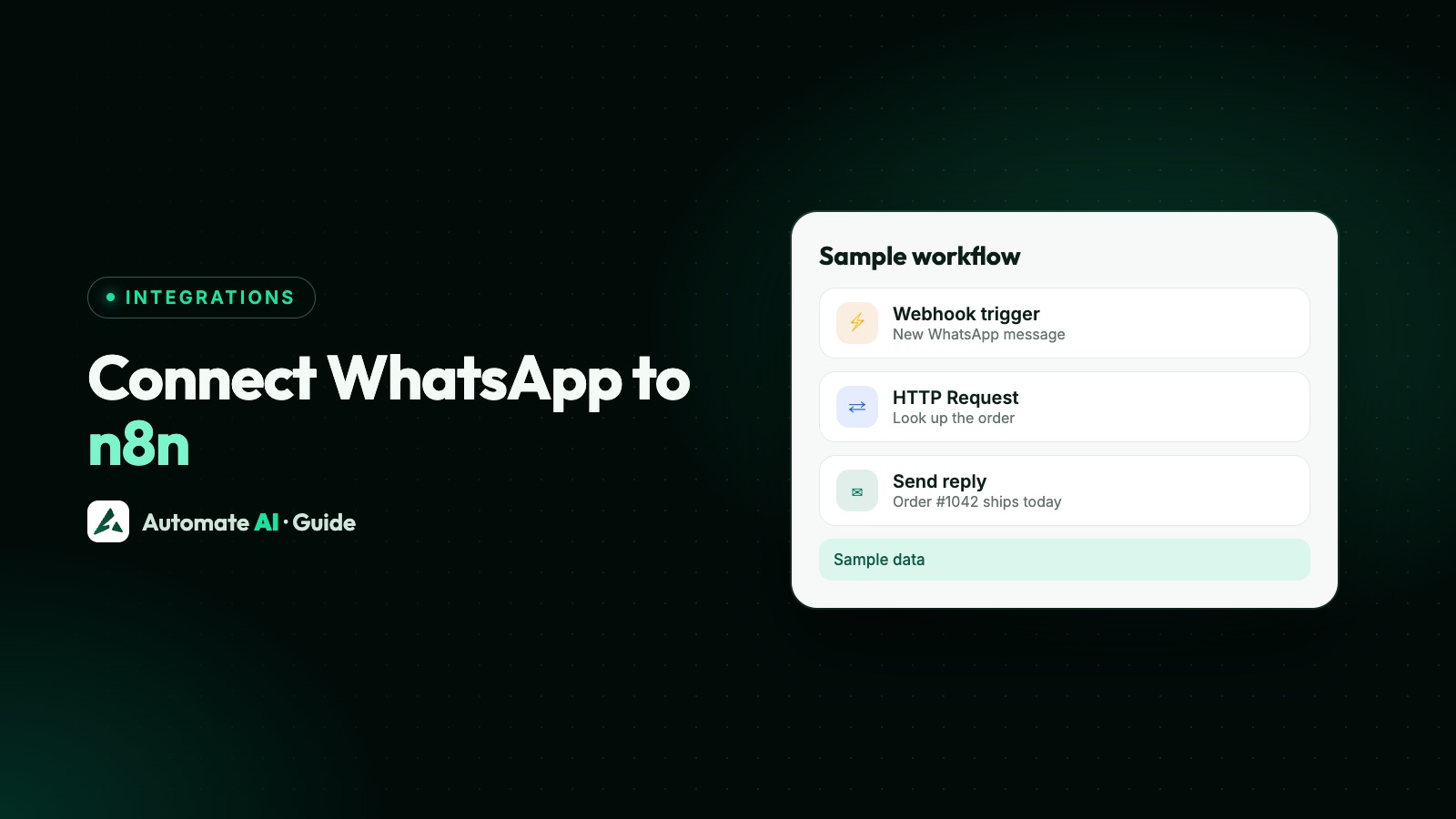
There are two ways to connect WhatsApp to n8n: use n8n’s own WhatsApp Business Cloud and WhatsApp Trigger nodes on Meta’s Cloud API, or keep your number on a platform such as Automate AI and connect n8n to its REST API and webhooks. Both use the official WhatsApp Business Platform, so the same Meta rules apply.
The first route is the more hands-on one: you run the Meta app, the webhook and the credentials yourself. The second keeps your team inbox, chatbots and campaigns and lets n8n handle the glue to other tools. This guide explains each, with setup steps, the limits that catch people out and a few workflows to copy.
Key takeaways
- n8n’s WhatsApp Business Cloud node sends messages and templates; the WhatsApp Trigger node starts workflows from Meta’s webhooks.
- n8n’s docs say WhatsApp allows one webhook per app, so test and production URLs overwrite each other.
- With Automate AI, n8n calls the REST API with an API key as a Bearer token, and receives developer webhooks such as
message.received. - Automate AI signs each webhook with HMAC-SHA256 in the
X-Webhook-Signatureheader and tries each delivery up to 3 times. - Free-form messages still need an open 24-hour window; outside it, n8n must send an approved template.
Two routes, and which to pick
| n8n’s WhatsApp nodes | Automate AI API and webhooks | |
|---|---|---|
| What talks to Meta | n8n, through your own Meta app | Automate AI |
| Credentials in n8n | Meta access token and Business Account ID; app ID and secret for the trigger | One Automate AI API key |
| Incoming messages | WhatsApp Trigger node | n8n Webhook node receiving developer webhooks |
| Team inbox, chatbots, campaigns | You build them | Already there |
| Best for | Developers building a WhatsApp app from scratch | Businesses that want WhatsApp plus links to other tools |
A rule of thumb: if people on your team will read and answer chats, use a platform with an inbox and let n8n do the plumbing. If WhatsApp is just one output of an automated system, n8n’s own nodes can be enough.
Route 1: n8n’s own WhatsApp nodes
n8n has two WhatsApp nodes. They need different credentials:
| Node | What it does | Credentials |
|---|---|---|
| WhatsApp Business Cloud | Message: Send, Send and Wait for Response, Send Template. Media: Upload, Download, Delete | Access token and WhatsApp Business Account ID |
| WhatsApp Trigger | Starts a workflow on events such as Messages, Message Template Status Update and Phone Number Quality Update | OAuth2: Client ID and Client Secret, filled in with your Meta app’s App ID and App Secret |
Before either works, you need these on Meta’s side, from n8n’s credentials guide and Trigger node page:
- A Meta developer account and a Meta business portfolio.
- A Meta business app with WhatsApp added, a privacy policy URL and terms of service URL, and the app in Live mode.
- The access token and Business Account ID from WhatsApp › API Setup, for the Business Cloud node.
- The App ID and App Secret from App settings › Basic, for the trigger.
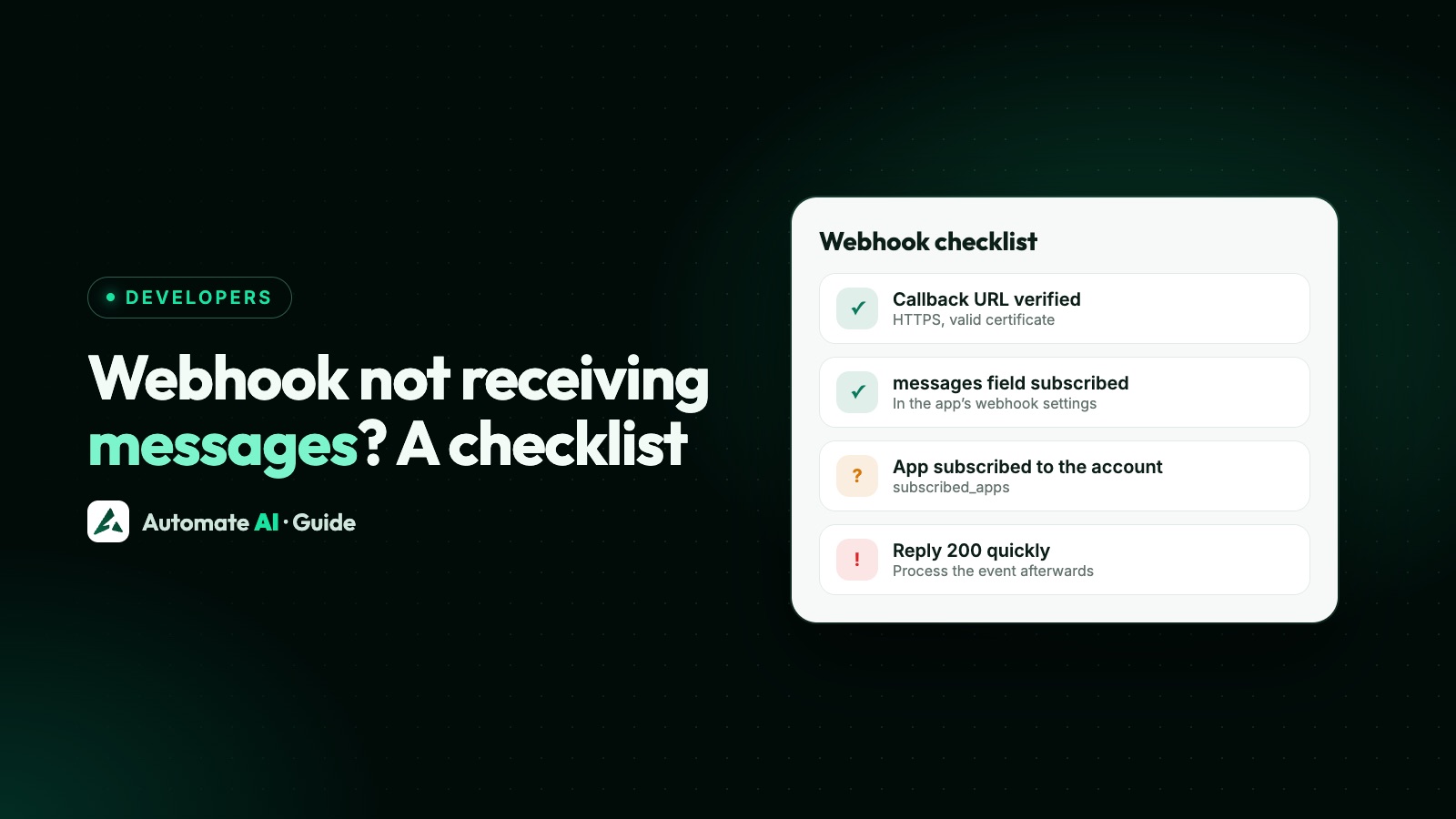
- A subscription from your app to your WhatsApp Business Account. n8n’s Trigger node page warns that publishing a workflow registers the webhook URL but doesn’t subscribe the app, and without it messages don’t reach n8n.
New to this side of it? The WhatsApp Cloud API guide covers the Meta app, test numbers and tokens.
Limits of the n8n WhatsApp nodes
- One webhook per app. n8n’s docs say WhatsApp allows a single webhook per app, so switching between n8n’s test and production URLs overwrites the registered one. Their workaround is to unpublish the workflow while testing, which stops production traffic.
- Don’t delete the subscription. A
DELETEtosubscribed_appsunsubscribes your app, and Meta stops sending webhooks for that account. - Template errors. A common error, especially with Send Template, is “Bad request - please check your parameters”, usually because the values don’t match the template’s parameters in type and order.
- Anything not built in, such as typing indicators or location requests, goes through the HTTP Request node with the same credential.
You also handle what a platform would: verifying webhook signatures, de-duplicating Meta’s retries, storing chats, tracking the 24-hour window and handling opt-outs. Meta’s side of webhooks is explained in WhatsApp Cloud API webhooks.
Route 2: n8n with Automate AI
Here your number stays connected to Automate AI, and n8n talks to Automate AI instead of Meta. Everything is in the app’s Developer page (API keys and webhooks), which owners and managers can set up. The REST API and webhooks are included in Series 2, 3 and 4; see pricing.
- Create an API key on the Developer page and copy it straight away, because it’s shown only once.
- Add it to n8n as a credential. In the HTTP Request node, use a Header auth credential with the name
Authorizationand the valueBearer YOUR_API_KEY. - Copy the base URL shown on the Developer page. Every path below is relative to it.
- Create a developer webhook pointing at an n8n Webhook node’s production URL, pick the events, and save the signing secret it shows you.
- Press Test on the webhook to send a sample event. Samples include
"test": true, so your workflow can ignore them.
Sending from n8n through the Automate AI API
These endpoints come from the API documentation inside the app. Send JSON with Content-Type: application/json:
| Task | Request | Body (sample data) |
|---|---|---|
| Create a contact | POST /contacts | {"first_name": "Priya", "phone": "+919800000000"} |
| Start a chat | POST /chats/start | {"phone": "+919800000000", "create": true, "name": "Priya"} |
| Send a text | POST /chats/<chat or phone>/messages | {"message": "Your order has shipped.", "type": "text"} |
| Send a template | POST /chats/<chat or phone>/template | {"templateId": 15, "variables": {"1": "Priya"}} |
| Push in a lead | POST /contact-webhook/ingest | The same body as POST /contacts |
On the message and template endpoints, the path can be the chat UUID or the contact’s number in international format. The contact must already exist, or the call returns a 404 “No contact found” error; only the chat is created on demand. So for a new number, call POST /contacts, or POST /chats/start with "create": true, first. The lead endpoint follows your Settings › Webhook Settings for duplicate numbers, the default group and status, and an optional welcome message.
n8n’s HTTP Request node can import a cURL command, which is a quick way to copy these. n8n notes that imported values become strings, so switch the body to Using JSON where a number such as templateId matters. Template fields are explained in sending templates through the API.
Receiving Automate AI events in n8n
Each developer webhook can subscribe to any of these events:
| Group | Events |
|---|---|
| Messages | message.received, message.sent, message.status.update |
| Contacts | contact.created, contact.updated, contact.deleted |
| Groups | group.created, group.updated, group.deleted |
| Auto-replies | autoreply.created, autoreply.updated, autoreply.deleted |
Every delivery is a POST with event, timestamp and data. For message.received, data holds the message text and type, the WhatsApp message ID, the sender’s number, and the contact and chat with their IDs, so the next node can reply to the right chat.
- Signature: the
X-Webhook-Signatureheader is a hex HMAC-SHA256 of the JSON body, made with your webhook’s secret. In n8n, turn on the Webhook node’s Raw Body option and compare with a Crypto node set to Hmac, SHA256 and HEX. - Retries: a failed delivery is tried up to 3 times, with growing gaps starting at about 10 seconds. Each attempt waits up to 15 seconds for a response.
- Logs: the Developer page keeps a delivery log for each webhook, with the response it got.
- Plan: deliveries stop while a subscription has lapsed.
Set the n8n Webhook node to respond Immediately, so slow steps later in the workflow don’t make a delivery time out.
Calling n8n from a chatbot
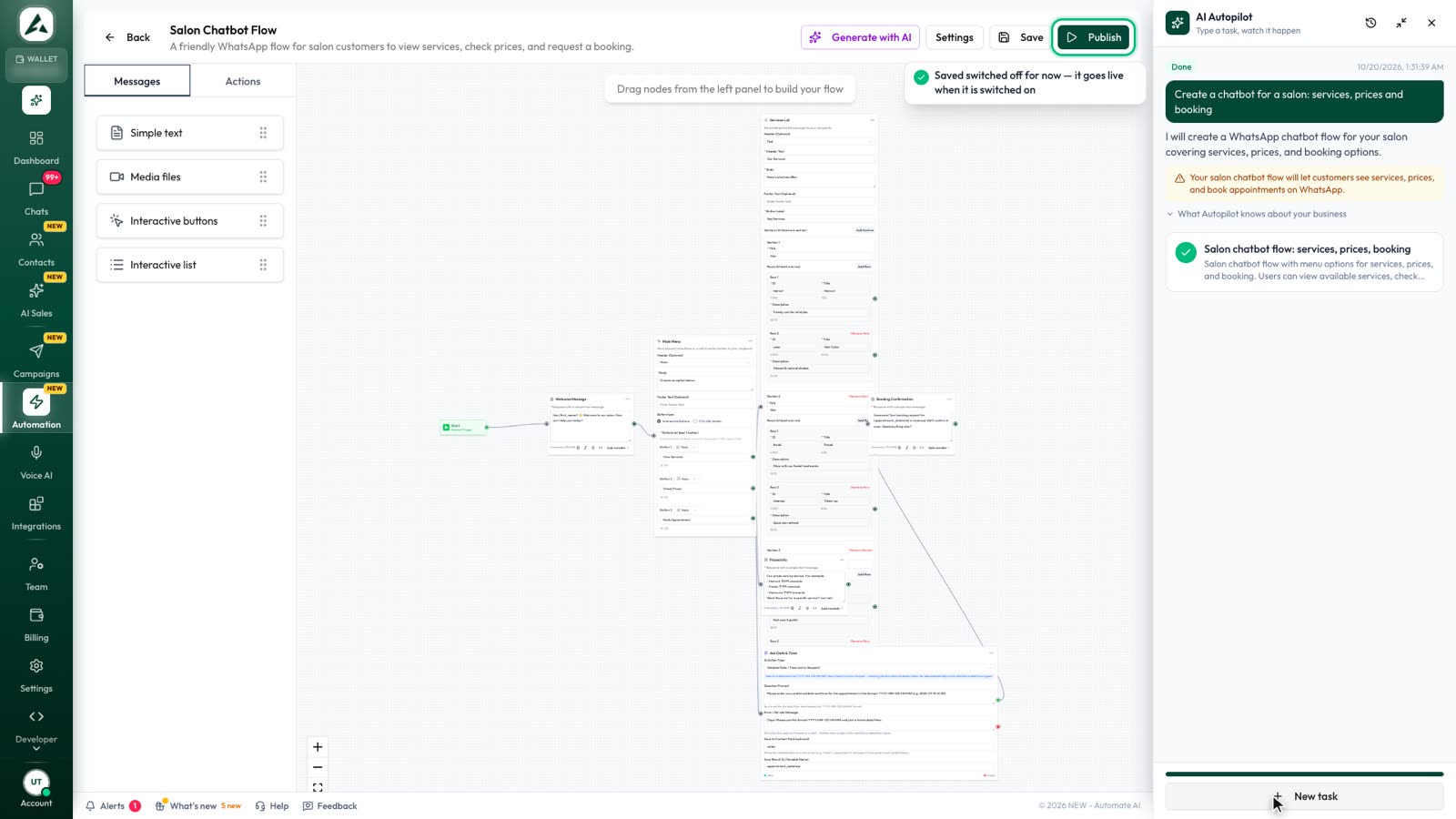
There’s a third link: a chatbot in Automation › Flows can call n8n itself. Add a Webhook step with your n8n Webhook node’s URL. Use POST: the step sends the contact’s details, the latest message, the answers given so far in the flow and the flow’s variables, and you can add your own JSON body. To check that a call really came from your flow, put a shared secret in the URL path or the body and test for it in n8n, rather than using header auth on the n8n Webhook node.
The flow waits for the call to finish, for up to 30 seconds, but doesn’t use n8n’s reply, and a failed call doesn’t stop the flow. If n8n needs to reply to the customer, have it call the send endpoint above.
Example n8n workflows
| Workflow | Trigger | Then |
|---|---|---|
| New lead from a website form | n8n Webhook from your form tool | POST /contact-webhook/ingest, which can send the welcome template |
| Order shipped | Your shop or warehouse system | POST /contacts if the customer is new, then POST /chats/<phone>/template with a utility template |
| Copy inbound messages to a helpdesk | message.received | Create a ticket in your helpdesk with the text and number |
| Alert on failed messages | message.status.update with a failed status | Post to your team’s chat tool |
| Booking from a chatbot | Chatbot Webhook step | Add the booking to your calendar tool |
If you only need contacts in a spreadsheet, you may not need n8n at all: see the Google Sheets integration.
Frequently asked questions
Does n8n have a WhatsApp integration?
Yes. The WhatsApp Business Cloud node sends messages, templates and media, and the WhatsApp Trigger node starts workflows from Meta’s webhooks. Both use the official Cloud API.
What do I need for the n8n WhatsApp nodes?
A Meta developer account, a business portfolio and a Meta app with WhatsApp added. The Business Cloud node needs an access token and Business Account ID; the trigger needs the app’s App ID and App Secret.
Why does my n8n WhatsApp Trigger stop working when I test?
n8n’s docs say WhatsApp allows one webhook per app, so the test URL replaces the production one. Also check your app is subscribed to your WhatsApp Business Account.
Can I use n8n with Automate AI?
Yes. Call the REST API from n8n’s HTTP Request node with an API key as a Bearer token, and receive developer webhooks such as message.received in an n8n Webhook node.
How do I verify Automate AI webhooks in n8n?
Compute a hex HMAC-SHA256 of the raw body with your webhook’s secret, and compare it with the X-Webhook-Signature header.
Can I send WhatsApp messages from n8n to anyone?
Only to people who opted in. Free-form messages need an open 24-hour window; outside it, send an approved template.
Sources
- n8n: WhatsApp Business Cloud node
- n8n: WhatsApp Trigger node
- n8n: WhatsApp credentials
- n8n: Webhook node
- n8n: HTTP Request node
- n8n: WhatsApp node common issues
- Meta: Webhook overrides
- Meta: Send messages (customer service window)
WhatsApp rules and prices change. We check these guides against Meta’s documentation, but always confirm current terms with Meta before you rely on them. Questions? Message us on WhatsApp at +91 836 977 8812.