How to Use the WhatsApp API Test Number
What Meta’s WhatsApp API test number is, what it can send, how to use it step by step, why it’s “not working”, and how to move to a real number.
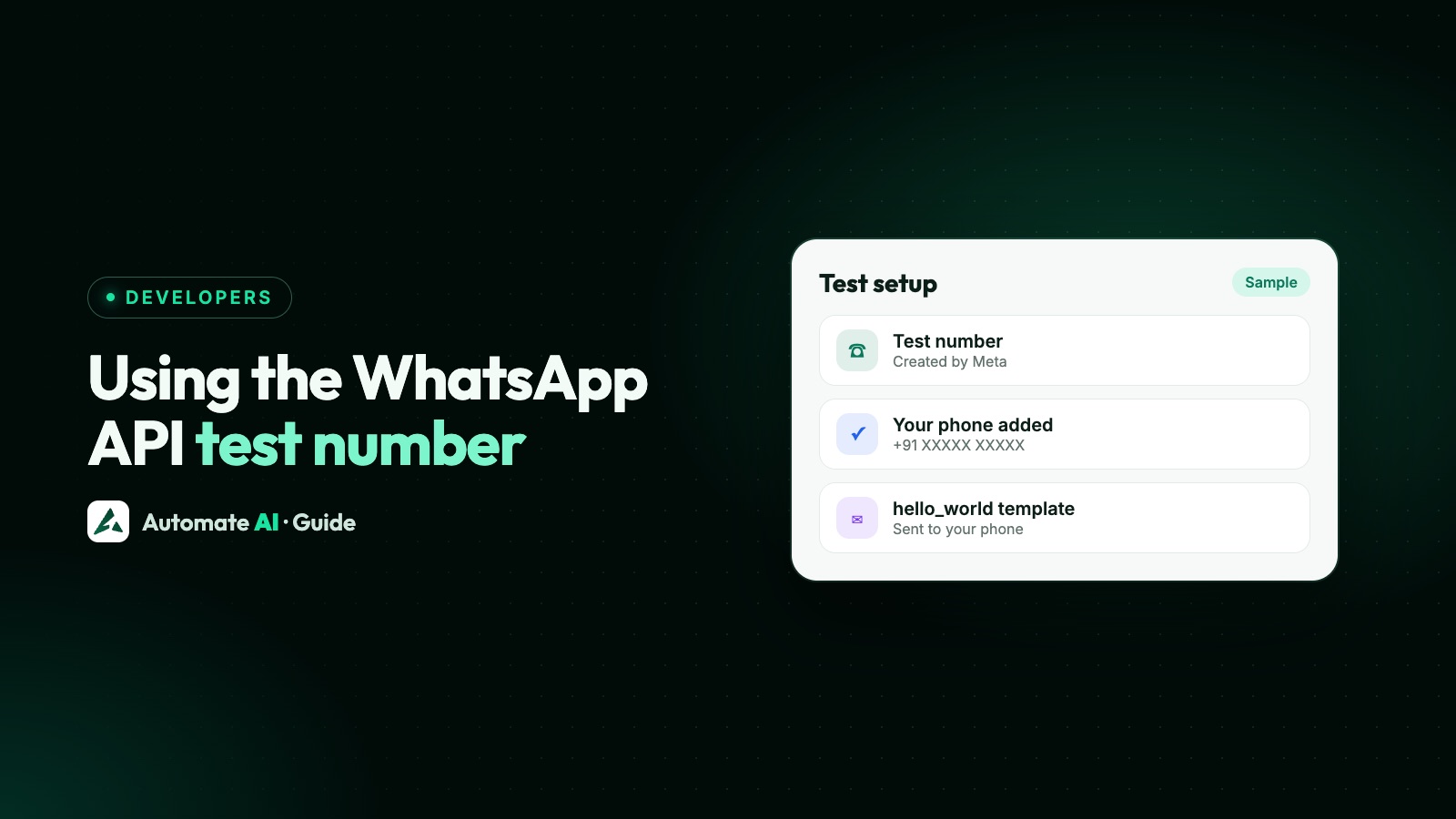
The WhatsApp API test number is a business phone number Meta creates for you automatically when you set up a Cloud API app, so you can send your first messages before you add a real number. It comes with a test WhatsApp account, relaxed messaging limits and no need for a payment method to send templates.
You add the numbers that receive your test messages in the App Dashboard, it starts with the hello_world template, and the access token it gives you expires quickly. Most “test number not working” problems come from one of those three. This guide shows how to use it step by step, what each failure means and how to fix it, and when to move to your own number.
Key takeaways
- Meta creates a test WhatsApp account and test business phone number automatically when you start with the Cloud API.
- Test accounts have relaxed messaging limits and don’t need a payment method to send template messages.
- You add the numbers that receive test messages in the To field under API Setup, and the first one must be a template, such as
hello_world. - Reply from your phone to open the 24-hour window; only then can you send free-form text and media.
- The dashboard’s temporary token expires quickly. Use a system-user token, and add a real number before you message customers.
What the WhatsApp API test number is
When you create a Meta app with the WhatsApp use case and click Start using the API, Meta sets up three things for you: a test WhatsApp account, a test Messaging account and a test business phone number. The number is already registered, so it can send straight away.
Meta’s own description is that test accounts and numbers are useful for testing, have relaxed messaging limits, and don’t need a payment method on file to send template messages. It’s a sandbox for your code, not a number for your business.
| Test number | Your own number | |
|---|---|---|
| Who creates it | Meta, automatically | You add, verify and register it |
| Who you can message | The To numbers you add in API Setup, for testing | Anyone who opted in, within your messaging limit |
| Payment method | Not needed to send templates | Needed before sending templates at scale |
| Use it for | Building and testing your integration | Real customers |
What the test number can and can’t do
The same rules apply as on any number, so the test number is a good place to learn them:
- It can send templates. The dashboard’s first message is the
hello_worldtemplate, and you don’t need a payment method for it. - It can send free-form messages after a reply. When you reply from your phone, a 24-hour customer service window opens, and you can send text, media and interactive messages.
- It can receive messages and statuses through your webhook, including sent, delivered and read.
- You choose the recipients. The To field in API Setup holds the numbers that receive test messages.
- It’s meant for testing. Meta describes test numbers as useful for testing purposes. For anything real, add your own number.
How to use the test number, step by step
These follow Meta’s current “Get started” guide. You need a Facebook or managed Meta account, a Meta developer registration and a phone with WhatsApp on it to receive the messages.
- Create an app in the Meta App Dashboard with the WhatsApp use case (“Connect with customers through WhatsApp”) and choose or create a business portfolio.
- Click Start using the API and connect a Messaging account, an existing one or a new one. Save the Messaging account ID shown in API Setup.
- Generate an access token in API Setup. This is the temporary token.
- Pick the From number. Choose the test number from the dropdown, and note its phone number ID, which is different from the phone number itself.
- Add a To number that will receive the test message, such as your own WhatsApp number, and confirm it if the dashboard asks.
- Click Send message. The
hello_worldtemplate should arrive on your phone. - Reply from your phone. That opens the 24-hour window and lets you test free-form messages.
- Connect a webhook so you can see replies and delivery statuses. Meta’s guide offers a sample webhook app for this.
- Create a system user and a permanent token in Business Settings, with
business_management,whatsapp_business_messagingandwhatsapp_business_management, before you write real code against it.
Once that works, try a text reply inside the window, then media messages and templates with variables. The wider setup, including webhooks and limits, is in our WhatsApp Cloud API guide.
Why the WhatsApp API test number is “not working”
Start with the response. If the API call returns a message ID (wamid…), Meta accepted the request, and any problem is in delivery, which your webhook reports as a failed status with a code. If the call itself returns an error, the code tells you what’s wrong with the request.
| What you see | Likely cause | Fix |
|---|---|---|
| Nothing arrives on the phone | The phone may not be set up as a To number | Make sure it’s added as a To number in API Setup, then resend |
| Error 190 | The temporary access token has expired | Generate a new one, or switch to a system-user token |
| Error 131047 | Free-form message with no reply in the last 24 hours | Send hello_world first and reply from the phone |
| Error 132001 | Template name or language doesn’t match an approved template | Check the exact name and language code |
| Error 131026 | The recipient can’t receive it | Check the number uses WhatsApp, has accepted the latest terms and runs a current app |
| Error 100 | A misspelled or unsupported parameter | Compare your JSON with Meta’s reference |
| Sent, but no webhook events | Webhook not verified or not subscribed to messages | Verify the endpoint and subscribe to the messages field |
Other things to check when the error doesn’t make sense:
- The URL uses the phone number ID, not the phone number.
/<PHONE_NUMBER_ID>/messageswith the test number’s ID. - The
tonumber has its country code. Write it without spaces, such as919800000000. - The token belongs to the same app and has access to the test WhatsApp account.
- You’re not messaging the test number itself. Send to the phone you added as a recipient.
- Your webhook uses HTTPS with a valid certificate. Self-signed certificates aren’t accepted.
Every code above is explained in our guide to WhatsApp API error codes.
Read the error before you change anything
Developers often lose time by changing three things at once. A quicker routine:
- Log the full response body of every API call, not just the status code.
- Log every webhook event, including
statuseswithfailed, and theerrorsarray inside it. - Change one thing, resend, and compare.
- Test the token on its own with a simple call. If that fails with 190 or 200, the message was never the problem.
Moving from the test number to a real number
When your code works, the next step is a number your customers will recognise. The broad steps:
- Pick a number that can receive an SMS or voice call and isn’t on WhatsApp, or a WhatsApp Business app number you connect with coexistence.
- Add it in WhatsApp Manager or through the API, with a display name that follows Meta’s rules.
- Verify and register it, setting a two-step verification PIN.
- Add a payment method before sending templates at scale.
- Swap the phone number ID in your code from the test number’s to the real one, and keep using your system-user token.
- Create your own templates and get them approved before your first campaign.
Each step, including the PIN, landlines and how many numbers you can register, is in our guide to phone numbers on the WhatsApp Cloud API. Messaging limits apply to your business portfolio. New portfolios start at 250 unique customers in 24 hours outside the customer service window, and the limit rises once you verify your business or send enough high-quality messages.
Testing safely once you’re live
You don’t lose the ability to test after you move to a real number. Keep testing habits close to how customers will see things:
- Send to your own team first. A small group of colleagues’ numbers catches broken variables, wrong links and images that don’t load.
- Check on Android, iPhone and WhatsApp Web. Some message types display differently, or not at all, on desktop.
- Test the reply path, not just the send: what your webhook, chatbot or team does when a customer answers.
- Keep test and live credentials apart, so a test script can never message real customers.
Testing and connecting with Automate AI
With Automate AI you don’t need Meta’s test number. You connect your own number through Meta’s Embedded Signup: you sign in with Facebook, pick or create your business portfolio, verify the number by SMS or call and choose a display name, and Automate AI registers it for you. You can also connect an existing WhatsApp Business app number with coexistence.
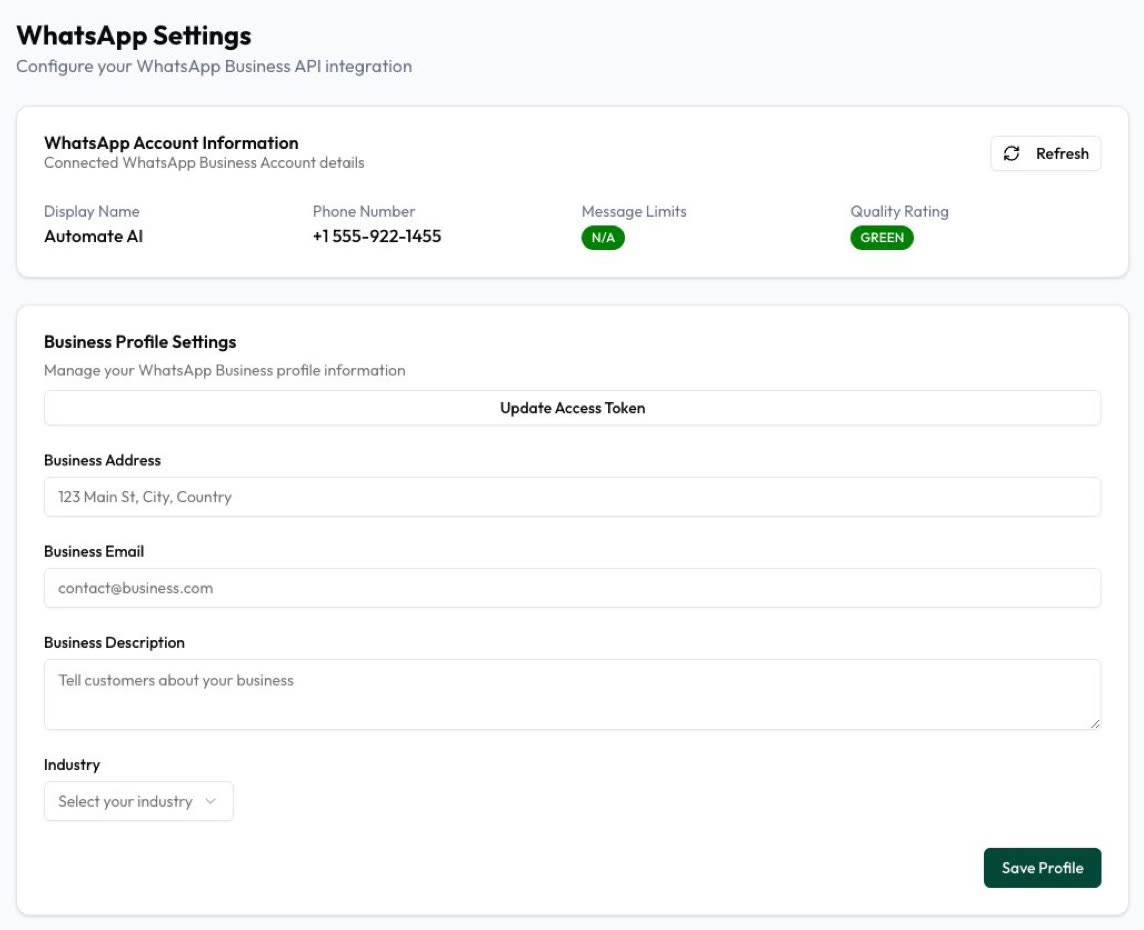
There’s no app, token or webhook to build. To try a template before a real send, put your team’s numbers in a group and send the campaign to that group first, then to your customers. Settings shows the connected number, display name, messaging limit and quality rating.
If you’re building your own system on top, Automate AI also has a REST API and webhooks, so your code can send messages without hosting the WhatsApp side itself. The setup guide walks through connecting a number from sign-up to first campaign.
Frequently asked questions
What is the WhatsApp API test number?
A business phone number Meta creates automatically when you set up a Cloud API app. It comes with a test WhatsApp account, has relaxed messaging limits and doesn’t need a payment method to send templates.
Why is my WhatsApp API test number not sending messages?
Usually the phone isn’t added as a To number in API Setup, the temporary token has expired (error 190), or you sent free-form text before the recipient replied (error 131047). Check the API response and your webhook’s failed statuses.
Can I message any number from the test number?
Use it for the To numbers you add under API Setup, for testing. To message customers, add and register your own number.
Do I need a payment method to use the test number?
No. Meta says test accounts don’t need a payment method on file to send template messages.
Why does my test access token stop working?
The temporary token from API Setup expires quickly. Create a system user in Business Settings and generate a token with the WhatsApp permissions.
Can I use the test number for real customers?
It’s meant for building and testing your integration, not for customers. Add your own number, with your display name, before messaging customers.
Do I need the WhatsApp test number to use Automate AI?
No. Automate AI connects your own number through Meta’s Embedded Signup, or an existing WhatsApp Business app number with coexistence.
Sources
- Meta: Get started with the Cloud API
- Meta: About the WhatsApp Business Platform
- Meta: Business phone numbers
- Meta: Send messages (customer service window)
- Meta: Error codes
- Meta: Messaging limits
- Meta for Developers blog: Send interactive messages (test number setup)
WhatsApp rules and prices change. We check these guides against Meta’s documentation, but always confirm current terms with Meta before you rely on them. Questions? Message us on WhatsApp at +91 836 977 8812.