How to Get Started with the WhatsApp Business API Using Automate AI
A step-by-step WhatsApp Business API setup with Automate AI: sign up, choose a plan, connect a new number or your WhatsApp Business app number, set your profile, add funds, import opted-in contacts, get a template approved, send your first campaign and switch on automation.
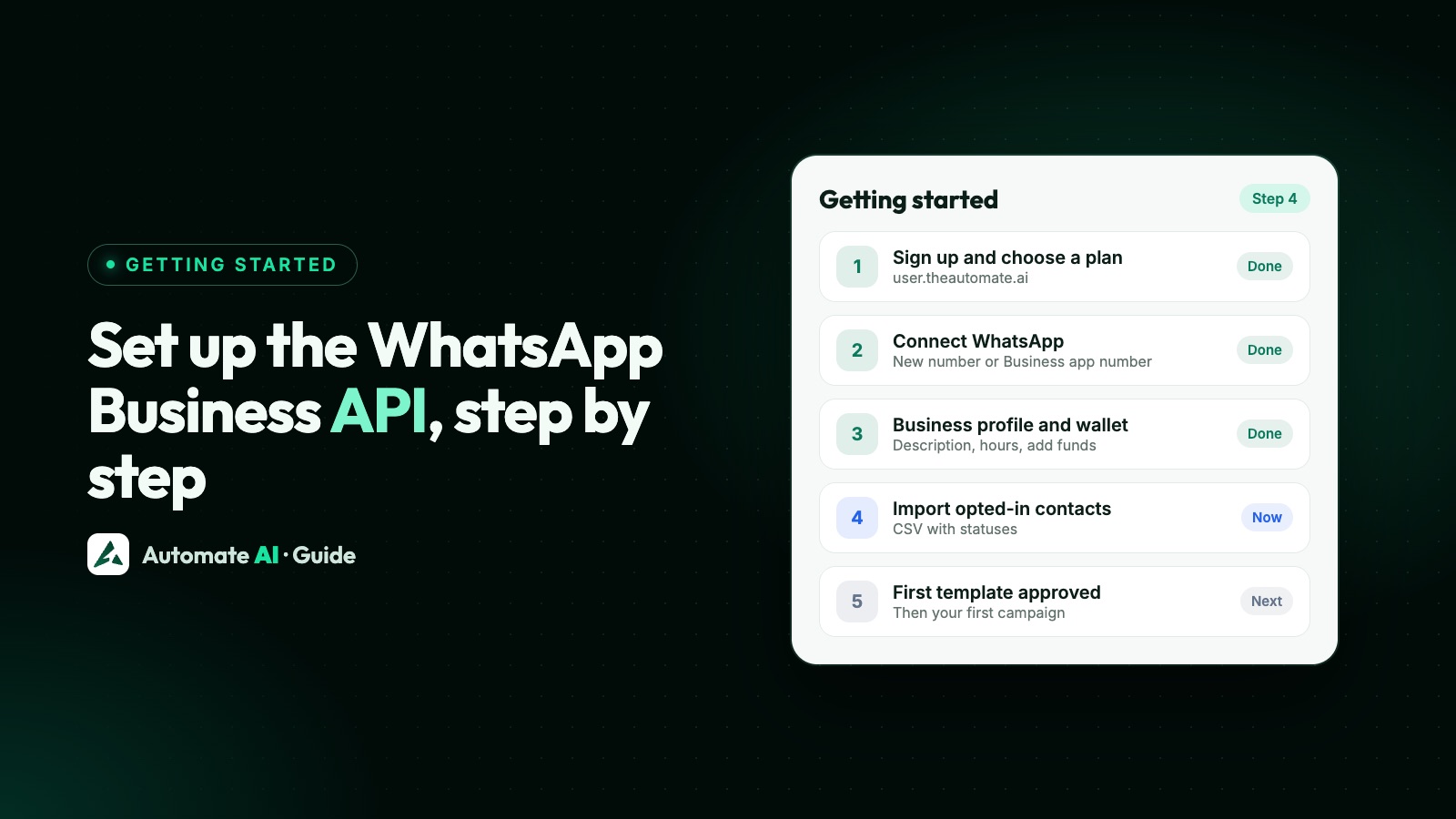
Setting up the WhatsApp Business API with Automate AI takes about ten steps, most of them a few minutes each: sign up, choose a plan, connect your number through Meta’s signup (a new number, or your existing WhatsApp Business app number with coexistence), then set up your profile, wallet, contacts and first template.
Meta’s template review usually takes minutes to a day, and business verification, which raises your limits, can take longer. This guide walks through the order we recommend, with links to the matching help articles on docs.theautomate.ai.
Key takeaways
- Before you start: a Facebook account, your business details, and a number you can verify by SMS or call.
- Keep your current WhatsApp Business app? Choose Use my Business app number to connect it with coexistence.
- Check Settings → WhatsApp for display name, messaging limit and quality rating once connected.
- Only message opted-in contacts, and get a template approved before your first campaign.
- Then switch on business hours, auto-replies, a chatbot or the AI Assistant, and invite your team.
Before you start
- A Facebook account that can manage your business on Meta (you’ll sign in during setup).
- Business details: legal name, address and website, for your profile and later for Meta business verification.
- A phone number: a new one that isn’t on WhatsApp, or your WhatsApp Business app number (app version 2.24.17 or later).
- A display name that matches your business; see display name rules.
Step 1 and 2: sign up and choose a plan
Sign up at user.theautomate.ai with your name, business name, category, email and phone number. Then pick a plan: Series 1 for marketing, or Series 2, 3 or 4 for everything including chatbots, AI and integrations. Your first plan purchase adds a free wallet credit for messages. Compare plans on the pricing page.
Step 3: connect your WhatsApp number
- Click Connect WhatsApp and choose Connect a new number or Use my Business app number.
- Sign in with Facebook and pick (or create) your business portfolio and WhatsApp account.
- Enter the number and verify it with the code sent by SMS or call, or confirm in the WhatsApp Business app if you chose coexistence.
- Choose your display name and finish.
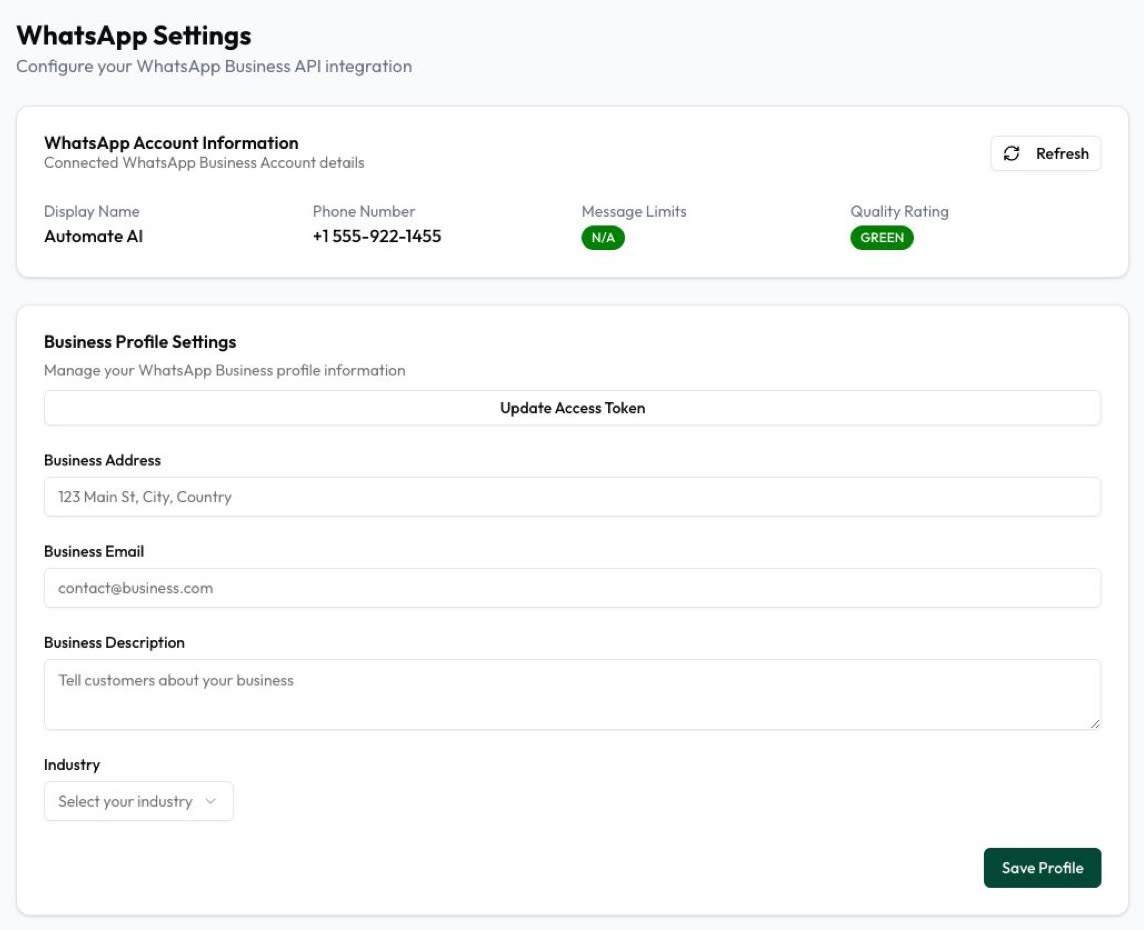
With coexistence, your contacts and up to 6 months of 1:1 chats sync and you keep using the app; see coexistence vs full migration. Afterwards, Settings → WhatsApp shows your display name, phone number, messaging limit and quality rating (help article).
Step 4 and 5: profile and wallet
- Business profile: in Settings, fill in your description, address, email, website and photo; see WhatsApp Business profile.
- Business hours: set them so an away message goes out when you’re closed (help).
- Wallet: messages are charged per delivered message from your wallet. Add funds by UPI, card or net banking, or switch on Auto Recharge (help).
Step 6: import contacts who opted in
Import a CSV or spreadsheet: columns are matched for you and you can set a status while importing (help). Add groups, tags and custom fields such as city. Only import people who agreed to hear from your business on WhatsApp; see WhatsApp opt-in. New leads can also arrive automatically from Facebook Lead Ads, IndiaMART, JustDial and website forms.
Step 7: create a template and get it approved
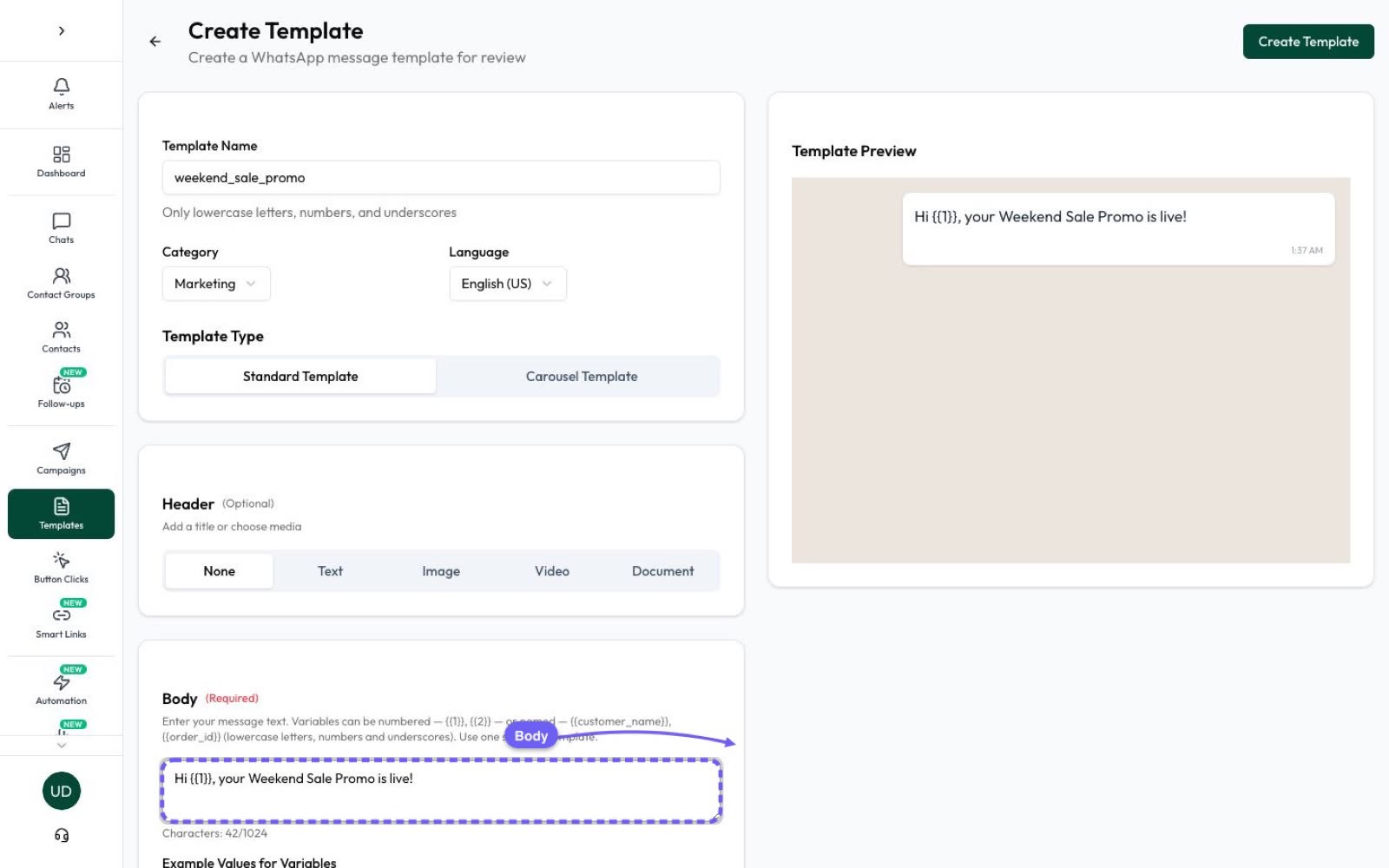
Messages you send first must be approved templates. In Templates → Create, choose the category (marketing, utility or authentication), write the text with variables such as the customer’s name, add a header image or buttons, and submit. Or use Generate with AI to draft one. Approval usually comes within minutes to a day. Writing tips in WhatsApp template messages (help).
Step 8: send your first campaign
In Campaigns → New, pick the approved template, choose recipients by group, tag or status, fill in variables, and send now or schedule it (help). Start with a small, engaged group: your messaging limit starts at 250 unique people a day and rises as you send good-quality messages. Then watch delivered, read and replies, and resend to anyone it missed.
Step 9 and 10: automation and your team
- Auto-replies for common keywords (help).
- A chatbot flow with buttons and lists for new chats (help).
- The AI Assistant, trained on your documents and website, with handover to a person (help).
- Your team: invite users as owner, manager or agent and switch on auto-assignment (help).
- AI Autopilot: describe a task, such as “set up my chatbot”, and watch it build it, waiting for your OK on important steps.
After the first week
- Apply for Meta business verification to raise your messaging limit and template allowance.
- Check your quality rating and remove templates people ignore or block.
- Connect your lead sources and, if you sell online, Shopify or the online store.
- Read the help centre for every feature, or message our team on WhatsApp.
Frequently asked questions
How long does it take to set up the WhatsApp Business API?
Connecting a number takes minutes once you’re signed up. Template approval usually takes minutes to a day, and Meta business verification, which raises limits, can take longer.
Can I use my existing WhatsApp Business number?
Yes. Choose “Use my Business app number” to connect it with coexistence; you keep the app and up to 6 months of chats sync.
Do I need a Facebook account to set up the WhatsApp Business API?
Yes. Meta’s signup uses your Facebook login to create or choose your business portfolio and WhatsApp account.
Can I send messages right after connecting?
You can reply to customers straight away. To message people first you need an approved template and contacts who opted in.
Where can I find step-by-step help?
Every feature has an article on docs.theautomate.ai, and our team can help on WhatsApp.
Sources
- Automate AI Help Center
- Meta: Embedded Signup overview
- Meta: Onboarding WhatsApp Business app users (coexistence)
- Meta: Messaging limits
- Meta: Templates overview
WhatsApp rules and prices change. We check these guides against Meta’s documentation, but always confirm current terms with Meta before you rely on them. Questions? Message us on WhatsApp at +91 836 977 8812.