What Is WhatsApp Embedded Signup?
WhatsApp Embedded Signup is the Meta window providers use to connect your number to the API. What you see, what it creates, coexistence and common errors.
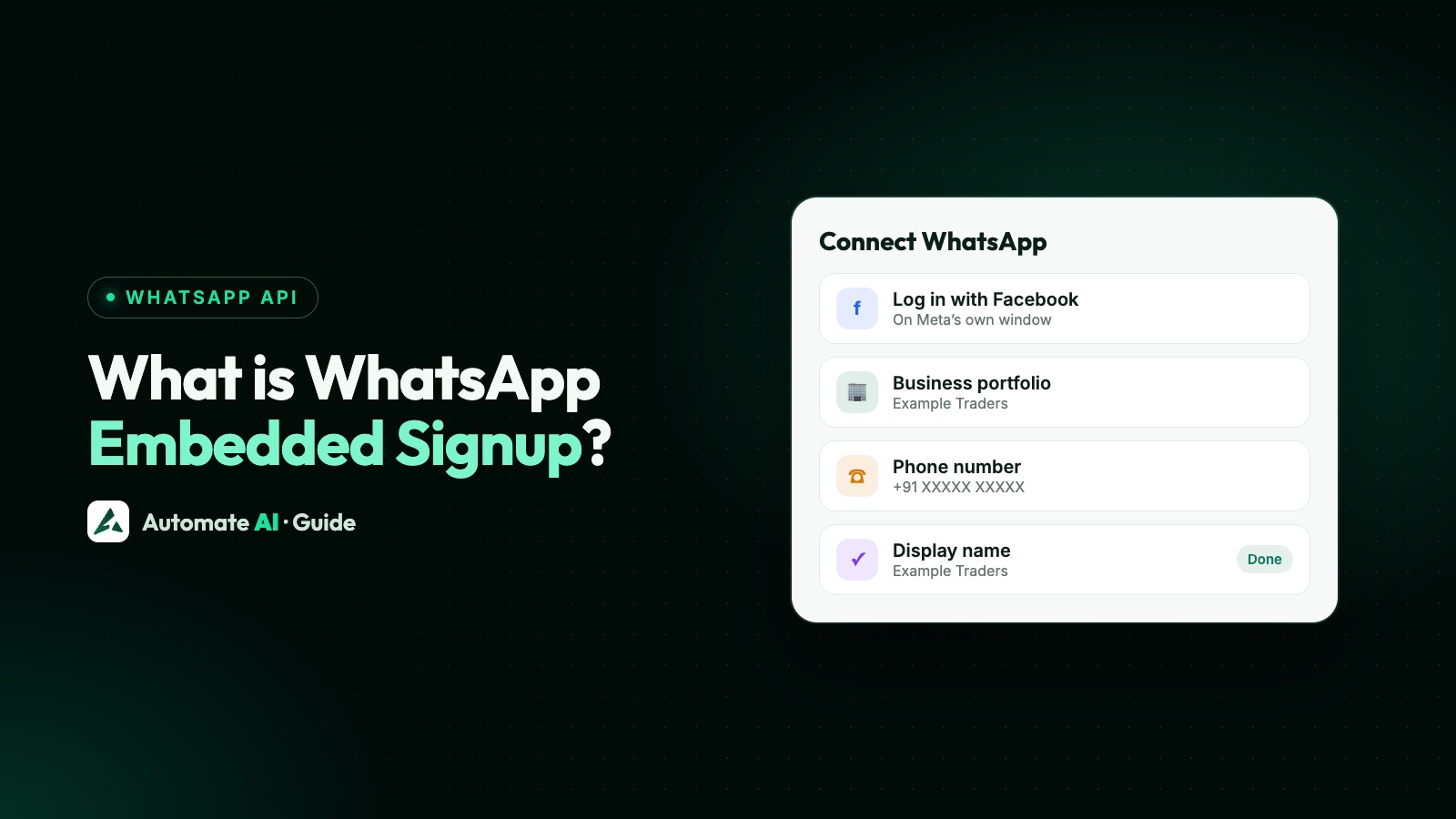
WhatsApp Embedded Signup is Meta’s own sign-up window that a WhatsApp API provider opens inside its website, so you can connect your business number to the WhatsApp Business Platform without leaving the provider’s app. You log in with Facebook, pick or create your business portfolio and WhatsApp account, verify a phone number, enter a display name, and the provider gets access to send and receive messages for you.
It usually takes a few minutes, and when it goes wrong the error message tells you a lot. This guide explains who uses it, each screen you’ll see, what gets created and shared, how it works with a WhatsApp Business app number, and how to fix the errors people hit most.
Key takeaways
- Embedded Signup runs on Meta’s pages, not the provider’s, so you sign in with your own Facebook login and the WhatsApp assets stay yours.
- You choose a business portfolio, a WhatsApp account, a phone number and a display name; the provider receives IDs and a token, not your password.
- A number already on WhatsApp is refused unless you delete it there first or choose the WhatsApp Business app route (coexistence).
- Most failures are fixable: admin access, a number already registered, too many code requests, or a display name that breaks Meta’s rules.
- In Automate AI, Connect WhatsApp opens Embedded Signup with two choices: Connect a new number or Use my app number.
What Embedded Signup is
Meta describes Embedded Signup as an authentication and authorisation interface, built on Facebook Login for Business and its JavaScript SDK, that works on desktop and mobile. Providers place a button on their site; when you click it, a Meta window opens on top of the page.
Everything you enter in that window goes to Meta. The provider never sees your Facebook password. When you finish, Meta hands the provider the IDs of your WhatsApp account and phone number, plus a code it exchanges on its server for a token to act on your behalf.
Who uses it: businesses and providers
The phrase means different things depending on which side you’re on:
| You are | What Embedded Signup means for you | What you need |
|---|---|---|
| A business connecting a number | A few screens to fill in when your provider asks you to connect WhatsApp | A Facebook login, admin access to your business portfolio and a number you can verify |
| A Tech Provider building it | Code that opens the window and finishes setup on your server | A Meta app with advanced access to the WhatsApp permissions after App Review |
| A Solution Partner building it | The same, plus sharing your credit line so you can bill the client for messages | A line of credit with Meta and a system user with the right role |
If you’re a business, you don’t need to build anything. Your provider has done the Meta app, App Review and webhook work. Your part is the window itself, so the rest of this guide is mostly for you, with a short section for developers further down.
What you see, step by step
Meta lists these steps for a new number. Labels can differ a little by version, but the order is the same:
- Log in with your Facebook or Meta business credentials.
- Accept the terms for the products you’re signing up for.
- Allow access: choose WhatsApp and let the provider’s app reach the assets you pick.
- Pick a business portfolio, or create one. Use the portfolio you’ll verify later, not a personal test one.
- Pick a WhatsApp account, or create one. Most first-time users create one here.
- Add and verify a phone number with a code sent by SMS or voice call.
- Enter a display name, the name customers see instead of your number. Follow the display name rules or it may be refused.
- Finish. The window closes and the provider completes setup.
Have these ready before you start: the Facebook login of a portfolio admin, your legal business name and website, the number with its SIM or line to hand, and the name you want to show. If you want Meta’s verification later, keep the business name the same as on your official documents; see Meta business verification.
What gets created and shared
Under Meta’s 2026 account model, a WhatsApp account holds one phone number and its profile, and a Messaging account holds templates, billing and webhooks. Here’s what the window touches:
| Asset | What happens | Who owns it |
|---|---|---|
| Business portfolio | Selected or created | You |
| WhatsApp account | Selected or created; holds the number and business profile | You |
| Messaging account | Created for the provider on a standard signup; converted from your app account with coexistence | You or the provider, depending on the setup; with coexistence it’s your converted account |
| Phone number | Added, verified and registered on the Cloud API | You |
| Display name | Entered by you; shown instead of the number | Tied to the number |
| Provider access | Permissions to manage the account and send messages | Granted by you, removable later |
Billing depends on the provider. A Solution Partner shares its credit line during signup and bills you itself; a Tech Provider’s customers add their own payment method in Meta. After signup, Meta’s account review runs in the background, which is why a new account can show as Pending for a while.
Connecting a WhatsApp Business app number (coexistence)
Embedded Signup has a second route for numbers already used on the WhatsApp Business app. Instead of deleting the app account, you connect it, and the app keeps working on the same number alongside the API. The provider starts this route for you; you then enter your number, confirm in the app with a code or by scanning a QR code, and choose whether to share chat history.
- It needs WhatsApp Business app version 2.24.17 or later, and the app must stay active on your phone.
- Meta lets you share up to six months of one-to-one chats with the provider at this step. What the provider does with them is up to the provider.
- Disconnecting happens from the app, under Settings › Account › Business Platform › Disconnect Account.
Requirements, limits and what changes in the app are in our WhatsApp coexistence guide. These coexistence facts come from that guide, which was checked on Meta’s pages.
Common errors and how to fix them
These messages come from Meta’s list of Embedded Signup errors. The fixes are Meta’s, in plain words:
| Message you see | What it means | Fix |
|---|---|---|
| This number is registered to an existing WhatsApp account | It’s on WhatsApp, the Business app or the API already | Deregister it there, or register a different number |
| This phone number already exists in your list of phone numbers | The number is already in that WhatsApp account | Restart and select the existing number |
| User does not have permission to create WhatsApp Business Accounts | You aren’t an admin of that portfolio | Get admin access, or pick a portfolio where you are one |
| You can only create a limited number of WhatsApp Business Accounts | An unverified business hit its cap | Complete business verification, or reuse an existing account |
| You’ve tried too many invalid verification codes / requested your code too many times | Too many attempts | Wait for the time shown, then verify again |
| Your verified name violates WhatsApp guidelines | The display name breaks Meta’s rules | Change it to follow the display name guidelines |
| Phone Number has been blocked | WhatsApp blocked the number | Check the alert in WhatsApp Manager or Business Support Home |
| Switching partners is not supported in this flow | An app number is already connected to another provider | Disconnect the current partner in the Business app first |
| You’ll need to enable two-factor authentication | The portfolio requires it | Turn on two-factor authentication in business settings |
For a vague “Something has gone wrong”, Meta suggests waiting a few minutes and trying again, and checking that your business profile name meets the display name guidelines. If a number’s status looks wrong after signup, see phone number status.
For developers: what happens after the window closes
If you’re a Tech Provider or Solution Partner building Embedded Signup, Meta’s overview sets out the work on your side:
- Capture the result. The window reports the WhatsApp account ID and phone number ID, and the login callback returns a code.
- Exchange the code on your server for a business token scoped to that customer.
- Register the number on the Cloud API (standard signup only; coexistence numbers are already registered).
- Subscribe your app to webhooks on the customer’s Messaging account.
- Share your credit line if you’re a Solution Partner.
By default you can onboard up to 10 new customers in a rolling 7-day window; Meta raises it to 200 once you complete business verification, App Review and access verification. Meta deprecated Embedded Signup v2 and v3 on 15 October 2026 and points providers to v4. Registration details, PINs and number limits are in phone numbers on the Cloud API.
Embedded Signup in Automate AI
In Automate AI you start from Connect WhatsApp, at the top of the dashboard or under Settings › WhatsApp. It shows two cards, and the screen says the Meta window takes about 2 minutes:
| Card | What it’s for | Button |
|---|---|---|
| New number | A number not on WhatsApp yet, or one you can move here | Connect a new number |
| WhatsApp Business App number | Keep using the app on your phone with the same number | Use my app number |
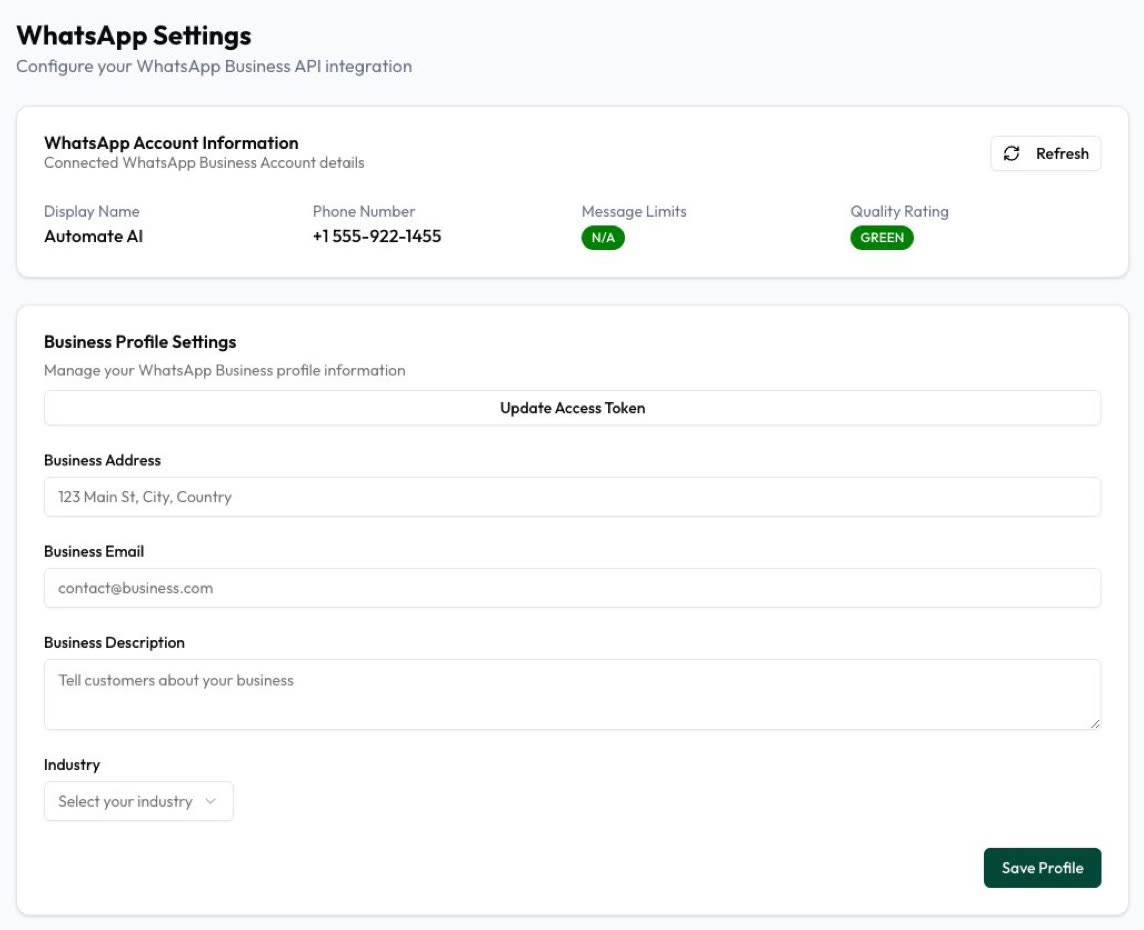
After you finish in Meta’s window, Automate AI swaps the code for a token, registers a new number on the Cloud API, and subscribes to your account’s webhooks, while showing “Setting up your WhatsApp connection”. Settings › WhatsApp then shows your display name, number, messaging limit and quality rating. Owners and managers can connect a number, and stuck users can open Get help setting up, which starts a support ticket.
With coexistence, new messages, including ones you send from the app, show in the inbox from the day you connect; past chats and app contacts aren’t imported. The full order of setup steps is in setting up the WhatsApp Business API with Automate AI.
Frequently asked questions
What is WhatsApp Embedded Signup?
A Meta login window that providers open inside their own app so a business can connect a number to the WhatsApp Business Platform. You choose your business portfolio, WhatsApp account, number and display name, and the provider gets access to message for you.
Is Embedded Signup safe?
It runs on Meta’s pages, so the provider never sees your Facebook password, and Meta says the assets you create belong to you. You can remove a provider’s access later in your business portfolio settings.
Can I use my existing WhatsApp number with Embedded Signup?
Yes, two ways. Delete it from WhatsApp first and connect it as a new number (its app history isn’t moved), or, if it’s on the WhatsApp Business app, use the coexistence route and keep the app.
Why does Embedded Signup say I don’t have permission?
You need admin access to the business portfolio you picked. Ask an admin to give you full control, or choose a portfolio where you are an admin.
Do I need a verified business to use Embedded Signup?
No. You can connect a number before verification. An unverified business has lower limits, including a cap on how many WhatsApp accounts it can create, and verification raises them.
How long does Embedded Signup take?
The window itself usually takes a few minutes. Automate AI’s screen says about 2 minutes. Meta’s account review and display name checks can run afterwards.
Sources
- Meta: Embedded Signup overview
- Meta: Embedded Signup errors
- Meta: Onboarding WhatsApp Business app users (coexistence)
- Meta: Account model evolution
- Meta: Phone numbers
- Meta Business Help: Remove partners from your business portfolio
WhatsApp rules and prices change. We check these guides against Meta’s documentation, but always confirm current terms with Meta before you rely on them. Questions? Message us on WhatsApp at +91 836 977 8812.