WhatsApp Limited-Time Offer Templates: How They Work
How WhatsApp limited-time offer templates work: countdown, offer code and expiry, Meta’s limits, where the offer doesn’t show, and sample messages.
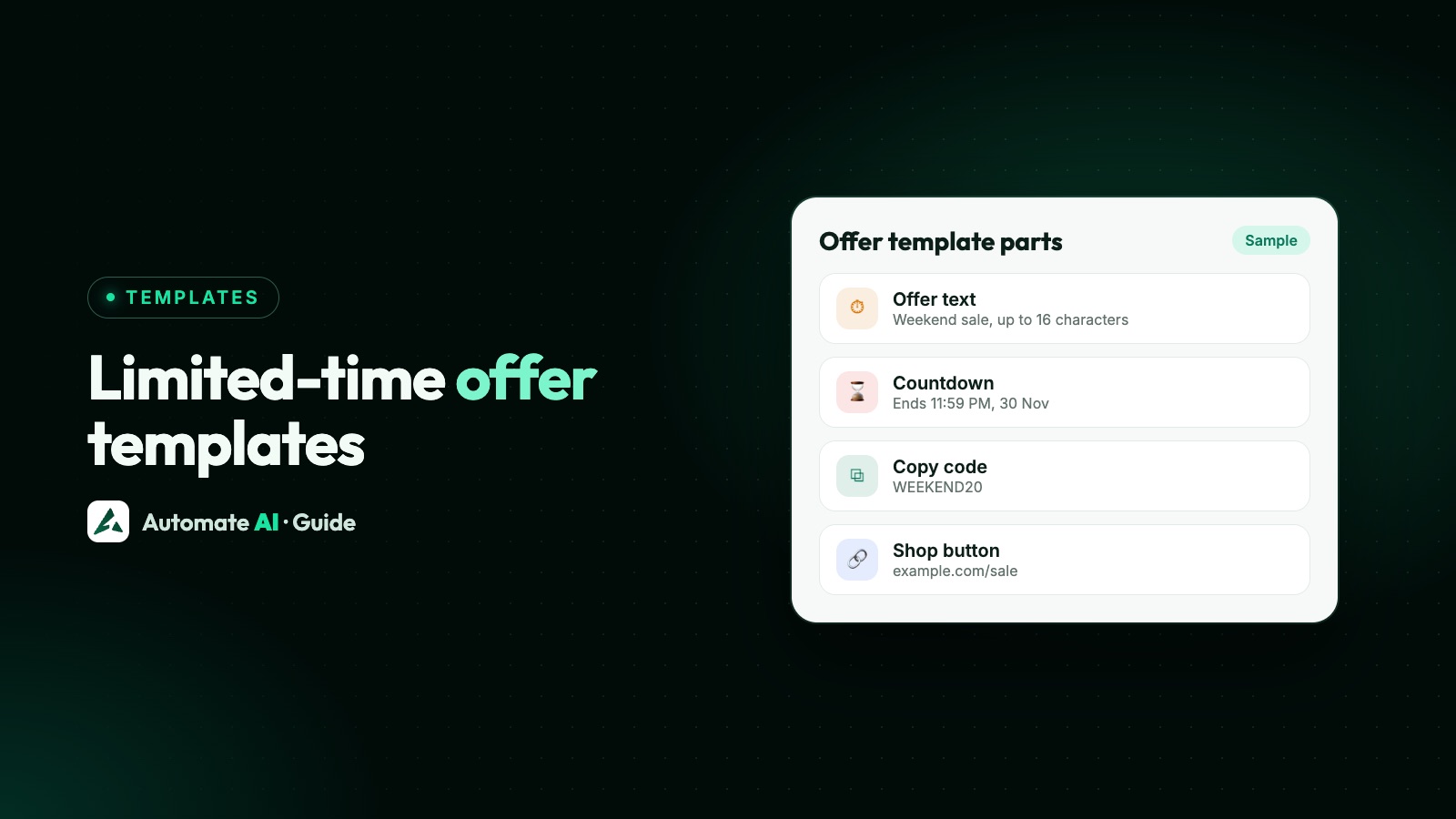
A WhatsApp limited-time offer template is a Marketing template that shows a short offer title, an expiry countdown and, usually, a button to copy your offer code. You set the expiry time each time you send it, and the timer turns red when the code has less than an hour left.
It’s one of Meta’s special marketing template types, with stricter rules than a normal template: no footer, only image or video headers, short limits on the offer text and code, and it doesn’t show on WhatsApp Web or desktop. This guide explains each part, how to build and send one, when it’s worth using, sample messages, and what to do in Automate AI, whose template builder doesn’t create this type.
Key takeaways
- A limited-time offer template is Marketing only, with a required offer title of up to 16 characters and a body of up to 600 characters.
- The expiry is set at send time as a Unix timestamp in milliseconds. The timer text can’t be changed, and it turns red in the last hour.
- Buttons are a copy code button (code up to 15 characters) and a URL button. Headers can be an image or video. Footers aren’t allowed.
- People on WhatsApp Web or desktop don’t see the offer, only a note that it isn’t supported there, so the body must make sense on its own.
- Automate AI’s template builder doesn’t create this type. Its Copy offer code button on a normal Marketing template does the main job.
What a limited-time offer template looks like
Picture a normal marketing message with an extra strip above the body: a short title such as “Weekend offer!” and, if you turn on expiry, a timer showing when the offer ends. Under the body sit a button that copies your code and a button that opens your shop. Meta lists it alongside coupon code, carousel and catalog templates as one of its marketing template types.
| Part | Required? | Meta’s limit |
|---|---|---|
Offer title (limited_time_offer text) | Yes | 16 characters |
Expiry timer (has_expiration) | Optional | Timer text can’t be customised |
| Header | Optional | Image or video only |
| Body | Yes | 600 characters, including variable examples |
| Copy code button | Optional | Code up to 15 characters |
| URL button | Optional | Label up to 25 characters, URL up to 2,000, one variable at the end |
| Footer | Not allowed | Not supported on this type |
Every variable in the body needs an example when you submit the template, just as with any other template. If you’re new to the parts of a template, start with our guide to WhatsApp template messages.
The rules and limits that catch people out
- Marketing category only. Meta supports this type only for Marketing templates, so it counts as a marketing message for pricing and opt-in.
- No footer. Many brands put “Reply STOP to opt out” in the footer. Here it has to go at the end of the body instead.
- Image or video header only. Text and document headers aren’t options for this type. When you create the template, the header sample is an asset handle from Meta’s Resumable Upload API.
- The expiry is set per send, not per template.
has_expirationon the template only turns the timer on. The actual end time goes in each message asexpiration_time_ms. - The timer is Meta’s wording, not yours. You can’t change its text. It turns red when the code expires within the next hour.
- Short codes. The offer code is limited to 15 characters, both in the example you submit and in the
coupon_codeyou send. - URL button position. When you send, the URL button is index
1if the template has a copy code button, and index0if it doesn’t.
Where the offer doesn’t display
Meta says people who open the message in the WhatsApp web or desktop app won’t see the offer. They see a note saying they received a message but the limited-time offer isn’t supported.
That matters more than it sounds. Office workers and many B2B buyers read WhatsApp on a laptop all day. Plan for it:
- Put the deadline in the body text too, such as “until 11:59 PM on Monday 30 November”, so nobody depends on the timer.
- Write the code in the body if it matters that desktop readers can use it, as well as on the copy button.
- Make the body complete on its own. If the offer strip vanished, would the message still make sense?
How to create and send one with the API
You can create the template in WhatsApp Manager or through the API, then send it through the Cloud API. These are the steps, with the field names from Meta’s documentation:
- Upload the header image or video with the Resumable Upload API and keep the asset handle it returns.
- Create the template with category
marketing, a language such asen, a header component (IMAGEorVIDEO), alimited_time_offercomponent withtextandhas_expiration: true, a body with examples, and abuttonscomponent with acopy_codebutton and aurlbutton. - Wait for approval. The create response returns a
PENDINGstatus, like any template. - Upload the header media to
/PHONE_NUMBER_ID/mediafor sending, and keep the media ID. Meta’s sending example uses an ID, not a link. - Send the message with the header, body parameters, a
limited_time_offerparameter withexpiration_time_ms, thecoupon_codeon button index 0 and the URL variable on index 1.
Here is the part of the components array that is unique to this type, with made-up example values. The timestamp is 11:59 PM India time on 30 November 2026:
{ "type": "limited_time_offer", "parameters": [ { "type": "limited_time_offer", "limited_time_offer": { "expiration_time_ms": 1796063340000 } } ] }
{ "type": "button", "sub_type": "copy_code", "index": 0, "parameters": [ { "type": "coupon_code", "coupon_code": "WEEKEND20" } ] }
The rest of the request (header, body variables, URL button) works as in any template. Our guide to sending a WhatsApp template message with the API shows the full request, and WhatsApp API error codes helps if Meta rejects it.
When to use a limited-time offer template, and when not to
The countdown is persuasive because it’s precise. That cuts both ways: it only works if the deadline is real and the same for everyone who receives it.
| Situation | Good fit? | Why |
|---|---|---|
| A sale that really ends at a set time | Yes | The timer matches what your shop does |
| A code that expires on a fixed date | Yes | The copy button and timer work together |
| Early access for a VIP list before a launch | Yes | A short, real window suits a timer |
| “While stocks last” with no end time | No | There’s no honest time to count down to |
| A permanent discount dressed up as urgent | No | It misleads customers and invites reports |
| Mostly desktop readers (B2B, office teams) | Think twice | They won’t see the offer strip |
| Order updates, receipts, reminders | No | Those are Utility; this type is Marketing only |
WhatsApp’s Business Messaging Policy says businesses must not mislead people. A countdown that resets, or an “ends tonight” offer that runs all week, is exactly what gets a template reported and its quality rating lowered.
Sample limited-time offer messages
These are our own samples with demo data. The offer titles fit in 16 characters and the codes in 15. Because footers aren’t allowed, the opt-out line goes at the end of the body.
Weekend sale (offer title: “Weekend offer!”)
Hi {{1}}, our weekend sale is on. Take 20% off everything in store and online until 11:59 PM on Sunday 29 November. Use code WEEKEND20 at checkout. Reply STOP to opt out
Buttons: [Copy offer code: WEEKEND20] [Shop now]
Course early-bird fee (offer title: “Early-bird fee”)
Hi {{1}}, the early-bird fee for our Example Academy spoken English batch ends on {{2}}. Enrol before then with code EARLY500 to save ₹500. Reply STOP to opt out
Buttons: [Copy offer code: EARLY500] [See the batch]
Restaurant offer (offer title: “Tonight only”)
Hi {{1}}, it’s quiet tonight at Example Kitchen, so dinner for two comes with a free dessert until 10 PM. Show code SWEET2 when you order. Reply STOP to opt out
Buttons: [Copy offer code: SWEET2] [See the menu]
Back in stock for a short time (offer title: “48-hour price”)
Hi {{1}}, the {{2}} you asked about is back, and for 48 hours it’s {{3}}. After that it returns to the usual price. Reply STOP to opt out
Buttons: [View product]
Want more starting points? Our WhatsApp template library has original marketing samples you can adapt.
Limited-time offers in Automate AI
Automate AI’s template builder doesn’t create limited-time offer templates, and the app has no field for the expiry time a send needs. If you make one in WhatsApp Manager, the template picker in chats leaves it out, and cart reminders refuse it.
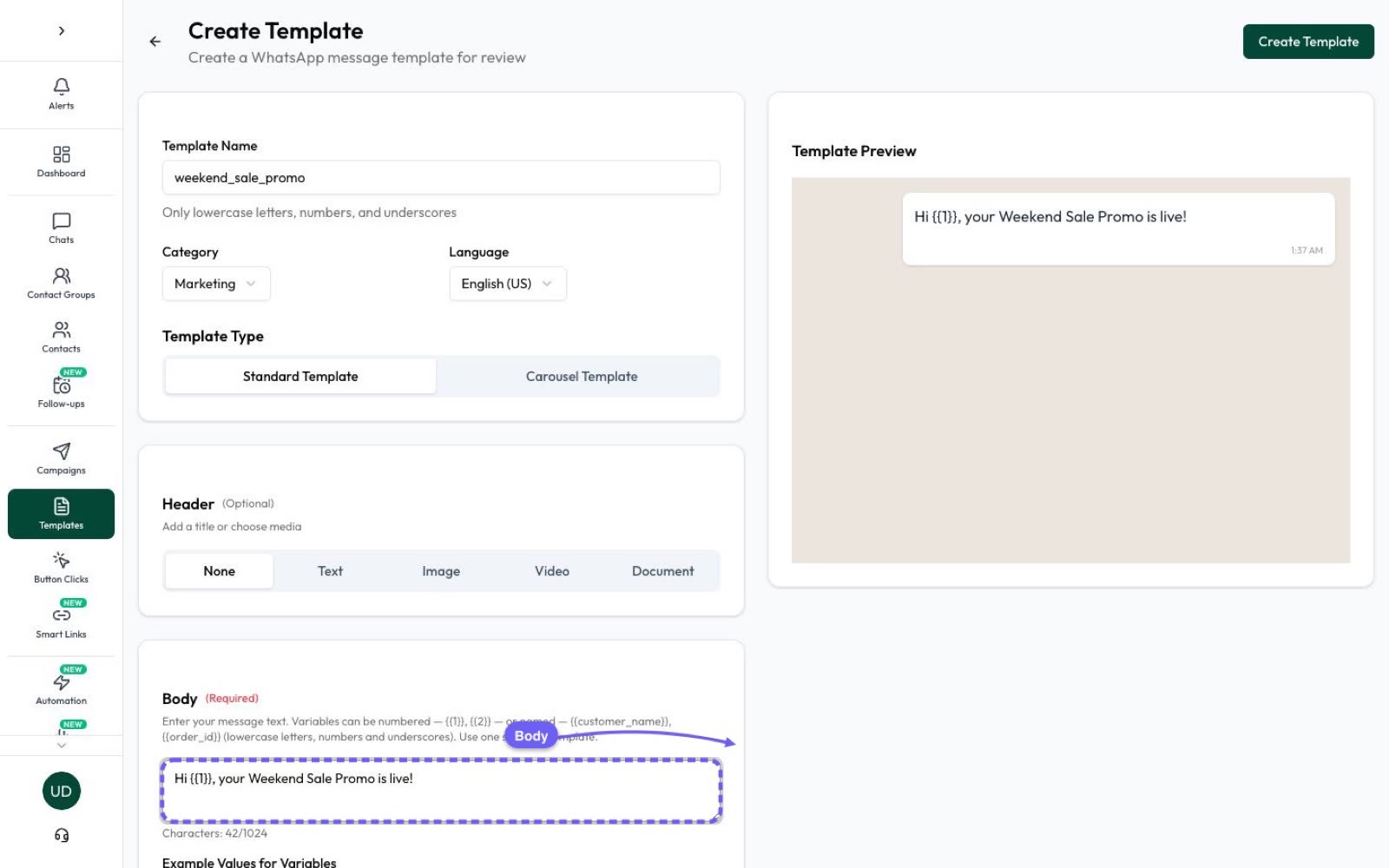
You can still run a deadline offer well with what the builder does support. Create a Marketing template in Templates › Create Template and give it:
- An image or video header for the offer.
- The deadline in the body, written out in full, which also means desktop readers see it.
- A Copy offer code button, so one tap copies your code.
- A website button to your shop or booking page.
- “Reply STOP to opt out” in the footer, since a normal template allows one.
Then send it as a campaign to an opted-in group, now or on a schedule. On Series 2, 3 and 4, AI Template Studio can draft versions of the template for you, including a copy code button when you give it a code.
Planning a big sale? Our Black Friday WhatsApp guide has a day-by-day countdown, more samples and tips on marketing message limits.
A checklist before you send
- The deadline is real and your checkout stops the code at that moment.
- The expiry timestamp is in milliseconds, in the future, and matches the time in the body.
- The offer title is 16 characters or fewer, and the code is 15 or fewer.
- The body works without the offer strip, for WhatsApp Web and desktop readers.
- The opt-out line is in the body, because there’s no footer.
- Everyone on the list opted in to marketing from your business. See WhatsApp opt-in.
- You tested it on your own phone and on WhatsApp Web before sending to the full list.
Frequently asked questions
What is a limited-time offer template on WhatsApp?
A Marketing template type from Meta that adds a short offer title and an optional expiry countdown above the body, usually with a button to copy an offer code and a button to a website.
Can I add a footer to a limited-time offer template?
No. Meta doesn’t support footers on this type, so put any opt-out line, such as “Reply STOP to opt out”, at the end of the body.
How do I set when the offer expires?
Turn on expiry with has_expiration when you create the template, then send expiration_time_ms, a Unix timestamp in milliseconds, in each message.
Why can’t some customers see the countdown?
The offer doesn’t display in the WhatsApp web or desktop app. People there see a note that the limited-time offer isn’t supported, so put the deadline in the body too.
How long can the offer code be?
Up to 15 characters. The offer title above the body can be up to 16 characters.
Can I use a limited-time offer template for order updates?
No. Meta supports this type only in the Marketing category. Order updates and reminders belong in Utility templates.
Does Automate AI support limited-time offer templates?
Not today. Its template builder doesn’t create them. Use a Marketing template with the deadline in the body and a Copy offer code button instead.
Sources
- Meta: Limited-time offer templates
- Meta: Marketing templates
- Meta: Template media
- Meta: Media (upload and media IDs)
- Meta: Send messages
- WhatsApp Business Messaging Policy
WhatsApp rules and prices change. We check these guides against Meta’s documentation, but always confirm current terms with Meta before you rely on them. Questions? Message us on WhatsApp at +91 836 977 8812.