How to Share a Contact Card on WhatsApp (App and API)
Share a contact card on WhatsApp from Android, iPhone or the web, and send one with the Cloud API: the contacts message, its fields, buttons and 24-hour rule.
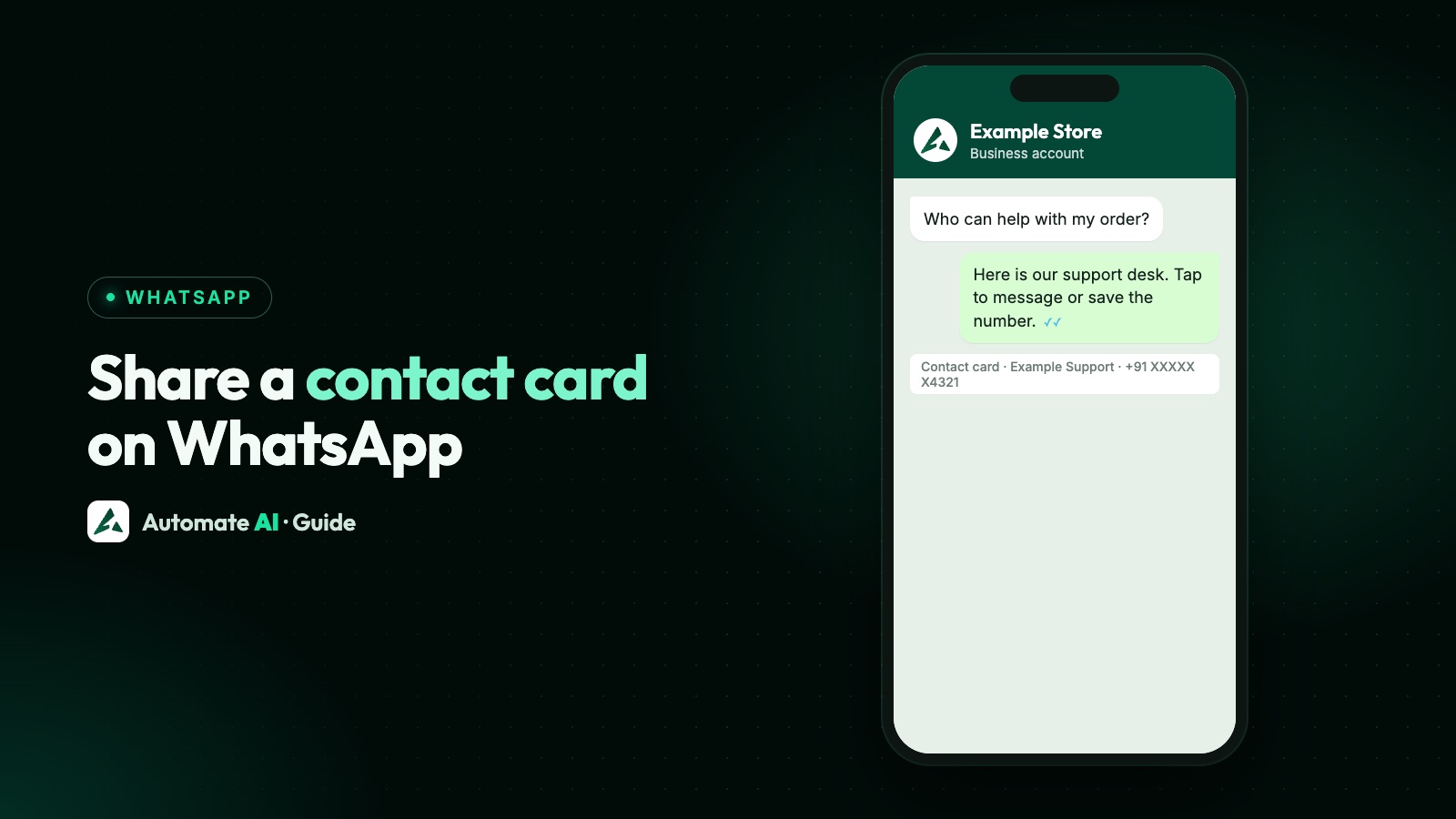
To share a contact card in the WhatsApp app, open the chat, tap the attach button, choose Contact, pick the person and send. On the WhatsApp Business Platform (API), the same thing is a contacts message: you send the name, numbers and other details as JSON, and the customer gets a card they can save or message straight away.
Businesses use contact cards to hand a customer over to the right person: a branch manager, a delivery partner, a sales rep or a support line. This guide covers the steps on Android, iPhone and WhatsApp Web, the API request and its fields, what the customer sees, how incoming cards reach your webhook, and the privacy points to check before you share anyone’s details.
Key takeaways
- In the app: attach › Contact. On iPhone you can untick details before sending; on Android and the web you share a contact from your phone’s address book.
- In the API:
type: "contacts"with acontactsarray. Onlyname.formatted_nameis required. - Add the person’s
wa_idand the card shows Message and Save contact buttons. Leave it out and it shows Invite to WhatsApp. - A contacts message is a service message, so it needs an open 24-hour window.
- Only share someone’s number with their agreement, and never put card, account or ID numbers on a card.
How to share a contact in the WhatsApp app
WhatsApp’s Help Center gives the steps for each device.
Android
- Open the individual or group chat.
- Tap the attach (paper clip) icon.
- Tap Contact and choose a contact saved in your phone’s address book.
- Tap the send icon, if prompted.
iPhone
- Make sure WhatsApp has permission to use your Contacts, in iPhone Settings › Privacy.
- Open the individual or group chat and tap the attach button.
- Tap Contact and choose the person.
- Tap Next. By default every detail saved for that contact is shared, so tap items on the Share Contacts screen to remove anything you don’t want to send.
- Tap Send, if prompted.
WhatsApp Web and desktop
- Open the chat and click the attach button.
- Click Contact and select contacts saved in your phone’s address book.
- Click send.
To pass a card on, forward it like any message: tap and hold it, tap the forward icon and pick a chat. If you didn’t create it, the forwarded card shows a “Forwarded” label.
Sharing your own business as a contact
A “business contact card” usually means one of two things: a card for your business number that customers can save, or a card for one of your people. Both work the same way. In the app, save the number in your address book with a clear name, such as “Example Store Support”, then share that contact.
If you just want people to start a chat with you, a contact card isn’t always the best tool. A click-to-chat link or QR code opens a chat in one tap and works on a website, a receipt or a shop counter. See WhatsApp links and QR codes, and make sure your business profile shows your hours, address and website, because that’s what people see when they open your chat.
Sending a contact card with the WhatsApp API
On the Cloud API a contact card is a contacts message. Send it to POST https://graph.facebook.com/<API_VERSION>/<PHONE_NUMBER_ID>/messages with a system or business access token. A short example with demo data:
{ "messaging_product": "whatsapp", "to": "<CUSTOMER_NUMBER>", "type": "contacts", "contacts": [ { "name": { "formatted_name": "Rahul Verma", "first_name": "Rahul", "last_name": "Verma" }, "org": { "company": "Example Store", "title": "Branch Manager, Andheri" }, "phones": [ { "phone": "+91 98XXX XXX01", "type": "Work", "wa_id": "9198XXXXXX01" } ], "urls": [ { "url": "https://example.com", "type": "Company" } ] } ] }
A successful call returns a wamid for the message, just like a text. Status webhooks (sent, delivered, read, failed) refer to that ID.
The fields you can send
| Object | Fields | Notes |
|---|---|---|
name | formatted_name, first_name, last_name, middle_name, prefix, suffix | formatted_name is required and shows on the card |
phones | phone, type, wa_id | wa_id decides which buttons appear |
emails | email, type | Such as Work or Personal |
org | company, department, title | Useful for a staff member’s card |
addresses | street, city, state, zip, country, country_code, type | country_code is the ISO two-letter code |
urls | url, type | Website, Facebook Page or Instagram |
birthday | A date in YYYY-MM-DD format | Rarely needed for a business card |
Meta allows up to 257 contacts in one message, but recommends sending fewer, for usability and to avoid negative feedback. In practice one card, or two at most, is plenty. Meta also warns that extra details such as addresses, birthdays and emails may not be supported on every recipient’s device, so put what matters most in the name and phone fields.
What the customer sees
The card shows the formatted_name with a profile arrow. Tapping the arrow opens the full details in a profile view. The buttons depend on whether you included a wa_id:
| You send | Buttons on the card | What they do |
|---|---|---|
A phone with wa_id | Message and Save contact | Message opens a new chat with that person; Save contact adds or updates them in the address book |
A phone without wa_id | Invite to WhatsApp | Invites the person to WhatsApp |
So for a staff member or branch who uses WhatsApp, always include their wa_id, or the customer gets an invite button for someone who’s already on WhatsApp.
The 24-hour rule for contact cards
Meta lists contacts messages among the service messages you can send while a customer service window is open. The window opens when the customer messages you and lasts 24 hours from their last message. Outside it, only approved templates go through. See the 24-hour window.
If you need to introduce someone to a customer who hasn’t written recently, send an approved utility template first, such as an order or appointment update, and share the card once they reply. A card sent in the window is a service message: free for the first 1,000 per number each month, then charged; see is the WhatsApp API free?
Receiving contact cards from customers
Customers share contacts with you too: a colleague who handles the order, a family member to deliver to, or the person who should get a quote. These arrive on your messages webhook with type: "contacts" and a contacts array using the same fields as above.
- Expect gaps. Meta says many properties may be missing if the person chose not to share them or their device prevents it. Don’t assume a phone number or email is there.
- Read
wa_idif it’s there. It tells you the shared number is on WhatsApp. - Watch for ads. A card sent from a Click-to-WhatsApp ad includes a
referralobject with the ad’s details.
A shared card isn’t consent to message that person. Someone who receives a card from a friend hasn’t opted in to hear from your business, so call or ask them to message you first, rather than sending them templates. See WhatsApp opt-in. The general webhook setup is in WhatsApp Cloud API webhooks.
Good uses, with sample messages
Send a short line of text with the card, so the customer knows why they’re getting it. Some samples with demo data:
| Use case | Message with the card |
|---|---|
| Hand over to a branch | “Hi Priya, Rahul at our Andheri branch will help with your fitting. Here’s his contact.” |
| Delivery partner | “Your order is out for delivery. This is today’s delivery partner, in case you need to guide him.” |
| Sales follow-up | “Thanks for your enquiry. Neha looks after bulk orders and will call you today. Her details are below.” |
| After-sales support | “For service on your purchase, save our support number below.” |
| Event or site visit | “Here’s the contact for our site manager, who’ll meet you at the gate at 11am.” |
Contact cards in Automate AI
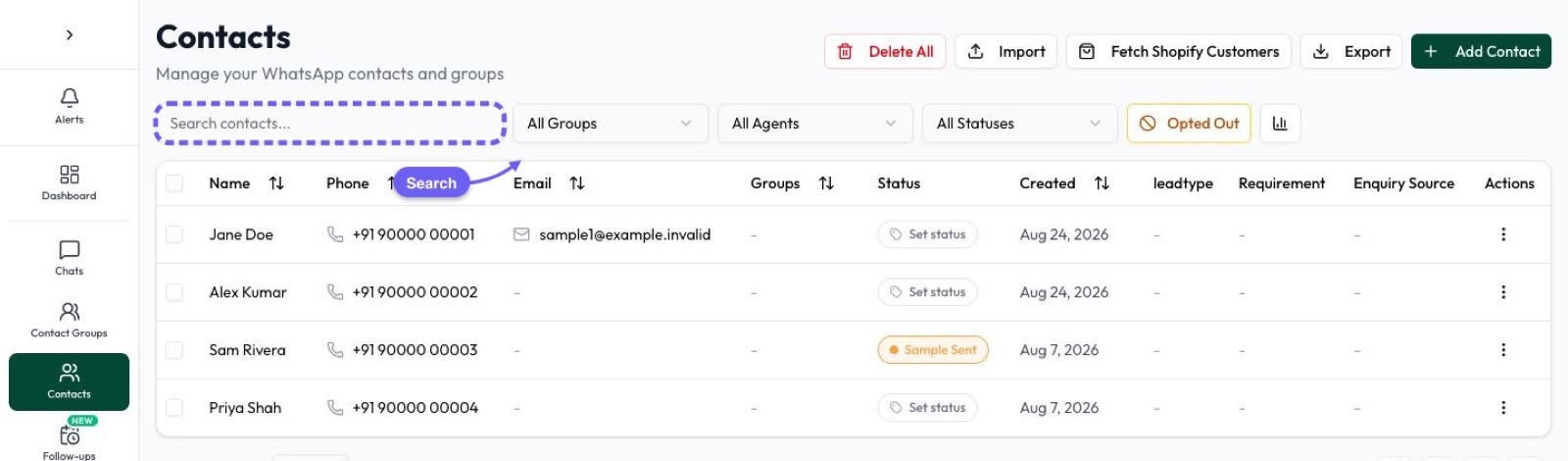
When a customer shares a contact with you, Automate AI’s shared team inbox shows it as a card in the chat, with the contact’s name and first phone number, and a “+1 more” style note when the card holds more numbers. If you want to keep the person, add them in Contacts with Add Contact.
The inbox doesn’t send contact cards. To hand a customer over to a colleague, type their name and number in a reply, or send their click-to-chat link. If the person should take the conversation over, a manager can reassign the chat to them in the inbox, which keeps everything on your business number, so the customer doesn’t have to start again.
Frequently asked questions
How do I send a contact card on WhatsApp?
Open the chat, tap the attach button (the paper clip on Android), tap Contact, choose the person and send. On iPhone, you can untick details on the Share Contacts screen first.
Can I choose which details are shared?
On iPhone, yes: WhatsApp shares every saved detail by default, and you can deselect items on the Share Contacts screen. With the API, you only send the fields you include.
How do I send a contact card with the WhatsApp Cloud API?
Send a message with type "contacts" and a contacts array. Each contact needs name.formatted_name; phones, emails, org, addresses, urls and birthday are optional.
Why does my contact card show Invite to WhatsApp?
Because the phone entry has no wa_id. Add the person’s WhatsApp ID and the card shows Message and Save contact buttons instead.
How many contacts can I send in one WhatsApp API message?
Up to 257, but Meta recommends sending fewer for usability and to avoid negative feedback.
Can I send a contact card outside the 24-hour window?
No. Contacts messages are service messages, so they need an open window. Send an approved template first and share the card after the customer replies.
Can I message someone whose contact a customer shared with me?
Not with marketing or other templates until they opt in to hear from your business. A shared card isn’t consent.
Sources
- WhatsApp Help Center: How to send media, contacts, or location (Android)
- WhatsApp Help Center: How to send media, contacts, or location (iPhone)
- WhatsApp Help Center: How to send media, contacts, or location (Web)
- Meta: Contacts messages
- Meta: Contacts messages webhook reference
- Meta: Send messages (customer service window)
- WhatsApp Business Messaging Policy
WhatsApp rules and prices change. We check these guides against Meta’s documentation, but always confirm current terms with Meta before you rely on them. Questions? Message us on WhatsApp at +91 836 977 8812.