How to Export WhatsApp Business Chats (App and API)
Export a WhatsApp Business chat on Android, iPhone or Web, with or without media, why the Cloud API has no chat history download, and how to keep records.
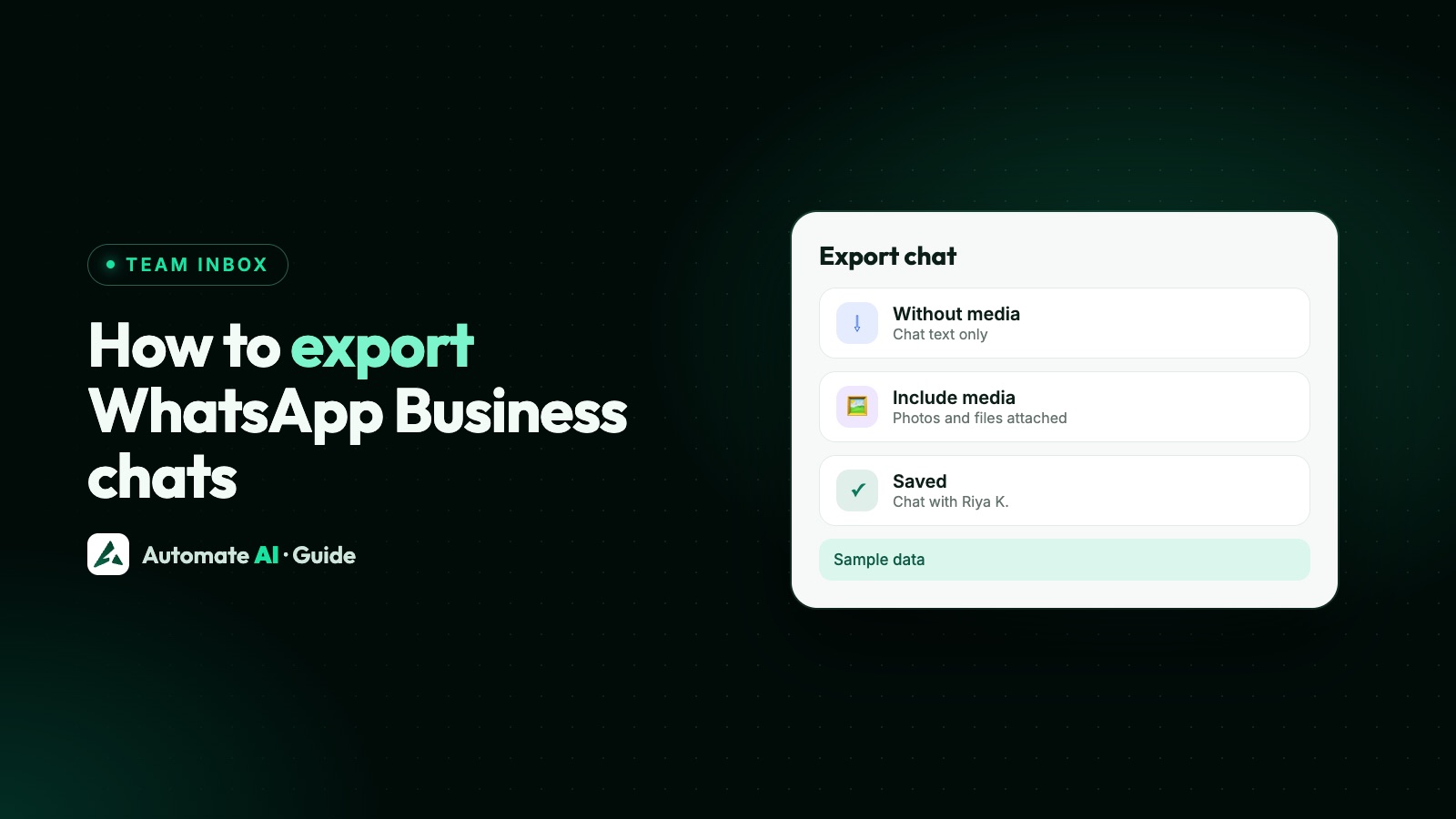
To export a chat in WhatsApp, open it, choose Export chat from the menu, decide whether to include media, and share the file to email, cloud storage or another app. You get the conversation as a text file, which you can read and keep but can’t load back into WhatsApp.
Export works one chat at a time, and the steps differ slightly on Android, iPhone and WhatsApp Web. If your number is on the WhatsApp Business API, there’s no export button at all, because the API doesn’t keep your history for you. This guide covers both, plus how to keep proper records of customer chats.
Key takeaways
- Export is per chat: Android and iPhone let you include media, WhatsApp Web exports text only but lets you pick a date range.
- An export is a text file, not a backup. WhatsApp says it can’t be re-imported.
- To move or restore all your chats, use backup, not export.
- The Cloud API has no chat history download. Messages reach your software by webhook, and Meta keeps message data for at most 30 days.
- Your API platform is your record. In Automate AI, chats stay in the inbox, files can be downloaded, and developers can read a chat’s messages through the REST API.
Export, backup or transfer: pick the right one
People often search for “export” when they really need one of the other two. Here’s the difference:
| Tool | What it does | Use it when |
|---|---|---|
| Export chat | Saves one chat as a text file, with media on phones if you want it | You need a copy to read, share or file away |
| Backup | Saves all chats to cloud storage so you can restore them | You’re protecting your history or setting up a new phone |
| Chat transfer | Moves all chats from an old phone to a new one | You’re changing phones (personal WhatsApp only) |
Moving to a new phone? WhatsApp says chat transfer isn’t available in the WhatsApp Business app, so backup is the route there. See how to move WhatsApp Business to a new phone.
How to export a chat on Android
WhatsApp’s Help Center gives these steps:
- Open the individual or group chat.
- Tap More options (the three dots) › More › Export chat.
- Choose Without media or Include media.
- Pick how to send it, such as Gmail, Quick Share or another chat app.
If you choose Include media, WhatsApp adds the most recent media as attachments, not necessarily every file in the chat. If you need a particular photo or document, save it separately as well.
How to export a chat on iPhone
- Open the individual or group chat.
- Tap the contact’s name or group name at the top › Export chat.
- If the chat has media, choose With all media, With selected media… or Without media.
- Pick where it goes, such as Messages, Save to Files or Notes.
On iPhone the export is a ZIP file. WhatsApp says view once messages aren’t exported.
How to export a chat on WhatsApp Web
WhatsApp Web can export too, which helps if you work from a computer:
- Open the individual or group chat.
- Open the chat menu and click Export chat.
- Select All messages or Custom date range.
- Click Export.
The file is a ZIP, and media isn’t included, unlike on a phone. View once and disappearing messages aren’t exported. The Help Center says the Windows desktop app doesn’t offer export, so use your phone or WhatsApp Web there.
What you get, and how to keep it useful
An export is plain text, plus media if you chose it. That’s fine for reading and filing, but awkward to search across many customers. A few habits help:
- Name files clearly, for example “2026-11 Priya Sharma order 1042”, so you can find them later.
- Store exports in one place, such as a shared drive folder with limited access.
- Export before you delete a chat or reset a phone, if you might need it.
- Save key files on their own. Invoices or signed documents are easier to find saved separately than inside a zip.
- Keep only what you need. Chats hold customers’ personal data, and data protection laws expect you to have a reason to keep it. See WhatsApp and GDPR. This isn’t legal advice.
Export isn’t built for regular record keeping. Doing it chat by chat, by hand, doesn’t scale past a handful of customers. If your team needs every conversation kept and searchable, that’s a job for the API and a shared inbox.
Can you get chat history from the WhatsApp Business API?
Not from Meta. The Cloud API doesn’t give you a store of past conversations to download. Instead, Meta sends each incoming message and each status update (sent, delivered, read) to your server as a webhook, and your software is expected to keep them.
| What Meta says | What it means for you |
|---|---|
| Messages have a maximum retention of 30 days, for things like retransmissions | Meta isn’t your archive. Save messages as they arrive |
| Media you send persists for 30 days; IDs for media customers send you expire after 7 days; download URLs last 5 minutes | Download files you want to keep soon after they arrive |
| Failed webhooks are retried for up to 7 days | If your server is down longer, those messages can be lost to you |
There’s one exception. When you connect a WhatsApp Business app number with coexistence, the business can choose to share up to six months of one-to-one chats with its provider, once, at onboarding. Automate AI doesn’t import these: its inbox starts on the day you connect, and your older chats stay in the app on your phone, where you can still export them as above. Messages sent from the phone app after you connect do show in the inbox. See WhatsApp coexistence.
For how webhooks work and what each one contains, see WhatsApp Cloud API webhooks.
Keeping chat records in Automate AI
When your number runs through Automate AI, the platform receives the webhooks and keeps each conversation in the shared inbox, so your team sees the full thread, with notes and who handled it. Automate AI doesn’t have a button that exports a whole chat as a file. Here’s what you can do instead:
- Download files from a chat. Open a photo, video or document in the chat and use Download.
- Read a chat’s messages with the API. The REST API has a Get messages request for a chat, which returns its history a page at a time (50 messages by default). It’s listed on the app’s Developer page and in the Postman collection, and you call it with your API key.
- Copy messages to your own system as they happen. Developer webhooks send events such as message received to a URL you choose, so your own database or CRM can keep a copy.
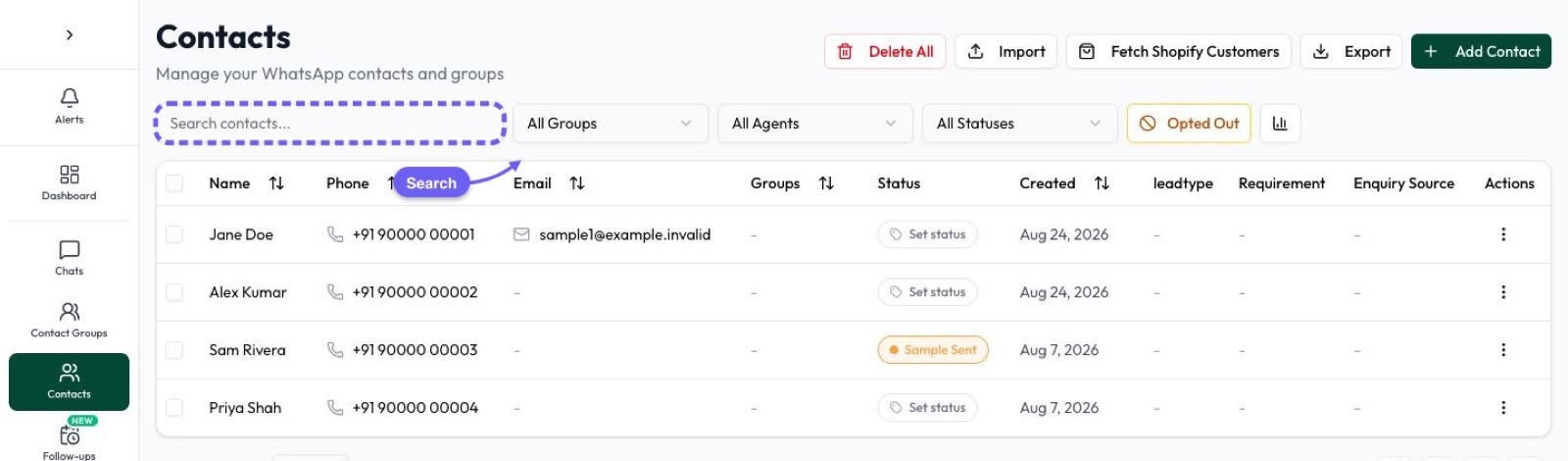
- Keep contacts outside the app. Contacts can be exported to Google Sheets on every plan, and Settings › Google Drive can save them to your Drive as a spreadsheet.
The REST API, SDKs and developer webhooks are included in the AI + Automation Plan and Series 4; see pricing. Owners who turn on Hide customer numbers for staff also stop those staff exporting contacts, which is worth doing if many people work in the inbox.
If what you really want is the gist of a long conversation rather than the full text, an AI summary is quicker. See WhatsApp AI chat summary.
Frequently asked questions
How do I export a WhatsApp Business chat?
Open the chat, choose Export chat from the menu (on iPhone, tap the contact’s name first), choose whether to include media, and share the file to email, Files or another app.
Can I export all my WhatsApp chats at once?
No. Export works one chat at a time. To save everything, turn on chat backup instead.
Can I import an exported chat back into WhatsApp?
No. WhatsApp says an export is a text file, not a backup file, so it can’t be re-imported. Use backup and restore to move chats.
Does WhatsApp Web include media in an export?
No. WhatsApp Web exports text only, as a ZIP file, but lets you pick all messages or a custom date range. Phones can include media.
Can I get chat history from the WhatsApp Business API?
Meta’s Cloud API doesn’t offer past conversations to download. Messages arrive by webhook and your platform stores them. Meta keeps message data for at most 30 days.
Will Automate AI show my old WhatsApp Business app chats?
No. Automate AI doesn’t import past chats, even with coexistence. The inbox starts on the day you connect, and older chats stay in the app on your phone.
Can I export a chat from Automate AI?
There’s no single export button. You can download files from a chat, and developers can read a chat’s messages page by page through the REST API.
Sources
- WhatsApp Help Center: How to export your chat history
- WhatsApp Help Center: How to back up your chat history
- Meta: WhatsApp webhooks
- Meta: Data Privacy & Security (Cloud API)
- Meta: Media
- Meta: Onboard WhatsApp Business app users (coexistence)
WhatsApp rules and prices change. We check these guides against Meta’s documentation, but always confirm current terms with Meta before you rely on them. Questions? Message us on WhatsApp at +91 836 977 8812.