How to Move WhatsApp Business to a New Phone Without Losing Chats
Move WhatsApp Business to a new phone: back up, restore with the same number, what to do when switching Android and iPhone, and what to check afterwards.
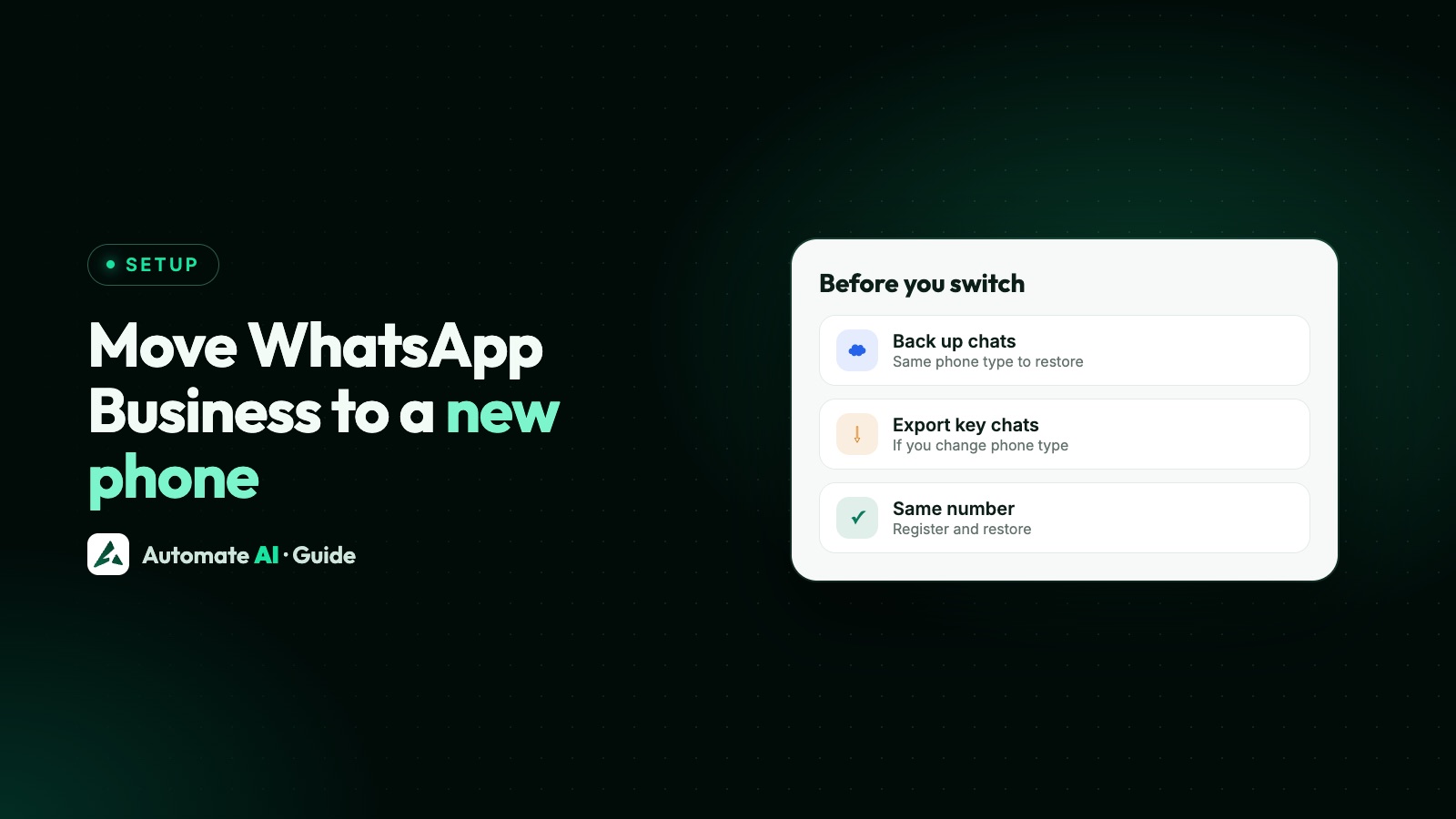
To move WhatsApp Business to a new phone of the same type, back up your chats on the old phone (Google Account on Android, iCloud on iPhone), install WhatsApp Business on the new phone, verify the same number and tap Restore. That’s the route WhatsApp supports for the Business app.
The quicker options you may have read about don’t apply here. WhatsApp says its phone-to-phone chat transfer, and moving chats between Android and iPhone, aren’t currently possible on the WhatsApp Business app. This guide walks through the backup route step by step, what to do if you’re switching platforms, and what to check once you’re set up.
Key takeaways
- For the Business app, backup and restore is the way to move chats. Chat transfer isn’t available.
- Moving between Android and iPhone can’t bring your Business app chats with you, and backups don’t restore across platforms.
- Use the same phone number. Restore only works on the number the backup was made with.
- Only your latest backup is kept, and one older than 120 days may not restore, so back up right before you switch.
- Don’t tap Skip at the restore screen, and keep the old phone untouched until everything is back.
- A WhatsApp API number isn’t tied to a phone, so a new handset changes nothing there.
Which route applies to you
Start by finding your situation. WhatsApp’s options are different for the Business app and for personal WhatsApp:
| Your move | WhatsApp Business app | What to do |
|---|---|---|
| Android to Android | Chat transfer not available; backup works | Back up to your Google Account, then restore |
| iPhone to iPhone | Chat transfer not available; backup works | Back up to iCloud, then restore |
| Android to iPhone | Not possible on the Business app | Export the chats you need, then start fresh |
| iPhone to Android | Not possible on the Business app | Export the chats you need, then start fresh |
| New phone and new number | History can’t move to a different number | Change your number on the old phone first |
| Number on the WhatsApp API | No phone involved | Nothing to move; see below |
WhatsApp is also testing WhatsApp cloud storage as a backup option alongside Google and iCloud. It says the feature may not be available to you yet, so the steps below use Google and iCloud.
Before you start: a short checklist
- Update WhatsApp Business on the old phone, and install the latest version on the new one.
- Have your SIM or number ready for the verification code on the new phone.
- Know your two-step verification PIN, if you set one. See WhatsApp two-step verification PIN.
- Check storage. Your cloud account needs room for the backup, and the new phone needs more free space than the backup’s size.
- Write down your setup. Make a note of your quick replies, labels, greeting and away messages and catalogue items, so you can check them afterwards.
- Plug both phones in and use Wi-Fi. Backups and restores can be large.
Android to Android: back up and restore
On the old phone
- Open WhatsApp Business and go to Settings › Chats › Chat backup.
- Under Google Account, choose the account to back up to, or tap Add account.
- Turn on Include videos in chats if you want videos back. WhatsApp only restores videos if this was on.
- Tap Back up and wait until it finishes. The screen shows the time and size of your last backup.
On the new phone
- Sign in to the same Google Account on the phone.
- Install WhatsApp Business and verify the same phone number.
- Tap Restore when prompted. Don’t tap Skip if you want your old chats.
- Keep WhatsApp open until your chats appear. Photos, videos and documents then restore in the background.
If you set up an end-to-end encrypted backup, you’ll need its password, passkey or 64-digit key. WhatsApp says it’s the only way into that backup.
iPhone to iPhone: back up and restore
On the old iPhone
- In iPhone Settings, tap your name › iCloud › iCloud Drive, turn on Sync this iPhone, and make sure WhatsApp is on under the apps syncing to iCloud Drive.
- Open WhatsApp Business and go to Settings › Chats › Chat backup.
- Turn Include videos in chats on or off, then tap Back up now and wait for it to finish.
On the new iPhone
- Sign in with the same Apple ID, and check iCloud Drive is on with WhatsApp allowed.
- Install WhatsApp Business, then verify your phone number and Apple ID.
- Tap Restore Chat History.
- Keep WhatsApp open until your chats appear. If you close it too soon, it may start restoring messages again.
- Let the media finish. If you tap Skip media restore, WhatsApp says you can’t restore that media later.
Switching between Android and iPhone
This is where the Business app differs most from personal WhatsApp. WhatsApp’s Help Center says moving chats from Android to iPhone, or from iPhone to Android, isn’t currently possible on the WhatsApp Business app. It also says backups made on Android can’t be restored on an iPhone, or the other way round.
So if you switch platform, you can still verify your number in WhatsApp Business on the new phone, but your chat history won’t come with it. Plan for that:
- Export the chats you need on the old phone, one at a time, with media if you want it. See how to export WhatsApp Business chats.
- Save important files separately, such as invoices, signed documents or photos customers sent.
- Keep the old phone for a while as a read-only record, without wiping it.
- Verify the number on the new phone and set up your profile and tools again.
After the move: what to check
Once chats are back, take ten minutes to check the parts of WhatsApp Business your customers notice. WhatsApp doesn’t spell out how each business tool behaves after a restore, so check rather than assume:
- Business profile: name, hours, address and website. See your WhatsApp Business profile.
- Catalogue: products, prices and photos. See WhatsApp catalogue.
- Labels on your chats. See WhatsApp Business labels.
- Quick replies, greeting and away messages. Compare them with your notes. See WhatsApp Business quick replies.
- Linked devices. WhatsApp lets you link up to four, such as WhatsApp Web on a shop computer. Open Linked devices on the new phone and link again any that are missing.
- Backups. Turn on automatic backups on the new phone, daily or weekly.
Linked devices stay connected only if you open WhatsApp on your main phone at least every 14 days, so keep using the new phone as your main one. Wipe the old phone only once you’re sure nothing is missing.
If your number uses coexistence with the API
With coexistence, the same number works in the WhatsApp Business app and on the Cloud API through a provider. Moving it to a new phone means verifying the number again there, and Meta lists re-registering on a new device as a reason it disconnects the number from the Cloud API. So plan to connect it again straight after the move:
- Don’t leave the main phone idle. If it’s inactive for about 14 days, Meta disconnects the number from the API. Move in one go rather than over weeks.
- Connect again right after the move, then send a test message from another phone and make sure it reaches your inbox.
In Automate AI, the inbox only holds messages from the day you connected; past app chats were never imported, so a phone change doesn’t affect what’s in the inbox. After the move, connect it again from Connect WhatsApp › WhatsApp Business App number › Use my app number. More in WhatsApp coexistence and coexistence not working.
If your number is on the WhatsApp Business API
An API-only number doesn’t live on a phone. Messages go through Meta’s Cloud API to your platform, so a new handset needs no transfer: sign in to your platform on the new device and carry on. In Automate AI that means logging in to the web app, or the installable web app on your phone, and your team inbox is exactly as you left it.
Changing the number itself is a different job. See can you change your WhatsApp API number?. If you’re still on the Business app and outgrowing one phone, WhatsApp Business app limitations covers when the API makes sense.
Frequently asked questions
Can I transfer WhatsApp Business chats to a new phone with a QR code?
No. WhatsApp says its chat transfer feature isn’t currently available on the WhatsApp Business app. Use backup and restore instead.
How do I move WhatsApp Business from Android to iPhone?
WhatsApp says moving Business app chats from Android to iPhone isn’t currently possible, and Android backups can’t be restored on an iPhone. Export the chats you need, then verify your number on the iPhone and start fresh.
Do I need the same phone number to restore WhatsApp Business?
Yes. The number used to restore must be the one the backup was made with. To change number too, use Change number on the old phone first.
Why can’t I restore my WhatsApp Business backup?
Common reasons are a different number or cloud account, a backup more than 120 days old, not enough free space on the new phone, or a missing password for an encrypted backup.
Will I lose chats if I tap Skip?
You may. If a new backup runs after you skip, it replaces the old one with only newer chats, and WhatsApp says the old history can’t be recovered.
Does a new phone affect my WhatsApp API number?
No. An API number isn’t installed on a phone. Sign in to your platform on the new device. Coexistence numbers are different: moving the Business app to a new phone disconnects the number from the API, so connect it again afterwards, and keep that phone active.
Sources
- WhatsApp Help Center: How to transfer your chat history
- WhatsApp Help Center: How to back up your chat history
- WhatsApp Help Center: How to restore your chat history
- WhatsApp Help Center: How to move chats from an Android device to an iPhone
- WhatsApp Help Center: How to move chats from an iPhone to an Android device
- WhatsApp Help Center: How to link a device
- Meta: Onboard WhatsApp Business app users (coexistence)
WhatsApp rules and prices change. We check these guides against Meta’s documentation, but always confirm current terms with Meta before you rely on them. Questions? Message us on WhatsApp at +91 836 977 8812.