How to Add WhatsApp to Your Facebook Page
Add a WhatsApp button to your Facebook Page: link it from the WhatsApp Business app or Page settings, connect an API number, fix a missing button, or remove it.
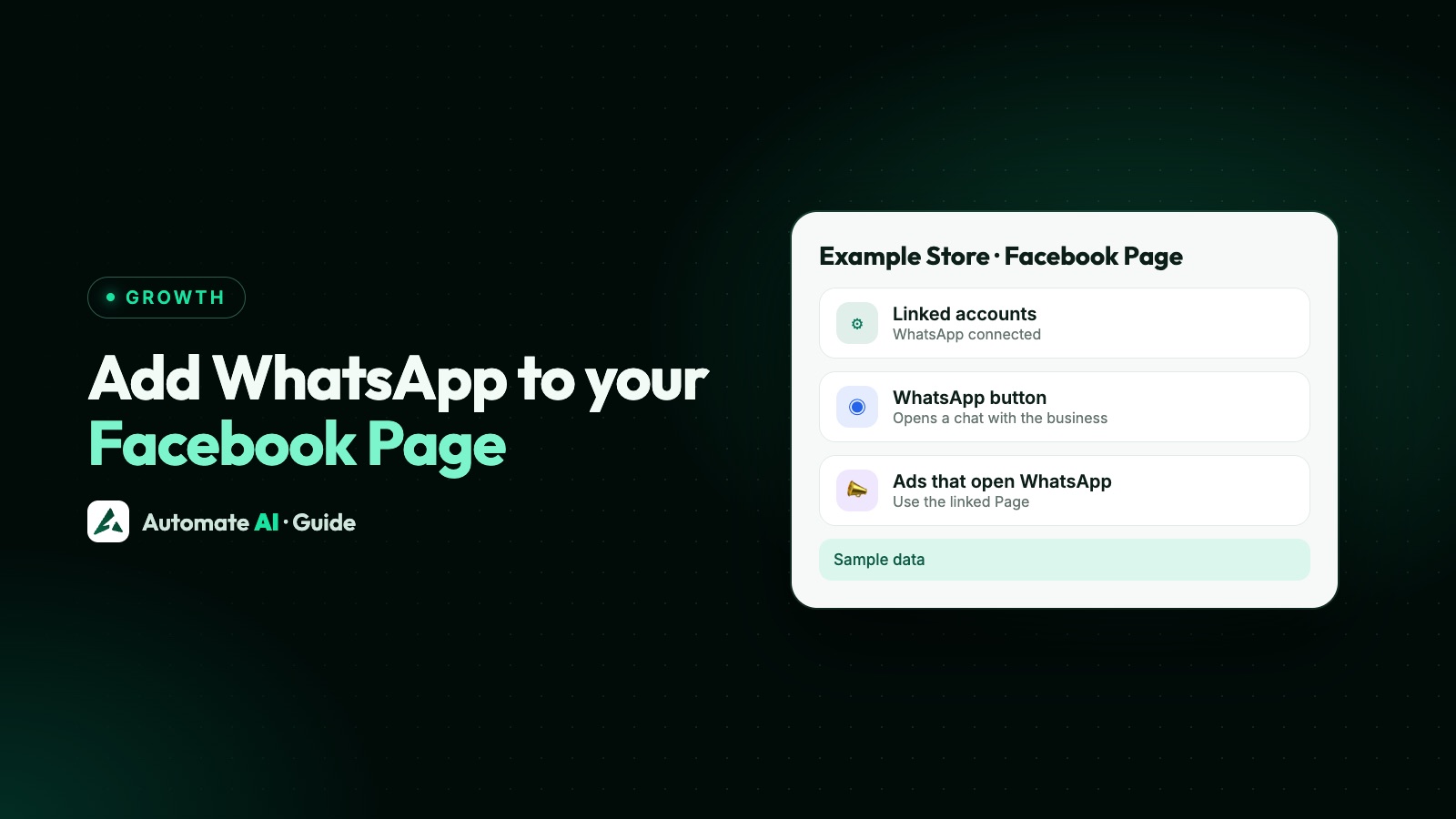
To add a WhatsApp button to your Facebook Page, link the Page to your WhatsApp Business number: in the WhatsApp Business app, open Tools › Facebook & Instagram › Facebook, log in and tap Connect WhatsApp, or on Facebook go to your Page’s Settings › Linked accounts › WhatsApp and confirm the code. WhatsApp says you’ll then see a WhatsApp button on your Page.
If your number runs on the WhatsApp Business Platform (API), the steps are slightly different: you request the connection, and the business that owns the number approves it. This guide covers all three ways, how to add or change the Page’s action button, why the button sometimes doesn’t show, and how to remove WhatsApp from your Page. Meta renames menus from time to time, so yours may look a little different.
Key takeaways
- You need a Facebook Page for your business, not a personal profile, and full Facebook access to it.
- Business app users link from Tools › Facebook & Instagram or from Page Settings › Linked accounts › WhatsApp.
- API numbers use the same Linked accounts screen, but it sends a request that the number’s owner approves.
- If no button shows, check the Page’s action button under Options, and whether the Page is already linked to another WhatsApp Business account.
- Removing WhatsApp from the Page pauses any ads that click to WhatsApp.
Which way should you use?
Meta gives three routes, and the right one depends on where your WhatsApp number lives:
| Your setup | Where you start | What happens |
|---|---|---|
| WhatsApp Business app on your phone | Tools › Facebook & Instagram in the app | You log in to Facebook, pick the Page and tap Connect WhatsApp |
| WhatsApp Business app, but you prefer a computer | Page Settings › Linked accounts › WhatsApp on Facebook | Facebook sends a code to your WhatsApp and you confirm it |
| WhatsApp Business Platform (API) number | Page Settings › Linked accounts › WhatsApp | A connection request goes to the business that owns the number for approval |
Not sure which you have? If you read and send messages in the WhatsApp Business app, it’s the app. If you use a platform such as Automate AI and the number no longer works in the app, it’s the API. With coexistence, the same number is on both. More on the difference in WhatsApp vs WhatsApp Business.
Before you start
Most failed links come down to one of these. Check them first:
- A business Page, not a profile. WhatsApp says it must be a business Page, not a personal profile or a professional-mode profile. Meta adds that you can’t find WhatsApp in a personal profile’s settings.
- Full access to the Page. You need to be an admin with Facebook access. If the Page sits in a Meta business portfolio (Business Manager), you must also be an admin there.
- One WhatsApp Business account per Page. WhatsApp says a Page can be linked to only one WhatsApp Business account at a time, and your WhatsApp Business account can’t already be linked to a different Page.
- Latest versions of the WhatsApp Business app and the Facebook app.
- The right number. Use the number registered on your WhatsApp Business account, because the code is sent there.
Link your Page from the WhatsApp Business app
This is the quickest way, from WhatsApp’s Help Center:
- Open the WhatsApp Business app and go to the Tools tab.
- Tap Facebook & Instagram.
- Tap Facebook, then Continue. Facebook’s login page opens.
- Enter your Facebook login details and tap Log In.
- Select the Page you want to link and tap Connect WhatsApp. If you don’t have a Page yet, you’ll be offered the option to create one.
- Go back to the WhatsApp Business app. Your linked Page now shows at the top of the Facebook & Instagram screen.
Then open your Page from another account or a logged-out browser to check that the WhatsApp button shows and opens the right chat. WhatsApp says you can choose to show or hide this contact option through your WhatsApp Business profile.
Linking does a little more than add the button. The last few posts from your Page may show on your WhatsApp Business profile (not in every region yet), and you can create ads from the WhatsApp Business app using the linked Page. On Android, turning off Show on profile for the Page hides its link and posts on your WhatsApp profile.
Link it from your Facebook Page settings
If you’d rather do it on a computer, Facebook’s and Meta’s Business Help Centres give these steps:
- Log in to Facebook and click your profile photo in the top right.
- Click See all profiles and select your Page.
- Click your Page’s profile picture in the top right.
- Click Settings and privacy, then Settings.
- In the left menu, under Permissions, click Linked accounts.
- Click WhatsApp.
- Choose your country code and enter your WhatsApp Business number.
- Click Send WhatsApp code, enter the code you receive on WhatsApp, and click Confirm.
Facebook notes that updates made on Facebook will appear on WhatsApp, and that people with task access to the Page can change its business contact details. Meta also lets you connect a number from Ads Manager while creating an ad: at the ad set level, find WhatsApp under Message destinations and click Connect account.
Connect a WhatsApp Business API number
Meta’s app steps say not to use them if your number is on the WhatsApp Business Platform. For an API number, Meta’s Business Help Centre gives a request-and-approve flow instead:
- Go to your Facebook Page and click Settings.
- In the left menu, under Permissions, click Linked accounts, then View next to WhatsApp.
- Choose your country code and enter your WhatsApp Business Platform number.
- Click Send WhatsApp code, enter the code and click Confirm.
- Approve the request. It goes to the business that owns the API number: someone with full control of that business portfolio approves it from the Requests tab in its settings.
Who approves depends on how the number was set up. Meta says the request goes to the end business for Embedded Signup accounts, and to the solution partner for accounts the partner owns on your behalf. Automate AI connects numbers through Embedded Signup (Connect WhatsApp in the app), so Meta sends the request to your own business. More in WhatsApp Embedded Signup.
Once it’s approved, the connected number shows in your Page’s settings, and Meta says you can add a button to your Page and create ads that open a WhatsApp chat. The number is shown to anyone who messages you through your ads’ button.
Add or change the WhatsApp action button
Your Page’s action button is managed from Options, below the cover photo. If linking didn’t put WhatsApp there, or you want to swap the button, the Facebook Help Centre’s steps are:
- Switch into your Page (profile photo › See all profiles › your Page) and open the Page.
- Click Options below the cover photo.
- Click Add action button, or Edit action button and then Change button if one is already set.
- Select a button (choose the WhatsApp option if it’s listed), then click Next.
- Follow the instructions on the screen.
- Click Save.
Facebook’s article doesn’t list every button type, and the list you see can vary, so if there’s no WhatsApp choice, link your number first using one of the sections above and try again. You need Facebook access to the Page; people with only task access manage the Page from tools such as Meta Business Suite.
Want a pre-typed first message, like “Hi, I found you on Facebook”? Put a wa.me link in a post or your Page’s website field. Our free WhatsApp link generator builds it with a QR code.
WhatsApp button not showing? Fixes
| What you see | Possible cause | What to do |
|---|---|---|
| No WhatsApp option in settings | You’re in a personal profile, not the Page | Switch into the Page through See all profiles, then open Settings |
| Linked, but no button on the Page | Another action button is set, or the contact option is hidden | Change the action button under Options, and check the contact option in your WhatsApp Business profile |
| “WhatsApp number is linked to another Facebook business” | The number is an asset of a different business portfolio | In Meta Business Suite, Settings › WhatsApp accounts, remove it from that portfolio (needs full control), then link again |
| “We could not connect your Facebook account” | Often a temporary server issue, says WhatsApp | Wait a few minutes and try again |
| Page won’t link from the app | Page already linked to another WhatsApp Business account, or you aren’t an admin | Unlink the other account, or ask a Page and business admin to do it |
| Still won’t link | Advertising restricted for a policy issue, a business limit reached, or the account can’t advertise | Contact Meta Business Support |
| API request stuck | Nobody has approved it | Ask someone with full control of the portfolio to check the Requests tab |
Also force-close and reopen the WhatsApp Business app, check you’re logged into the Facebook account that owns the Page, and update both apps. If your business portfolio itself is restricted, see Meta business portfolio restricted.
Remove WhatsApp from your Facebook Page
You can remove the link from either side, or just the button:
- From Facebook: switch into the Page, go to Settings and privacy › Settings › Linked accounts › WhatsApp, click Remove, then Remove again to confirm.
- From the WhatsApp Business app: Tools › Facebook & Instagram, tap your linked Page, then Remove WhatsApp › Remove.
- Only the button: on the Page, Options › Edit action button › Delete button › Confirm. The Page stays linked.
After someone taps the button
The tap opens a chat with your number, and nothing reaches you until the customer sends a message. On the WhatsApp Business Platform, that message opens a 24-hour customer service window in which you can reply freely. After it closes you need an approved template message. See the 24-hour window.
With your number connected to Automate AI, these chats land in the shared team inbox, where your team, a chatbot or the AI Assistant can reply. Facebook Messenger chats are separate and don’t appear there.
A Page button only reaches people who visit your Page. To reach people who don’t, Click-to-WhatsApp ads put a button on Facebook and Instagram ads that opens a chat. In Automate AI you create them under Meta Ads in the app’s menu on every plan: connect your ad account and Page, describe the offer, check the ad AI writes and publish. Meta bills the ad spend to your own ad account.
Someone who messages you about one product hasn’t agreed to regular offers. Ask before adding them to campaigns: see WhatsApp opt-in. Setting up Instagram as well? See how to add WhatsApp to your Instagram profile.
Frequently asked questions
How do I add a WhatsApp button to my Facebook Page?
Link the Page to your WhatsApp Business number, from Tools › Facebook & Instagram in the WhatsApp Business app or from Page Settings › Linked accounts › WhatsApp. If the button still doesn’t show, set it under Options › Add action button on the Page.
How do I link my WhatsApp Business account to my Facebook Page?
In the WhatsApp Business app, open Tools › Facebook & Instagram › Facebook › Continue, log in, choose the Page and tap Connect WhatsApp.
Can I add a WhatsApp Business API number to my Facebook Page?
Yes. Enter the number under Page Settings › Linked accounts › WhatsApp and confirm the code. It creates a request that someone with full control of the number’s business portfolio approves from the Requests tab.
Why is the WhatsApp button not showing on my Facebook Page?
Usually another action button is set, the contact option is hidden in your WhatsApp Business profile, or the link didn’t finish. Check Options › Edit action button on the Page and your linked accounts.
How do I remove WhatsApp from my Facebook Page?
Switch into the Page, go to Settings › Linked accounts › WhatsApp and click Remove twice. Any ads that click to WhatsApp are paused.
Can I link a personal WhatsApp account to my Facebook Page?
Meta’s steps are for WhatsApp Business numbers: the WhatsApp Business app or the Business Platform. With regular WhatsApp, share a wa.me link on your Page instead.
What does “WhatsApp number is linked to another Facebook business” mean?
The number is already an asset of a different business portfolio. Someone with full control of that portfolio must remove it in Meta Business Suite before you can link it.
Sources
- WhatsApp Help Center: How to add a WhatsApp Business account to a Facebook Page
- WhatsApp Help Center: About linking WhatsApp Business with Facebook and Instagram
- Facebook Help Centre: Connect your Facebook Page and WhatsApp account
- Facebook Help Centre: Add an action button to your Facebook Page
- Facebook Help Centre: Edit or delete your Page’s action button
- Meta Business Help Centre: How to connect or disconnect your Page and WhatsApp
- Meta Business Help Centre: Connect your Facebook Page to a WhatsApp Business platform number
- Meta Business Help Centre: Troubleshoot connecting your WhatsApp number to your Page
WhatsApp rules and prices change. We check these guides against Meta’s documentation, but always confirm current terms with Meta before you rely on them. Questions? Message us on WhatsApp at +91 836 977 8812.