Can the WhatsApp API Send Messages to Groups?
Yes, through Meta’s Groups API: up to 8 people per group, invite links only and an Official Business Account. Rules, pricing and when to use broadcasts instead.
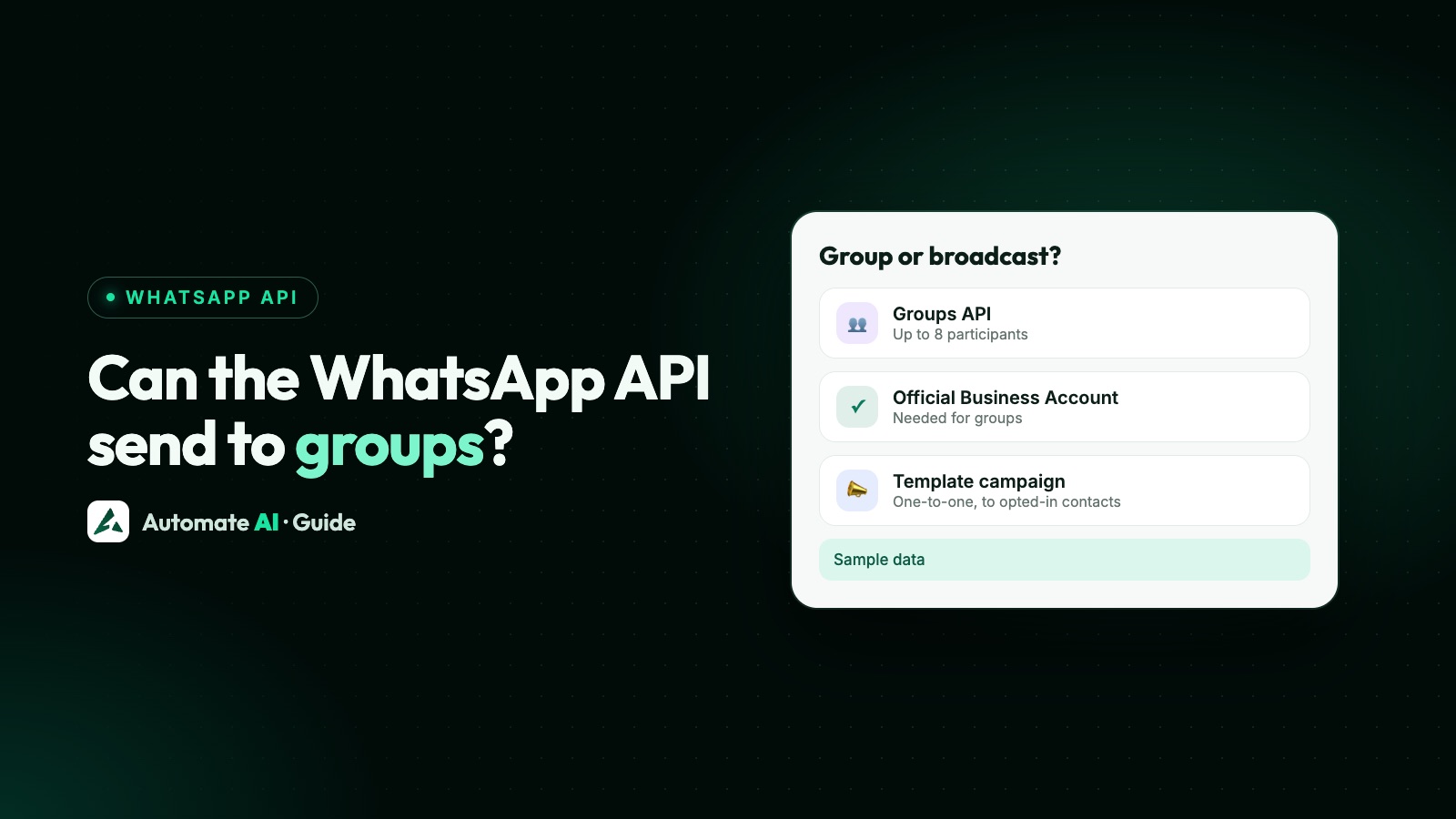
Yes, the WhatsApp Cloud API can send messages to a group, but only through Meta’s Groups API: your number creates the group, people join by invite link, and each group holds at most 8 participants. Your business also needs an Official Business Account, and numbers that also run the WhatsApp Business app can’t use it.
So the Groups API is for small, private conversations, such as a client and their account team, not for messaging hundreds of customers at once. This guide covers who can use it, how a group is created and messaged, what it costs, what isn’t supported, and what to use instead when you really want to reach a large audience.
Key takeaways
- Groups need an Official Business Account and a Cloud API number. Numbers onboarded from the WhatsApp Business app can’t use them.
- A group holds up to 8 participants, and people join by invite link. You can’t add anyone by phone number.
- You send to a group with
recipient_type: "group"and the group ID into. Text, media and text or media templates work; interactive messages don’t. - Billing is per delivered member: a marketing template that reaches 5 members is charged 5 times, at each member’s country rate.
- To reach many customers, send a broadcast campaign of approved templates to opted-in contacts, where each person gets a private 1:1 message.
The short answer: yes, with Meta’s Groups API
Until recently, the Cloud API could only message one person at a time. Meta’s Groups API changed that. It lets a business number create groups, share an invite link, and send and receive messages in those groups, all through the same Cloud API you already use.
What it doesn’t do is turn the API into a tool for posting into any group. Meta’s documentation describes groups that your business number creates through the API, with your number added automatically as the creator and admin, and at most one Cloud API business in each group. The docs describe no way to post into a group someone made in the consumer app.
| Question | Answer from Meta’s docs |
|---|---|
| Who can use it? | Businesses with an Official Business Account |
| Which numbers? | Cloud API numbers, not WhatsApp Business app numbers |
| How many people per group? | Up to 8 participants |
| How do people join? | Only through an invite link you send them |
| How many groups? | Up to 10,000 per business number |
| Which countries? | Every country where the Cloud API is available |
Who can use the Groups API
Meta lists a few requirements in its getting-started guide. Check them before you plan anything around groups:
- An Official Business Account. Meta says your business must be an OBA to qualify. See the WhatsApp verified badge for what that means and how to apply.
- A Cloud API number. Groups aren’t available for numbers onboarded from the WhatsApp Business app, so a number that uses coexistence can’t create groups. Numbers onboarded to Multi-solution Conversations are also excluded.
- Webhooks. Your app needs a Cloud API webhook server, subscribed to the four group webhook fields:
group_lifecycle_update,group_participants_update,group_settings_updateandgroup_status_update. - Permission. Your app needs the
whatsapp_business_messagingpermission for the number.
How a group is created and how people join
Every group starts on your side and is invite-only. Here’s the order Meta describes:
- Create the group with a
POSTto/<BUSINESS_PHONE_NUMBER_ID>/groups. Asubjectis required (up to 128 characters) and adescriptionis optional (up to 2,048 characters). - Wait for the webhook. A
group_lifecycle_updatewebhook arrives with the group’s invite link. Links always start withhttps://chat.whatsapp.com/. - Send the invite. Share the link in a 1:1 chat, or use Meta’s group invite utility template from the Template Library. Meta says to copy it without editing so it stays priced as utility.
- People choose to join. When someone joins, you get a
group_participants_updatewebhook. - Start messaging once at least one person has joined.
You can also make people ask first. Set join_approval_mode to approval_required and you can list, approve or reject each join request. If you leave it out, the default is auto_approve.
Managing the group
- Reset the invite link with a
POSTto/<GROUP_ID>/invite_link. Every earlier link stops working. - Remove participants, up to 8 per request. Removed people can’t rejoin through the invite link.
- Update settings such as the subject, description and picture. The picture must be a square JPEG of at least 192 × 192 pixels and no more than 5MB.
- Delete the group, which removes everyone, including your business.
Sending a message to a group
You use the normal send endpoint, POST /<BUSINESS_PHONE_NUMBER_ID>/messages. The only differences from a 1:1 message are two fields: recipient_type is "group" and to is the group ID, not a phone number. A text message looks like this:
{ "messaging_product": "whatsapp", "recipient_type": "group", "to": "<GROUP_ID>", "type": "text", "text": { "body": "Hi all, the revised quote is attached below." } }
Replies from members arrive on the usual messages webhook. Each message includes a group_id, and from tells you which participant wrote it. Delivered and read statuses from several members may arrive together in one webhook with several status objects, but Meta says that isn’t certain, so be ready for one webhook per member.
| Works in groups | Doesn’t work in groups |
|---|---|
| Text messages | Interactive messages (buttons, lists, Flows) |
| Media messages | Commerce messages |
| Text-based and media-based templates | Authentication templates |
| Pinning a message (admins, up to 3 at once, for 1 to 30 days) | View-once and disappearing messages |
| Marking group messages as read | Editing or deleting a sent message, or hiding the participant list |
If a member sends something the API doesn’t support, it arrives with type: "unsupported" and error code 130501. Meta also notes that performance metrics aren’t available for templates used in groups, and suggests making separate templates for groups rather than reusing your 1:1 ones.
Groups API pricing
Groups use the same per-message pricing as 1:1 chats, at the same rates, with one big difference: you’re charged for each member a billable message is delivered to. Meta’s example: a marketing template delivered to all 5 members of a group is 5 billable messages, each at the marketing rate for that member’s country calling code. If it reaches only 4, you pay for 4.
| What you send | Billing category | Charged? |
|---|---|---|
| Marketing template | group_marketing | Yes, per delivered member |
| Utility template | group_utility | Yes, per delivered member, even inside an open window (since 1 October 2026) |
| Non-template message in an open window | group_service | Free while the number is within its free tier, charged after that |
The free tier is the same 1,000 service messages a number gets for 1:1 chats, and groups share it. Each group send uses one unit per delivered member, so one reply to a group of 8 can use 8 units. Meta also says group utility messages aren’t eligible for volume tiers.
The customer service window works differently too. When any member messages the group, a window opens (or refreshes) between you and the whole group. The usual window rules otherwise apply; see the 24-hour window. For the per-country rates themselves, see WhatsApp API pricing.
When a group makes sense, and when it doesn’t
Eight people is a small room. That makes groups a good fit for a handful of people who need to talk to each other and to you, and a poor fit for anything that looks like marketing:
| Situation | Better choice | Why |
|---|---|---|
| A client, their manager and your account lead | Groups API | Everyone sees the same thread |
| A small project or event committee | Groups API | Few people, shared decisions |
| Offers to all your customers | Broadcast campaign | No 8-person cap, and each message is private |
| Order or appointment updates | 1:1 utility templates | Personal details stay between you and the customer |
| Updates for a large following | A WhatsApp Channel | One-way, and followers can’t see each other |
Remember that group members can see each other in the group, and Meta doesn’t support hiding the participant list. Only invite people who expect to be in a group together, and never use a group to send someone’s personal details. More on the consumer options in WhatsApp Channels vs Communities.
Reaching a large audience: broadcast campaigns
When people search for sending a WhatsApp API message “to a group”, they usually mean sending one message to many customers. On the API that’s a broadcast: an approved template sent separately to each opted-in contact. Nobody sees anyone else’s number, each person can reply to you privately, and replies land in your inbox as 1:1 chats.
- Collect opt-in that names your business. See WhatsApp opt-in.
- Get a template approved, marketing for offers or utility for updates.
- Pick the audience from your contact list.
- Send now or schedule it, within your number’s messaging limit.
- Watch the results and answer replies.
A sample marketing template for a small business, with demo data:
“Hi {{1}}, our new term timetable is out. Batches start Monday 9 November at our Andheri centre. Tap below to see the times. Reply STOP to opt out.” [See timetable]
Bulk sending has its own rules on limits and quality; our guide to WhatsApp broadcast limits covers them.
Broadcasts in Automate AI
In Automate AI, broadcasts are Campaigns. You send an approved template, with images, video, buttons or a carousel, now or on a schedule, and see sent, delivered, read and button clicks live. See WhatsApp marketing campaigns.
When you choose the audience, you can send to all contacts or whole contact groups, pick a ready-made audience in one click, or tick several groups, statuses and countries. A contact group in Automate AI is a list you keep for organising contacts, such as “Mumbai leads”. It isn’t a WhatsApp group: everyone in it gets their own 1:1 message, and nobody sees who else received it.
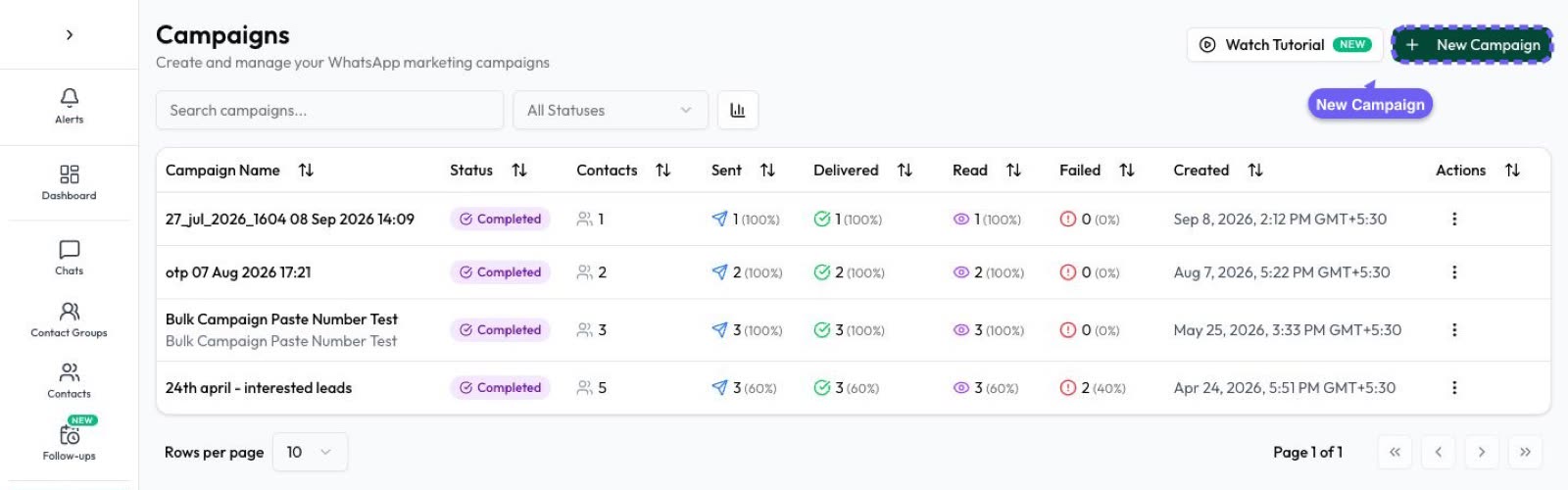
Replies come into the shared team inbox, where chats can be assigned to the right person, and an opt-out keyword such as STOP opts a contact out automatically.
Frequently asked questions
Can the WhatsApp API send messages to a group?
Yes, through Meta’s Groups API. Your business number creates the group, people join through an invite link, and you send messages with recipient_type "group" and the group ID.
How many people can be in a WhatsApp API group?
Up to 8 participants per group. A business number can have up to 10,000 groups.
Can I add customers to a WhatsApp API group by phone number?
No. Groups are invite-only. You send an invite link, in a 1:1 chat or with Meta’s group invite template, and each person decides whether to join.
Can I post to an existing WhatsApp group with the API?
Meta’s documentation describes only groups that your business number creates through the Groups API, where your number is the admin. It describes no way to post into a group made in the WhatsApp app.
How much does it cost to message a WhatsApp group through the API?
You pay per member a billable message is delivered to, at the same rates as 1:1 messages. A marketing template that reaches 5 members counts as 5 messages. Non-template replies in an open window are free within the 1,000-message free tier, with one unit used per delivered member.
Can I use the Groups API with a WhatsApp Business app number?
No. Meta says groups aren’t available for WhatsApp Business app phone numbers, so a coexistence number can’t create them.
How do I send one WhatsApp message to many customers?
Send a broadcast: an approved template sent 1:1 to each opted-in contact. There’s no 8-person cap, and nobody sees who else received it.
Sources
- Meta: Groups API overview
- Meta: Get started with the Groups API
- Meta: Group management reference
- Meta: Group messaging
- Meta: Groups API pricing
- Meta: Groups API FAQ
- Meta: Send messages (customer service window)
WhatsApp rules and prices change. We check these guides against Meta’s documentation, but always confirm current terms with Meta before you rely on them. Questions? Message us on WhatsApp at +91 836 977 8812.