WhatsApp Business Labels: How to Use Them, and Their Limits
How to create and use labels in the WhatsApp Business app, the 20-label limit, why labels seem to vanish now they’re lists, and how a team does it on the API.
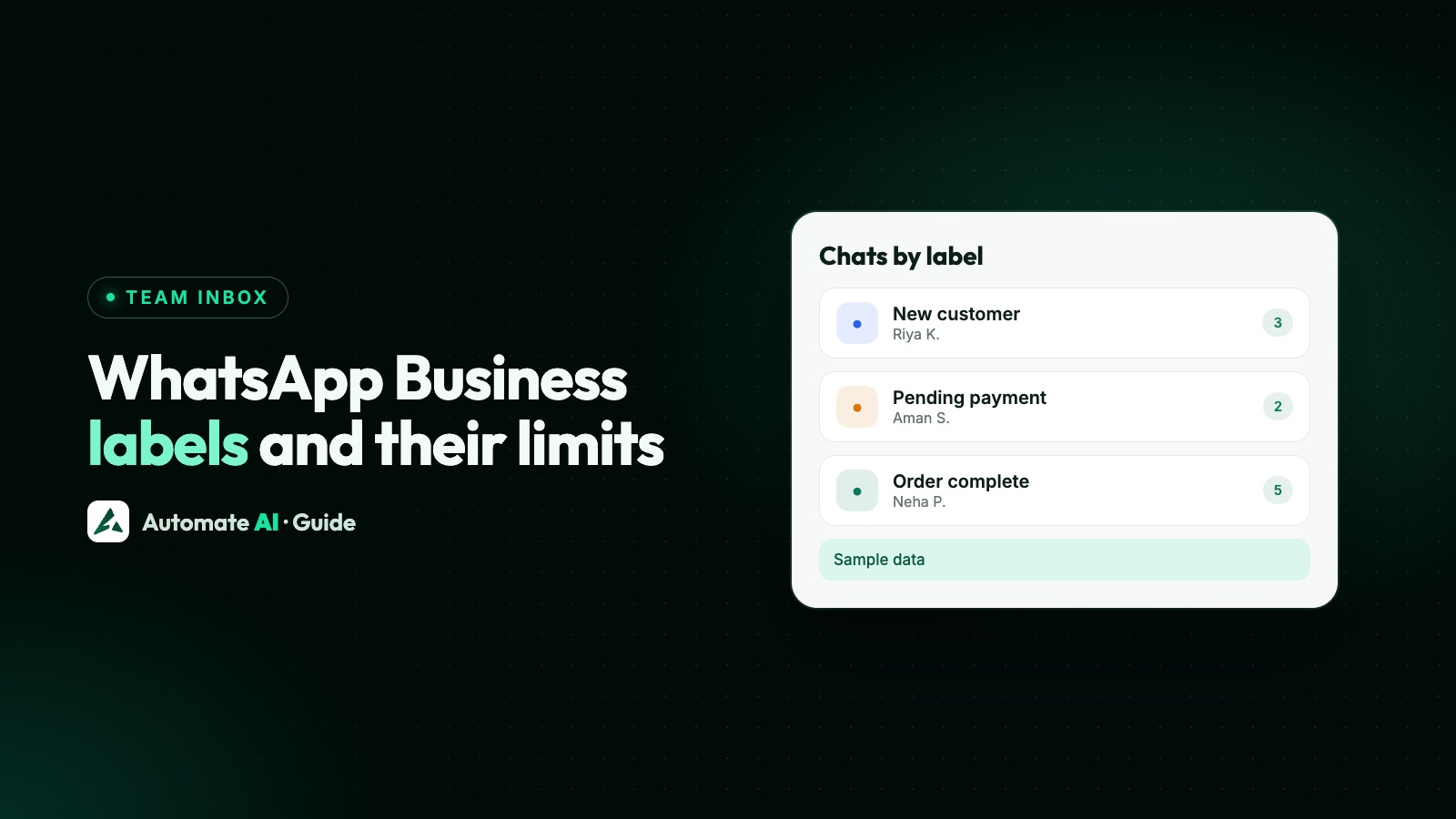
WhatsApp Business labels are coloured tags you attach to chats in the WhatsApp Business app so you can sort and find them later, and you can create up to 20. WhatsApp is now turning labels into lists, rolling out gradually, which is why many people can’t find their labels where they used to be.
This guide shows how to create and assign labels today, the limits WhatsApp states, what to check when labels aren’t showing, a starter set of labels for a small business, and how a team does the same job on the WhatsApp Business Platform (API) with tags, statuses and groups.
Key takeaways
- You can create up to 20 labels, each with a name and a colour, and give a chat more than one.
- Labels are now lists. WhatsApp is rolling the change out gradually, and you’ll find them under Tools › Lists.
- Labels help you send a marketing message to everyone in a label at once from the Business app.
- On the API, Automate AI uses contact tags (up to 500, up to 20 per contact), statuses and groups, shared by the whole team.
- Automate AI chatbots can add a contact to a group, but they don’t set tags, and AI doesn’t fill in contact fields from free text.
What labels are, and the move to lists
A label is a short name and a colour, such as “New order” in green, that you attach to a whole chat. Then, instead of scrolling, you open the label and see only those chats. WhatsApp’s Help Center also says you can send marketing messages to all the customers in a label at once.
WhatsApp’s labels article now opens with a change: labels are becoming lists. WhatsApp says it’s rolling lists out gradually and labels might not be available to you. The steps below use the new wording, because that’s what the Help Center shows today.
How to create and assign labels
Create a label
- Open Tools, then Lists.
- Choose Add new list.
- Type a name and choose Create list.
Add a label to a chat
- Open Chats.
- Open the chat’s menu and choose Add to list.
- Tick the labels you want, then Done.
A chat with several labels shows them stacked. You can also tap the customer’s profile photo on the Chats screen to see which labels a chat has.
Find, edit or delete a label
- Find labelled chats: Tools › Lists, then tap the label.
- Rename: Tools › Lists, select the label, change it and save.
- Change the colour: select the label, tap the colour and pick a new one.
- Delete: select the label, open More (three dots), then Delete list.
Label limits in the Business app
| Limit | What WhatsApp says |
|---|---|
| Number of labels | Up to 20 |
| Labels per chat | More than one; they show stacked |
| What gets labelled | A whole chat, not a single message |
| Name and colour | Each label has its own name and colour |
| Sending to a label | You can send a marketing message to all customers in a label |
WhatsApp’s newer business broadcasts let you pick contacts from lists drawn from your address book, or audiences you imported on WhatsApp Business web. They’re available only in some countries, Meta reviews each one before it goes out, and once your free messages run out you pay for each one delivered.
The bigger limit is the app itself. Labels live on one business account and help the people using that phone find chats. They don’t say who owns a chat, when to follow up or what stage a lead is at. Those gaps, and the app’s other limits, are covered in WhatsApp Business app limitations.
Labels disappeared or not showing? What to check
Most “my labels are gone” moments come from the switch to lists. Work through these:
- Look under Tools › Lists. WhatsApp says labels are now lists, so your labels may simply have a new home and name.
- Update the app. Lists are rolling out gradually, so phones on different versions can look different.
- Check you’re in the Business app. Labels for customer chats are a WhatsApp Business app tool, so check you haven’t opened a personal WhatsApp account by mistake.
- Count your labels. If you can’t add a new one, you may already have 20. Delete or merge one you don’t use.
- Still missing? Contact WhatsApp support from the app. We can’t see or restore your labels, and WhatsApp’s Help Center gives no other reason than the rollout.
A starter set of labels for a small business
Twenty labels go further when each one answers a single question. Here’s a sample set to adapt, split by what it tells you:
| Label | Answers | Use it when |
|---|---|---|
| New lead | Stage | Someone asks about a product for the first time |
| Quote sent | Stage | You’ve shared a price and are waiting |
| Order placed | Stage | They’ve confirmed and paid, or chosen cash on delivery |
| Delivered | Stage | The order has arrived |
| Follow up | Action | You promised to get back to them |
| Complaint | Action | Something went wrong and needs fixing first |
| VIP | Type | A repeat or high-value customer |
| Wholesale | Type | A trade buyer with different prices |
| Offers OK | Consent | They agreed to receive offers from you |
Keep stage labels moving: when a chat goes from “Quote sent” to “Order placed”, remove the old label. And treat “Offers OK” carefully. A label isn’t consent by itself. WhatsApp’s policy says you may only message people who gave you their number and opted in, and Meta says opt-in must name your business. Only add the label when the customer has actually agreed. More on that in WhatsApp opt-in.
Labels on the API: what a team uses instead
The WhatsApp Business Platform has no labels; your software provides them. In Automate AI the job is split across a few tools, each shared by everyone in your team inbox:
| Business app label | In Automate AI | Where |
|---|---|---|
| VIP, Wholesale and similar | Contact tags, up to 20 per contact | Settings › Contact Tags, or from the chat |
| New lead, Quote sent, Order placed | A contact status, one per contact, with optional sub-statuses | Settings › Contact Statuses |
| Follow up | A status with a follow-up: you pick the time when you set the status, and a reminder rings then | The chat, when you change the status |
| A list to message later | A contact group; a contact can be in several | Contact Groups |
| Unread or needs a reply | Inbox tabs: Unread, Unassigned, Re-inquiry, Open, Closed, Archived, plus a 24h open filter | Chats |
| Who’s handling it | Assignment to a teammate, by hand or round-robin | The chat |
In Chats you can combine these: filter by status, agent (for owners and managers), group, tag and date. That answers questions a label can’t, such as “open chats with a VIP tag assigned to Ankit this week”. See the shared team inbox for assignment and notes.
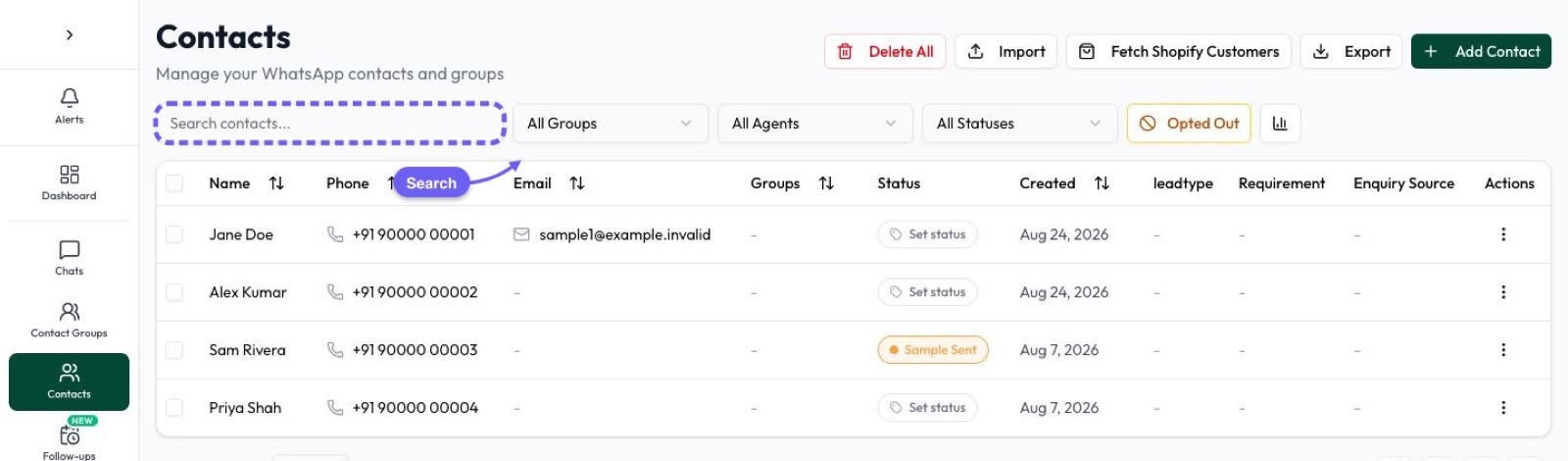
Contact tags in Automate AI
Tags are the closest thing to Business app labels, with up to 500 per organisation instead of 20. How they work:
- Master tags are your team’s official list, kept in Settings › Contact Tags. Only the owner or a manager can add, rename, recolour or delete them.
- Custom tags are made by anyone in the team while tagging a contact from a chat. An owner or manager can promote one to a master tag.
- Limits: up to 500 tags per organisation and 20 tags per contact, with names up to 60 characters. Each tag has a colour.
- Filters: filter Chats and Contacts by tags. Picking several tags shows contacts with any of them.
- Campaigns: choose By tags as the audience to send an approved template to everyone with the tags you pick, worked out when the campaign runs.
- Deleting a tag removes it from every contact.
Labels automation: what can be automatic
“Labels automation” usually means a chat gets sorted without anyone clicking. Here’s what Automate AI can do, and what it can’t:
- Chatbots add contacts to groups. In the chatbot builder (Series 2, 3 and 4), an Add to Group or Remove from Group step records a button choice, such as “Wholesale enquiry”. Chatbots don’t set tags.
- Statuses can trigger follow-ups. A status can schedule an automatic follow-up, and can stop chatbot, keyword and AI replies for contacts in it, such as “Lead converted”.
- Re-inquiry marks returning leads. Once someone on your team changes a lead’s status, a new message from that lead marks the chat Re-inquiry, so it shows in its own tab, unless that status has Re-inquiry turned off.
- AI can suggest or set a status from the conversation, with rules you choose. That’s covered in AI chat summaries and auto-status.
What it doesn’t do: AI doesn’t fill in contact fields from free text, and tags are set by people, from a chat or the contact. For pipelines and lead scoring, see WhatsApp CRM.
Frequently asked questions
How many labels can I create in WhatsApp Business?
Up to 20, according to WhatsApp’s Help Center. A chat can have more than one label.
Why did my WhatsApp Business labels disappear?
WhatsApp is turning labels into lists, rolling out gradually. Look under Tools › Lists and update the app. If they’re still missing, contact WhatsApp support from the app.
Can I send a message to everyone with a label?
In the Business app, WhatsApp says you can send a marketing message to all customers in a label. In Automate AI, choose By tags as a campaign audience and send an approved template.
Does the WhatsApp Business API have labels?
No. The API sends and receives messages; labels come from your software. Automate AI uses contact tags, statuses, groups and inbox filters.
Can a chatbot add labels automatically?
In Automate AI, a chatbot can add or remove a contact from a group, which works like an automatic label. Tags are set by your team from the chat or contact.
Sources
- WhatsApp Help Center: How to use labels
- WhatsApp Help Center: Create and send a business broadcast
- WhatsApp Business Messaging Policy
- Meta: Get opt-in for WhatsApp
WhatsApp rules and prices change. We check these guides against Meta’s documentation, but always confirm current terms with Meta before you rely on them. Questions? Message us on WhatsApp at +91 836 977 8812.