Typing Indicators and Read Receipts in the WhatsApp API
How to show “typing…” and mark messages as read with the WhatsApp Cloud API: the request, the 25-second limit, when to use it, and how Automate AI does it.
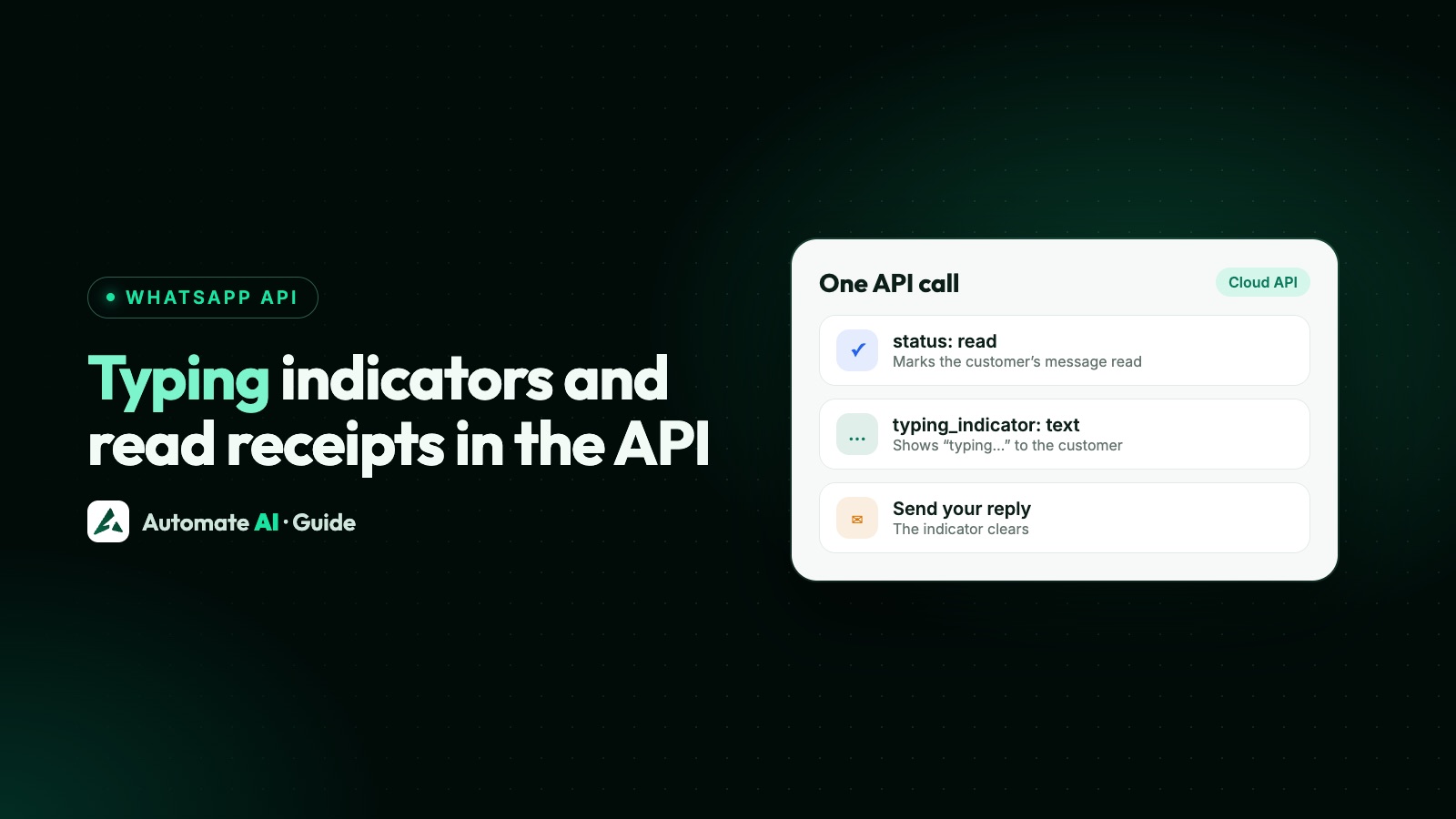
The WhatsApp Cloud API shows “typing…” to a customer when you send a mark-as-read request with a typing_indicator object, using the ID of the message you’re answering. The same call turns the customer’s ticks blue, and the indicator disappears when your reply arrives or after 25 seconds, whichever comes first.
Marking a message as read on its own is the same request without the typing part. This guide gives both requests, what each one does on the customer’s phone, when it’s worth using, the mistakes that make a business look broken, and how Automate AI handles it in the inbox, chatbots and AI replies.
Key takeaways
- Both calls are a POST to
/<PHONE_NUMBER_ID>/messageswithstatus: "read"and the customer’smessage_id. - Adding
typing_indicator: { "type": "text" }shows “typing…” and also marks the message as read. - The indicator lasts until you reply or 25 seconds, whichever comes first. Only show it if a reply is coming.
- Marking one message as read in a 1:1 chat also marks the earlier ones; mark within 30 days of receipt.
- In Automate AI, Settings › General › Show typing to customers does this for team replies, automations and the AI. It’s off until an owner or manager turns it on.
Two requests, one endpoint
Neither of these is a message. They’re status updates about a message the customer sent you, and both go to the same endpoint you use for sending: POST https://graph.facebook.com/<API_VERSION>/<PHONE_NUMBER_ID>/messages, with a system or business access token as a Bearer token.
| What you want | Body | What the customer sees |
|---|---|---|
| Mark as read | messaging_product: "whatsapp", status: "read", message_id | Their message gets two blue ticks |
| Typing indicator | The same, plus typing_indicator: { "type": "text" } | Blue ticks, and “typing…” in the chat |
A successful call returns { "success": true }. There’s no message ID in the response, because nothing was sent. Meta’s examples use API version v26.0, and the version in the path is optional.
Where the message ID comes from
The message_id must be the ID of a message the customer sent you. You get it from the incoming message webhook, in messages[].id, and it starts with wamid.. Meta says to use a valid wamid from a message you received.
- Receive the webhook for the customer’s message and save
messages[].idalong with the chat. - When a reply is on its way, send the read or typing request with that ID.
- Send the reply as a normal message. The indicator clears as soon as it lands.
An ID that isn’t valid comes back as error 131009, “Parameter value is not valid”. Meta’s fix is to use a valid ID from a message you received, so check you copied the incoming message’s wamid. More codes are in WhatsApp API error codes, and the webhook payload is covered in WhatsApp Cloud API webhooks.
How marking as read works
Meta’s rules for the read request are short, but two of them matter in practice:
- Earlier messages go too. In a 1:1 chat, marking one message as read also marks the earlier messages in that conversation as read. Use the latest message’s ID and you’re done.
- Groups are different. In a group chat, marking one message doesn’t mark the earlier ones, so each message needs its own request.
- There’s a time limit. Meta says to mark incoming messages as read within 30 days of receipt.
Don’t confuse this with the read statuses you receive. When a customer reads your message, Meta sends a status webhook with status: "read". That’s their side of the blue ticks, and it’s what campaign reports count. The request in this guide is your side: telling the customer you’ve read theirs.
The blue ticks a person sees in the WhatsApp app, and how they turn them off, are explained in green tick vs blue tick.
How long “typing…” shows, and when to use it
The indicator is dismissed when you respond or after 25 seconds, whichever comes first. Meta calls it good practice when your reply will take a few seconds, and warns against showing it if you won’t actually respond.
| Situation | Use it? | Why |
|---|---|---|
| An agent is writing a reply | Yes | The customer knows someone is on it |
| An AI or bot needs a few seconds to answer | Yes | It fills the gap before the answer |
| A reply that takes longer than 25 seconds | You can send it again | One request shows it for 25 seconds at most |
| You only want to acknowledge the message | No, mark as read | “typing…” with no reply looks broken |
| The 24-hour window has closed | No | You can’t send a free-form reply, so nothing would follow |
| Someone typed STOP | No | Confirm the opt-out instead |
For long replies, you can send the request again, for example every 20 seconds, while the reply is still being written, and stop as soon as it’s sent or abandoned. One more thing: once you’ve marked a message as read, the customer can see you’ve read it, so a slow reply after blue ticks feels slower than one before them.
Common mistakes
- Sending it on every keystroke. An inbox that fires a typing request each time an agent presses a key sends dozens of calls for one reply. Throttle it to one every 20 seconds or so per chat.
- Marking as read the moment a message arrives. If no one will look at the chat for an hour, instant blue ticks tell the customer they’re being ignored. Mark as read when a person or bot actually handles it.
- Using your own message’s ID. The request needs the customer’s message ID from the webhook.
- Showing “typing…” and then not replying. Meta specifically says not to.
- Letting a failure stop the reply. Treat the typing request as best effort. If it fails, log it and send the reply anyway.
What the API doesn’t do
Typing indicators go one way, from your business to the customer. Meta documents how to send one, but its webhook reference has no event for a customer typing, so your inbox can’t show “Customer is typing…” from the API.
It also isn’t a presence signal. The only indicator type in Meta’s request is text, and each one is tied to a message the customer sent, so it can’t work as an “online” status. If you want customers to know when you’re available, say so in your greeting or auto-reply.
Typing indicators in Automate AI
Automate AI does the typing request for you. Turn on Settings › General › Show typing to customers and click Save Changes. Only an owner or manager can change it, and it’s off until someone does. With it on, the customer sees “typing…” on WhatsApp in three cases:
- Someone on your team types a reply in the shared inbox.
- The AI is preparing a reply. The indicator never holds the AI’s answer back.
- A chatbot flow, basic reply or auto-reply is about to answer. These replies wait about 1.5 seconds so the indicator can be seen; with the switch off they go out instantly.
Behind the switch, the app follows the rules above:
| Rule | What Automate AI does |
|---|---|
| Which message | Attaches the indicator to the customer’s latest WhatsApp message |
| 24-hour window | Only sends it if that message arrived in the last 24 hours |
| Keystrokes | At most one indicator per chat every 20 seconds |
| Read receipt | WhatsApp marks the customer’s message as read (blue ticks) at the same time |
| Failures | Best effort: a failed indicator never stops a reply or a flow |
Building your own system on top? The WhatsApp Business API page covers the REST API and developer webhooks.
Frequently asked questions
How do I show a typing indicator with the WhatsApp Cloud API?
Send a POST to /<PHONE_NUMBER_ID>/messages with messaging_product "whatsapp", status "read", the customer’s message_id and typing_indicator set to { "type": "text" }.
How long does the WhatsApp typing indicator last?
Until you send your reply or 25 seconds, whichever comes first. For a longer reply, send the request again.
Does the typing indicator mark the message as read?
Yes. The request includes status "read", so the customer’s message gets blue ticks when “typing…” appears.
How do I mark a WhatsApp message as read with the API?
Send the same POST without typing_indicator: messaging_product "whatsapp", status "read" and the message_id from the incoming message webhook. In a 1:1 chat, earlier messages are marked as read too.
Can I see when a customer is typing?
Not through the API. Meta documents sending a typing indicator to customers, and its webhooks have no event for a customer typing.
Is there a time limit for marking messages as read?
Yes. Meta says to mark incoming messages as read within 30 days of receipt.
How do I turn on “typing…” in Automate AI?
An owner or manager turns on Settings › General › Show typing to customers and saves. It then shows while your team types, before automated replies and while the AI prepares an answer.
Sources
- Meta: Typing indicators
- Meta: Mark messages as read
- Meta: Send messages (customer service window)
- Meta: Status webhook reference
- Meta: Webhooks overview
WhatsApp rules and prices change. We check these guides against Meta’s documentation, but always confirm current terms with Meta before you rely on them. Questions? Message us on WhatsApp at +91 836 977 8812.