WhatsApp Business Quick Replies: How to Set Them Up, With Samples
How to create and use quick replies in the WhatsApp Business app, the 50-reply limit, media, fixes when they don’t show, and 15 sample replies to copy.
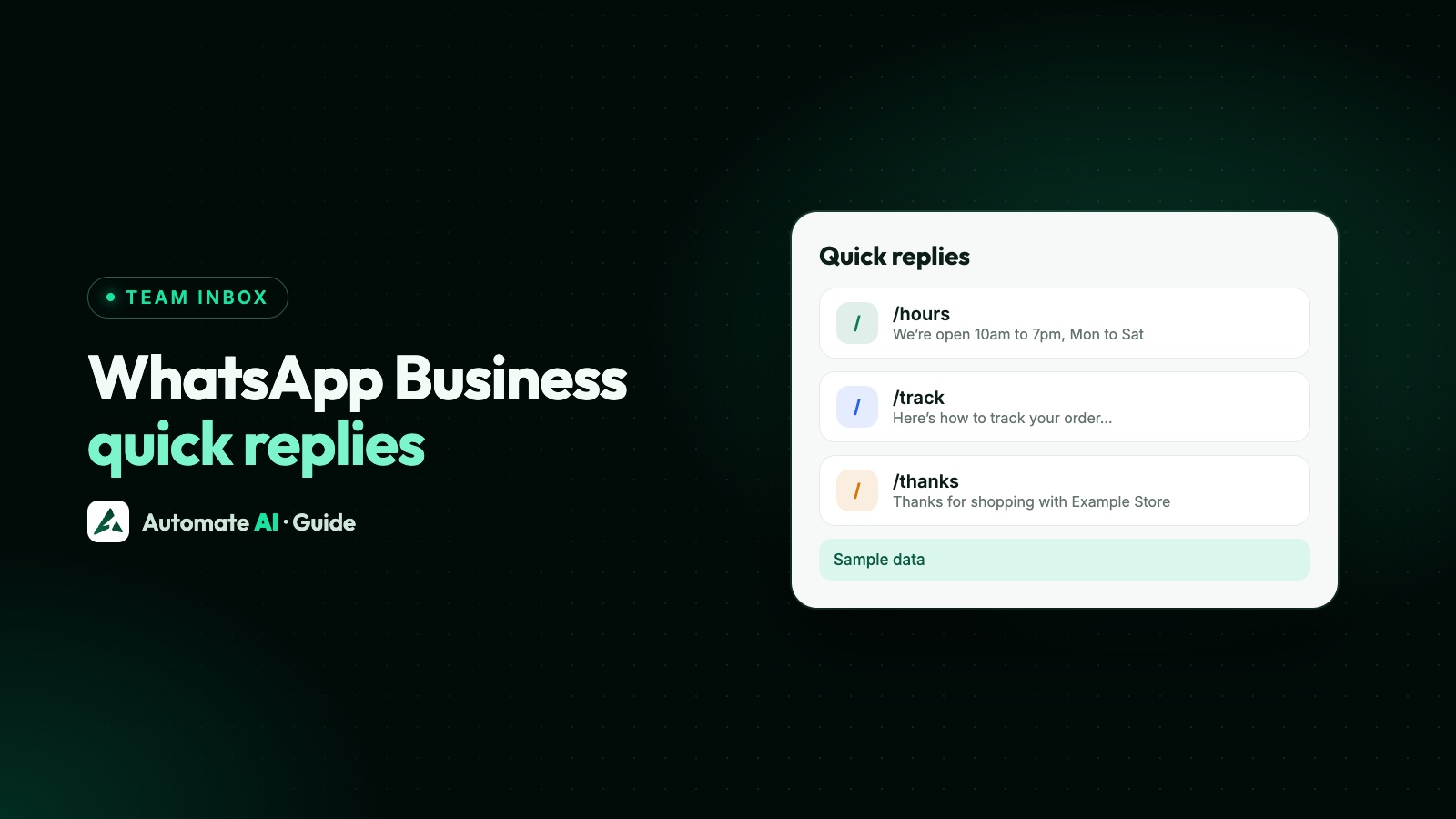
Quick replies in WhatsApp Business are saved messages you insert into a chat by typing “/” or picking them from the attach menu. You can store up to 50, each with a short keyboard shortcut, and on the mobile app they can include images and videos. You always send them yourself: a quick reply never goes out on its own.
This guide shows how to create, use and delete them, why they sometimes don’t appear, how they work for a team on the WhatsApp Business API, and 15 sample replies you can adapt today.
Key takeaways
- The WhatsApp Business app holds up to 50 quick replies, each with a shortcut you call up by typing “/” in a chat.
- Quick replies can include images and videos on the mobile app, but not on WhatsApp Web or Desktop.
- You can edit the text before sending, so leave gaps like [name] or [date] to fill in.
- A deleted quick reply can’t be recovered, so keep a copy of your list somewhere else.
- On the API, quick replies come from your platform. In Automate AI they live in Settings › Quick Replies and the whole team shares them.
- Quick replies aren’t the same as quick-reply buttons on templates, which customers tap.
What a quick reply is (and what it isn’t)
A quick reply is a message you’ve saved because you send it often: your opening hours, how to pay, where to park, a price list. You open a chat, type a slash and a shortcut, and the saved text drops into the message box, ready to send.
Three things get mixed up with it, so it helps to keep them apart:
| Feature | Who sends it | When |
|---|---|---|
| Quick reply | You, by choosing it | Whenever you pick it in a chat |
| Greeting or away message | The app, automatically | On a customer’s first message, or when you’re closed |
| Quick-reply button on a template | The customer, by tapping it | After they receive your template |
Greeting and away messages are covered in WhatsApp auto reply. Tappable buttons are covered in WhatsApp buttons and lists. This guide is only about the saved replies you send yourself.
How to create a quick reply in the WhatsApp Business app
WhatsApp’s Help Center gives these steps for the Business app on Android and iPhone:
- Open the Tools tab and tap Quick replies.
- Tap the plus icon.
- Tap Message and write the reply. On the mobile app you can attach media, such as an image or video.
- Tap Shortcut and type the keyword you’ll use to find it, such as “hours” or “pay”.
- Tap Save.
WhatsApp also creates some quick replies for you from your business profile, such as your hours and address. The more of your profile you fill in, the more of these you get. See your WhatsApp Business profile for what to fill in.
How to send a quick reply in a chat
There are two ways, and both put the text into the message box so you can change it before it goes:
- From the message box: tap Message and type “/”. Your quick replies appear, including the ones WhatsApp made from your profile. Pick one, edit it if needed, and send.
- From the attach menu: tap the attach icon, choose Quick reply, and select the one you want.
Because you can edit before sending, the best quick replies have obvious gaps to fill, such as “Hi [name]” or “Your table for [number] on [date]”. A gap left in by mistake looks careless, so read the message once before you tap send.
Edit, delete and back up your list
To delete one, go to Tools › Quick replies, tap and hold it, tap the trash icon and confirm Delete. Everything about your list is managed from that same screen.
Review the list every few months. Prices, hours and links change, and an out-of-date quick reply is worse than none, because it’s sent with confidence.
Quick replies not working? Check these first
Most problems come down to one of these:
| What you see | Likely reason | What to do |
|---|---|---|
| No Quick replies option at all | You’re in regular WhatsApp, not the WhatsApp Business app | Quick replies are a Business app tool. See WhatsApp vs WhatsApp Business |
| Typing “/” shows nothing | No quick replies saved yet, or you’re typing somewhere other than the message box | Add one under Tools › Quick replies, then tap Message in the chat and type “/” |
| The image or video doesn’t come through | You’re on WhatsApp Web or Desktop | Media in quick replies isn’t supported there. Send it from your phone |
| Can’t add another one | You’ve reached 50 | Delete or merge replies you rarely use |
| A reply has gone | It was deleted | Deleted replies can’t be restored. Recreate it from your saved list |
| Quick replies don’t show in your API platform | Business app quick replies don’t carry over to the API | Set them up again in your platform (see below) |
If none of these fit, update the WhatsApp Business app from your app store and try again, since the steps above follow WhatsApp’s current Help Center.
15 quick reply samples you can adapt
These are our own samples with demo details. Swap in your own facts, and keep the brackets as reminders to personalise.
| Shortcut | Sample message |
|---|---|
| /hi | Hi [name], thanks for messaging Demo Bakery! How can we help today? |
| /hours | We’re open Monday to Saturday, 9am to 7pm, and closed on Sundays. |
| /map | You’ll find us at 12 Example Street, near the clock tower. Here’s the map: [link] |
| /pay | You can pay by UPI, card or cash on delivery. We’ll send a payment link once your order is confirmed. |
| /price | Here’s our current price list. Prices include tax. Tell us what you’d like and we’ll confirm the total. |
| /track | Your order [order number] is on its way. You can track it here: [link] |
| /delay | Sorry for the wait, [name]. Your order is running about [time] late. We’ll update you as soon as it leaves. |
| /return | You can return unused items within [number] days. Reply with your order number and a photo, and we’ll arrange it. |
| /book | We have slots on [day] at [time] and [time]. Which suits you? |
| /confirm | You’re booked for [service] on [date] at [time]. Reply here if you need to change it. |
| /busy | Thanks for your patience. We’re handling a lot of messages and will reply within [time]. |
| /call | Happy to talk it through. What time today suits you for a quick call? |
| /docs | Please send a photo of the item and your order number. Please don’t share card or bank details in this chat. |
| /thanks | Thank you for your order, [name]! We hope you enjoy it. |
| /review | If you were happy with us, a short review would mean a lot: [link] |
Two rules keep these safe. Never ask for full card numbers, bank account numbers or ID numbers in a chat, which WhatsApp’s Business Messaging Policy rules out. And keep promotions out of quick replies: if you want to send offers, use opted-in marketing templates, not a saved reply pasted into old chats.
Quick replies on the WhatsApp Business API
Meta’s documentation lists quick replies, greeting and away messages and labels as not supported on the Cloud API. Those are Business app tools. On the API, saved replies come from the platform your team uses to answer chats.
If you connect your Business app number with coexistence, Meta says your quick replies in the app don’t change. They keep working on your phone, but they don’t appear in your API platform. See WhatsApp coexistence.
There’s one more rule to remember. On the API you can send a free-form message, including a quick reply, only while the customer’s 24-hour customer service window is open. After that you need an approved template. See the 24-hour window.
Quick replies in Automate AI’s team inbox
In Automate AI, quick replies belong to the whole workspace, so every person on the team uses the same answers from the shared inbox. The shared inbox is on every plan. To set them up:
- Open Settings and, under Chats & replies, choose Quick Replies.
- Click Add Quick Reply.
- Enter a Shortcode (letters, numbers, hyphens and underscores only), such as
hoursorpay-options. - Write the Message and keep Active switched on, so it shows in the chat.
- Click Create.
In any chat, type “/” followed by a word from the shortcode or the message. A list of matching active replies appears with each shortcode beside it. Use the arrow keys and press Enter or Tab to insert one, or Esc to close the list. The text replaces the slash and what you typed after it, and you can edit it before sending.
- Text only. An Automate AI quick reply inserts text. To send a file, attach it in the chat as usual.
- No automatic name. Brackets like [name] stay as typed, so fill them in before you send.
- Switch off instead of deleting. Turning Active off hides a seasonal reply from the chat without losing it.
Quick replies fit alongside the rest of the inbox: assignment, internal notes and, on plans that include it, the AI Assistant for answers at any hour. If your team is growing beyond one phone, see WhatsApp Business for multiple users.
Frequently asked questions
How many quick replies can I save in WhatsApp Business?
Up to 50 in the WhatsApp Business app. WhatsApp also adds some from your business profile, such as your hours and address.
How do I use a quick reply in WhatsApp Business?
In a chat, type “/” in the message box and pick a reply, or tap the attach icon and choose Quick reply. The text appears in the box and you can edit it before sending.
Can quick replies include photos or videos?
Yes, on the mobile app. WhatsApp says media in quick replies isn’t supported on WhatsApp Web or Desktop.
Why are my quick replies not working?
Check you’re using the WhatsApp Business app, that you’ve saved at least one, and that you type “/” in the chat’s message box. Media in quick replies won’t send from Web or Desktop. If it still fails, update the app.
Can I recover a deleted quick reply?
No. WhatsApp says deleted quick replies can’t be recovered, so keep a copy of your list outside the app.
Do quick replies work on the WhatsApp Business API?
Not from the Business app. Meta lists quick replies as not supported on the Cloud API, so they come from your platform instead. In Automate AI you add them in Settings › Quick Replies and the whole team can use them.
Are quick replies the same as quick-reply buttons?
No. A quick reply is a message you save and send yourself. A quick-reply button sits on a template and the customer taps it to answer.
Sources
- WhatsApp Help Center: How to use quick replies
- Meta: Onboard WhatsApp Business app users (features supported on Cloud API)
- Meta: Service messages (customer service window)
- WhatsApp Business Messaging Policy
WhatsApp rules and prices change. We check these guides against Meta’s documentation, but always confirm current terms with Meta before you rely on them. Questions? Message us on WhatsApp at +91 836 977 8812.