How to Generate Quality Leads With WhatsApp Ads: 8 Steps
How to get quality leads from WhatsApp ads (Click-to-WhatsApp ads): audience, offer, pre-filled message, greeting, chatbot, fast replies, follow-up and results.
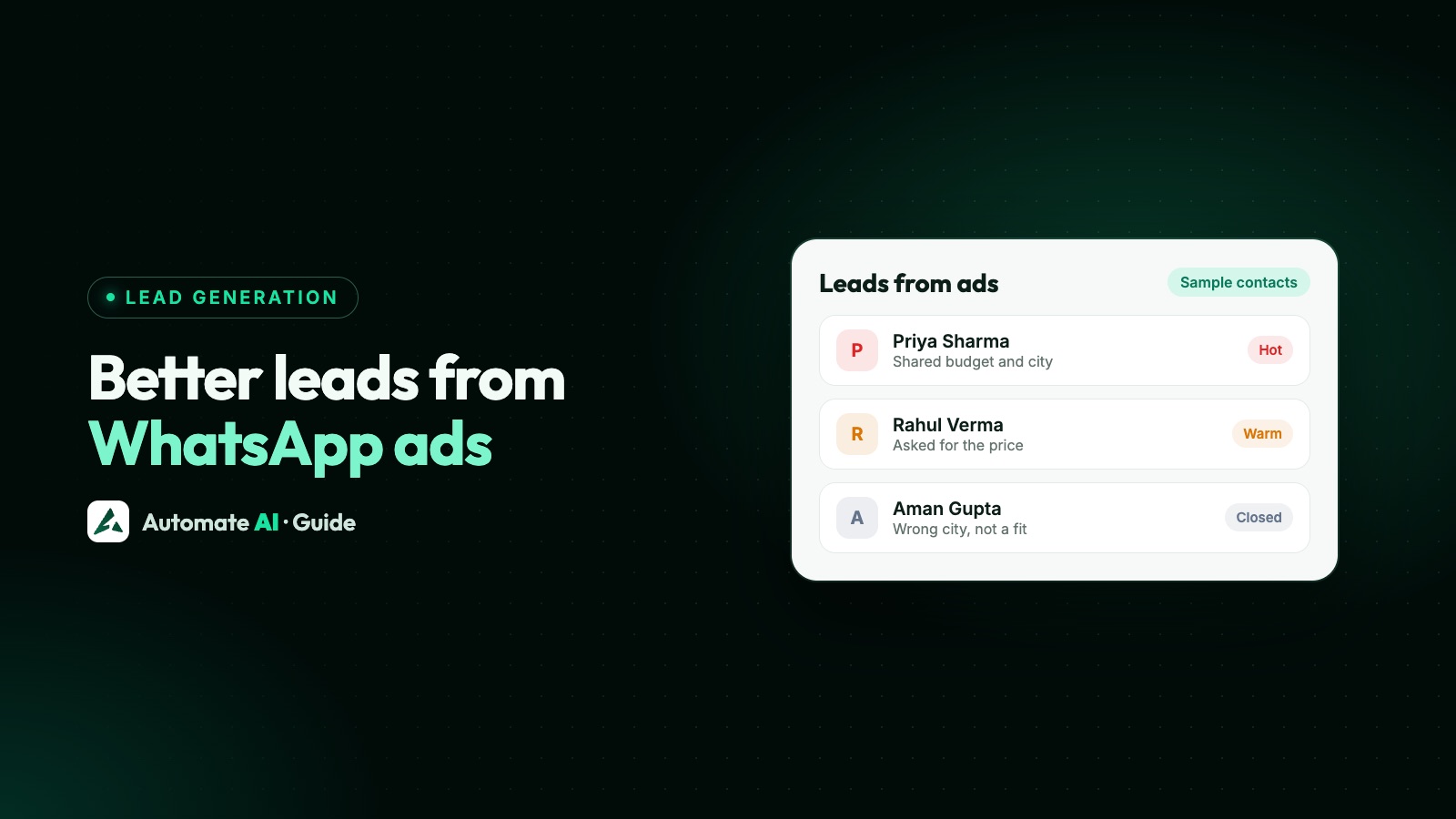
To get quality leads from WhatsApp ads, make the ad filter people before they tap, ask one qualifying question as soon as the chat opens, reply within minutes, and tell Meta which chats became real leads. Better leads come from that whole chain, not from one setting in Ads Manager.
When people say WhatsApp ads they usually mean Click-to-WhatsApp ads: Facebook and Instagram ads with a button that opens a WhatsApp chat with your business. This guide walks through the eight steps, with sample wording. For setting up your first ad and what it costs, start with our Click-to-WhatsApp ads guide.
Key takeaways
- WhatsApp ads usually means Click-to-WhatsApp ads, which run on Facebook and Instagram and open a chat with you.
- Quality starts in the ad: a clear offer, price or area puts off people who aren’t a fit.
- Use the pre-filled message and greeting to start qualifying, one easy question at a time.
- Reply within minutes if you can. A reply within 24 hours also opens a free window of up to 7 days.
- Write down what a qualified lead means, and mark it with a status.
- Send results back with the Conversions API, so Meta sees more than chats started.
What WhatsApp ads are, and what a quality lead means
A Click-to-WhatsApp ad looks like any other Facebook or Instagram ad, but its button opens WhatsApp with a message already typed. The customer presses send and the chat reaches your business. WhatsApp also shows ads in Status, on its Updates tab, but not in personal chats.
A quality lead isn’t just a friendlier chat. It’s someone who passes a test you wrote down before the ad ran. Most tests come down to four questions:
- Can they buy? The right area, budget or company size.
- Do they want this? They’re asking about what you actually sell.
- Is it soon enough? They have a timeline you can work with.
- Can you reach them? They answer when you reply.
Every step below is there to raise the share of chats that pass your test.
Step 1: Aim at the right audience
You can aim these ads by location, age and gender, and with custom and lookalike audiences. Narrow only on what really decides who can buy, because WhatsApp’s guide says broad audiences of at least 2 to 10 million perform best. A local business will have to go smaller, and that’s fine.
- Location: only the areas you serve. A lead you can’t deliver to is no lead at all.
- Age and gender: use them only where they truly matter. For housing, jobs and credit, Meta’s special ad category rules limit these options.
- Past buyers: if you’re allowed to use your customer list, a lookalike of real buyers can be a better start than interests alone.
- Language: write the ad in a language your team can answer in.
In Automate AI, Campaigns › Meta Ads drafts an audience from a one-line description of your offer, and you can change the cities, age and gender before you publish.
Step 2: Make an offer that filters
A vague ad brings curious people. A specific ad brings people who want that exact thing. Say what it is, who it’s for and roughly what it costs, and the wrong people will scroll past.
| Business | Vague | Specific | Who it filters out |
|---|---|---|---|
| Property | “Luxury homes for sale” | “2 and 3 BHK in Thane from ₹89 lakh. Site visits this weekend.” | People with a different budget or area |
| Coaching | “Learn English fast” | “Evening IELTS batch, online, starts 5 November. Free demo class.” | People who want another course or time |
| B2B | “Grow your business” | “Printed boxes for food brands. Minimum order 1,000.” | Buyers too small to serve |
Sample text with example businesses. Showing a price will reduce the number of chats, and that’s the idea. Giveaways do the opposite: they can fill your inbox with people who only want the giveaway.
Steps 3 and 4: Write the pre-filled message and greeting
The pre-filled message is the text already typed when WhatsApp opens. The greeting is what your business says when the chat starts. Together they’re your first chance to qualify.
- Make the pre-filled message specific. “Hi, I’d like the price list for the Thane 2 BHK” tells you the product and the ad. “Hi” tells you nothing.
- Use a different message for each ad. A word such as “Thane” can then start the right chatbot flow.
- Ask one easy question in the greeting. Choose the answer that would change what you do next.
- Don’t interrogate. One question now, more once they’ve replied.
| Business | Pre-filled message | Greeting |
|---|---|---|
| Property | Hi, I’d like the price list for the Thane 2 BHK. | Thanks! Is this to live in or to invest? |
| Coaching | Hi, I’m interested in the evening IELTS batch. | Great. Which exam date are you aiming for? |
| Packaging | Hi, I need a quote for printed food boxes. | Happy to help. Roughly how many boxes a month? |
Sample text. In Ads Manager you can also add ice-breaker questions, and in Automate AI you set the greeting and the customer’s first message when you create the ad.
Step 5: Qualify with a chatbot
A few buttons can do the first round of sorting in seconds, at any hour, so your team spends its time on people worth talking to. A simple chatbot flow looks like this:
- Start the flow on a keyword from the pre-filled message, or when a new contact is added.
- Ask two or three questions with buttons: what they want, when, and their budget or area.
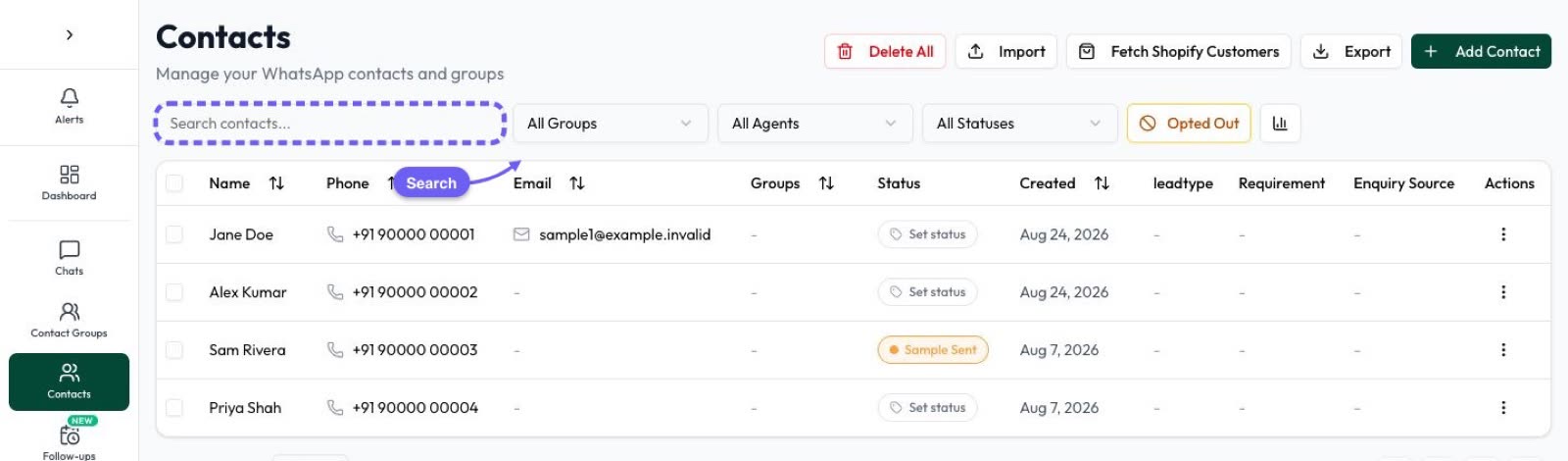
- Save the answers to the contact and set a status such as Qualified.
- Send serious leads to a person, and give the rest something useful, such as a brochure.
Keep it short, because every extra question loses some people. Always offer a way to reach a person too: WhatsApp’s Business Messaging Policy requires a clear route to a human when you automate replies.
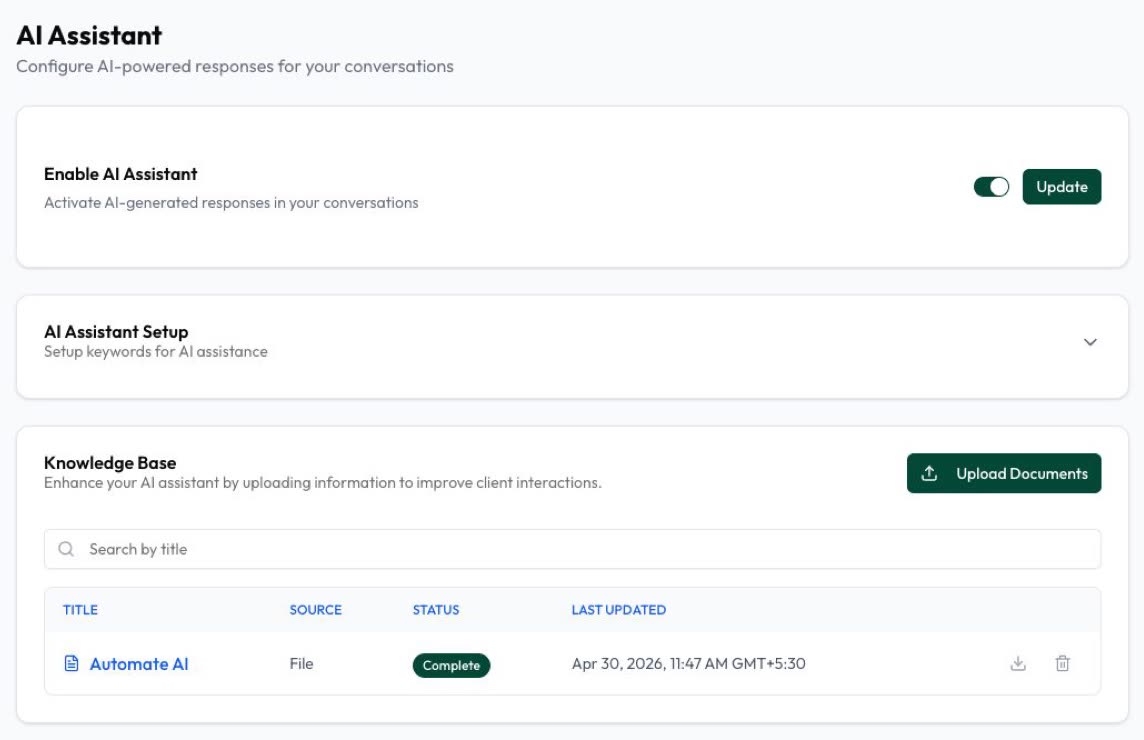
For open questions such as “Do you deliver to Pune?”, the AI Assistant can answer from your own documents. It doesn’t fill contact fields from free text, though, so use buttons for anything you want to sort leads by. Chatbots and the AI Assistant are included in Series 2, 3 and 4.
Step 6: Reply fast and hand over
Someone who just tapped your ad is thinking about you right now. An hour later they may not be, so plan who answers before the ad goes live.
- Let the bot answer first, so nobody waits, even at night.
- Cover the hours your ads run. If chats pile up while nobody can take over, fix that before you add budget.
- Reply within the 24-hour window. If they messaged from the ad on WhatsApp’s Android or iOS app, that reply is free and opens a free entry point window of up to 7 days. Meta Business Agent messages are still charged.
- Route the good ones. Assign them to a salesperson in the shared inbox. On Series 2, 3 and 4, AI Sales Center scores leads from 0 to 100 from the chat and alerts the teammates you choose.
Step 7: Follow up without spamming
Many leads won’t decide in the first chat, so plan what happens next.
- Use the free window well. Send the brochure, answer the question and suggest the next step while the conversation is fresh.
- Ask before you message them later. “Can we send you updates about this project on WhatsApp?” WhatsApp’s policy requires opt-in, and you should keep a record of the answer. See WhatsApp opt-in.
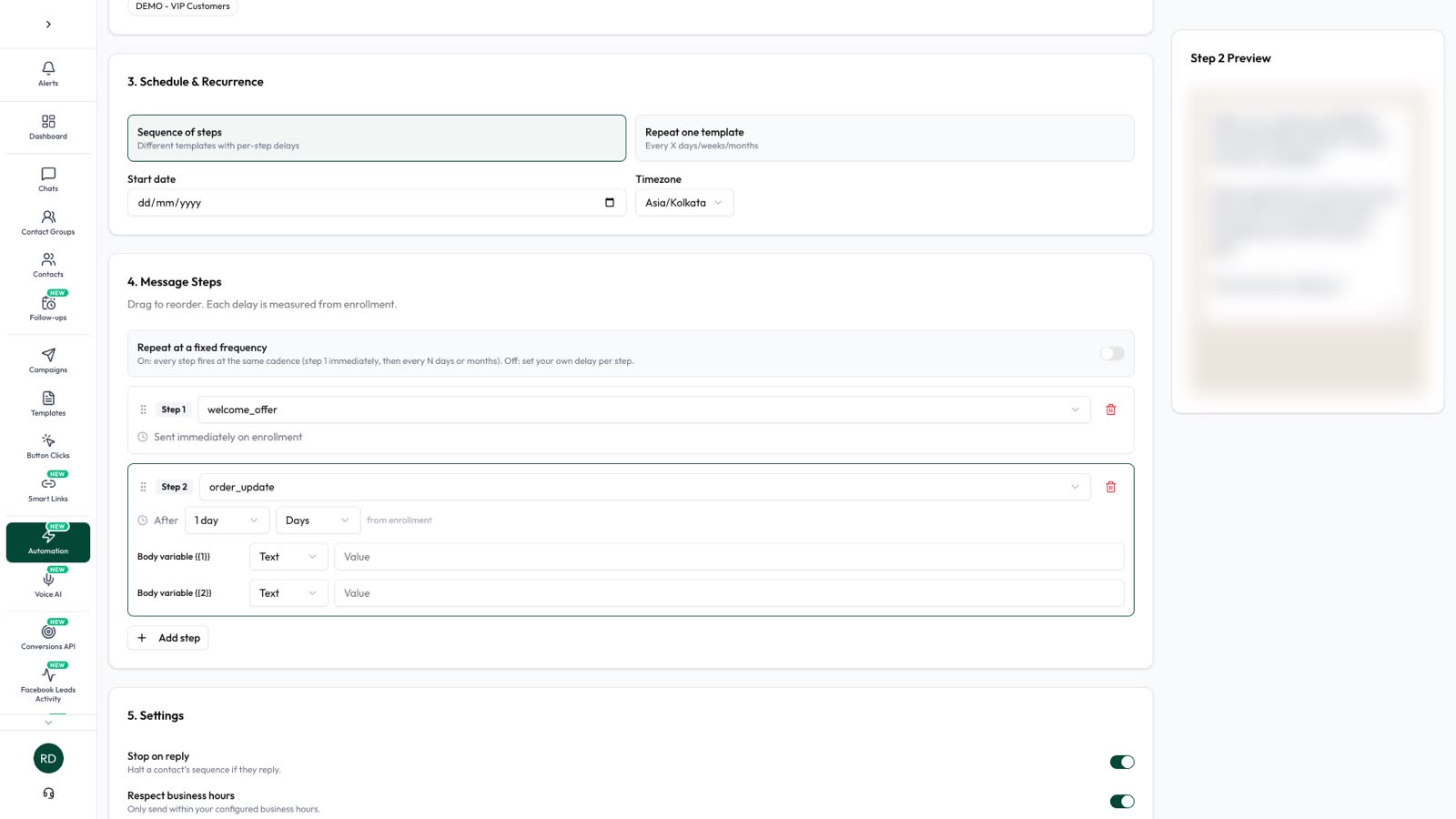
- Use approved templates after that. Outside the 24-hour window only templates can be sent. A drip sequence can send a few, spaced out, and stop when they reply. See lead follow-up.
- Stop when they say stop. In Automate AI a typed STOP opts a contact out automatically; a button tap doesn’t, so act on those yourself.
Step 8: Send results back to Meta
If the only result Meta sees is “chat started”, that’s all it can learn from. The Conversions API for business messaging lets you report what happened in the chat, using the click ID that comes with a message from an ad. Meta says it also gives access to purchase optimisation for ads that click to WhatsApp.
In Automate AI, set it up in Settings › Conversions API, then in Settings › Statuses choose a Meta event for a status such as Qualified or Won. Each time a contact from a Click-to-WhatsApp ad moves into that status, the event is reported, so honest statuses matter.
This won’t rescue a weak offer, and nobody can promise better leads from it. It simply gives Meta a truer signal than chats alone.
Weak leads? What to check first
| What you see | Likely cause | What to try |
|---|---|---|
| Lots of chats that vanish after “Hi” | A vague offer, or curious tappers | Add the price or area to the ad, and ask a question in the greeting |
| People outside your area | The audience is too wide | Tighten the location and name the area in the ad |
| Good chats, few sales | Slow follow-up, or an unclear next step | Read ten chats and see where they stop |
| Leads wait for hours | Nobody covers those hours | Add a chatbot or AI replies, and pause ads if needed |
| The ad isn’t running | A policy rejection or connection problem | See Click-to-WhatsApp ad rejected |
Track chats started, qualified leads and sales, and the cost of each. A cost per chat means little alone, and there’s no universal good number. Wondering whether another format would do better? Compare Click-to-WhatsApp ads, a website and lead forms. Ready to try it? You can create these ads from Automate AI on every plan: see Click-to-WhatsApp Ads.
Frequently asked questions
What are WhatsApp ads?
Usually Click-to-WhatsApp ads: Facebook and Instagram ads with a button that opens a WhatsApp chat with your business. WhatsApp also has ads in Status, on the Updates tab.
Can I show ads inside WhatsApp chats?
No. Meta says ads on WhatsApp appear in the Updates tab, not in personal chats.
How much do WhatsApp ads cost?
There’s no fixed price. You set a budget and Meta charges for the ad in an auction. The messages that follow can be free for up to 7 days if you reply within 24 hours, except Meta Business Agent messages.
Why are my WhatsApp ads bringing low-quality leads?
Usually the offer is too vague, the audience too wide or the chat asks nothing. Add a price or area to the ad, ask one qualifying question in the greeting, and check that someone replies quickly.
How fast should I reply to a WhatsApp ad lead?
Within minutes if you can, with a chatbot or AI answering first. You must reply within 24 hours for the free entry point window to open.
Do I need the WhatsApp Business API for WhatsApp ads?
No. Ads can open a chat with the WhatsApp Business app too. The API, through a platform, adds a shared inbox, chatbots, AI replies and reporting.
Sources
- WhatsApp Business: Ads that click to WhatsApp
- WhatsApp Business: Create ads that click to WhatsApp
- WhatsApp Business: How to create successful ads that click to WhatsApp
- Meta: Pricing on the WhatsApp Business Platform (free entry point window)
- Meta: Conversions API for business messaging
- Meta: Ads in Status and promoted channels on WhatsApp
- WhatsApp Business Messaging Policy
WhatsApp rules and prices change. We check these guides against Meta’s documentation, but always confirm current terms with Meta before you rely on them. Questions? Message us on WhatsApp at +91 836 977 8812.