WhatsApp Business Payments: Where They Work and How to Take Them
Where WhatsApp Business payments work, why the payment option may not show, how to set them up on the API, and how to take payment by link in any country.
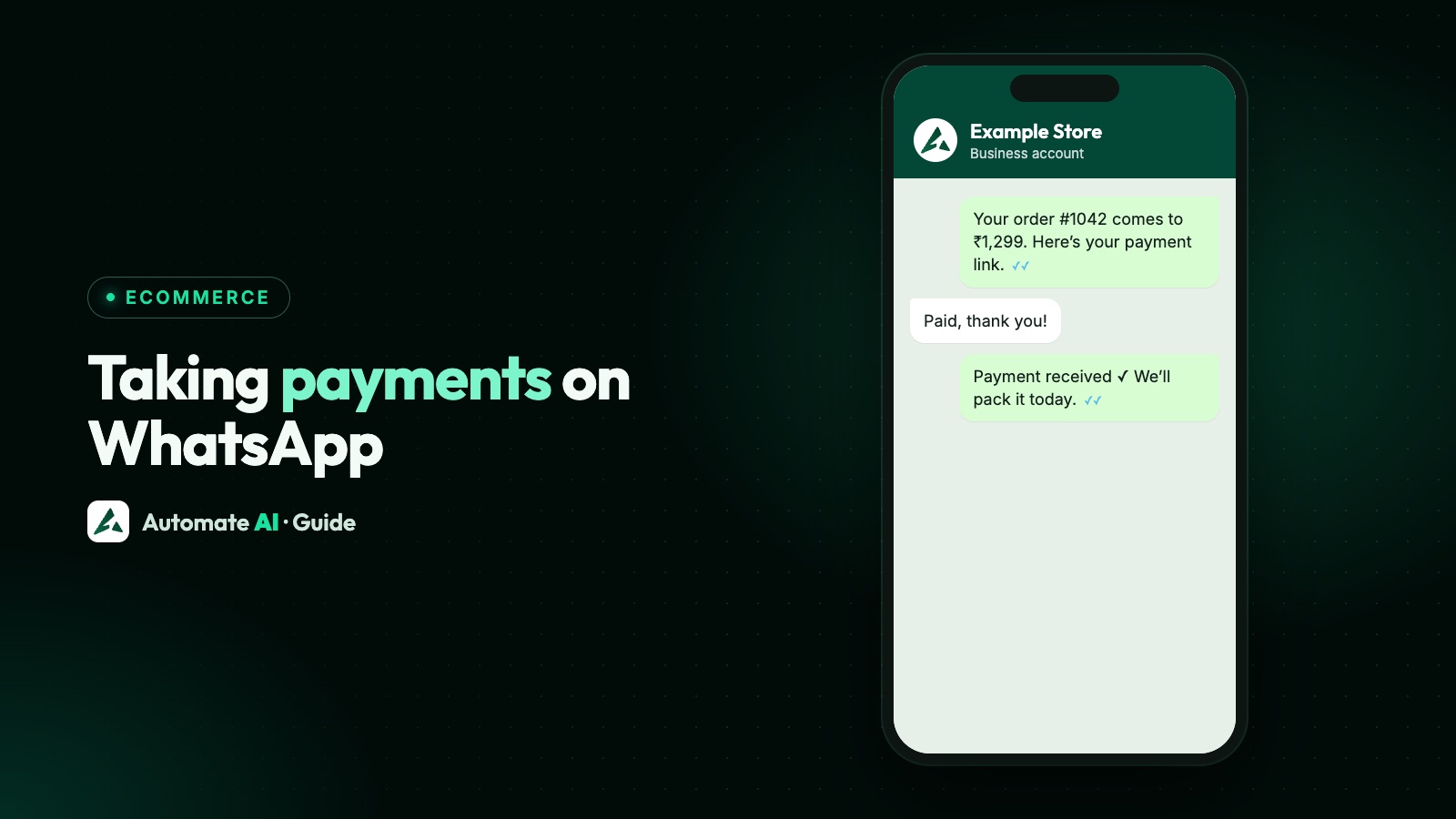
WhatsApp Business payments let a customer pay a registered business inside WhatsApp, and WhatsApp’s Help Center lists only four countries for this: India, Brazil, Mexico and Indonesia. Outside those four the feature isn’t available, and WhatsApp has shared no timeline for adding more. Businesses elsewhere take payment by sending a link from their payment provider.
This guide shows what you can use in each country, why the payment option may be missing, how setup works on the API, and how to take payment by link today. Writing payment reminders is a separate job, covered in WhatsApp payment reminders.
Key takeaways
- Paying a registered business on WhatsApp is listed for India, Brazil, Mexico and Indonesia only.
- The Add payment method screen in the WhatsApp Business app is for paying for your own ads, not for collecting money from customers.
- In-chat collection in India and Brazil is mainly an API feature: you send an order details message, and depending on the integration the status comes by webhook or from your gateway.
- A payment link from your own provider works in any country, in a chat or on a template’s URL button.
- WhatsApp’s policy forbids asking people for full card numbers or financial account numbers in a chat.
Where WhatsApp payments work, country by country
| Country | Paying a business on WhatsApp | What we could confirm |
|---|---|---|
| India | Listed | Meta’s Payments API takes UPI through any UPI app on the phone. Cards, net banking and wallets depend on the integration you use. The currency is INR. |
| Brazil | Listed | Meta’s guides cover dynamic Pix codes, payment links, boleto, one-click offsite card payment and order details templates. |
| Mexico | Listed | Listed in the Help Center. Ask your payment provider which methods it supports. |
| Indonesia | Listed | Listed in the Help Center. Ask your payment provider which methods it supports. |
| Anywhere else | Not available | Use a payment link from your provider, in a chat or on a template button. |
In Brazil, one more point for your accounts team: Meta says WhatsApp doesn’t reconcile payments for you. You match each payment to its order using the reference ID you sent, against your payment provider’s records.
Four things that get called “WhatsApp payments”
Much of the confusion comes from different features sharing one name.
| What you’re looking at | What it’s for | Can it collect from customers? |
|---|---|---|
| Payments in the personal WhatsApp app | Sending money between people where it’s offered, such as UPI in India | No. WhatsApp’s terms require a merchant account to receive business payments |
| Add payment method in the WhatsApp Business app | Paying for your click-to-WhatsApp ads | No |
| Payments API on the WhatsApp Business Platform | Order details messages, with payment status by webhook or from your gateway, depending on the integration | Yes, in the countries and integrations Meta supports |
| A payment link from your provider | A normal web checkout that you share | Yes, anywhere your provider operates |
WhatsApp Business payment option not showing? Check these
| What you see | Likely reason | What to do |
|---|---|---|
| No payment feature at all | Your country isn’t one of the four listed | Send a payment link instead |
| Only your personal payment setup | That feature isn’t for merchant payments | Register as a merchant where it’s offered, or use a link |
| “Add payment method” with cards and PayPal | This screen pays for ads, and the methods depend on your ad account’s country and currency | Leave it for ads. It won’t collect customer money |
| The card option has gone | Direct card payments to businesses ended on 15 January 2026 | Check with your gateway, or use a hosted link |
| Creating the payment configuration fails, asking you to accept terms | The WhatsApp Payments terms haven’t been accepted (Meta’s error 131005) | Accept them through the link in the error |
| The customer can’t pay the order message | The payment configuration name is wrong, or the gateway hasn’t been linked | Use the exact name, and finish linking your gateway |
| In-chat payment card isn’t available to you | Meta’s native payment links are limited access | Ask your provider or Meta about access, and send a plain link meanwhile |
We couldn’t find a WhatsApp Help Center article that fixes a missing option in a supported country, or steps for collecting customer payments in the Business app. If you’re in one of the four countries and the rows above don’t explain it, contact WhatsApp support from the app rather than following tips from unofficial videos.
WhatsApp Business payment link: the option that works anywhere
A plain payment link doesn’t need any WhatsApp payment feature. The customer taps it and pays on your provider’s page.
- Create the link in your payment provider’s dashboard, for one order, with the exact amount and an expiry time.
- Add a reference you’ll recognise, such as the order number.
- If the customer wrote to you in the last 24 hours, send it as a normal reply in the chat.
- If the 24 hours have passed, send an approved template with a URL button that opens the link.
- Check your provider’s dashboard for the payment, then confirm on WhatsApp.
Sample messages (demo data)
- In an open chat: “Hi Priya, here’s your payment link for order 1042, ₹1,850 for two cushion covers. It’s valid for 72 hours: [link]. Please message us here if the amount looks wrong.”
- After payment: “Thanks Priya, we’ve received ₹1,850 for order 1042. We’ll message you when it ships.”
- If the payment fails: “Hi Priya, the payment for order 1042 didn’t go through and no order has been confirmed yet. You can try the same link again, or tell us here if you’d prefer another way to pay.”
Tell customers plainly that you’ll never ask for a card number or PIN in the chat. It makes your real link easier to trust. Selling steps such as catalogues, carts and delivery updates are in how to sell on WhatsApp.
WhatsApp Business payment setup on the API in India
Meta offers three ways to connect. Your choice decides which methods customers get and whether the status updates by itself.
| Mode | Gateways | Payment methods | Status and refunds |
|---|---|---|---|
| UPI Intent and payment links | Any gateway that supports them | UPI apps. Other methods only through a link | You send order status messages yourself. Refunds stay with your gateway |
| Deep integration | Razorpay, PayU, Billdesk and Zaakpay | UPI, plus cards, net banking and wallets | Status in the chat, webhooks and refunds |
| Enhanced payment links | Razorpay, PayU and Cashfree | UPI apps, with other methods on the gateway’s hosted page | The card updates itself. Limited access, and PayU and Cashfree need allowlisting |
Before you start, Meta’s India checklist also asks that the merchant is verified, the WhatsApp account has the verified check, the portfolio is on a messaging tier, and support details are on the profile. The basic steps for a gateway connection:
- Open a merchant account with a gateway Meta supports, and accept the WhatsApp Payments terms.
- Create a payment configuration on your WhatsApp Business account. It has a unique name that each order message uses.
- Link the gateway by completing the authorisation Meta’s setup returns.
- Send an order details message with the items, amount and a unique reference.
- Receive the status and confirm with an order status message where your mode needs one.
Meta categorises the order details template as utility. Inside an open 24-hour window you can send the interactive version, and outside it you need the approved template. Meta can pause or disable a template based on customer feedback.
Keep card numbers and PINs out of the chat
WhatsApp’s Business Messaging Policy says businesses must not ask people to share full payment card numbers or financial account numbers, along with ID card numbers and similar identifiers. Showing the last four digits to identify a card is a common, safer choice.
- Never ask for a UPI PIN, OTP or card CVV. A customer enters their PIN in their own payment app, not in a message to you.
- Don’t collect bank details by photo. A screenshot of a card is still a card number in a chat.
- Train your team on payment screenshots. A screenshot isn’t proof of payment. Check your provider’s record before dispatching.
- Keep a route to a person. WhatsApp’s policy requires a clear way to escalate automated chats, and this matters most when money is involved.
How Automate AI handles payments
Automate AI’s online store gives you a store page with products, a cart and checkout. Customers pay online through your own Razorpay account, or by cash on delivery, and the money goes straight to you. Store orders are paid on your store page, and customers then get WhatsApp updates at each order step.
In a chat, on every plan, you can also ask for payment: tap ₹ in the chat box, enter the amount and send. The customer pays by UPI or card through your own Razorpay or PayU account, or with WhatsApp Pay without leaving WhatsApp (India), and the chat shows Paid when the money arrives. A customer’s cart can be turned into a payment request in one tap. An owner or manager turns it on in Settings › WhatsApp › Payments in chat. Amounts are in rupees.
- Set up once. Add your products and Razorpay keys, then choose which order steps send a message.
- Plans. The online store is included in the AI + Automation Plan and Series 4. See pricing.
- Outside India. Payments in chat are in rupees, and Automate AI doesn’t connect to Pix or boleto. Wherever you are, you can send your provider’s own payment link from the shared inbox while the chat is open, or on an approved template with a URL button.
Frequently asked questions
Can I accept payments on the WhatsApp Business app?
WhatsApp’s Help Center says people can pay registered businesses in India, Brazil, Mexico and Indonesia, but we couldn’t find published steps for collecting customer payments in the Business app. The app’s Add payment method screen is for paying for ads. A payment link works in the app in any country.
Why is the WhatsApp Business payment option not showing?
The most common reason is that your country isn’t one of the four listed. You may also be looking at the ads payment screen or your personal payment setup, neither of which collects money from customers.
Is WhatsApp Pay available for business in my country?
Only India, Brazil, Mexico and Indonesia are listed for paying registered businesses. WhatsApp says the feature isn’t available elsewhere and has no timeline for other countries.
How do I send a WhatsApp Business payment link?
Create the link at your payment provider and paste it into the chat if the customer wrote in the last 24 hours. After that, use an approved template with a URL button.
Can customers pay by card inside WhatsApp?
WhatsApp’s Help Center says direct card payments to businesses ended on 15 January 2026. Some gateway integrations in India still offer cards, so ask your gateway. A hosted payment link can take whatever your provider supports.
Can I ask a customer to send their card number on WhatsApp?
No. WhatsApp’s policy forbids asking for full payment card numbers or financial account numbers in a chat. Send a secure payment link instead.
Sources
- WhatsApp Help Center: Learn more about participating countries
- WhatsApp Help Center: About authentication messages (card payment notice)
- WhatsApp Help Center: How to set up a payment method
- WhatsApp Payments Terms of Service
- Meta: Payments API, India
- Meta: Payments onboarding APIs, India
- Meta: Payments, Brazil
- WhatsApp Business Messaging Policy
WhatsApp rules and prices change. We check these guides against Meta’s documentation, but always confirm current terms with Meta before you rely on them. Questions? Message us on WhatsApp at +91 836 977 8812.