How to Sell on WhatsApp: From First Chat to Paid Order
How to sell on WhatsApp step by step: pick the app or API, show products, bring buyers to the chat, turn questions into orders, take payment and sell again.
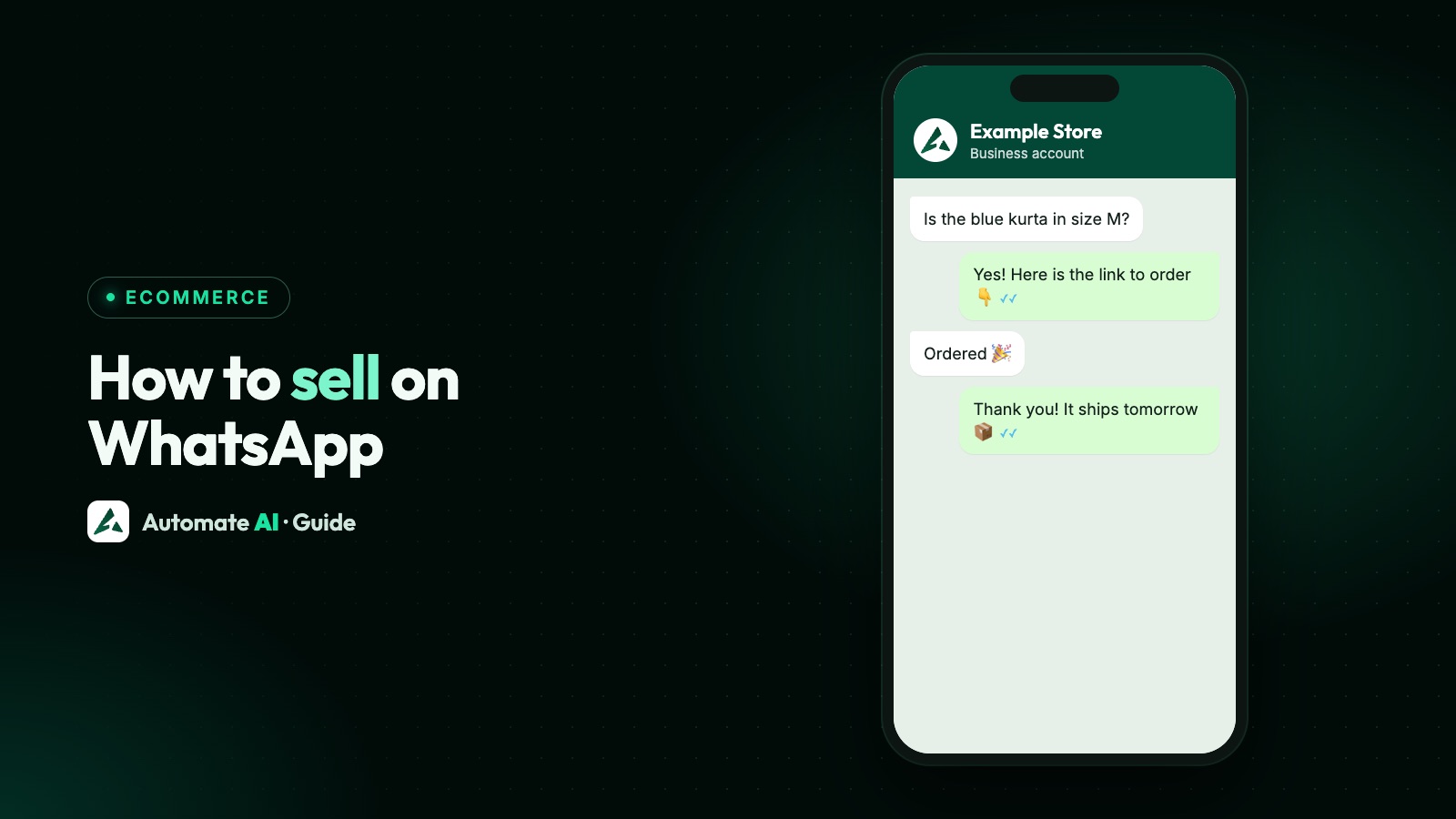
To sell on WhatsApp, set up a business account, show your products in a catalogue or a store link, bring buyers into the chat with links, QR codes or ads, answer their questions quickly, confirm the order in writing, take payment on a secure page or on delivery, and keep them updated until it arrives. Yes, you can sell products on WhatsApp, as long as they’re allowed by WhatsApp’s Commerce Policy.
This guide follows one sale from the first message to the paid order, with a chat script you can copy, the payment options, the WhatsApp rules that apply after the order, and how to sell again without annoying people. For catalogue set-up in detail, see our WhatsApp catalogue guide.
Key takeaways
- Check your products against WhatsApp’s Commerce Policy first: alcohol, tobacco, medicines, weapons and several other categories aren’t allowed.
- The free Business app suits one person selling from a phone; the API suits a team, automation and messages after the chat goes quiet.
- Turn questions into orders with a short script: answer, confirm the item, give the full total, say how to pay, confirm in writing.
- Take payment on a secure page or on delivery. Never ask for card, bank account or ID numbers in a chat.
- After the order, updates are utility templates; offers to buy again are marketing and need the customer’s permission.
Can you sell products on WhatsApp?
Yes. Shops, restaurants, clothing brands, home bakers and service businesses sell on WhatsApp every day. Anyone selling goods or services through WhatsApp Business must follow the WhatsApp Business Messaging Policy and the Commerce Policy, which applies to catalogues and payments too.
WhatsApp lists goods and services you can’t buy, sell or promote, including firearms, alcohol and tobacco, drugs (prescription or otherwise), medical and healthcare products, adult products and services, real-money gambling, multi-level marketing, and payday loans. A few regulated categories may be allowed in some countries on the API only. Check the full list in businesses and products WhatsApp doesn’t allow before you set anything up.
Choose how you’ll sell
There are three common set-ups. Many businesses start with the first and move to the second or third when one phone can’t keep up.
| WhatsApp Business app | WhatsApp API with a platform | Store page linked to WhatsApp | |
|---|---|---|---|
| Who replies | You, on your phone and linked devices | A team in a shared inbox | Your team, from chats the store sends you |
| Showing products | Free in-app catalogue | A Meta catalogue, product photos or a store link | Categories, products and add-ons on a web page |
| Messaging later | By hand | Approved templates once 24 hours have passed | Approved templates you pick for each order step |
| Order updates | Typed by hand | Automatic templates | A message at each order step (website checkout) |
| Payment | Arranged in the chat | A secure link or in-chat options where offered | Online checkout or cash on delivery |
| Best for | A small shop with one person replying | Growing teams and automation | Bigger ranges and prepaid orders |
Not sure which one you need? WhatsApp vs WhatsApp Business and the Business app’s limits explain where the free app stops.
Set up your shop window
Before you send a single link, make the account look like a shop someone would trust with money. Do this today:
- Complete the business profile: your real business name, a clear logo, opening hours, address or service area, and a one-line description of what you sell. See WhatsApp Business profile.
- Add your products. In the Business app, open the catalogue and add each item with a name, the country of origin and up to 10 photos, plus a price and description if you like. WhatsApp reviews each item, and customers see it only once it’s approved.
- Write the answers to the five questions everyone asks: price, sizes or options, delivery time, delivery charge and returns. Save them as quick replies.
- Decide how you’ll take payment before the first order arrives (see below).
- Prepare a short greeting that tells people how to order, such as “Send the product name or a screenshot and we’ll confirm price and delivery”.
Bring buyers into the chat
Selling is easiest when the buyer writes first. It means they’re interested, and on the API it opens a 24-hour window in which you can reply freely.
- A wa.me link with a pre-filled message in your Instagram bio, website and email signature:
https://wa.me/15550001234?text=Hi%2C%20I%27d%20like%20to%20order. Use the full international number with no zeros, brackets or dashes. - A QR code of that link on packaging, receipts, flyers and the shop counter. See WhatsApp links and QR codes.
- Click-to-WhatsApp ads on Facebook and Instagram that open a chat with you. When someone messages you from one on the Android or iPhone app and you reply within 24 hours, your messages to them are free for up to 7 days. See Click-to-WhatsApp ads.
- Your WhatsApp Status for new arrivals. Customers see it only when you’ve both saved each other’s numbers, so save your regulars. See WhatsApp Status for business.
Turn a question into an order
Many WhatsApp sales start with “Is this available?” and are lost through slow or vague answers. Follow the same six steps every time, so anyone on your team can close the sale:
| Step | What to do | Sample message (sample data) |
|---|---|---|
| 1. Greet and answer | Answer the question in the first line | “Hi Asha, yes, the blue cotton kurta is in stock in M and L.” |
| 2. Show it | Send a real photo or the product link | “Here it is in daylight, so you can see the true colour.” |
| 3. Confirm the details | Size, colour, quantity, options | “Shall I put down 1 × size M?” |
| 4. Give the full total | Price, delivery charge and delivery date | “That’s ₹749 + ₹50 delivery = ₹799, delivered by Thursday.” |
| 5. Say how to pay | One clear option, or two at most | “You can pay on the order page or cash on delivery. Which suits you?” |
| 6. Confirm in writing | An order summary with a number | “Order #1042 confirmed: 1 × blue kurta (M), ₹799, arriving Thursday.” |
Two habits help more than any tool. Reply within minutes during opening hours, and put a time on every promise (“I’ll check stock and reply by 4 pm”). If you can’t answer, say who will.
Take payment safely
Pick the options your customers already trust, and keep card details out of the chat. WhatsApp’s policy says businesses must never ask people to share full payment card numbers, financial account numbers or ID numbers.
| Option | How it works | Good to know |
|---|---|---|
| Online checkout | The customer pays on your store page through your payment gateway | Money goes to your own gateway account |
| Payment link | You send a link from your payment provider | Check the link is from your own account before sending |
| Cash on delivery | The customer pays when the parcel arrives | Confirm the order on WhatsApp before you ship |
| In-chat payments (India) | Meta’s payments API shows an order and lets the customer pay with UPI apps or a supported gateway | Offered through providers that support it; check with yours |
Cash on delivery brings orders that never get collected. A short confirmation message with Confirm and Cancel buttons before dispatch helps; see WhatsApp for ecommerce for the template and the rest of the order journey.
After the order: updates that follow the rules
A sale isn’t finished when the customer pays. On the API, once 24 hours have passed since the customer’s last message, you can only send templates that Meta has approved, so plan your order updates as templates from the start.
- Order confirmed, shipped, out for delivery, delivered: these are utility templates under Meta’s rules, as long as they only update the order.
- Don’t slip an offer into an update. Meta treats an order update with a promotion in it as a marketing template.
- A feedback request tied to that order can be utility; a general survey can’t.
- Give a way to reach a person for returns and problems. WhatsApp’s policy requires a clear route to a human when you automate.
Sell again without spamming
Repeat buyers are where WhatsApp selling pays off, and also where accounts get blocked and reported. Send offers only to people who said yes to them, keep them relevant, and make leaving easy.
- Segment by what people bought, so a buyer of kurtas hears about new kurtas, not everything.
- Send fewer, better messages: a restock of their size beats a weekly sale blast.
- End every offer with “Reply STOP to opt out”, and respect every opt-out, on or off WhatsApp.
- Test on a small group first and watch blocks and replies before sending to everyone.
Sample repeat-order template (marketing, sample data): “Hi {{1}}, the blue kurta you loved is back in new colours at Example Store. Tap below to see them before the weekend. Reply STOP to opt out.” [See new colours]
More ideas in WhatsApp marketing without getting banned.
Selling with Automate AI’s online store
Automate AI’s Online Store gives you a store page with categories, products and add-ons that you can share in chats and campaigns. In E-Commerce › Store, choose how customers order. You can change it at any time:
| Mode | What happens | Good for |
|---|---|---|
| Order on WhatsApp | The cart opens a WhatsApp chat with the whole order and the total. Customers don’t need an account. | Chat-led shops that confirm each order by hand |
| Website checkout | Customers sign in, enter their address and pay on your store, by Razorpay or cash on delivery. | Prepaid orders and bigger ranges |
| Enquiry only | No cart or payment. Each product has a button that opens a WhatsApp chat asking about it. | Quotes, bookings and services |
- Payments go to your own Razorpay account, or customers choose cash on delivery.
- Order updates: each step (placed, paid, confirmed, processing, shipped, completed or cancelled) can send a WhatsApp message to the customer, your team or both. Free text only reaches customers inside the 24-hour window, so pick an approved template for later steps such as Shipped.
- Discount codes, delivery dates shown to shoppers, Shiprocket shipping, your own domain and a WhatsApp button on every page.
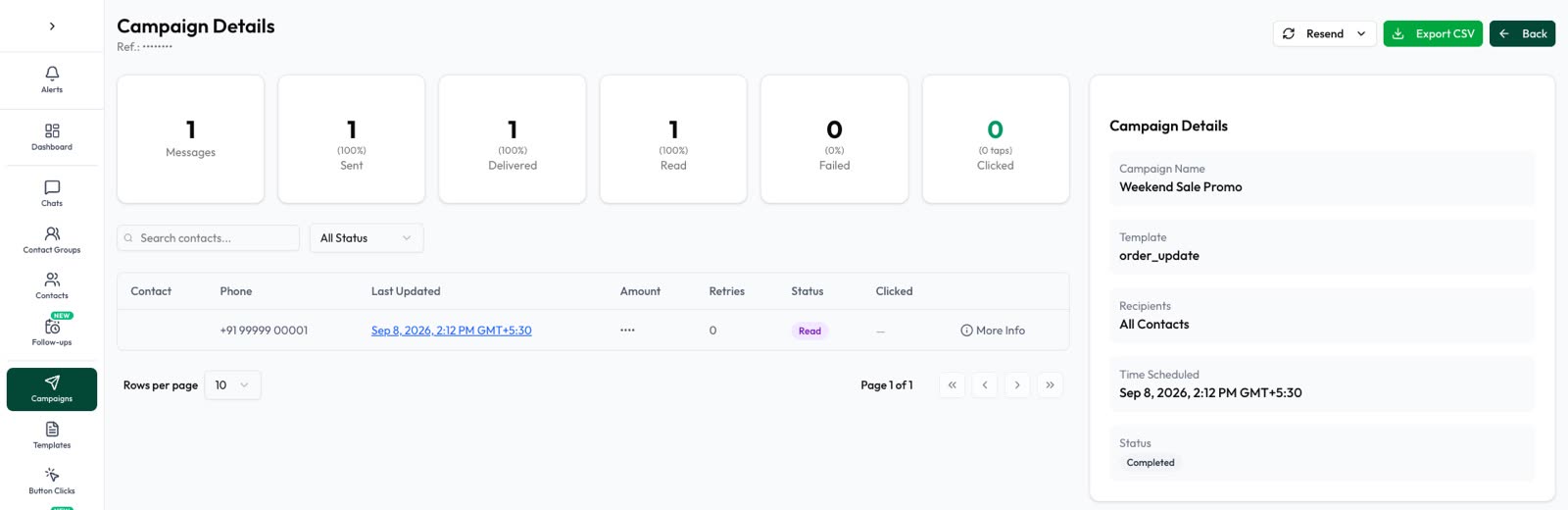
- Sales per campaign: see the orders recipients placed within 7 days of each campaign.
The AI Assistant can answer product questions from your own documents and website, and every chat lands in the shared team inbox. Online Store is included in the AI + Automation Plan and Series 4; see pricing. Already on Shopify? Use the Shopify integration instead.
Frequently asked questions
Can you sell products on WhatsApp?
Yes, as long as the products are allowed by WhatsApp’s Commerce Policy. It bans categories such as alcohol, tobacco, drugs and medicines, weapons, adult products, real-money gambling and payday loans.
How do I sell on WhatsApp Business?
Complete your business profile, add products to the catalogue, share a wa.me link or QR code so buyers message you, confirm each order with a written summary, take payment on a secure page or on delivery, and send order updates.
Do I need a website to sell on WhatsApp?
No. You can sell with the Business app catalogue alone. A store page helps when you have many products, want online payment, or want order updates sent automatically.
Can customers pay inside WhatsApp?
In India, Meta’s payments API lets providers that support it show an order and take payment with UPI apps or supported gateways. Elsewhere, and in Automate AI’s store, customers pay on a secure page or on delivery.
What is a WhatsApp store builder?
A tool that makes a store page you share on WhatsApp, with products, a cart and a way to order. In Automate AI, the cart can send the whole order to your WhatsApp chat, or customers can check out on the page.
How do I message customers after they buy?
On the API, after 24 hours you need approved templates. Order and delivery updates are utility templates if they contain no offer; promotions are marketing and need the customer’s permission.
Sources
- WhatsApp Business Messaging and Commerce Policy
- WhatsApp Help Center: How to add products to your catalog
- WhatsApp Help Center: How to use click to chat
- Meta: Send messages (customer service window)
- Meta: Template categorization
- Meta: Get opt-in for WhatsApp
- Meta: Pricing on the WhatsApp Business Platform (free entry point)
- Meta: Payments in India
WhatsApp rules and prices change. We check these guides against Meta’s documentation, but always confirm current terms with Meta before you rely on them. Questions? Message us on WhatsApp at +91 836 977 8812.