How to Send WhatsApp Marketing Messages Without Getting Banned
How to send WhatsApp marketing messages without getting banned: the official API, opt-in, templates, quality, per-person limits, pacing and opt-outs.
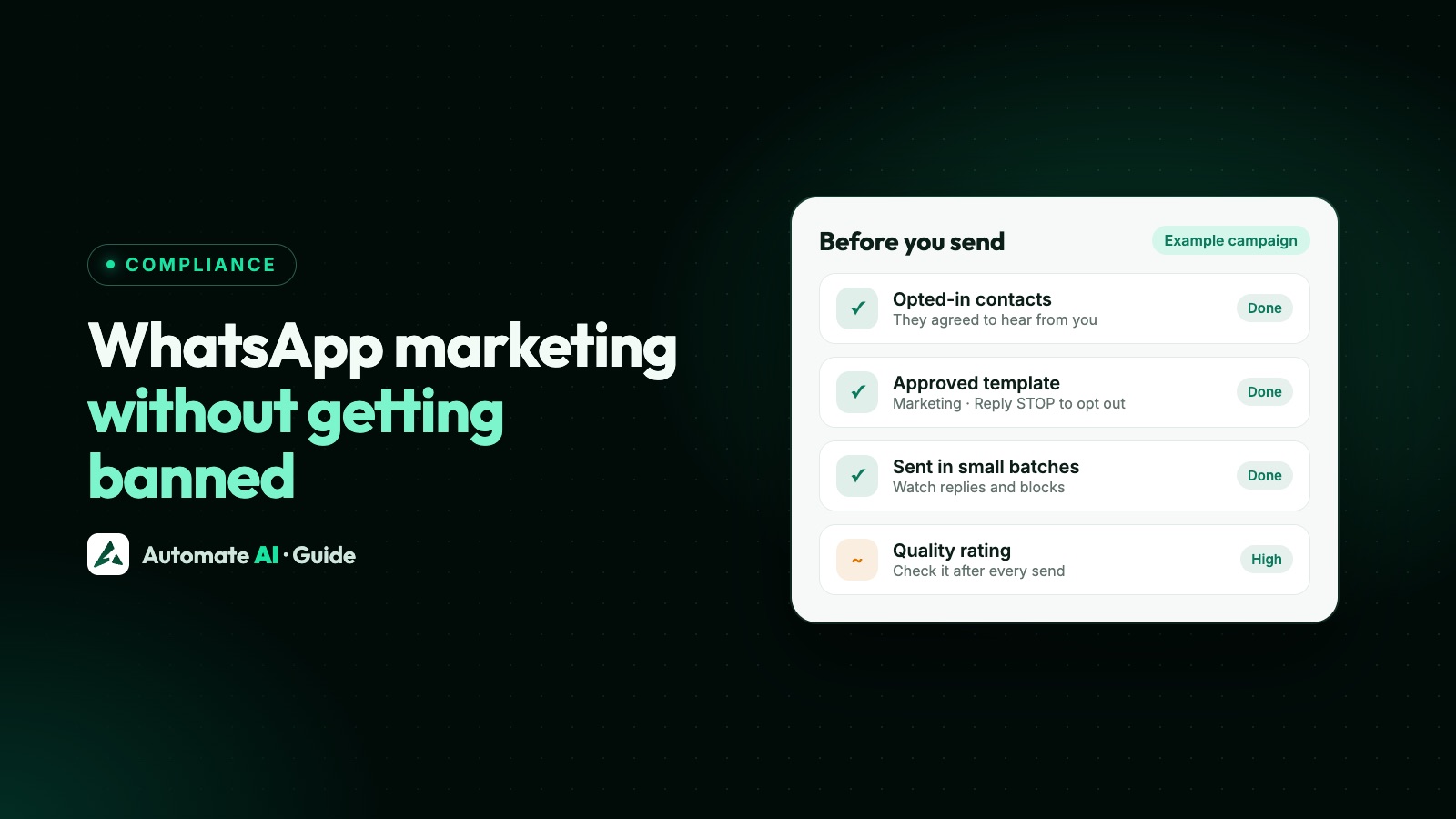
To send WhatsApp marketing messages without getting banned, use the official WhatsApp Business API instead of bulk-sender tools, message only people who opted in, send approved templates, watch your quality rating and honour every opt-out. Most bans and restrictions come from skipping one of those.
Nobody can promise that a number will never be restricted, because that decision is Meta’s. What you can do is remove the usual causes. This checklist takes you through eight steps in order, and links to our fuller guides where a topic needs more detail.
Key takeaways
- Send from the official API. WhatsApp’s Terms prohibit bulk messaging and auto-messaging on its apps.
- Message only people who gave you their number and opted in to hear from your business.
- Outside the 24-hour window you need an approved template, and any promotion makes it marketing.
- A failed send with error 131049 means WhatsApp’s per-person limit. Wait at least 24 hours before trying again.
- Start with a small, engaged group, because Meta may pace new templates and large sends.
- Give people an easy way out. In Automate AI a typed STOP opts a contact out; a button tap doesn’t, so act on those yourself.
Step 1: Use the official API, not bulk tools
WhatsApp’s Terms of Service prohibit “bulk messaging, auto-messaging, auto-dialing, and the like” on its apps. Bulk-sender software, WhatsApp Web extensions and modified apps all fall under this, whatever delays or “safe modes” they advertise. See why bulk sender tools get numbers banned.
The route built for messaging many customers is the WhatsApp Business Platform, used directly or through a provider. It has its own rules, which the next steps cover, but sending at scale is what it’s for.
If you don’t want to give up the app on your phone, coexistence lets the same number work in the WhatsApp Business app and on the API.
Step 2: Message only people who opted in
WhatsApp’s policy lets you contact someone only if they gave you their number and you have their permission to message them. Meta’s opt-in guide adds that the opt-in must clearly say they’re agreeing to hear from you, and must name your business.
- Collect it where it’s natural: a website form, checkout, a shop counter, a phone call or inside a chat.
- Say what you’ll send, such as order updates or offers. Meta suggests a separate opt-in for each kind.
- Keep a record of who agreed, when, where and to what.
- Leave out bought, scraped and old lists. They’re where “Didn’t sign up” and “Spam” blocks come from.
Sample wording and record-keeping tips are in WhatsApp opt-in.
Step 3: Send approved templates in the right category
Once the 24-hour customer service window has closed, or to message someone first, you can only send a template Meta has approved. Every template belongs to one category:
| Your message | Category |
|---|---|
| A sale, offer, new arrival or back-in-stock alert | Marketing |
| An order update with a discount added at the end | Marketing, because any promotion makes it marketing |
| An order, delivery or appointment update for that customer | Utility |
| A one-time passcode | Authentication |
Never label a promotion as utility to pay a lower rate. Since April 2025 Meta approves such a template as marketing if it judges it to be marketing, and it lists misclassified templates among the repeated violations that lead to restrictions. More in WhatsApp template messages.
Check what you’re promoting too. Some products can’t be sold on WhatsApp at all; see prohibited businesses and products.
Step 4: Watch your quality rating and blocks
Meta rates your phone number and each template on how people react. Your number’s rating covers the past 7 days of feedback, mainly blocks, reports and the reasons people give. Templates are also judged on read rates.
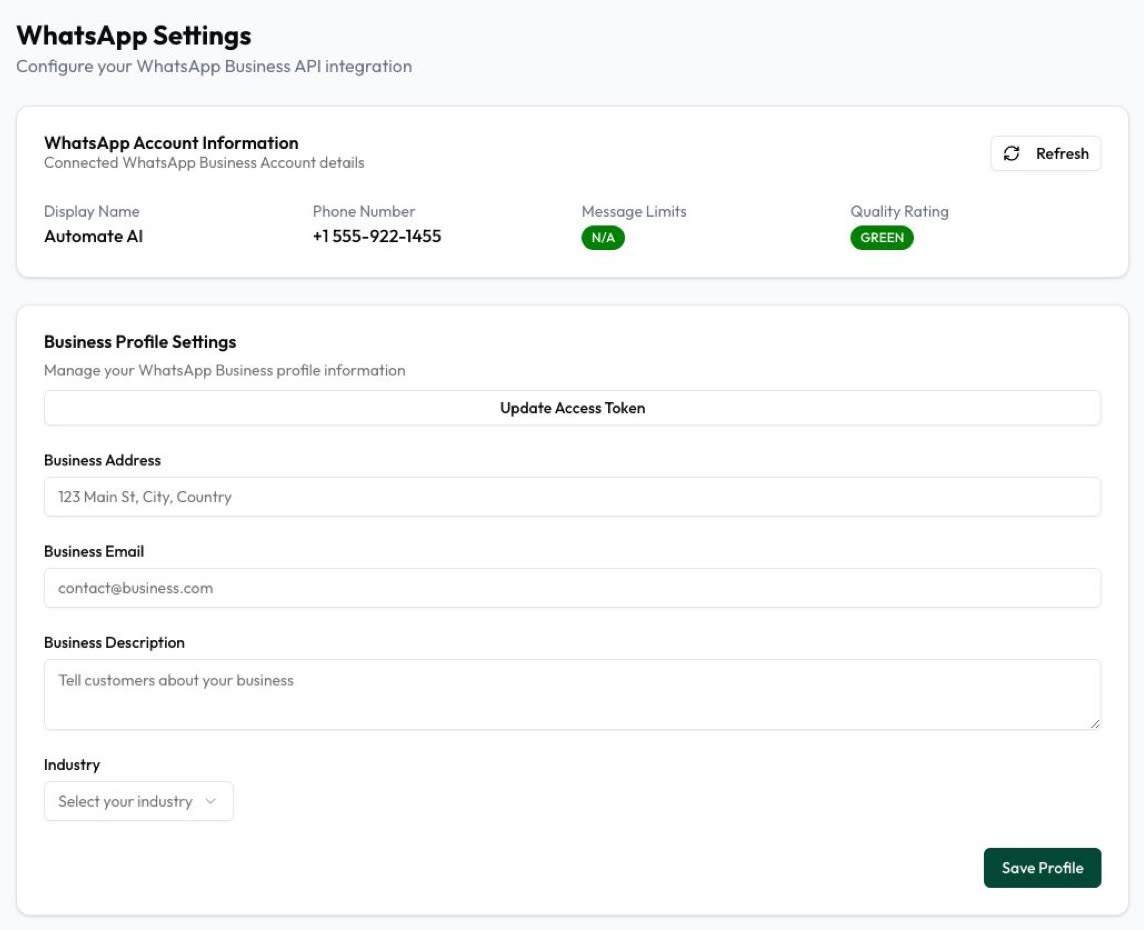
- Where to look: WhatsApp Manager shows your number’s rating and, when it’s medium or low, the block reasons. In Automate AI, Settings › WhatsApp shows the rating and your message limit.
- What a low-quality template does: it’s paused for 3 hours, then 6, and disabled the third time.
- What Meta doesn’t publish: a block rate you have to stay under. Treat any rise in blocks as a reason to stop and look.
Meta says that if quality stays low for a sustained period, it will rate-limit your messaging. For fixes, see WhatsApp quality rating and how to reduce blocks and reports.
Step 5: Respect per-person marketing limits
WhatsApp may limit how many marketing templates a person receives from all businesses, not only yours. The limit adapts to that person’s recent engagement, and Meta doesn’t publish a number.
- What you’ll see: a failed send with error 131049. This isn’t a problem with your account, and your messages to other people aren’t affected.
- What to do: wait at least 24 hours before trying that person again. Repeated retries can block further attempts to them for up to 24 hours.
- What doesn’t count: if someone replies, a 24-hour window opens, and marketing messages inside it don’t count towards the limit.
- US numbers: WhatsApp doesn’t currently deliver marketing templates to them, so leave them out. See marketing messages to US numbers.
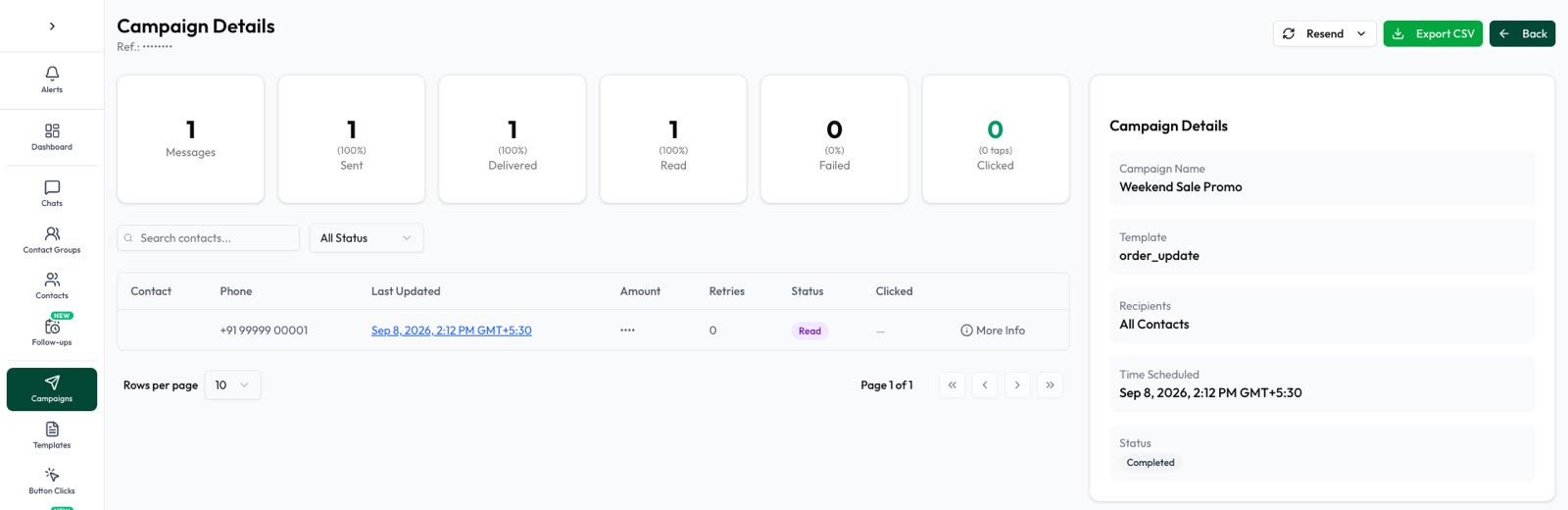
So don’t resend to a failed list straight away. In Automate AI campaigns you can resend to failed numbers once the campaign has finished; give it at least a day first.
Step 6: Pace your sends
Sending everything to everyone at once is how a small problem becomes a big one. Three limits shape how fast you can go:
| Limit | What it does | What to do |
|---|---|---|
| Messaging limit | Caps the unique people you can reach with templates in a moving 24 hours. It’s set for your business portfolio: 250, 2,000, 10,000, 100,000 or unlimited. | Verify your business and keep quality high. See messaging limit increase. |
| Template pacing | Meta may hold messages from new, unpaused or non-green marketing and utility templates while it gathers feedback. Bad feedback means held messages are dropped and the template is paused. | Try each new template on a small group first. |
| Portfolio pacing | Portfolios that sent fewer than 500,000 templates in the past 365 days may have large sends released in batches. If feedback suggests suspicious activity, held messages are dropped. | Split big lists, and send to engaged contacts first. |
A simple rhythm for a new list or template:
- Send to a small group who recently replied or bought.
- Check the delivered, read and failed counts, and your quality rating.
- If they look healthy, send to the next segment.
- If reads fall or blocks rise, stop and fix the message or the audience.
Don’t stack offers on the same people either. Meta’s own advice is to avoid sending too many messages a day, and to make each one personal and useful.
Step 7: Make opting out easy, and honour it
WhatsApp’s policy says you must respect every request to stop, on or off WhatsApp. Someone who can opt out easily has less reason to block or report you.
- Add an opt-out to marketing templates: a footer such as “Reply STOP to opt out”, a “Stop promotions” quick-reply button, or both.
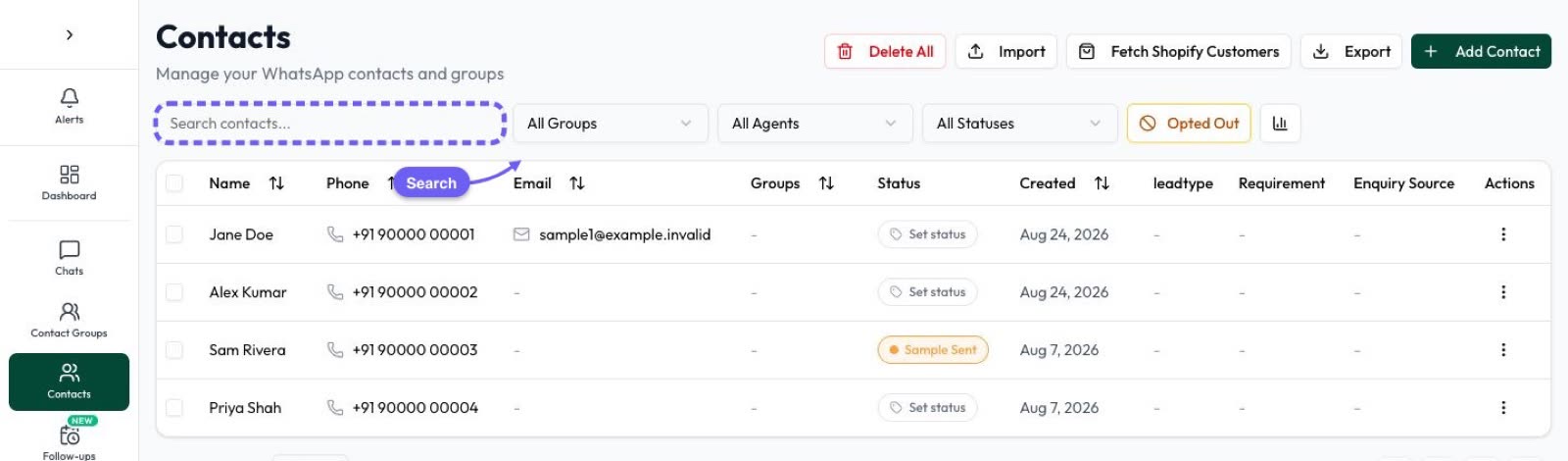
- Know what’s automatic. In Automate AI, a typed STOP or unsubscribe opts a contact out automatically, and so does your own opt-out keyword from Settings › General. A button tap doesn’t, so check Button Clicks and mark those contacts yourself.
- Act on requests made elsewhere, such as on a call, by email or in your shop.
- Don’t retry error 131050. It means the person has stopped your marketing messages through WhatsApp’s own controls.
The full process is in WhatsApp opt-outs.
Step 8: What to do if you’re flagged
First work out what actually happened, because the fix depends on it. Meta retired the old Flagged and Restricted number statuses in October 2025, so look for one of these instead:
| What you see | What it means | What to do |
|---|---|---|
| A template is paused or low quality | People are reacting badly to that template | Stop using it, then fix the wording or the audience |
| Your number’s rating drops to yellow or red | Feedback from the past 7 days is poor | Read the block reasons and hold back campaigns to less engaged contacts |
| A warning in Business Support Home | A policy violation has been recorded | Read which policy it was, then fix it or request a review |
| Templates or all messages are blocked | A restriction after repeated violations, from 1 to 30 days | Fix the cause, and request a review if it’s wrong |
| The account is locked or disabled | An indefinite block, or removal from the platform | Request a review in Business Support Home |
| “This phone number can’t use WhatsApp” in the app | The number is banned on the WhatsApp or Business app | Tap Request review in the app |
Step-by-step help is in WhatsApp Business API account restricted or banned and, for the app, WhatsApp account banned.
A quick checklist before every campaign
- Everyone on the list opted in, and you have a record.
- Everyone who opted out has been removed, however they asked.
- The template is approved, in the right category, with a clear way to opt out.
- The list is a segment that suits the offer, not every contact you have.
- Your number and template ratings look healthy.
- A new template or list has been tried on a small group.
- The send time suits your customers’ local hours.
- Someone is ready to answer the replies.
Automate AI runs on the official WhatsApp Business API. You choose the audience by tags, group, status, date or country, campaigns leave out contacts marked as opted out, you can pause and resume a running campaign, and reports show sent, delivered, read and failed counts. The opt-in and the content are still yours to get right. If you’re unsure about a campaign, talk to us before you send.
Frequently asked questions
How do I send bulk WhatsApp messages without getting banned?
Use the official WhatsApp Business API rather than bulk-sender tools, send approved templates only to people who opted in, keep your quality rating healthy and honour every opt-out. No one can guarantee that a number will never be restricted.
Can I get banned on the official WhatsApp Business API?
Yes. The API is allowed, but Meta can warn, restrict or remove accounts that repeatedly break its policies or get too much negative feedback.
How many marketing messages can I send a day?
Your messaging limit sets how many unique people you can reach with templates in a moving 24 hours, from 250 up to unlimited. WhatsApp also limits how many marketing templates each person receives, and doesn’t publish that number.
What does error 131049 mean?
The person has reached WhatsApp’s per-person marketing limit, or you’ve retried them too often. Wait at least 24 hours before trying again. Your messages to other people aren’t affected.
Do delays between messages prevent a ban?
Not on unofficial tools. WhatsApp’s Terms make no exception for delays. On the API, sending in stages helps you catch a bad template or list early, but it doesn’t replace opt-in or quality.
Does Automate AI handle people who type STOP?
Yes. A typed STOP or unsubscribe opts the contact out automatically, and campaigns leave them out. Button taps don’t opt anyone out, so mark those contacts yourself.
Sources
- WhatsApp Terms of Service
- WhatsApp Business Messaging Policy
- Meta: Get opt-in for WhatsApp
- Meta: Per-user marketing template limits
- Meta: Messaging limits
- Meta: Template pacing
- Meta: Business portfolio pacing
- Meta: Policy enforcement
WhatsApp rules and prices change. We check these guides against Meta’s documentation, but always confirm current terms with Meta before you rely on them. Questions? Message us on WhatsApp at +91 836 977 8812.