WhatsApp Forms: How to Collect Customer Details in a Chat
What WhatsApp forms are: Meta’s WhatsApp Flows, chatbot questions and lead forms. How to collect customer details in a chat, with example fields and data rules.
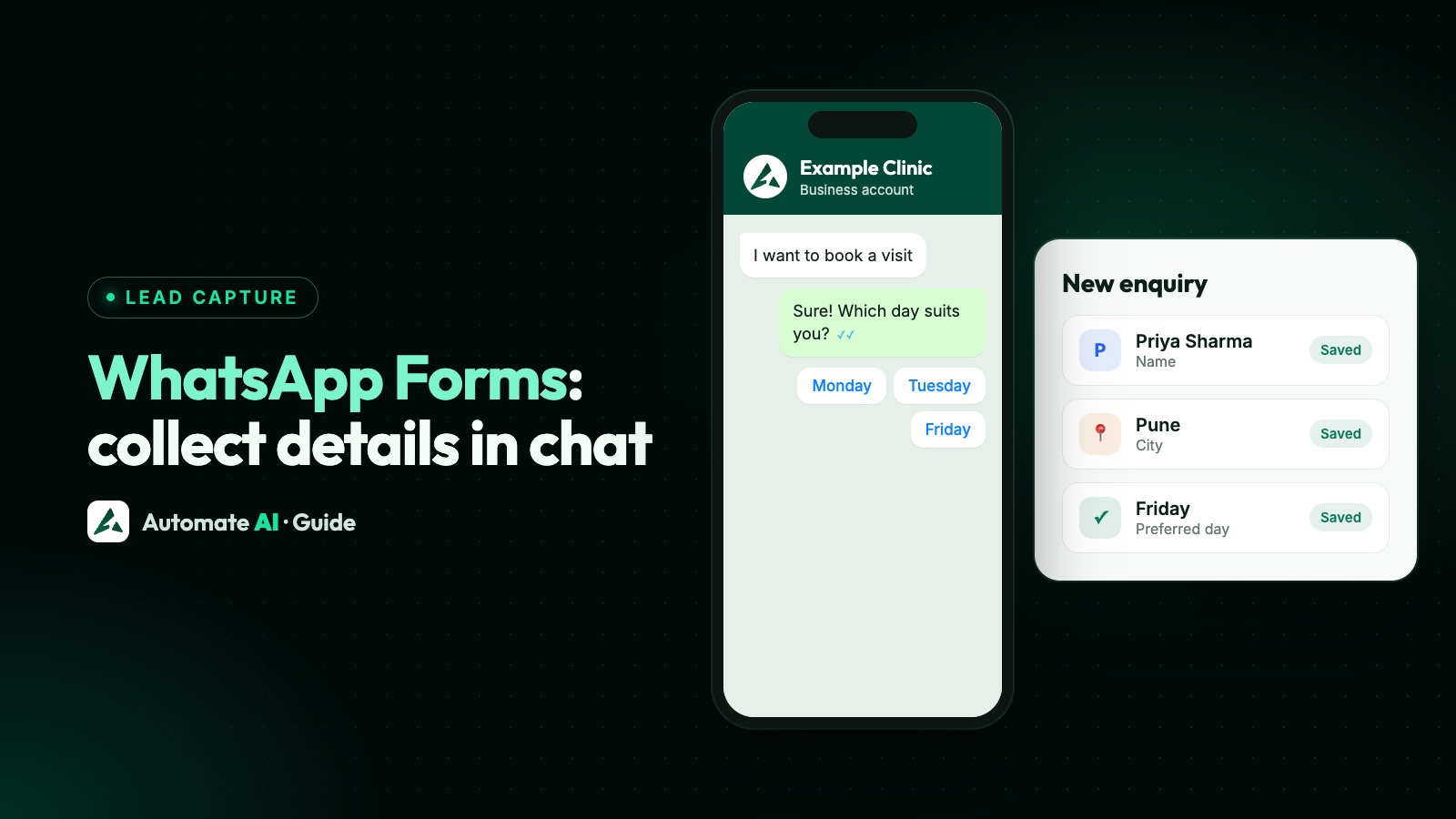
A WhatsApp form is a way to collect customer details inside a chat, and Meta’s own feature for it is called WhatsApp Flows. A customer taps a button, fills in fields on screens that open in WhatsApp, and submits, without going to a website.
People also say “WhatsApp form” when they mean a chatbot that asks questions one at a time, or a lead form on an ad or website that feeds into WhatsApp. This guide explains each one, what works in Automate AI, which to pick, example fields, and what you must never ask for in a chat.
Key takeaways
- WhatsApp Flows are Meta’s in-chat forms. Sending them needs a verified business and high message quality.
- The simplest form is often a chatbot: ask a question, save the reply with Update Contact, then ask the next one.
- Lead forms on Facebook ads or your website collect details first, and Automate AI saves them as contacts.
- In Automate AI, a form template goes out as an interactive Flow message, so it reaches people whose 24-hour window is open.
- Never ask for full card numbers, account numbers, ID numbers or passwords in a chat.
What people mean by “WhatsApp forms”
WhatsApp has no feature called “forms”. The phrase covers four different things:
| What it is | How it works | Where the answers go |
|---|---|---|
| WhatsApp Flows | A form with one or more screens that opens inside WhatsApp | Your system, through a webhook |
| Chatbot questions | A bot asks one thing at a time, with typed replies, buttons or a list | The contact’s record in your platform |
| Lead forms | A form on an ad or your website, filled in before any chat starts | Your platform, through an integration |
| A link to a web form | You send a link and the customer fills in a page in their browser | Wherever that form saves its answers |
Flows and chatbots both need the WhatsApp Business Platform (API). The free Business app has quick replies and greeting and away messages, but no form or chatbot builder.
WhatsApp Flows: Meta’s in-chat forms
A Flow is built from screens, and each screen holds components such as text inputs, dropdowns, date pickers and checkboxes. It collects several fields in one structured step, so there’s less typing and fewer typos.
Meta gives two ways to send one: as a button on an approved template, or as an interactive message in a conversation the customer started. A few things to know:
- Requirements: Meta asks for a verified business and high message quality.
- Building: you use the Flow Builder in WhatsApp Manager, or Flow JSON through the API.
- Servers: simple forms need none. Live data, such as free appointment slots, needs a data endpoint.
- Devices: Flows work on phones, not on companion devices such as WhatsApp Web.
Limits, publishing and costs are in our full guide to WhatsApp Flows.
Forms in Automate AI
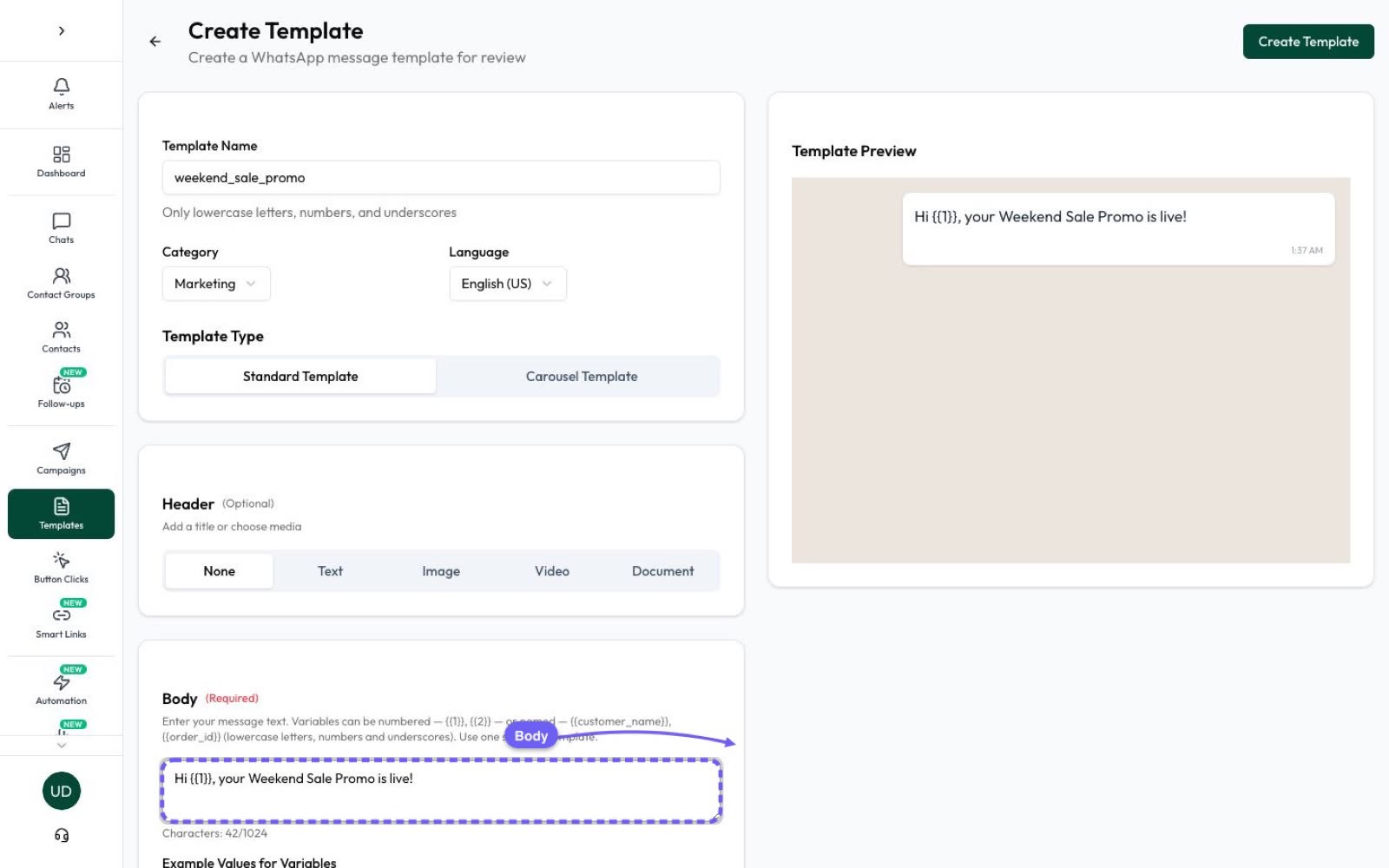
Automate AI doesn’t have a visual Flow builder. Instead, you add a form to a Utility template. Open Templates, choose Create Template, pick the Utility category and tick Enable form to collect customer information. Then choose a form type:
| Form type | What it does | Good for |
|---|---|---|
| Custom Fields | Automate AI creates a simple Flow that asks for Name, Email and Phone | A quick contact form |
| Meta Flow | You enter the Flow ID of a Flow you built and published in WhatsApp Manager | Bookings, surveys and longer forms |
Add the button text and a webhook URL. The URL is where submissions are sent, so point it at your own system. A Custom Fields form needs one.
The neatest setup is a keyword reply. In Automation › Basic Replies, choose Respond with template, so someone who types “BOOK” gets the form straight away. The chatbot builder has no form step, so use the questions below inside a chatbot.
Collect details with chatbot questions
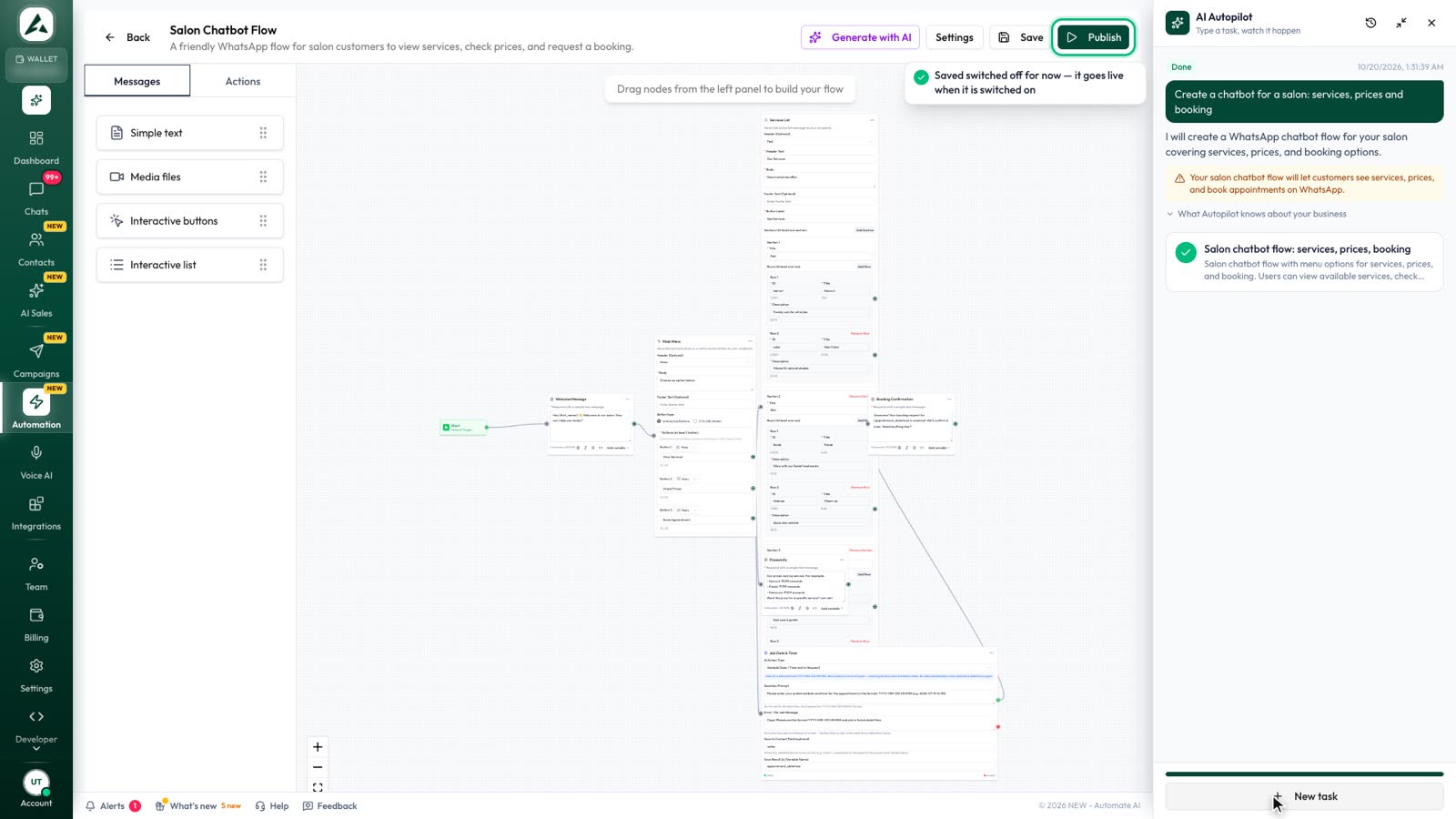
For most small businesses this is the easiest place to start. It needs no Flow and no developer, and the answers land on the contact. Build it in the chatbot builder at Automation › Flows, included in Series 2, 3 and 4:
- Start the flow on a keyword such as “enquiry”, or when a new contact messages you.
- Ask one question in a text step, such as “What’s your name?”
- Add an Update Contact step straight after it and pick the field, such as First Name. The flow waits for the customer’s next message and saves it there.
- Repeat for each typed answer: email, city, company or a custom field.
- Use buttons or a list for choices. Each option can have its own branch, where Add to Group records the choice, such as “Mumbai leads”.
- Finish with a thank-you and what happens next.
Two more steps help. Collect Media asks for a photo or document. AI Validation can ask for a date and time, and keeps asking until it gets a real one that isn’t in the past.
Don’t save a reply into Phone Number, because that’s the number you reach them on. Put a second number in Notes. More on the options in WhatsApp buttons and lists.
Lead forms and website forms
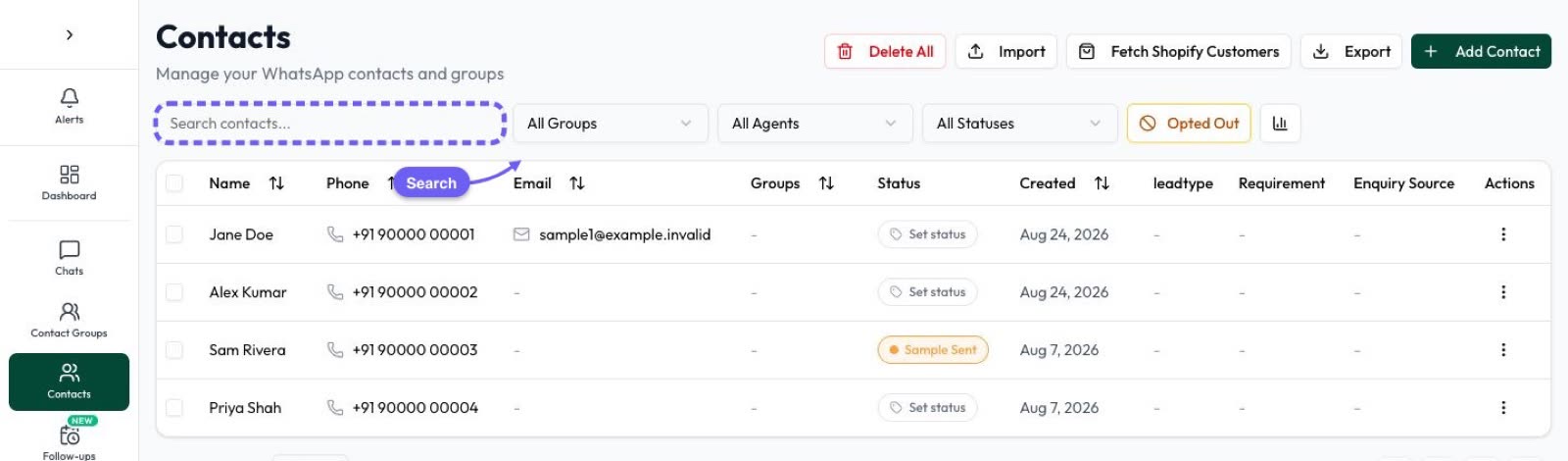
Sometimes it’s better to collect details before a chat starts. In Automate AI, lead capture is included in Series 2, 3 and 4, and saves these as contacts automatically:
- Facebook Lead Ads: connect the Pages that run your lead ads, and each new submission becomes a contact, with an instant WhatsApp template if you want one. See Facebook Lead Ads to WhatsApp.
- Website forms: send submissions to a contact webhook with your API key, pick a group and status, and send a welcome message.
One rule catches people out. A lead who filled in a form hasn’t messaged you, so your first message must be an approved template. The form also needs opt-in wording that names your business. See WhatsApp opt-in.
Which one should you use?
| If you want to | Use |
|---|---|
| Collect a name, email or city from someone already chatting | Chatbot questions with Update Contact |
| Offer a few choices and route people | Chatbot buttons or a list |
| Take bookings or surveys on one tidy screen, with pickers | WhatsApp Flows |
| Reach people who haven’t messaged you yet | A lead form or website form, then an approved template |
| Send answers to your own system | A Flow with a webhook URL, or a Webhook step in a chatbot |
| Take a payment or a login | A secure page on your website, not a chat form |
Use cases and example fields
Ask for as little as you can. These are sample field lists to adapt:
| Use case | Example fields | Good fit |
|---|---|---|
| Property enquiry | Name, city, budget range, best time to call | Chatbot or lead form |
| Salon booking | Service, date and time, name | Flow, or a chatbot with AI Validation for the date |
| Clinic appointment | Date and time, name (no health details) | Flow or chatbot |
| Course enquiry | Name, course, preferred batch | Chatbot |
| Feedback after a visit | A rating and an optional comment | Chatbot buttons or Flow |
| Event sign-up | Name, email, number of seats | Flow or chatbot |
| Wholesale enquiry | Company, product, quantity | Chatbot or website form |
What you must never ask for in a chat
WhatsApp’s Business Messaging Policy says not to share, or ask people to share, full payment card numbers, financial account numbers, personal ID card numbers or other sensitive identifiers. That applies to every option above, including Flows.
- Never ask for full card numbers, bank account numbers, national ID numbers or passwords.
- Keep health details out of chats. Clinics can confirm a date and time without asking what’s wrong.
- Take payments on a secure page. Send a link rather than collecting anything in the chat.
- Collect only what you need, and follow your local data rules. Meta reminds businesses to do this for Flows too.
- Say why you’re asking and what happens next.
Tips for forms people finish
- Keep it short. Meta’s guidance is that a Flow should take no more than 5 minutes; a chatbot should feel quicker still.
- Offer choices where you can. A tap is easier than typing.
- Make extras optional, so a missing detail doesn’t stop someone.
- Explain formats, such as how to write a date.
- Confirm at the end. Meta advises replying after a Flow is submitted, with next steps and how to change or cancel.
- Offer a person. WhatsApp’s policy requires a clear way to get help beyond the bot.
Frequently asked questions
Does WhatsApp have a form feature?
Yes. Meta’s in-chat forms are called WhatsApp Flows. They run on the WhatsApp Business Platform (API), not in the free Business app.
How do I create a form in WhatsApp?
Build a Flow in WhatsApp Manager and send it through your API provider, or use a chatbot that asks questions and saves the answers. In Automate AI you can also add a simple Name, Email and Phone form to a Utility template.
Can I collect customer details without a WhatsApp Flow?
Yes. A chatbot can ask questions one at a time and save typed replies to the contact with its Update Contact step. Lead ads and website forms can also create contacts.
Can I send a WhatsApp form to someone who hasn’t messaged me?
Meta allows this with a Flow button on an approved template. In Automate AI, form templates go out as interactive Flow messages, so they reach people inside the 24-hour window. For anyone else, send a normal template first and share the form once they reply.
Where do form answers go in Automate AI?
Chatbot answers are saved to contact fields with Update Contact. Answers from a Flow form are sent to the webhook URL you set on the template.
Can I ask for card or ID numbers in a WhatsApp form?
No. WhatsApp’s policy says not to ask for full card numbers, financial account numbers, personal ID card numbers or other sensitive identifiers.
Sources
- Meta: WhatsApp Flows
- Meta: Get started with WhatsApp Flows
- Meta: Send a Flow message
- Meta: WhatsApp Flows best practices
- Meta: Send messages (customer service window)
- Meta: Get opt-in for WhatsApp
- WhatsApp Business Messaging Policy
WhatsApp rules and prices change. We check these guides against Meta’s documentation, but always confirm current terms with Meta before you rely on them. Questions? Message us on WhatsApp at +91 836 977 8812.