How to Build a WhatsApp Chatbot Without Coding, Step by Step
How to build a WhatsApp chatbot without coding: create a flow, pick a trigger, add steps, let AI draft it, publish and test, with a worked small-business menu.
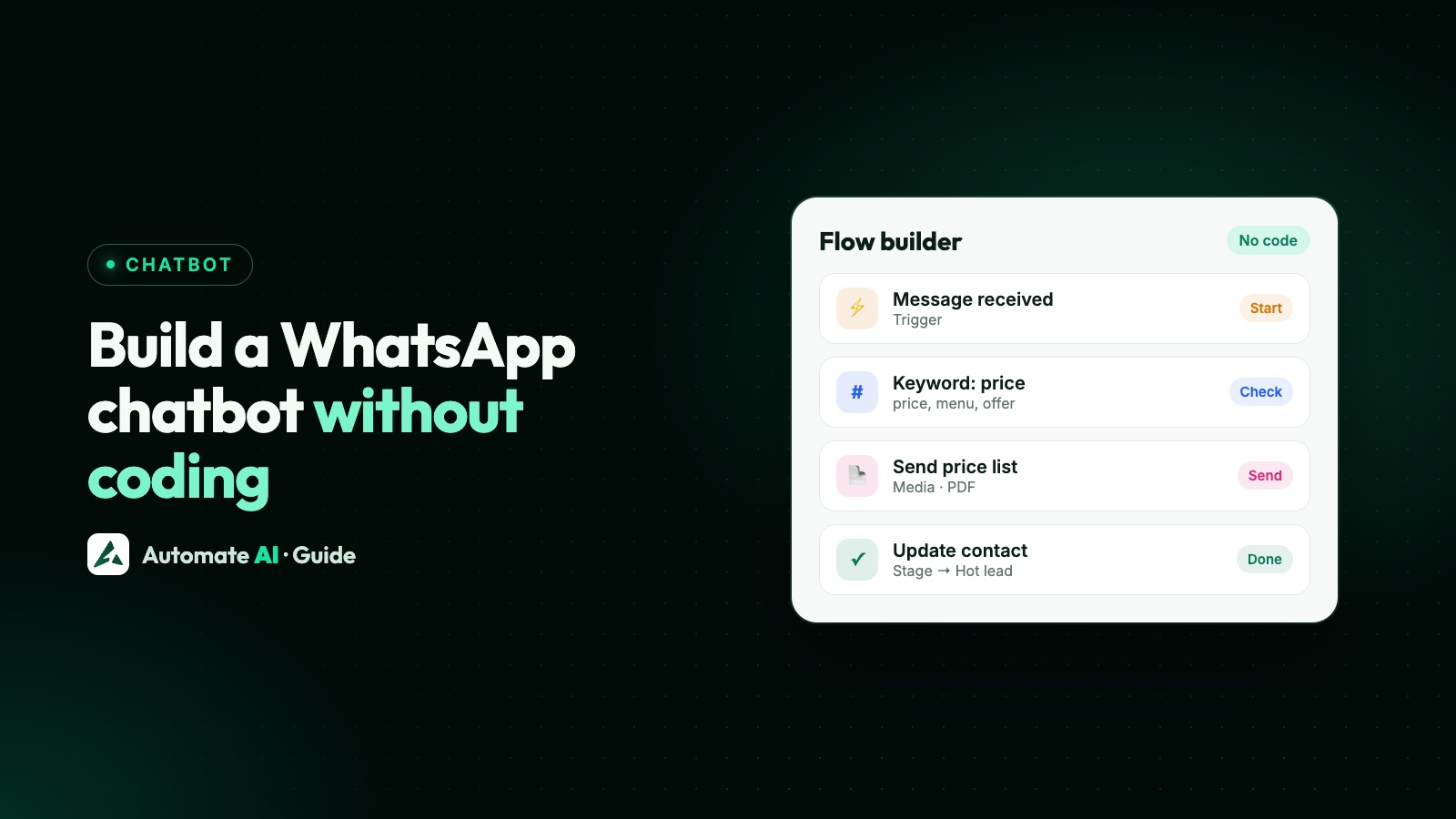
To build a WhatsApp chatbot without coding, connect your number to the WhatsApp Business API through a no-code platform, create a flow, choose what starts it, connect steps on a canvas, then publish it and test it on your own phone. You don’t write any code, and a simple menu bot can be live in an afternoon.
This guide walks through each step in Automate AI, with a worked example for a small café, how to hand a chat to a person, and the mistakes that catch first-time builders. New to chatbots? Start with what a WhatsApp chatbot is and how it works.
Key takeaways
- You need the WhatsApp Business API; the Business app has no chatbot builder.
- In Automate AI, chatbots live in Automation › Flows, on a drag-and-drop canvas.
- A flow starts on a keyword or when a new contact messages you.
- Generate with AI drafts a flow from a plain description, for you to review and edit.
- A flow stays Inactive until you publish it, so test with a private keyword first.
- Always include a way to reach a person. WhatsApp’s policy requires one.
Before you start: what you need
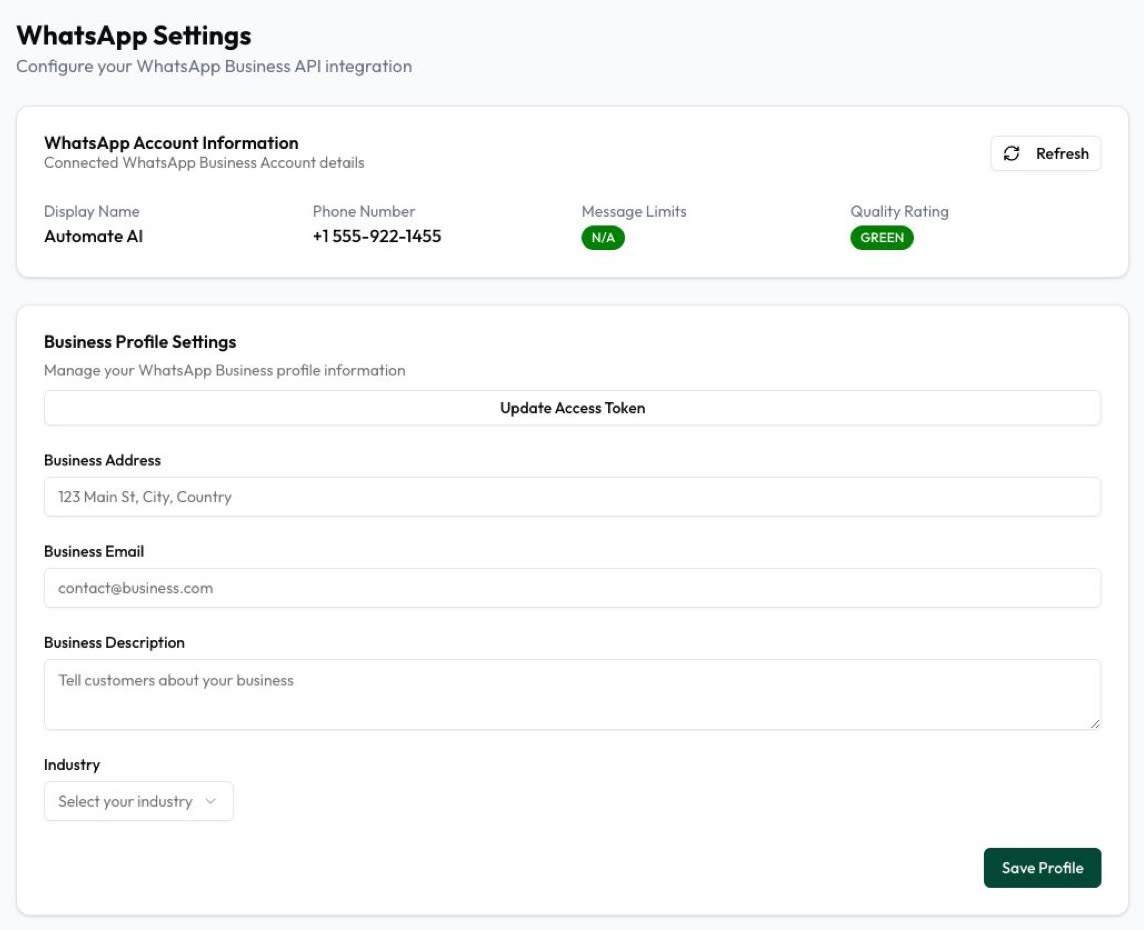
- A number on the WhatsApp Business API. The free Business app only has greeting and away messages and quick replies. Not connected yet? See how to set up the API.
- A plan with the Chatbot Flow Builder. In Automate AI that’s Series 2, 3 and 4. See pricing.
- One job for the bot. Share a price list, book a table or answer the top questions. Add more later.
- Your content. Have your menu or price list, opening hours and most common answers ready.
Step 1: Create a flow
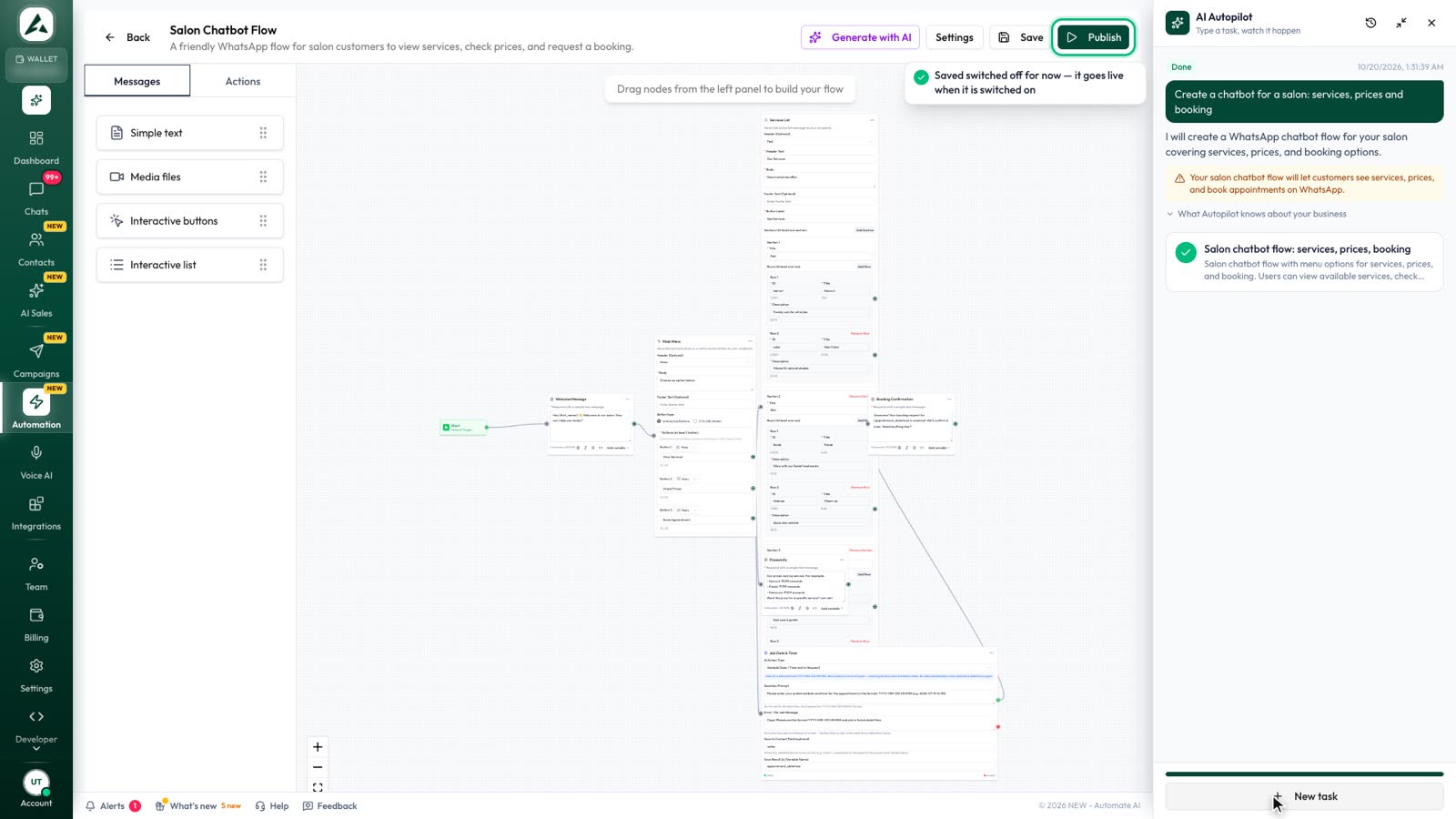
- Open Automation › Flows and click Create Flow.
- Give it a name, such as “Café menu”, and a description if you like.
- Click Continue to Builder. The canvas opens with a Start step, ready to build on.
On the left are two tabs, Messages and Actions. Drag a step onto the canvas to add it.
Step 2: Choose what starts the bot
Click Settings in the builder and pick a Trigger Type:
| Trigger | When it runs | Good for |
|---|---|---|
| Keywords | When a customer’s message contains one of your comma-separated keywords | Menus, price lists, bookings, help |
| New Contact | When a new contact is added, which in practice means someone messaging you for the first time | A welcome message |
Keywords ignore capitals, and they match the whole message or a whole word in it. So menu fires on “Can I see the menu?” but not on “menus”. Add the variations you expect, such as menu, menus, price, prices.
A keyword with a space, such as book table, only fires when the message is exactly that, so single words usually work better.
Step 3: Add and connect steps
A flow is a set of steps joined by lines. Drag in a step, fill it in, and connect it to the next one.
| Step | What it does |
|---|---|
| Simple text | Sends a message. You can use placeholders such as {first_name}. |
| Media files | Sends an image, video, audio file or document, such as a PDF price list. |
| Interactive buttons | Up to 3 reply buttons, or one website button. Each reply button can lead to its own branch. |
| Interactive list | A menu of up to 10 rows, each with its own branch. Use it for more than three options. |
| Add to Group, Remove from Group | Sorts the contact into a group. |
| Update Contact | Waits for the customer’s next message and saves it to a contact field. |
| Send Email | Emails your team or the contact. |
| Delay | Waits seconds, minutes, hours or days. |
| Condition | Branches on the customer’s last message or a contact field. |
| Webhook | Sends data to another system through a URL. |
Advanced steps can collect photos and files (Collect Media), check answers with AI (AI Validation) and send conversion events to Meta (Conversion Event). You won’t need them for a first bot.
Step 4: Or let Generate with AI draft it
In the builder, click Generate with AI and describe the bot in plain words. For example: “Greet the customer, ask for their email, save it to their contact, then thank them.” The AI builds the flow from the same steps, and you can review and edit everything on the canvas before saving.
Treat it as a first draft. Check the wording, the groups it uses and every branch. Nothing goes live until you publish it.
Step 5: Publish, then test on your phone
Click Save to keep your work and Publish to switch the flow on. A saved flow stays Inactive and won’t reply to anyone.
Only active flows run, so here’s a safe way to test:
- In Settings, use a private keyword that customers won’t type, such as
cafetest42. - Publish, then send that keyword from a phone that isn’t your business number.
- Tap every button and list option, and check each branch ends properly.
- Fix anything odd, then swap in your real keywords and save.
To switch a flow off later, set its Status to Inactive in Settings.
Worked example: a small café menu
Here’s a small bot for a sample business, Example Café. It shares the menu, takes table requests and reaches a person.
| Step | Type | What it says or does |
|---|---|---|
| Start | Keywords | menu, menus, hi, hello, book |
| Welcome | Interactive buttons | “Hi {first_name}! Welcome to Example Café. What would you like to do?” [See the menu] [Book a table] [Talk to a person] |
| See the menu | Media files | The menu as a PDF, with the caption “Here’s today’s menu.” |
| Book a table: ask | Simple text | “What day and time would you like, and for how many people?” |
| Book a table: save | Update Contact | Saves the reply to Notes |
| Book a table: sort | Add to Group | Adds them to “Table requests” |
| Book a table: confirm | Simple text | “Thanks {first_name}! We’ll confirm your table here shortly.” |
| Talk to a person: reply | Simple text | “No problem. Someone from our team will reply here soon.” |
| Talk to a person: alert | Send Email | Emails the café’s team address |
When a branch ends, the customer can still tap another option on the same menu, so you don’t need to send it again.
Hand over to a person
WhatsApp’s Business Messaging Policy says automation must come with “prompt, clear, and direct escalation paths”. It lists in-chat transfer to a person, a phone number, email, web support, store visits and support forms as options. For most businesses, in-chat is the simplest:
- Put a Talk to a person button in your first message.
- In that branch, tell the customer what happens next.
- Alert your team with Send Email, and use Add to Group if you want a list of people waiting.
- Your team replies from the shared inbox.
- While someone is helping the customer, open the chat, tap ⋮ and choose Turn chatbot off. Flows, welcome messages and keyword replies stop for that chat only, so the bot won’t restart when the customer says “hi”.
- Choose Turn chatbot on when you’ve finished.
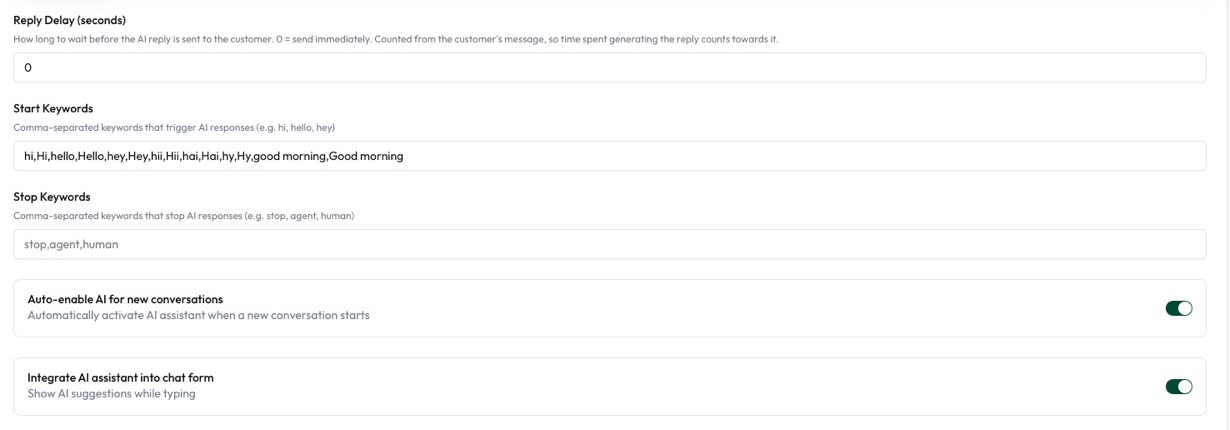
AI replies have their own switch. If you use the AI Assistant, stop keywords can switch it off so a person can take over.
Common mistakes to avoid
- Forgetting to publish. A saved flow doesn’t reply to anyone.
- Building everything at once. Launch one job, watch where people stop, then add more.
- Long labels. WhatsApp limits reply buttons to 20 characters and list row titles to 24.
- Expecting the bot to message first. Text, button and list steps only reach someone whose 24-hour window is open. To write first, send an approved template to opted-in contacts.
- Putting Update Contact after a button. It waits for the next message, so a tap just before it isn’t saved. Use it after a question people answer by typing, and record tapped choices with Add to Group.
- Saving a reply to Phone Number. That’s the number you reach them on. Put a second number in Notes.
- Asking people to type CANCEL, QUIT or END. In Automate AI those words, sent on their own, opt the contact out, just like STOP. Use a button for those choices.
- Using one keyword in two flows. Keep each keyword in one flow, so you know which one will answer.
- Asking for sensitive details. Never ask for full card, account or ID numbers in a chat.
Frequently asked questions
Do I need to know how to code?
No. In Automate AI you drag steps onto a canvas and connect them. The Webhook step is optional, and only for sending data to another system.
Can I build a chatbot in the WhatsApp Business app?
No. The app has greeting and away messages and quick replies. Chatbots need the WhatsApp Business Platform (API).
How long does it take to build a WhatsApp chatbot?
A simple menu bot can be live in an afternoon if your number is already connected and your content is ready. Larger bots take longer, so start with one job.
Can AI build the chatbot for me?
Yes. Generate with AI drafts a flow from a plain description. You review and edit it on the canvas, and it stays inactive until you publish it.
Can a WhatsApp chatbot message people first?
Only with an approved template to people who opted in. Chatbot messages themselves work inside the 24-hour window after a customer messages you.
How does a chatbot hand over to a person?
Add a Talk to a person button that tells the customer what happens next and alerts your team. Your team replies from the shared inbox and can turn the chatbot off for that chat.
What does it cost to run?
You pay for the platform plan, and Meta charges for service messages after the first 1,000 per number each month. Rates depend on the country; see WhatsApp API pricing by country.
Sources
- WhatsApp Business Messaging Policy
- Meta: Send messages (customer service window)
- Meta: Interactive reply buttons messages
- Meta: Interactive list messages
- Meta: Pricing on the WhatsApp Business Platform
WhatsApp rules and prices change. We check these guides against Meta’s documentation, but always confirm current terms with Meta before you rely on them. Questions? Message us on WhatsApp at +91 836 977 8812.