WhatsApp Business Profile Picture and Cover Photo Sizes
What size your WhatsApp Business profile picture and cover photo should be, what WhatsApp and Meta actually state, a safe size to use and how to upload it.
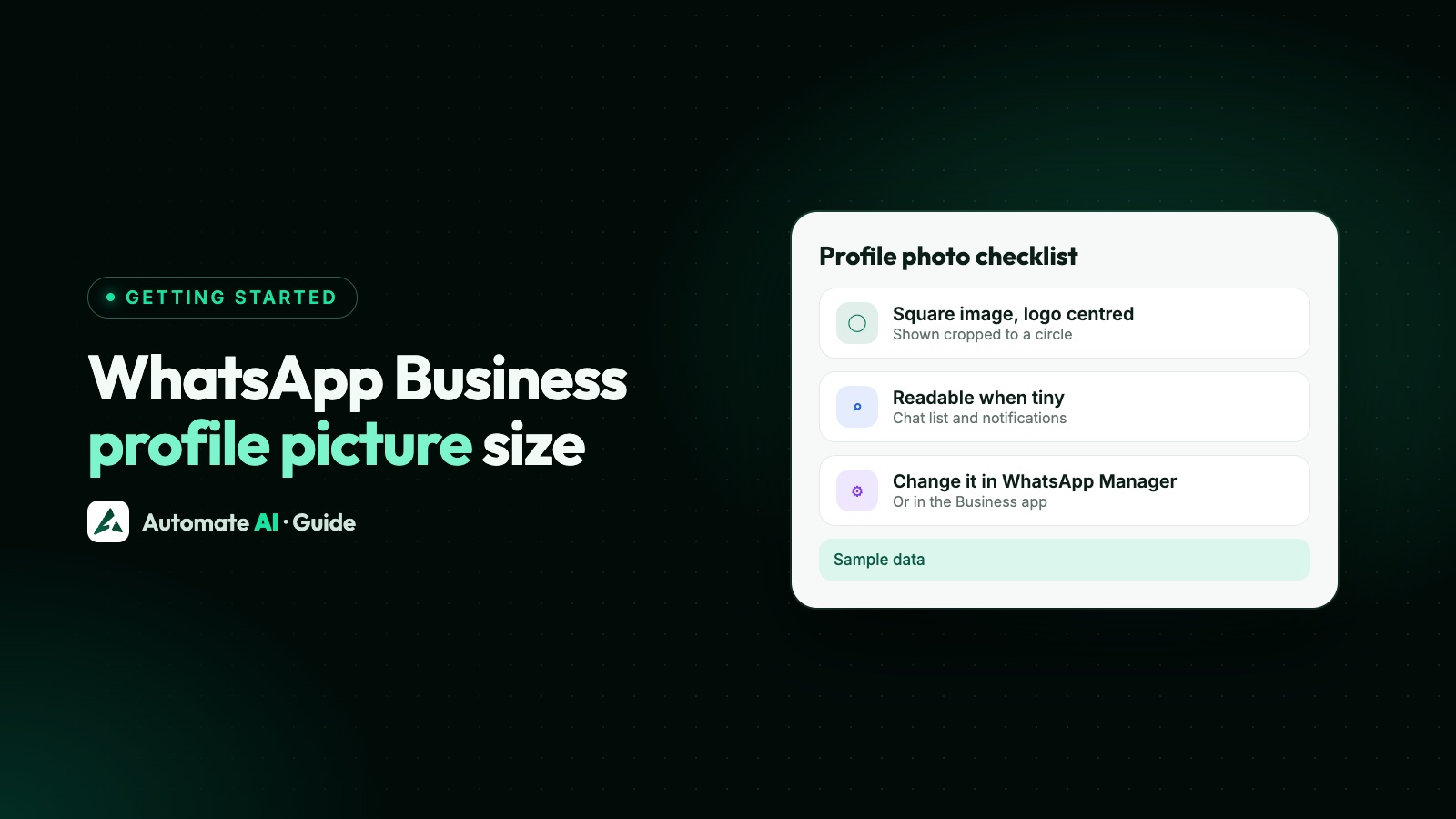
WhatsApp and Meta don’t publish an exact pixel size for a WhatsApp Business profile picture or cover photo. What they do say is how to upload and crop each one, the image types the upload API accepts (JPEG and PNG), and that both photos are public by default. So the safe approach is a square, sharp image of your logo for the profile picture and a wide, simple image for the cover.
Plenty of sites quote exact numbers as if they were official. They aren’t, and this guide doesn’t pretend otherwise. Below you’ll find what WhatsApp and Meta actually state, a practical size to export (clearly marked as our own suggestion), and the steps to change your photo in the Business app, in WhatsApp Manager and through the API.
Key takeaways
- WhatsApp’s Help Center and Meta’s developer docs give no official pixel size for the profile picture or the cover photo.
- Use a square image with your logo centred. We suggest exporting at 640 × 640 pixels as a JPEG or PNG; that’s our suggestion, not Meta’s rule.
- The cover photo exists only in the WhatsApp Business app. The API business profile has no cover photo field.
- On the API, change the picture in WhatsApp Manager, or upload it with the Resumable Upload API and set
profile_picture_handle. - With Meta Verified, a new profile photo needs review, and after a lock of up to 20 days it can change once every three days.
What WhatsApp and Meta actually say about sizes
Before you resize anything, here’s what the official pages cover, and what they leave out. We checked WhatsApp’s Help Center article on editing a business profile and Meta’s developer pages for business profiles and uploads.
| Photo | Official pixel size? | What is stated |
|---|---|---|
| Profile picture (Business app) | No | Upload, take or remove a photo, then crop it (drag on the web, crop on a phone, and rotate on Android). Public by default. |
| Cover photo (Business app) | No | Take a new photo or pick one from your gallery, then crop it (and rotate it on Android). Public by default. |
| Profile picture (API) | No | Upload the file with the Resumable Upload API, which accepts JPEG and PNG, then pass the handle as profile_picture_handle. |
| Cover photo (API) | Not available | The API business profile fields don’t include a cover photo. |
You may see figures such as a minimum of 192 pixels quoted elsewhere. We couldn’t find them on any current WhatsApp or Meta page, so we haven’t repeated them as rules.
A practical size for your profile picture
With no official number, aim for an image that stays sharp after WhatsApp crops and shrinks it. Customers mostly see your picture small and round, in their chat list and at the top of your chat, so clarity matters far more than resolution.
- Shape: square. A square file crops cleanly, whatever shape WhatsApp shows it in.
- Size: we suggest 640 × 640 pixels. It’s large enough to look sharp and small enough to upload quickly. This is our recommendation, not a Meta requirement.
- Format: JPEG or PNG. These are the image types Meta’s Resumable Upload API accepts.
- Safe area: keep your logo inside the middle of the square, with space around it, so nothing important sits in the corners that get cropped away.
- Colour: a solid background in your brand colour reads better at small sizes than a photo of your shopfront.
What to put in it
Use your logo, or a simple logo mark if the full logo has small text. A long company name will be unreadable at chat-list size. If you’re a one-person business, such as a consultant or a tutor, a clear head-and-shoulders photo works too, as long as it matches your other channels.
Keep it the same picture you use on your website, Google listing and social pages. Customers check that a business is real by recognising it, and a mismatched picture makes them hesitate.
The cover photo: Business app only
The WhatsApp Business app lets you add a cover photo to your profile, shown as a wide banner behind your profile picture. WhatsApp doesn’t state a pixel size or aspect ratio for it, and the app asks you to crop whatever you choose.
Because it’s wide and cropped, choose an image that still makes sense if the edges are trimmed:
- A simple scene, such as your shop counter, products on a table or your team, with the subject near the middle.
- Plain colour or texture with a short line of text in the centre, if you want text at all.
- No prices, offers or dates, because the cover stays up long after a promotion ends.
If your number runs on the WhatsApp Business Platform (API) only, there’s no cover photo to set. If you use the Business app and the API together on one number (coexistence), the business profile is managed from the app, so you set the photos there. You can read more in our WhatsApp coexistence guide.
How to change it in the WhatsApp Business app
These steps follow WhatsApp’s Help Center. Menu names can vary slightly between app versions.
Profile picture on Android
- Go to the Tools tab, then tap Profile.
- Tap your profile photo, then the edit (pencil) icon.
- Take a new photo or choose one from your gallery.
- Crop or rotate it, then tap Done.
Profile picture on iPhone
- Go to the Tools tab, then tap Profile.
- Tap Edit under the profile picture (Add Photo if there isn’t one yet).
- Tap Choose Photo, crop it and tap Choose, or Take Photo, crop it and tap Use Photo.
- To remove it, tap Delete Photo, then Delete Photo again.
Cover photo on a phone
On iPhone, tap the camera icon next to the cover, choose or take a photo, crop it and tap Choose or Use Photo. On Android:
- In your business profile, tap the cover photo.
- Tap the camera icon to take a photo, or the gallery icon to pick one.
- Crop or rotate it, then tap Done. To remove it, tap delete, then Remove.
On WhatsApp Web or desktop
Click your business profile photo and choose to view, take, upload or remove a photo. After uploading, drag the image to adjust it and click the tick. For the cover photo, click the pencil icon on it. Some profile details, such as your business name, can only be edited in the mobile app.
How to change it on the WhatsApp Business API
In WhatsApp Manager (no code)
- Open WhatsApp Manager, then Account tools › Phone numbers.
- Select your business phone number.
- Open the Profile tab, update the picture and save.
Through the API (for developers)
- Start an upload session:
POST /<APP_ID>/uploadswithfile_name,file_length(in bytes) andfile_type, such asimage/jpegorimage/png. - Upload the file:
POST /upload:<UPLOAD_SESSION_ID>with the headerfile_offset: 0, your user access token in anAuthorization: OAuthheader, and the image as binary data. - Copy the
hvalue from the response. That’s the file handle. - Update the profile:
POST /<PHONE_NUMBER_ID>/whatsapp_business_profilewithmessaging_product: "whatsapp"andprofile_picture_handleset to the handle. - Check it: a
GETon the same endpoint withfields=profile_picture_urlreturns the link to your current picture.
If an upload is interrupted, a GET on the upload session returns the file_offset to resume from. Other profile fields, such as About and description, and their character limits are in our guide to the WhatsApp Business profile.
Meta Verified, display names and photo changes
If your business has an active Meta Verified subscription, WhatsApp says profile name and photo updates need review and approval. Profile details can be locked for up to 20 days after verification, and the profile photo can be changed once every three days. Settle on your final logo before you verify.
Your picture and your name work together. On the API, the name customers see is your display name, which Meta reviews separately from the photo. See WhatsApp display name rules before you change both at once.
Your profile in Automate AI
In Automate AI, the Business Profile Settings card in Settings › WhatsApp updates your WhatsApp business description, address, email and industry on your connected number. The profile picture isn’t changed from there, so update it in WhatsApp Manager using the steps above. It shows up in your customers’ chats once WhatsApp has it.
Once your profile looks right, the picture is what customers see next to every campaign, reminder and reply you send. You can plan those in WhatsApp campaigns, and start from our own samples in the WhatsApp template library.
Checklist before you upload
- The image is square, with the logo in the middle and space around it.
- It’s a JPEG or PNG, exported sharply (we suggest 640 × 640 pixels).
- Text in the picture, if any, is readable when the image is the size of a thumbnail.
- It matches your website, Google listing and social profiles.
- For the cover photo (app only), the subject stays visible when the edges are cropped.
- If you’re Meta Verified, you’ve allowed for review time and the three-day limit between photo changes.
Frequently asked questions
What is the WhatsApp Business profile picture size in pixels?
WhatsApp and Meta don’t publish an official pixel size. Use a sharp square image with your logo centred. We suggest 640 × 640 pixels as a JPEG or PNG, which is our recommendation rather than a Meta rule.
What size is the WhatsApp Business cover photo?
WhatsApp doesn’t state one. The Business app lets you crop the image you pick, so choose a wide picture with the subject in the middle that still works when the edges are trimmed.
Can I set a cover photo on the WhatsApp Business API?
No. The API business profile has fields for the profile picture, About, description, address, email, websites and category, but no cover photo. The cover photo is a WhatsApp Business app feature.
How do I change my profile picture on the WhatsApp API?
In WhatsApp Manager, go to Account tools › Phone numbers, select your number and edit the Profile tab. Developers can upload the image with the Resumable Upload API and set the returned handle as profile_picture_handle.
Why does my WhatsApp Business profile picture look blurry or cut off?
Usually the image was small, not square, or had the logo too close to the edges. Re-export it as a square with the logo centred and some space around it, then upload it again.
Is my WhatsApp Business profile picture public?
Yes. WhatsApp says the business profile photo and the cover photo are public by default.
Sources
- WhatsApp Help Center: How to edit your business profile
- WhatsApp Help Center: Updating business information in your Meta Verified profile
- Meta: Business profiles (fields and WhatsApp Manager steps)
- Meta: Business profiles API reference (profile_picture_handle)
- Meta: Resumable Upload API
- Meta: Image messages (limits for images you send)
WhatsApp rules and prices change. We check these guides against Meta’s documentation, but always confirm current terms with Meta before you rely on them. Questions? Message us on WhatsApp at +91 836 977 8812.