How Long Does WhatsApp Template Approval Take? Every Status Explained
Meta says WhatsApp template review can take up to 24 hours. What each template status means, how you’re told, and what to do when review takes longer.
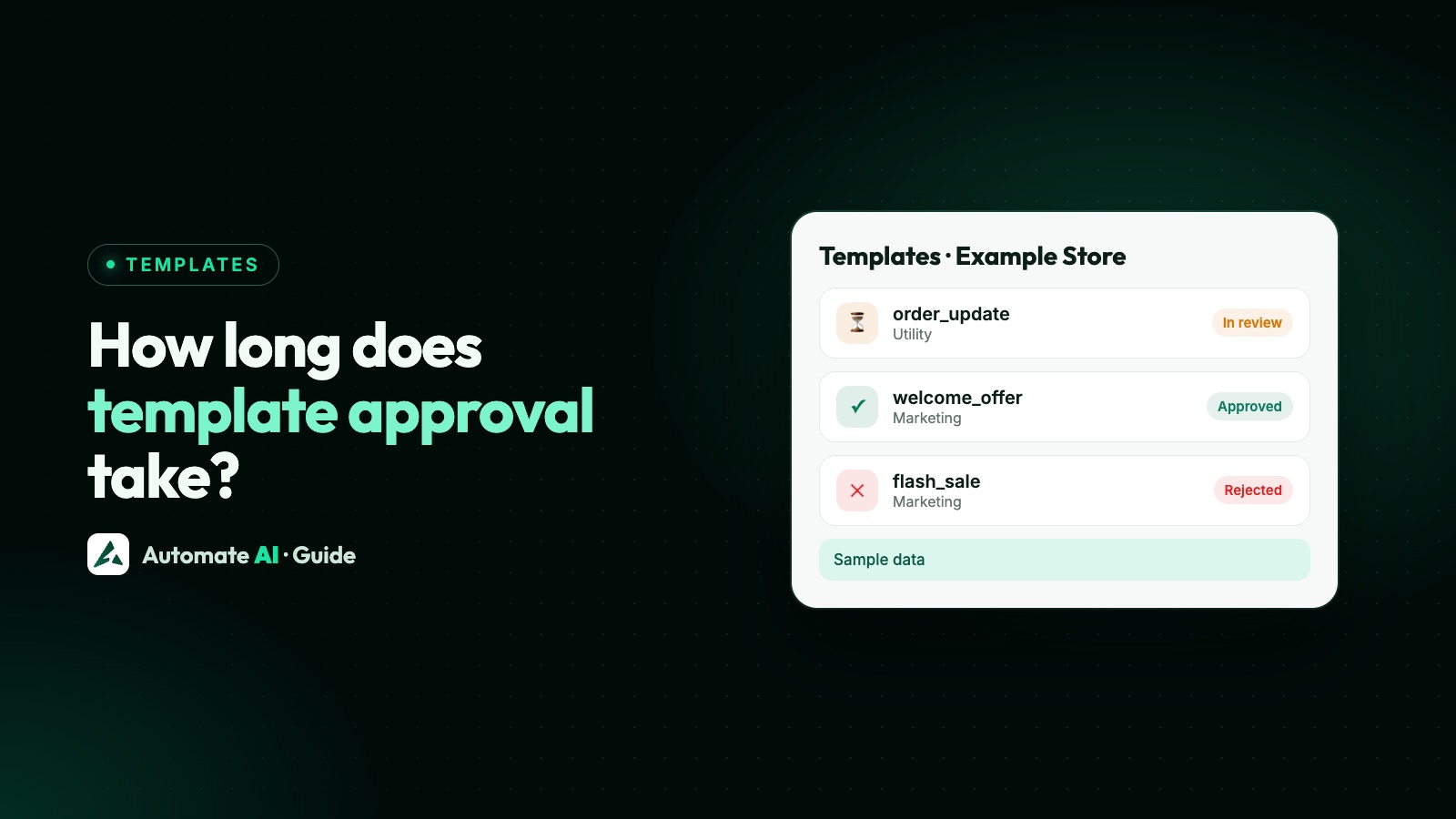
Meta says it can take up to 24 hours to decide on a WhatsApp template. Review starts automatically when you create a template or edit one, and an appeal against a rejection is also decided within 24 hours. Meta doesn’t promise anything faster, and no provider can approve a template for you.
While you wait, the template has a status, and after review it can move through several more. This guide explains each status Meta uses, what you can and can’t do in each one, how you find out about a decision, and how to plan campaigns around review time.
Key takeaways
- Meta’s stated review time is up to 24 hours, for new templates, edited templates and appeals alike.
- Only templates with the status APPROVED can be sent.
- A template in review (PENDING) or in appeal can’t be edited; wait for the decision.
- You hear back in WhatsApp Manager, by email to your business admins, and through the template status webhook your provider receives.
- Submit templates at least a day before you need them, and don’t edit an approved template the day of a campaign.
How long template review takes
Meta reviews templates automatically, as soon as they’re created or edited. Its template docs say review can take up to 24 hours. That window applies in three situations:
| Situation | What happens | Meta’s stated time |
|---|---|---|
| You submit a new template | It goes into review with the status PENDING | Up to 24 hours |
| You edit an approved, rejected or paused template | It’s reviewed again | Up to 24 hours |
| You appeal a rejection | The status changes to IN_APPEAL | A decision within 24 hours |
Meta gives no faster commitment for any category, and no provider can speed review up, skip it or promise an approval. Build your plans on the full 24 hours.
Every template status, in plain words
Meta sends these status values to your provider through the message_template_status_update webhook. Here’s what each one means for you:
| Status | What it means | Can you send it? | What to do |
|---|---|---|---|
| PENDING | Undergoing template review | No | Wait; you can’t edit it during review |
| APPROVED | Approved and ready for template messages | Yes | Use it, and keep an eye on its quality |
| REJECTED | Rejected in review | No | Fix and resubmit, or appeal |
| IN_APPEAL | In the appeal process | No | Wait for the decision, within 24 hours |
| FLAGGED | Received negative feedback and at risk of being disabled | Yes, for now | Review the wording and who you send it to |
| PAUSED | Paused, usually for low quality | No | Wait, or edit it; see below |
| DISABLED | Disabled because of user feedback | No | Create a new template with different content and a new name |
| REINSTATED | No longer flagged or disabled | Yes | Send carefully; the problem may come back |
| LOCKED | Locked and can’t be edited | Not stated by Meta | Create a new template if you need changes |
| LIMIT_EXCEEDED | Your messaging account has reached its template limit | Not for new templates | Delete templates you no longer use |
| ARCHIVED | Archived because it wasn’t used | Restore it first | Restore it within 28 days if you still need it |
| UNARCHIVED | Restored to its previous status | If it was approved | Check it still says what you want |
| PENDING_DELETION | Deleted in WhatsApp Manager | No | Already-sent messages keep trying to deliver |
| DELETED | Deleted | No | Create a new one; see the name rule below |
Meta’s descriptions for each value are short; the “What to do” column is our practical advice.
What WhatsApp Manager shows instead
WhatsApp Manager uses friendlier labels than the API. If your provider shows API values and Meta’s screens show words, this is how they line up:
| In WhatsApp Manager | API status |
|---|---|
| In review | PENDING |
| Active: Quality pending, High, Medium or Low | APPROVED (with its quality rating) |
| Rejected | REJECTED |
| Appeal requested | IN_APPEAL |
| Paused | PAUSED |
| Disabled | DISABLED |
A newly approved template shows Active: Quality pending until Meta has rated its quality. That’s normal and doesn’t stop you sending.
How you find out about a decision
- WhatsApp Manager: a notification appears when a decision is made.
- Email: Meta emails your Meta Business Suite admins, with the details when a template is rejected.
- Business Support Home: rejected templates and their reasons are listed there.
- Webhook: your provider receives the
message_template_status_updateevent with the new status and, for a rejection, a reason such as INVALID_FORMAT or INCORRECT_CATEGORY.
If a template was rejected, the reason tells you what to fix. Our guide to why WhatsApp templates get rejected explains each reason and how to fix and resubmit.
Still in review after 24 hours? What to do
- Refresh the status first. If your platform missed the webhook, it may still show PENDING after Meta has decided. Check WhatsApp Manager, or sync templates in your provider.
- Don’t submit a copy. A second template with the same body and footer is rejected as a duplicate, and it won’t be reviewed any faster.
- Don’t try to edit it. Meta lets you edit only approved, rejected or paused templates, so a template in review stays as it is.
- Plan B for the campaign. If you have an approved template that fits, send that instead and keep the new one for next time.
- Ask for help. If a template sits in review well past 24 hours, raise it with your provider or with Meta support through Business Support Home.
Editing, deleting and archiving: timing rules
Review time isn’t only about new templates. A few other rules decide when a template is ready to use:
| Action | Rule | Why it matters |
|---|---|---|
| Edit an approved template | Once in 24 hours, and 10 times in 30 days; it’s reviewed again | Don’t edit it on the day of a campaign |
| Edit a rejected or paused template | No edit limit; reviewed again | Fix it and resubmit as often as needed |
| Delete an approved template | Its name can’t be reused for 30 days | Give the replacement a new name |
| Delete a template with undelivered messages | Status PENDING_DELETION; delivery keeps trying for 30 days | Messages already sent may still arrive |
| Leave a template unused for 12 months | It’s archived, then deleted 28 days later unless restored | Restore seasonal templates before you need them |
| Disabled template | Can’t be edited or deleted | Create a new template with different content and a new name |
The name and language of a template can’t be changed after it’s sent to Meta. If you need either to change, create a new template.
After approval: flagged, paused and disabled
Approval isn’t permanent. Meta watches how customers react to each template. A template that collects negative feedback can be FLAGGED, then PAUSED, and in the end DISABLED. A template can also be REINSTATED if the problem clears.
Sends to a paused or disabled template fail, so a campaign built on it stops working. How long pauses last and how quality is measured are covered in our guide to WhatsApp quality rating and template pausing. Category changes after approval, such as a utility template moved to marketing, are explained in WhatsApp templates: types and examples.
A simple timeline for a campaign
Made-up example dates, for a campaign going out on a Friday:
| When | What to do |
|---|---|
| Monday | Write the template, check it against Meta’s rules and submit it |
| Tuesday | Check the status. If rejected, read the reason, fix it and resubmit (or appeal) |
| Wednesday | Second decision back. Send yourself a test message |
| Thursday | Choose the audience and schedule the send. No more edits |
| Friday | Campaign goes out from an approved template |
Build a small library of approved templates for things you send often, such as order updates, reminders and a general offer, so you’re never waiting on review for a routine message. Our WhatsApp template library has original samples to start from.
Template statuses in Automate AI
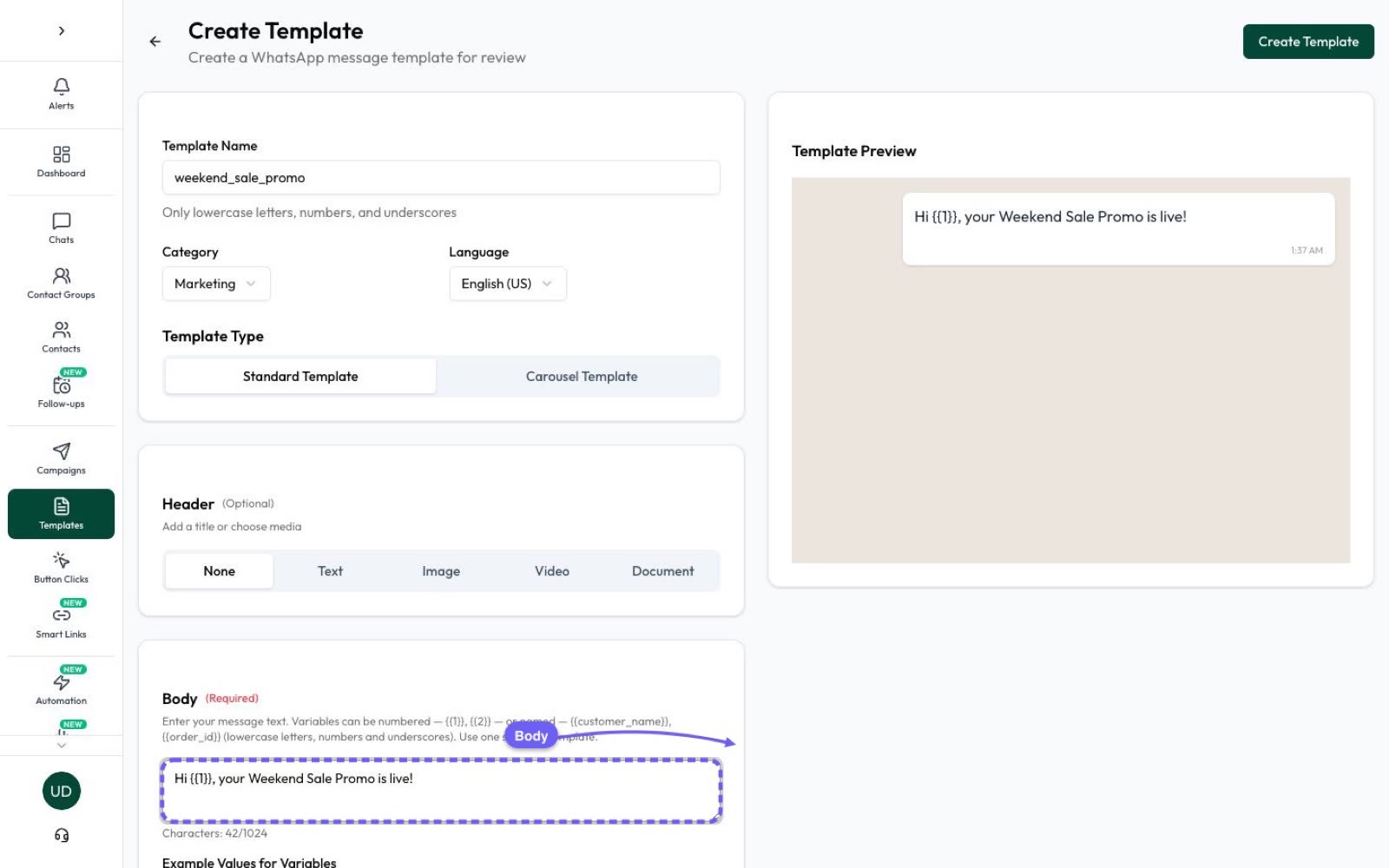
In Automate AI, Templates lists every template with its status as Meta reports it, such as APPROVED, PENDING, REJECTED, PAUSED or DISABLED, and shows Meta’s reason next to a rejected one. Status changes arrive from Meta’s template webhook, and the list also syncs with WhatsApp when you open the page and every hour, or straight away with Sync from WhatsApp.
- Campaigns and chat replies only let you pick approved templates, and Meta refuses any template that isn’t approved (error 132001), so a pending template can’t go out.
- A template in review or in appeal can’t be edited. Automate AI tells you to wait until it’s approved or rejected.
- When you edit an approved template, the name, language and category stay locked, as Meta requires.
Create and send templates in WhatsApp campaigns. AI Template Studio can draft a template and check it against Meta’s limits before you submit it, though Meta still makes the decision.
Frequently asked questions
How long does WhatsApp template approval take?
Meta says review can take up to 24 hours. It starts automatically when you create or edit a template, so plan for the full 24 hours.
What does PENDING mean for a WhatsApp template?
The template is being reviewed by Meta. You can’t send it or edit it until it’s approved or rejected.
How long does a WhatsApp template appeal take?
Meta says an appeal is reviewed and decided within 24 hours. While it’s being reviewed, the status is IN_APPEAL.
Can I speed up WhatsApp template approval?
No. Review is done by Meta and no provider can skip or hurry it. What helps is submitting a correct template the first time, with sample values for every variable, so you don’t lose a day to a rejection.
Does editing an approved template need approval again?
Yes. An edited template is reviewed again, and an approved template can be edited only once in 24 hours and 10 times in 30 days.
Why is my approved template not sending?
It may have been paused or disabled for low quality, or archived after a long time unused. Check its current status in WhatsApp Manager or your provider.
What does Active: Quality pending mean?
The template is approved and can be sent. Meta just hasn’t rated its quality yet.
Sources
- Meta: Template review
- Meta: Template fundamentals (statuses and review time)
- Meta: Template status webhook reference
- Meta: Template management (editing, deleting, archiving)
- Meta: Error codes (paused and disabled templates)
WhatsApp rules and prices change. We check these guides against Meta’s documentation, but always confirm current terms with Meta before you rely on them. Questions? Message us on WhatsApp at +91 836 977 8812.